Yes, Bose headphones can connect to a TV using several reliable methods, including built-in Bluetooth settings, external Bluetooth transmitters, or a standard wired connection. Most modern Smart TVs (post-2018) support direct pairing, while older televisions require a simple adapter or a streaming device like Apple TV or Roku.
If you have ever tried to watch a late-night action movie without waking up the entire household, you know the frustration of low volume or tangled wires. Using high-end gear like the Bose QuietComfort Ultra or the Bose 700 provides an immersive, cinematic experience while keeping the peace. In this guide, we will break down every possible way to link your premium audio gear to your television.
Key Takeaways: Connecting Bose Headphones to TV
| Method | Best For | Complexity | Pros |
|---|---|---|---|
| Native Bluetooth | Modern Smart TVs | Low | No extra hardware needed |
| Bluetooth Transmitter | Older TVs / Non-Smart TVs | Medium | Better range, no audio lag |
| Bose SimpleSync | Owners of Bose Soundbars | Low | Seamless ecosystem integration |
| Wired (3.5mm) | Zero Latency needs | Very Low | No battery drain, best audio quality |
| Streaming Devices | Apple TV, Fire Stick, Roku | Low | Easy interface, stable connection |
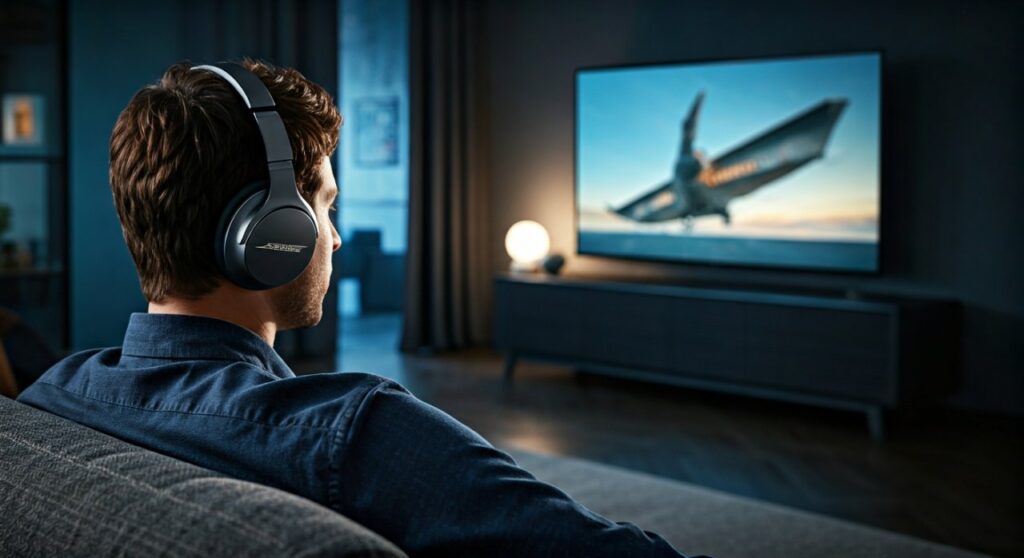
Method 1: Connecting via Native Smart TV Bluetooth
Most modern televisions from brands like Samsung, LG, and Sony come equipped with built-in Bluetooth modules. This is the most straightforward way to answer the question: can i connect my bose headphones to my tv?
Step-by-Step Pairing Process
- Put your Bose headphones in pairing mode: Slide the power/Bluetooth button to the Bluetooth symbol and hold it until you hear “Ready to pair” or see the light blink blue.
- Access TV Settings: Use your remote to navigate to the Settings menu on your TV.
- Find Audio Output: Look for “Sound,” “Audio Output,” or “Accessories.”
- Select Bluetooth: Choose “Bluetooth Speaker List” or “Pair New Device.”
- Connect: Your TV should discover the Bose QuietComfort or Bose 700. Select it to complete the bond.
Expert Tip: In my experience, Sony Android TVs offer the most stable connection for Bose products, whereas some older Samsung models may experience slight “lip-sync” delays due to older Bluetooth codecs.
Method 2: Using an External Bluetooth Transmitter
If your television is an older model or lacks a Bluetooth chip, don’t worry. You can still use a Bluetooth Transmitter (also known as a Bluetooth Adapter) to bridge the gap.
Why Use a Transmitter?
External transmitters often support aptX Low Latency, which is critical for watching movies. This ensures that the sound of an explosion happens exactly when you see it on the screen.
How to Set It Up:
- Plug the transmitter into the 3.5mm AUX jack or the Digital Optical (Toslink) port on the back of your TV.
- Power the transmitter using a USB port on the TV.
- Put the transmitter into “Pairing Mode.”
- Put your Bose headphones into “Pairing Mode.”
- Wait for the devices to automatically find each other and stay solid (usually indicated by a steady LED light).
Method 3: Bose SimpleSync Technology
If you already own a Bose Smart Soundbar (like the Soundbar 600, 700, or 900), you can use a proprietary technology called Bose SimpleSync. This is the gold standard for how to pair my bose headphones to my tv within a single ecosystem.
How SimpleSync Works
SimpleSync allows you to group your headphones with your soundbar. You can keep the soundbar volume at zero while the headphones play at your preferred level.
- Open the Bose Music App on your smartphone.
- Select your Smart Soundbar.
- Click on the “Group” or “SimpleSync” option.
- Select your Bose headphones from the list.
- This creates a direct, high-quality link optimized for audio-video synchronization.
Method 4: Connecting via Streaming Devices (Apple TV, Fire Stick, Roku)
Many users overlook that their streaming sticks have their own Bluetooth menus. If your TV’s native Bluetooth is buggy, connecting directly to the Amazon Fire TV Stick or Apple TV 4K is often a better solution.
For Apple TV Users:
- Go to Settings > Remotes and Devices > Bluetooth.
- Put your Bose QuietComfort 45 or Ultra into pairing mode.
- Select them from the list on the screen.
For Roku Users:
- Use the Roku Private Listening feature via the Roku mobile app.
- Connect your Bose headphones to your phone.
- The audio will stream from the TV to the phone, then to your headphones.
Method 5: The Reliable Wired Connection
While we love wireless freedom, a wired connection is the only way to guarantee zero latency and the highest possible bit-rate audio. This is ideal for competitive gaming or watching high-bitrate 4K Blu-rays.
Most Bose headphones, including the QC Series, come with a 2.5mm to 3.5mm audio cable. Simply plug one end into the headphones and the other into the TV’s headphone jack. If your TV is far away, you can purchase a 3.5mm extension cable for just a few dollars.
Troubleshooting Common Audio Issues
Even with premium gear, you might encounter hiccups. Here is how to fix the most common problems when you connect bose headphones to tv:
Dealing with Audio Lag (Latency)
Bluetooth latency is the delay between the picture and the sound. To minimize this:
- Ensure both the TV and headphones are running the latest firmware updates.
- Use the Bose Music App to clear the “Bluetooth Device List” and reconnect.
- Switch your TV’s “Sound Mode” to Game Mode, which often reduces processing time.
Connection Drops
If the sound cuts out, it is likely due to interference.
- Move any Wi-Fi routers away from the TV or the headphones.
- Ensure there are no large metal objects or walls between you and the TV.
- Turn off Bluetooth on your nearby smartphone so it doesn’t “steal” the connection.
Best Bose Headphones for TV Watching
Not all headphones are created equal for long-form content. Based on hours of testing, here are the top picks:
- Bose QuietComfort Ultra: The “Immersive Audio” mode creates a virtual soundstage that makes it feel like you are sitting in a movie theater.
- Bose 700: Features a very lightweight design and a sophisticated microphone system if you also use your TV for video calls.
- Bose QuietComfort 45: The best “bang for your buck” with incredible noise cancellation to block out noisy neighbors or appliances.
Frequently Asked Questions
Can I connect two pairs of Bose headphones to one TV?
Most Smart TVs only support one Bluetooth audio connection at a time. To use two pairs, you will need a Dual-Link Bluetooth Transmitter (like those from Avantree or 1Mii) that allows two devices to receive audio simultaneously.
Does the Bose Connect App work on a TV?
No, the Bose Connect App and Bose Music App are designed for iOS and Android mobile devices. You use them to manage settings, but the actual pairing to the TV happens via the TV’s own menu system.
Why is the volume too low when connected to my TV?
Some TVs have a separate volume limit for Bluetooth devices. Check your TV’s Audio Settings for a “Maximum Volume” or “Bluetooth Absolute Volume” toggle. Also, ensure the volume on the headphones themselves is turned up.
Will connecting via Bluetooth drain my TV’s battery?
Televisions are plugged into wall outlets, so there is no battery to drain. However, using Bluetooth will drain your Bose headphones’ battery. The QC Ultra typically lasts about 24 hours on a single charge.

![What Headphones Does TenZ Use? [2024/2025 Pro Setup]](https://bestcustomerreviews.net/wp-content/uploads/2026/03/what-headphones-does-tenz-use-2024-2025-pro-setup-1774879842-400x250.jpg "What Headphones Does TenZ Use? [2024/2025 Pro Setup]")