Yes, Your JBL Headphones Are Fully Compatible With Samsung
Can JBL headphones connect to Samsung? The short answer is a definitive yes. All modern JBL headphones, including the Tune, Live, and Quantum series, are fully compatible with Samsung Galaxy smartphones, tablets, and smart TVs via Bluetooth or a physical cable.
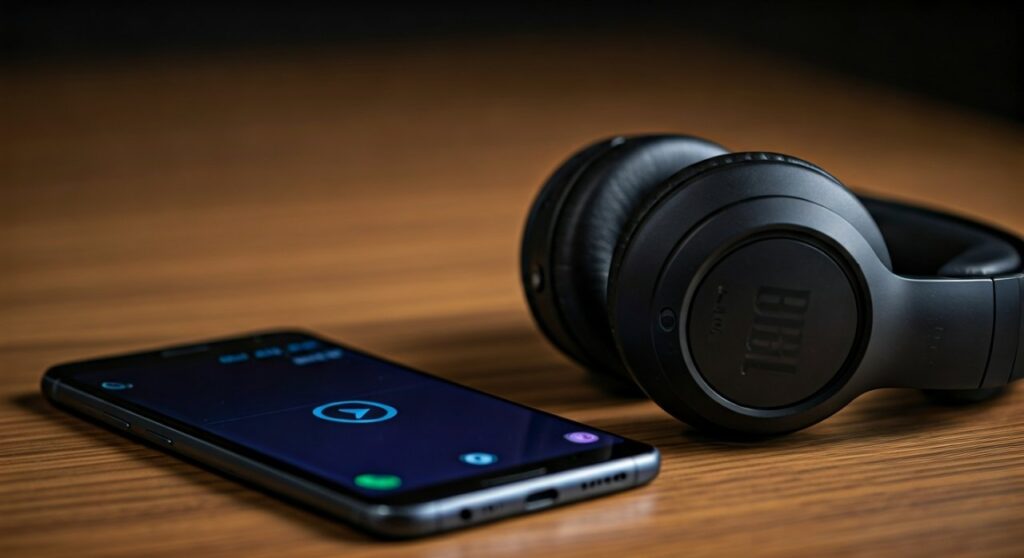
Whether you are using a flagship Samsung Galaxy S24 Ultra or a budget-friendly Galaxy A series device, the pairing process is seamless. Because Samsung utilizes the Android operating system and standard Bluetooth protocols, JBL products integrate perfectly with features like Google Fast Pair and the JBL Headphones App.
In this comprehensive guide, we will walk you through the step-by-step connection process, troubleshoot common pairing issues, and show you how to optimize your audio settings for the best possible listening experience.
Key Takeaways: Connecting JBL to Samsung
If you are in a hurry, here is the essential information you need to know about JBL and Samsung compatibility:
- Universal Compatibility: All JBL Bluetooth headphones work with all Samsung devices equipped with Bluetooth.
- Fast Pairing: Most newer JBL models support Google Fast Pair, which triggers a pop-up on your Samsung screen the moment you enter pairing mode.
- App Support: Use the JBL Headphones App on your Samsung device to customize EQ, update firmware, and manage Active Noise Cancelling (ANC).
- Wired Options: If your Samsung lacks a headphone jack, you can still connect via a USB-C to 3.5mm dongle.
- Optimization: Enabling Dolby Atmos in your Samsung sound settings can significantly enhance the spatial audio of your JBL hardware.
Why JBL and Samsung Are a Perfect Match
Many users worry that different brands won’t “talk” to each other effectively. However, JBL (owned by Harman, a subsidiary of Samsung Electronics) is specifically engineered to work flawlessly within the Samsung ecosystem.
Are JBL Headphones Compatible with Samsung Features?
Yes, JBL headphones are compatible with almost all proprietary Samsung audio features. While Samsung promotes their Galaxy Buds, JBL provides a robust alternative for those who prefer over-ear comfort or a different sound signature.
When you connect a JBL Live 660NC or JBL Flip speaker to a Samsung phone, you gain access to:
- Dual Audio: The ability to play music on two sets of JBL headphones simultaneously from one Samsung phone.
- Separate App Sound: Directing your music to your JBL headphones while keeping navigation sounds on your phone speaker.
- Bixby Integration: Using the dedicated voice assistant button on your JBL device to trigger Samsung’s Bixby.
Step-by-Step: How to Connect JBL Headphones to Samsung via Bluetooth
Connecting your wireless gear shouldn’t be a headache. Follow these steps to get your JBL headphones synced with your Samsung device in under 60 seconds.
Step 1: Put Your JBL Headphones into Pairing Mode
The method for entering pairing mode varies slightly depending on your JBL model:
- Earbuds (e.g., JBL Vibe, Tune Flex): Place them in the charging case, then remove them. If they don’t auto-pair, tap and hold the touch sensor on both buds for 5 seconds.
- Over-Ear/On-Ear (e.g., JBL Live 460NC, 770NC): Slide the power button up and hold it for 2-3 seconds until the status light flashes blue.
- Bluetooth Speakers: Press the dedicated Bluetooth button until the device chirps and the light starts blinking.
Step 2: Access Samsung Bluetooth Settings
On your Samsung Galaxy device:
- Swipe down from the top of the screen to open the Quick Settings panel.
- Long-press the Bluetooth icon to open the full menu.
- Ensure the toggle is set to On.
Step 3: Select Your Device
Your Samsung device will begin scanning for nearby hardware. Look for your specific model name (e.g., “JBL TUNE710BT”) under the “Available Devices” list. Tap the name to initiate the connection.
Step 4: Confirm the Pairing Request
A pop-up may appear asking for permission to pair. Tap “Pair” or “OK.” Once connected, the status light on your JBL headphones will typically turn solid blue or stop flashing.
Using the JBL Headphones App on Samsung
To unlock the full potential of your hardware, you should download the JBL Headphones App from the Google Play Store. This app acts as a command center for your audio experience.
Benefits of Using the App:
- Custom Equalizer (EQ): Choose from presets like “Jazz,” “Vocal,” or “Bass,” or create your own custom sound curve.
- Smart Audio & Video Modes: Switch to “Video Mode” to reduce latency (lag) while watching movies on your Samsung Tab.
- Firmware Updates: Ensure your headphones have the latest software to fix bugs and improve Bluetooth stability.
- Find My Buds: If you misplace your JBL earbuds, the app can trigger a loud beep to help you locate them.
| Feature | Standard Bluetooth | With JBL App |
|---|---|---|
| Audio Playback | Yes | Yes (Optimized) |
| Battery Monitoring | Basic | Precise Percentage |
| ANC Control | Physical Button Only | App Toggle + Custom Levels |
| Firmware Updates | No | Yes |
| Voice Assistant Setup | Default Only | Customizable (Bixby/Google/Alexa) |
How to Connect JBL Headphones to Samsung (Wired Method)
While wireless is the standard, many audiophiles prefer a wired connection for zero-latency gaming or high-resolution audio.
Using a 3.5mm Audio Cable
If you have an older Samsung Galaxy (like the S10) or a Galaxy Tab A, simply plug the 3.5mm cable into the headphone jack. Most JBL over-ear headphones come with a 2.5mm to 3.5mm cable in the box.
Using a USB-C Dongle
Modern Samsung phones (S20 and newer) do not have a headphone jack. To connect your JBL headphones:
- Purchase a high-quality USB-C to 3.5mm Headphone Jack Adapter.
- Plug the adapter into the Samsung charging port.
- Connect your JBL audio cable to the adapter.
Expert Tip: Always choose an “Active” adapter with a built-in DAC (Digital-to-Analog Converter). This ensures compatibility with Samsung’s strict USB-C audio requirements.
Troubleshooting: Why Won’t My JBL Headphones Connect to My Samsung?
Even with high-end tech, glitches happen. If you’re struggling to connect, try these expert-verified fixes.
Clear the Bluetooth Cache
Sometimes, the Samsung Bluetooth system gets “clogged” with old connection data.
- Go to Settings > Apps.
- Tap the “Filter and Sort” icon and enable “Show system apps.”
- Find Bluetooth > Storage > Clear Cache.
- Restart your phone and try pairing again.
Perform a Factory Reset on Your JBLs
If your headphones are acting erratic, a hard reset usually fixes it.
- For most JBL models: Power the device on. Press and hold the Volume Up (+) and Volume Down (-) buttons simultaneously for about 5-10 seconds.
- The device will power off or the LEDs will flash a specific color, indicating the reset is complete.
Check for Multipoint Interference
Many JBL headphones support Multipoint Connection (connecting to two devices at once). If your headphones are already connected to a laptop or a second phone, they may refuse to pair with your Samsung. Disable Bluetooth on other nearby devices during the initial setup.
Update One UI
Ensure your Samsung device is running the latest version of One UI. Go to Settings > Software Update > Download and Install. Software updates often contain patches for Bluetooth connectivity protocols.
Advanced Audio Settings for Samsung Users
Once connected, you can squeeze more performance out of your JBL headphones by tweaking a few hidden settings in your Samsung Galaxy.
Enable Dolby Atmos
Samsung features a powerful Dolby Atmos engine that works with any pair of headphones.
- Go to Settings > Sounds and Vibration.
- Tap Sound Quality and Effects.
- Toggle Dolby Atmos to On.
- Select the “Music” or “Movie” profile for a wider soundstage.
Use the Adapt Sound Feature
Everyone’s hearing is different. Samsung’s Adapt Sound tests your hearing and creates a personalized sound profile for your JBL headphones.
- In the Sound Quality and Effects menu, tap Adapt Sound.
- Choose a preset based on your age or take the “Test My Hearing” quiz.
- The difference in clarity, especially in the high frequencies, is often remarkable.
Expert Perspective: JBL vs. Galaxy Buds on Samsung
As someone who has tested dozens of audio combinations, I often get asked: “Should I buy JBL or Samsung’s own Galaxy Buds?”
While Galaxy Buds offer the “Auto-Switch” feature between Samsung devices, JBL often provides better passive noise isolation and more aggressive bass profiles. If you are an athlete, the JBL Reflect series offers a more secure fit than the standard Buds Pro. For office work, the JBL Live series’ microphone quality is frequently rated higher for clarity during calls on Samsung phones.
Are JBL headphones compatible with Samsung for gaming?
Absolutely. If you use the JBL Quantum series, you get a dedicated boom mic and “QuantumSURROUND.” When paired with a Samsung Galaxy phone’s Game Booster mode, you get a competitive edge with localized sound cues.
Frequently Asked Questions (FAQs)
Does the JBL Headphones App work on all Samsung phones?
Yes, as long as your Samsung phone is running Android 7.0 or higher. You can download the app for free from the Google Play Store to manage settings for most JBL wireless models.
Why is the volume so low on my JBL headphones when connected to Samsung?
This is often caused by a setting called “Media Volume Sync.” On some Samsung models, the phone volume and headphone volume are controlled separately. Try increasing the volume using the physical buttons on the JBL headphones themselves, then adjust your phone volume.
Can I connect JBL headphones to a Samsung Smart TV?
Yes. Most Samsung Smart TVs (2016 and newer) support Bluetooth. Go to Settings > Sound > Sound Output > Bluetooth Speaker List on your TV and put your JBLs into pairing mode to connect.
How do I fix audio lag when watching videos on my Samsung?
Open the JBL Headphones App and look for a setting called “Smart Audio & Video.” Select “Video Mode.” This reduces the processing time to ensure the audio matches the lip movements on your screen.
Do JBL headphones support Samsung’s Scalable Codec?
Generally, no. Samsung’s Scalable Codec is proprietary to Galaxy Buds. JBL headphones typically use AAC or SBC. However, because JBL hardware is high-quality, the difference in audio fidelity is virtually indistinguishable to the average ear.