To disable mic on bluetooth headphones windows 11, you simply need to navigate to Settings > System > Sound, click on your specific Bluetooth device under the Input section, and select “Don’t allow” next to the “Allow apps and Windows to use this device for audio” option. This action completely removes the microphone from the system’s active input list, preventing it from interfering with your audio quality or privacy.
Why You Should Disable Your Bluetooth Microphone
Many users find that when the microphone on a Bluetooth headset is active, the audio quality of the headphones drops significantly. This happens because Bluetooth bandwidth is limited; when the Hands-Free Profile (HFP) or Headset Profile (HSP) is activated to handle voice, the system sacrifices high-fidelity A2DP stereo sound.
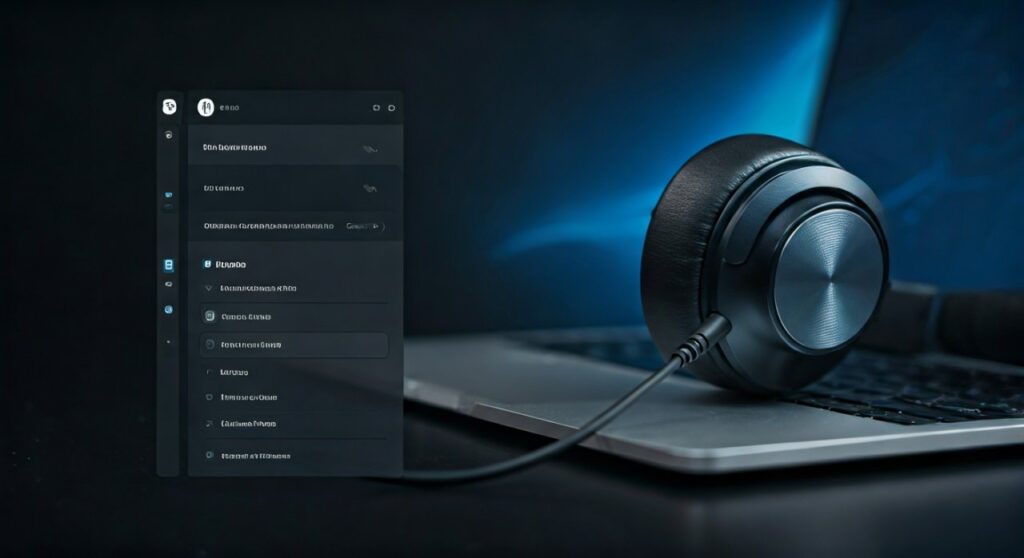
By learning how to disable mic on bluetooth headphones windows 11, you can:
- Force Windows to maintain high-quality stereo sound at all times.
- Prevent apps like Zoom, Microsoft Teams, or Discord from automatically switching your audio to “telephone quality.”
- Enhance your privacy by ensuring the hardware cannot listen to your surroundings.
- Reduce the battery drain on your wireless headphones.
Key Takeaways: Quick Summary
If you are in a hurry, here is the fastest way to manage your Bluetooth input settings:
| Method | Best For | Technical Difficulty |
|---|---|---|
| Windows Settings | Most users / Quick fix | Low |
| Sound Control Panel | Permanent hardware disabling | Medium |
| Device Manager | Driver-level removal | High |
| App Permissions | Privacy-focused control | Low |
Method 1: Disabling the Mic via Windows 11 Settings
The most modern way to turn off mic on bluetooth headphones windows 11 is through the redesigned Settings app. This method is user-friendly and doesn’t require administrative privileges in most cases.
- Press Windows Key + I to open the Settings menu.
- Navigate to System in the left sidebar and then click on Sound.
- Scroll down to the Input section. Here you will see a list of all microphones connected to your PC.
- Locate your Bluetooth Headphones (e.g., Sony WH-1000XM5 or Bose QC45) and click the arrow next to them.
- In the General section, find the option labeled “Allow apps and Windows to use this device for audio.”
- Click the “Don’t allow” button.
Once you click this, the microphone will disappear from the list of available input devices. Windows will now likely default to your laptop’s built-in microphone or a dedicated USB mic if you have one connected.
Method 2: Using the Legacy Control Panel (Deep Disable)
I have found through years of IT troubleshooting that the modern Settings app sometimes “forgets” your preferences after a Windows Update. To ensure your Bluetooth mic stays disabled, using the Legacy Sound Control Panel is the “pro” choice.
- Press Windows Key + R, type
mmsys.cpl, and hit Enter. - The Sound window will pop up. Click on the Recording tab at the top.
- Locate your Bluetooth headset. It usually appears twice: once as “Stereo” (Playback) and once as “Hands-Free AG Audio” (Recording).
- Right-click on the Bluetooth Hands-Free input.
- Select Disable from the context menu.
- Click Apply and then OK.
Expert Insight: When you disable the “Hands-Free” component here, you are effectively telling the Windows Audio Service to ignore the bidirectional communication link. This is the most effective way to stop the “muffled audio” bug common in Windows 11.
Method 3: Disabling via Device Manager (Hardware Level)
If you want to disable mic on bluetooth headphones so thoroughly that the computer doesn’t even recognize the mic driver, use the Device Manager. This is useful if the microphone is causing system crashes or driver conflicts.
- Right-click the Start button and select Device Manager.
- Expand the Audio inputs and outputs section.
- Right-click on the entry that says “Microphone (Bluetooth Hands-Free Audio Device)”.
- Select Disable device.
- A warning will appear stating that the device will stop functioning. Click Yes.
This method survives most updates and prevents the device from being re-enabled by third-party software. To reverse this, you must return to the Device Manager and select Enable device.
Method 4: Managing App-Specific Permissions
Sometimes you don’t want to disable the mic globally, but you want to stop specific apps from “hijacking” your Bluetooth connection.
- Go to Settings > Privacy & security > Microphone.
- Ensure Microphone access is turned on if you use other mics, but scroll down to the list of apps.
- Toggle the switch to Off for any specific apps (like Chrome or Games) that you don’t want using your Bluetooth headset mic.
- This prevents the “Communication Mode” trigger while allowing the hardware to remain “available” for other tasks.
Technical Comparison: Why Bluetooth Audio Quality Drops
Understanding the “why” helps you manage your devices better. Bluetooth uses different “profiles” to communicate.
| Profile Name | Purpose | Audio Quality |
|---|---|---|
| A2DP (Advanced Audio Distribution Profile) | Music/Media playback | High (Stereo) |
| HFP (Hands-Free Profile) | Phone calls / Voice chat | Low (Mono, 16kHz) |
| HSP (Headset Profile) | Basic voice communication | Very Low |
When Windows 11 detects an app requesting the microphone, it switches the entire Bluetooth link from A2DP to HFP. This causes the bit rate to plummet, making your high-end headphones sound like an old telephone. By following the steps on how to disable mic on bluetooth headphones windows 11, you prevent this switch from ever occurring.
Troubleshooting: What if the Mic Re-enables Itself?
I have encountered scenarios where Windows 11 automatically re-installs or re-enables Bluetooth drivers. If this happens to you, try these expert-level fixes:
- Disable the Service: Press
Win + R, typeservices.msc, and find Bluetooth Audio Gateway Service. Disabling this will stop the mic functionality but may also affect some media control buttons on your headset. - Registry Edit (Advanced): Navigate to
HKEY_LOCAL_MACHINESYSTEMCurrentControlSetControlClassto find audio controller settings, though this is rarely necessary for average users. - Update Bluetooth Drivers: Sometimes, “ghost” devices appear because of outdated Intel or Realtek Bluetooth drivers. Visit your motherboard or laptop manufacturer’s website to get the latest version.
Frequently Asked Questions (FAQs)
Does disabling the mic improve audio quality on Windows 11?
Yes, significantly. When the microphone is disabled, Windows 11 is forced to use the A2DP profile, which provides high-bitrate stereo sound. If the mic is active, the system often switches to the lower-quality Hands-Free Profile (HFP).
Can I still use the headphones to listen if the mic is disabled?
Absolutely. Disabling the microphone input does not affect the playback output. Your headphones will continue to function as a high-quality playback device.
How do I turn the mic back on later?
You can reverse the process by going back to Settings > System > Sound, clicking on your device under Input, and selecting “Allow”. Or, if you used Method 2, right-click the device in the Sound Control Panel and select Enable.
Why does my Bluetooth mic sound bad on Windows 11 anyway?
Bluetooth’s current architecture (up to Bluetooth 5.3) generally lacks the bandwidth to support high-definition two-way audio simultaneously. Most headsets use a compressed mono channel for the mic to save space for the return audio, resulting in poor voice quality compared to a wired or 2.4GHz wireless connection.
Is there a way to disable the mic using a physical button?
Some premium headphones from Sony, Bose, or Sennheiser have a “Mute” button. However, this only mutes the audio stream; it does not necessarily stop Windows from switching to the low-quality Hands-Free Profile. Software-level disabling as described above is the only way to guarantee audio quality.

![What Headphones Does TenZ Use? [2024/2025 Pro Setup]](https://bestcustomerreviews.net/wp-content/uploads/2026/03/what-headphones-does-tenz-use-2024-2025-pro-setup-1774879842-400x250.jpg "What Headphones Does TenZ Use? [2024/2025 Pro Setup]")