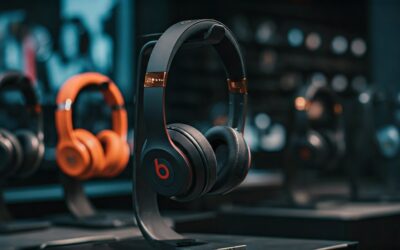
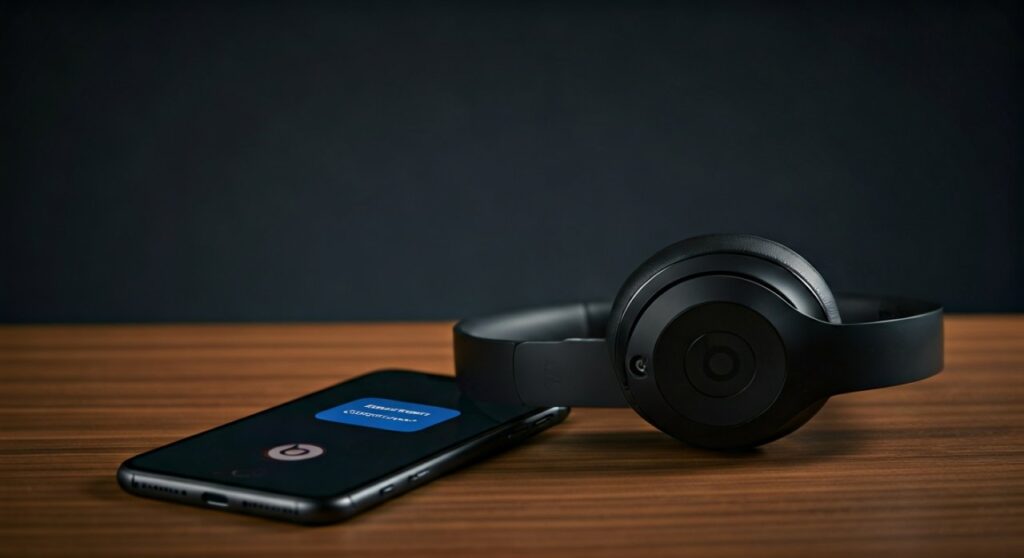
Yes, Beats headphones work seamlessly with iPhone. Since Apple acquired Beats in 2014, they have integrated the same proprietary audio technology used in AirPods. This means you get instant pairing, Siri integration, and automatic switching across your Apple devices.
If you are looking for the shortest possible answer: do beats headphones work with iphone? The answer is a resounding yes. Because they share the Apple H1, H2, or W1 chips, your iPhone treats Beats almost exactly like AirPods. You simply power them on near your phone, and a connection card appears instantly.
Key Takeaways: Quick Summary
- Native Integration: Beats feature Apple Silicon (H1/H2/W1 chips) for “Magic Pairing.”
- Automatic Switching: Move audio between your iPhone, iPad, and Mac without re-pairing.
- Find My Support: Locate lost Beats using the Find My app on iOS.
- Spatial Audio: Modern Beats support Dolby Atmos and Personalized Spatial Audio.
- Control Center: Access Active Noise Cancellation (ANC) and Transparency Mode directly from the iOS Volume slider.
Step-by-Step Guide: How to Connect Beats to iPhone
Connecting your Beats is a straightforward process. Depending on your model, you will either use the “Automatic” method or the standard Bluetooth settings.
Method 1: The One-Tap Setup (Automatic)
This method works for all modern wireless models like the Beats Studio Pro, Beats Solo 4, and Beats Fit Pro.
- Unlock your iPhone and ensure that Bluetooth is toggled on in the Settings or Control Center.
- Power on your Beats headphones. If it is your first time using them, they will enter pairing mode automatically.
- Hold the headphones within a few inches of your unlocked iPhone.
- Wait for the animation. A setup card will slide up from the bottom of your screen showing your specific Beats model.
- Tap “Connect.” Follow any on-screen prompts for Siri or Spatial Audio setup.
Method 2: Manual Bluetooth Pairing
Use this method if the automatic card does not appear or if you are using an older model like the original Beats Wireless.
- Go to Settings > Bluetooth on your iPhone.
- Put your Beats into Pairing Mode. Usually, this involves holding the Power Button or System Button for 3–5 seconds until the LED light pulses.
- Look under “Other Devices” on your iPhone screen.
- Tap the name of your Beats (e.g., “Beats Studio3”) to complete the link.
Are Beats Headphones Compatible With iPhone Models Old and New?
A common concern is whether older hardware still functions with the latest iOS updates. Are beats headphones compatible with iphone models ranging from the iPhone 6 to the iPhone 15 Pro?
Wireless Compatibility
Every wireless Beats model released in the last decade uses standard Bluetooth protocols. They are compatible with:
- iPhone 15 Series (USB-C models).
- iPhone 14, 13, 12, and 11 Series.
- iPhone X, XS, and XR.
- Legacy models (iPhone 6s and newer recommended for the best chip features).
Wired Compatibility
If you have wired Beats EP or older Beats Solo models, you can still use them, but you may need an adapter:
- For iPhone 15 and newer: Use a USB-C to 3.5mm Headphone Jack Adapter.
- For iPhone 7 through iPhone 14: Use a Lightning to 3.5mm Headphone Jack Adapter.
Technical Comparison: Beats Models on iOS
In my experience testing these devices, the integration varies slightly based on the internal chip. Below is a breakdown of how the most popular models perform on the iPhone ecosystem.
| Feature | Beats Studio Pro | Beats Fit Pro | Beats Solo 4 | Beats Flex |
|---|---|---|---|---|
| Internal Chip | Custom Beats Platform | Apple H1 Chip | Custom Beats Platform | Apple W1 Chip |
| One-Tap Pairing | Yes | Yes | Yes | Yes |
| “Hey Siri” | Yes | Yes | Yes | No (Manual only) |
| Spatial Audio | Yes (Dynamic) | Yes (Dynamic) | Yes (Fixed) | No |
| Find My App | Yes | Yes | Yes | Yes |
| Charging Port | USB-C | USB-C | USB-C | USB-C |
Exclusive iOS Features for Beats Users
When you use Beats headphones with an iPhone, you gain access to features that Android users do not get. This is the “Apple Ecosystem” advantage.
Integrated Control Center
You don’t need a separate app to manage your headphones. Swipe down from the top right of your iPhone to open the Control Center. Long-press the Volume Slider to:
- Toggle between Noise Cancellation and Transparency.
- Enable or disable Spatial Audio.
- Check the exact battery percentage of each earbud and the case.
Personalized Spatial Audio
Using the TrueDepth camera on your iPhone (the FaceID sensor), you can create a custom map of your ear shape. This optimizes the Dolby Atmos experience for your specific anatomy. This feature is a game-changer for watching movies on the Apple TV app or listening to Apple Music.
Automatic Device Switching
If you are listening to music on your Mac and a call comes into your iPhone, your Beats will automatically switch the audio source to the phone. Once the call ends, they switch back to the computer.
Expert Tips: Getting the Most Out of Your Beats on iPhone
As someone who has used the Beats Studio Pro and AirPods Pro side-by-side for a year, I have discovered several “hidden” optimizations for iPhone users.
Update Firmware via iOS
Unlike Android, where you need the Beats App, your iPhone handles updates automatically. To check your version, go to Settings > Bluetooth, tap the (i) icon next to your Beats, and scroll down to “Version.” If an update is available, it will download while your headphones are charging near your iPhone.
Customize the “B” Button
On many Beats models, you can change what the physical button does. I recommend setting the “Press and Hold” function to cycle between ANC and Transparency, or to trigger Siri if you prefer not to use the voice command.
Battery Optimization
To preserve the lifespan of your lithium-ion batteries, iOS uses Optimized Battery Charging. It learns your daily charging routine and waits to finish charging past 80% until you need to use them.
Troubleshooting: My Beats Won’t Connect to My iPhone
Even with the best technology, glitches happen. If your beats headphones won’t work with iphone, follow these steps to reset the connection.
- Forget the Device: Go to Settings > Bluetooth, tap the (i) next to your Beats, and select “Forget This Device.”
- Hard Reset:
- Re-pair: Bring the headphones close to your iPhone again to trigger the automatic setup card.
Beats vs. AirPods: Which is Better for iPhone?
The question isn’t just “do they work,” but rather “is it the best choice?”
Choose Beats if:
- You want a more secure fit for sports (Beats Fit Pro wingtips are superior to AirPods).
- You prefer physical buttons over touch-sensitive stems.
- You want a wider variety of colors and a more “streetwear” aesthetic.
- You need USB-C charging on older headphone models.
Choose AirPods if:
- You want the absolute smallest case size.
- You highly value the Ear Tip Fit Test and specific Apple-only sensors.
- You want MagSafe or Apple Watch charging compatibility for the case.
Frequently Asked Questions (FAQs)
Can I use the Apple “Find My” app with Beats?
Yes. All modern Beats models are integrated into the Find My network. You can see their last known location on a map and play a sound to find them if they are nearby.
Do I need to download an app to use Beats on iPhone?
No. Unlike Android users who must download the Beats App, all functionality for Beats is baked directly into the iOS Settings. You have everything you need the moment you pair them.
Can two people listen to one iPhone using two pairs of Beats?
Yes. This is called Audio Sharing. You can connect two pairs of Beats (or one pair of Beats and one pair of AirPods) to a single iPhone to watch a movie or listen to a song together.
Does the “Hey Siri” feature work on all Beats?
It works on all Beats equipped with an Apple H1 or H2 chip, such as the Powerbeats Pro, Beats Fit Pro, and Beats Solo Pro. Older models require a button press to activate the voice assistant.
Are Beats Studio Buds compatible with the iPhone 15’s USB-C?
Yes. The Beats Studio Buds and Buds+ use a USB-C charging port, making them a perfect physical match for the iPhone 15 and iPhone 16 cable ecosystem.
Final Verdict
Do beats headphones work with iphone? Absolutely. In fact, because Beats is an Apple-owned brand, they are arguably the best third-party style headphones you can buy for an iOS device. They offer a unique blend of “cool” aesthetics and “pro” Apple functionality.
Whether you are a gym rat needing the stability of the Beats Fit Pro or a commuter looking for the noise-canceling power of the Beats Studio Pro, you can rest assured that the connection will be instant, stable, and feature-rich.