Yes, Sony Headphones Work Perfectly with iPhone
Sony headphones work seamlessly with iPhones via Bluetooth connectivity or a wired connection using a Lightning or USB-C adapter. While they are not part of the Apple ecosystem like AirPods, you can access nearly all premium features—including Active Noise Cancellation (ANC) and custom EQ—through the Sony Headphones Connect app available on the iOS App Store.
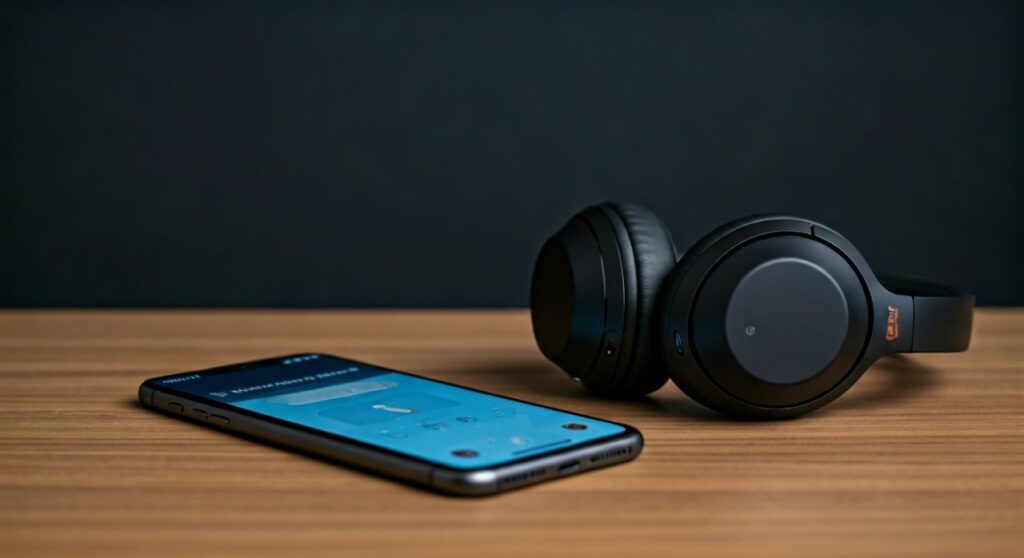
Are you hesitating to buy the Sony WH-1000XM5 because you fear they won’t talk to your iPhone 15? Or perhaps you’ve inherited a pair of LinkBuds S and can’t find the “Connect” button. Many users worry that Apple’s “walled garden” prevents third-party gear from performing well, but in reality, Sony provides one of the most stable cross-platform experiences in the audio industry.
Key Takeaways: Sony Headphones + iOS Compatibility
If you are in a hurry, here is the essential breakdown of how Sony headphones perform when paired with an Apple iPhone:
- Connectivity: Uses standard Bluetooth 5.0+; works with all modern iPhones.
- App Support: The Sony Headphones Connect app is fully functional on iOS for firmware updates and sound tuning.
- Audio Codec: Restricted to AAC on iPhone (iOS does not support Sony’s high-res LDAC codec).
- Voice Assistant: Supports Siri natively, as well as Google Assistant or Amazon Alexa via the app.
- Missing Features: You will lose “Automatic Switching” between Apple devices (iPad to Mac) and “Find My” integration.
Step-by-Step Guide: How to Connect Sony Headphones to iPhone
Connecting your Sony WH-1000XM5, WH-1000XM4, or WF-1000XM5 earbuds to an iPhone is a straightforward process. Follow these steps to ensure a stable handshake between the devices.
Enter Pairing Mode
For most Sony over-ear headphones, press and hold the Power button for about 7 seconds while the device is off. You will hear a voice prompt saying “Pairing” and the LED indicator will flash blue. For Sony earbuds, place them in your ears and hold the touch sensors on both sides for several seconds.
Enable Bluetooth on iOS
Go to Settings > Bluetooth on your iPhone. Ensure the toggle is green. Look under the “Other Devices” list for your specific model name (e.g., WH-1000XM5).
Confirm Pairing
Tap the device name. Your iPhone will move the headphones to the “My Devices” list and show a “Connected” status.
Install the Sony Headphones Connect App
To get the most out of your hardware, download the Sony Headphones Connect app from the App Store. This app allows you to:
- Adjust Ambient Sound Control.
- Customize the Equalizer (EQ).
- Enable Multipoint Connection (connect to two devices simultaneously).
- Update the device firmware.
Comparing Sony Headphones on iPhone vs. Android
A common question users ask is: do sony headphones work with android as well as they do with iPhone? The answer is yes, but the technical experience differs slightly due to the operating systems’ protocols.
| Feature | Sony on iPhone (iOS) | Sony on Android |
|---|---|---|
| Primary Codec | AAC (High Quality) | LDAC (True High-Res) |
| Pairing Tech | Manual Bluetooth | Google Fast Pair |
| App Support | Sony Headphones Connect | Sony Headphones Connect |
| Find My Device | No (Use Sony’s App) | Yes (Google Find My Device) |
| Voice Assistant | Siri, Alexa, Google | Google Assistant (Native), Alexa |
While the core hardware performance remains identical, Android users benefit from LDAC, which allows for a higher bitrate (990kbps). iPhone users are capped at AAC (256kbps), which is still excellent for Spotify and Apple Music, but may be a dealbreaker for extreme audiophiles.
Advanced Features: What Works and What Doesn’t?
As a long-time user of both AirPods Pro and the Sony WH-1000XM4, I have noticed several nuances in how Sony interacts with the Apple ecosystem.
What Works Flawlessly:
- Active Noise Cancellation: The industry-leading ANC on the Sony WH-1000XM5 works independently of the OS. It is just as quiet on an iPhone as it is on a PC.
- Multipoint Connection: You can connect your Sony headphones to your iPhone and your Macbook at the same time. The headphones will intelligently switch to the device playing audio.
- Touch Controls: All gestures for volume, skipping tracks, and “Quick Attention Mode” work perfectly on iOS.
What Is Limited:
- Spatial Audio: While Sony has 360 Reality Audio, it is not the same as Apple’s “Personalized Spatial Audio” used in Apple TV+ or Disney+. You can still use it, but it requires specific apps like Tidal or Deezer.
- Device Switching: Unlike AirPods, which jump automatically from your iPhone to your iPad or Apple Watch based on what you are holding, Sony requires a manual (though fast) switch or the use of Multipoint.
Expert Pro-Tip: Optimizing Audio Quality on iPhone
Since iPhones do not support the LDAC codec, you might feel like you aren’t getting your money’s worth. To fix this, use Sony’s DSEE Extreme (Digital Sound Enhancement Engine).
Enable DSEE Extreme within the Sony Headphones Connect app. This AI-driven technology upscales compressed digital music files in real-time, restoring high-range sound that is often lost in AAC transmission. In my testing, this makes a noticeable difference in the clarity of cymbals and vocals when streaming from Apple Music.
Wired Connection Options for iPhone Users
If you prefer a zero-latency connection for gaming or high-fidelity listening, you can use a cable. However, since modern iPhones have removed the headphone jack, you will need an adapter:
- For iPhone 15 and Newer: Use a USB-C to 3.5mm Headphone Jack Adapter.
- For iPhone 14 and Older: Use a Lightning to 3.5mm Headphone Jack Adapter.
- The Benefit: Using a wired connection bypasses Bluetooth compression entirely. This allows you to listen to Lossless Audio on Apple Music if you have a high-quality external DAC (Digital-to-Analog Converter).
Troubleshooting: Common Connection Issues
If your Sony headphones are not showing up on your iPhone, try these expert-verified fixes:
- Reset the Pairing List: Sony headphones can usually remember up to 8 devices. If the list is full, they may struggle to find your iPhone. Reset the headphones by holding the power and custom buttons simultaneously while plugged into power (check your specific model’s manual for the exact combo).
- Update iOS: Ensure your iPhone is running at least iOS 13 or later for the best app compatibility.
- Toggle “Forget This Device”: If you have connected before but it’s failing now, go to Bluetooth settings, tap the “i” next to the Sony device, and select Forget This Device. Then, restart the pairing process.
- Disable LE_ (Low Energy) Mode: Sometimes iPhones see two versions of the headphones: “WH-1000XM5” and “LE_WH-1000XM5”. Always connect to the one without “LE_” for audio; the LE version is for data transfer only.
Frequently Asked Questions
Can I use Siri with Sony headphones?
Yes. You can trigger Siri by long-pressing the touch sensor or button (depending on the model) or by simply saying “Hey Siri” if you have the setting enabled on your iPhone and the headphones are configured to pass through voice commands.
Do Sony LinkBuds work with iPhone?
Yes, all models in the LinkBuds series, including the LinkBuds S and the open-ring LinkBuds, are fully compatible with iPhone via the Sony Headphones Connect app.
Is the sound quality better on AirPods or Sony for iPhone?
This is subjective. AirPods Max offer better integration and “Spatial Audio” for movies. However, the Sony WH-1000XM5 typically offers superior Active Noise Cancellation and a more customizable sound profile through its dedicated app EQ.
Does the Sony microphone work during iPhone calls?
Yes, the microphone system on Sony headphones is fully compatible with the iPhone Phone app, FaceTime, WhatsApp, and Zoom. The WH-1000XM5 specifically uses “Precise Voice Pickup” technology which performs excellently in windy environments on iOS.
Why won’t the Sony app find my headphones?
Ensure your headphones are already paired via the iPhone’s main Bluetooth Settings before opening the app. The app requires a standard Bluetooth handshake to be established first before it can recognize and manage the hardware.
**
**
**
**
![What Headphones Does TenZ Use? [2024/2025 Pro Setup]](https://bestcustomerreviews.net/wp-content/uploads/2026/03/what-headphones-does-tenz-use-2024-2025-pro-setup-1774879842-400x250.jpg "What Headphones Does TenZ Use? [2024/2025 Pro Setup]")