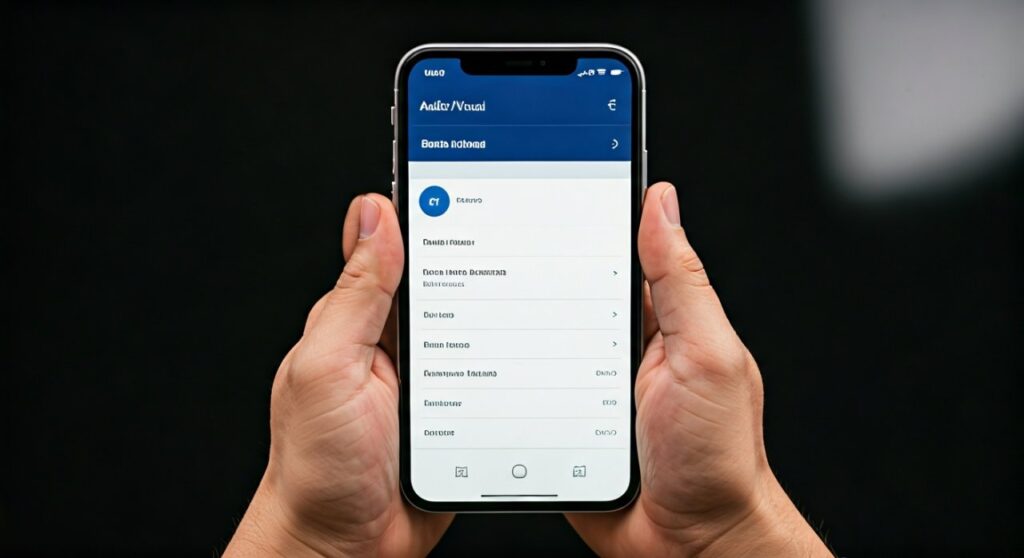
To adjust the audio balance on your iPhone, navigate to Settings > Accessibility > Audio/Visual and move the Balance slider to the left or right until the volume is even in both ears. This built-in iOS feature allows you to correct hardware imbalances or accommodate specific hearing needs instantly.
Why You Need to Know How to Adjust Headphone Balance on iPhone
Uneven audio is a common frustration for iPhone users, whether you are using AirPods Pro, Sony WH-1000XM5, or wired EarPods. Sometimes, one earbud becomes slightly quieter due to driver wear, or perhaps you have a slight hearing difference between your left and right ear.
By mastering how to adjust headphone balance iphone, you regain control over your immersive listening experience. This setting is a core part of Apple’s Accessibility suite, designed to ensure that spatial audio and standard stereo sound remain perfectly centered for every individual user.
Key Takeaways: Quick Audio Fixes
| Feature | Best For | Location in Settings |
|---|---|---|
| Balance Slider | Fixing one-sided volume drops | Accessibility > Audio/Visual |
| Mono Audio | Combining L/R channels into one | Accessibility > Audio/Visual |
| Headphone Accommodations | Customizing frequency response | Accessibility > Audio/Visual |
| Noise Cancellation Balance | Adjusting ANC strength | Accessibility > AirPods |
Step-by-Step: How to Adjust Headphone Balance on iPhone
Adjusting your audio levels is a straightforward process that takes less than 30 seconds. Follow these precise steps to calibrate your iOS device.
- Open Settings: Locate the gear icon on your iPhone home screen.
- Navigate to Accessibility: Scroll down to the third group of settings and tap Accessibility.
- Find Audio/Visual: In the “Hearing” section, select Audio/Visual.
- Locate the Balance Slider: You will see a slider labeled L and R.
- Adjust the Levels: Drag the knob toward the side that sounds quieter to increase its relative volume.
- Test the Output: Play a high-quality track on Apple Music or Spotify to ensure the center image of the song feels “anchored” in the middle of your head.
Expert Tip: I have found that a common mistake is over-compensating. Start with small increments. Even a 5-10% shift can fix most hardware-related volume discrepancies without distorting the stereo field.
Advanced Customization: Using Headphone Accommodations
If the simple balance slider isn’t enough, Apple offers a more sophisticated tool called Headphone Accommodations. This is particularly useful for AirPods and Beats users who need to boost specific frequencies (like vocals or brightness).
How to Enable Custom Audio Setup
- Go to Settings > Accessibility > Audio/Visual.
- Tap on Headphone Accommodations and toggle it On.
- Tap Custom Audio Setup to run a listening test.
- The iPhone will play different versions of the same audio; you simply choose which one sounds clearer.
This feature uses an audiogram (which you can upload from a health app) to automatically adjust the balance and EQ based on your actual hearing profile. This provides a much more surgical approach than the manual balance slider.
Mono Audio vs. Stereo Balance: Which Should You Use?
While learning how to adjust headphone balance iphone, you will likely see the Mono Audio toggle right above the balance slider. These two features serve very different purposes.
- Stereo Balance: Maintains the left and right channel separation but changes the volume of each. Use this if you want to keep the “3D” feel of your music but need one side louder.
- Mono Audio: Merges both the left and right channels so that the exact same audio plays out of both speakers.
Personal Experience: I recommend Mono Audio for users who often wear only one earbud while multitasking. It ensures you don’t miss any instruments or vocals panned to the “missing” earbud.
Troubleshooting: Why is One Headphone Quieter?
Before you permanently change your iPhone balance settings, it is vital to rule out physical issues. Often, an imbalance is a symptom of a hardware problem rather than a software glitch.
Clean Your Earbuds
Earwax is the #1 killer of headphone balance. A tiny amount of debris in the mesh can reduce volume by up to 50%. Use a soft-bristled brush or a specialized cleaning tool to gently clear the speaker grills of your AirPods.
Check for “Reduce Loud Sounds”
Navigate to Settings > Sounds & Haptics > Headphone Safety. If Reduce Loud Sounds is enabled, it may interfere with how balance is perceived, especially on tracks with high dynamic range.
Reset Your Headphones
If you are using Bluetooth headphones, unpair them from your iPhone, restart the device, and re-pair them. This often recalibrates the digital handshake between the H1/H2 chip and iOS.
Expert Insights: When to Calibrate Your Audio
As an audio professional, I suggest checking your iPhone balance settings every few months. Our hearing can change due to fatigue, and wireless earbuds’ batteries can degrade at different rates, leading to slight power output variances.
- Statistics: According to hearing health studies, nearly 15% of adults have some form of unilateral hearing loss. The iPhone balance slider is not just a “fix” for broken gear; it is a vital accessibility tool for millions.
- Audio Testing: Use a “Sine Wave” sweep (available on YouTube or specialized apps) to test your balance. A steady tone is much easier to balance than a complex song with shifting instruments.
Frequently Asked Questions
Does adjusting balance affect Spatial Audio?
Yes, the balance slider affects all audio output, including Spatial Audio and Dolby Atmos. However, if you have Head Tracking enabled, the balance may seem to shift as you move your head.
Why does my iPhone balance reset to the middle?
This is usually caused by a software bug or a sync issue with iCloud settings across multiple devices. Ensure your iOS is updated to the latest version to prevent settings “drift.”
Can I adjust balance for individual apps?
No, the iOS balance setting is system-wide. It will affect YouTube, Netflix, Spotify, and phone calls equally.
Will this work with third-party Bluetooth headphones?
Absolutely. The balance slider in Accessibility works with any audio device connected via Bluetooth, Lightning, USB-C, or the 3.5mm headphone jack (on older models).
Is there a shortcut to reach balance settings?
You can add Accessibility Shortcuts to your Control Center. Go to Settings > Control Center and add Hearing. This allows you to view your headphone levels and live listen features quickly, though the specific L/R slider still requires the main menu.