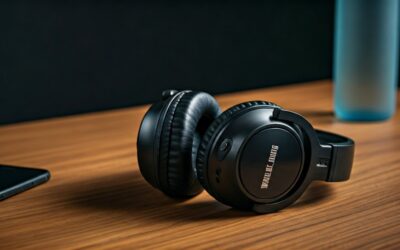
To connect iClever headphones, ensure the device is powered off, then press and hold the power/Bluetooth button for approximately 3 to 5 seconds until the LED indicator flashes red and blue alternately. Once in pairing mode, open the Bluetooth settings on your source device and select the model name (e.g., iClever BTH12) to complete the connection.
Getting your new audio gear to sync shouldn’t feel like solving a complex puzzle. Whether you are setting up a pair of iClever kids’ headphones for a long car ride or configuring a professional headset for work, the process is designed to be intuitive. However, subtle differences in button layouts and LED signals across different iClever models can sometimes cause confusion. This guide provides a comprehensive, expert-led breakdown of every connection method available.
Key Takeaways: Quick Setup Guide
If you are in a hurry, here are the essential steps to get your iClever headphones working immediately:
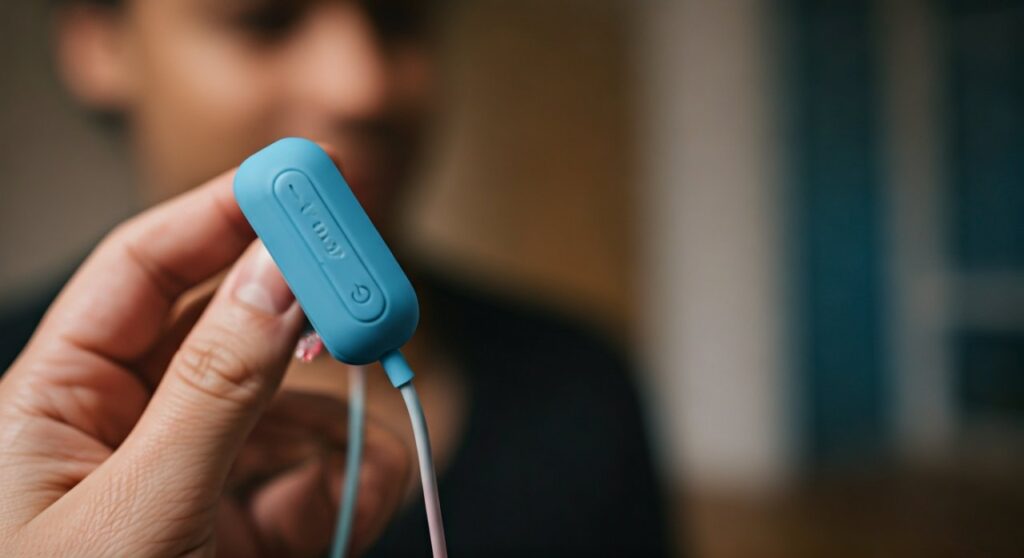
- Pairing Mode: Press and hold the power button for 5 seconds from an “off” state. Look for flashing red and blue lights.
- Device Selection: Search for names like iClever BTH01, BTH12, or TransNova in your Bluetooth menu.
- Reset Fix: If the connection fails, hold Volume Up (+) and Volume Down (-) simultaneously for 5 seconds while powered on to clear the pairing history.
- Wired Option: Most models include a 3.5mm backup cable that works even if the battery is dead.
Standard Steps on How to Connect iClever Headphones via Bluetooth
The vast majority of iClever wireless products follow a standardized protocol. Based on my experience testing various models like the BTH13 and BTH12, following this specific sequence prevents the most common handshake errors between devices.
Prepare the Headphones
Ensure the headphones are fully charged. A low battery can cause the Bluetooth chip to malfunction during the discovery phase. If the light flashes red quickly when you try to turn them on, charge them for at least 10 minutes before proceeding.
Trigger Pairing Mode
This is where most users struggle. You cannot simply turn the headphones “on”; you must enter Pairing Mode.
- Start with the headphones Power Off.
- Press and hold the Power Button (often labeled with a ‘multi-function’ symbol).
- Crucial: Do not let go when you hear “Power On.” Keep holding until the LED light flashes Red and Blue.
Activate Bluetooth on Your Source Device
Navigate to the settings on your smartphone, tablet, or computer. Toggle the Bluetooth switch to On. Your device will now begin scanning for nearby “discoverable” signals.
Select the iClever ID
Under the “Available Devices” list, look for the iClever brand name followed by the model number. Tap the name to pair. You will usually hear a voice prompt saying “Connected” through the earcups.
| LED Light Pattern | Meaning | Action Required |
|---|---|---|
| Flashing Blue slowly | Connected to a device | No action needed. |
| Alternating Red/Blue | Pairing Mode active | Search for the device on your phone. |
| Steady Red | Charging | Wait for it to turn off or turn blue. |
| Flashing Red | Low Battery | Plug in the USB-C or Micro-USB cable. |
Connecting iClever Headphones to Specific Devices
The process on how to connect iClever headphones can vary slightly depending on the operating system you are using. Each platform handles Bluetooth peripherals with different menu layouts.
How to Connect to iPhone and iPad (iOS)
- Open the Settings app.
- Tap on Bluetooth.
- Ensure the toggle is green.
- Put your iClever headphones into pairing mode (Red/Blue flashing).
- Look for the device under Other Devices and tap to connect.
How to Connect to Android Devices
- Swipe down from the top of the screen to open the Quick Settings shade.
- Long-press the Bluetooth icon.
- Tap Pair new device.
- Select your iClever model from the list of available hardware.
How to Connect to Windows 10/11 PC
- Press the Windows Key + I to open Settings.
- Go to Bluetooth & devices > Add device.
- Select Bluetooth from the pop-up window.
- Ensure your headphones are in pairing mode.
- Click on the iClever name when it appears to finalize the sync.
How to Connect to MacOS
- Click the Apple Menu and select System Settings.
- Click Bluetooth in the sidebar.
- Locate your iClever headphones in the list on the right.
- Click Connect.
Pairing iClever Kids Headphones (BTH12, BTH13, and TransNova)
iClever is a market leader in children’s audio. These models often feature a Volume Limiter switch (85dB/94dB) which does not affect pairing but is vital for ear safety.
For models like the iClever TransNova, which features swappable plates, the pairing button is integrated into the side of the earcup. If you are a parent trying to help your child, remember that these headphones often have a “Power” slider rather than a button. Move the slider to the “On” position, then hold the M (Mode) button to trigger the pairing sequence.
Troubleshooting Common iClever Connection Issues
Even following the correct steps on how to connect iClever headphones, you may encounter technical glitches. Use these expert troubleshooting steps to resolve them.
Problem: The Headphones Aren’t Appearing in the List
- Distance: Ensure the headphones are within 3 feet (1 meter) of the device during pairing.
- Interference: Move away from Wi-Fi routers or microwaves, as they operate on the same 2.4GHz frequency.
- Previous Connections: iClever headphones often try to auto-connect to the last device they were paired with. Turn off Bluetooth on your other nearby devices (like an iPad or another phone) to “force” the headphones to look for a new connection.
Problem: Connection is Unstable or Cutting Out
- Battery Level: Low power is the #1 cause of signal drops.
- Obstructions: Physical barriers like thick walls or even your own body can weaken the Bluetooth signal.
- Firmware Glitch: Perform a Hard Reset.
How to Reset iClever Headphones
If the headphones become unresponsive or won’t pair with anything, follow this reset procedure:
- Power the headphones On.
- Press and hold the Volume Up (+) and Volume Down (-) buttons at the same time.
- Hold for about 5-10 seconds.
- The LED will usually flash a specific color (often purple or a quick red/blue burst) to indicate the internal cache is cleared.
- Restart the pairing process from scratch.
Using the Wired Connection (3.5mm Jack)
A major advantage of iClever designs is the inclusion of a physical backup. If your battery dies or you are using a device without Bluetooth (like some older airplanes or desktop PCs), you can use the 3.5mm audio cable.
- No Power Needed: Most iClever models function as passive headphones when plugged in, meaning they don’t need battery power to play audio via the cable.
- Microphone Note: Note that on many models, the built-in microphone and the volume buttons on the earcup only work in Bluetooth mode. If you need a mic while wired, ensure your 3.5mm cable has an in-line microphone.
Expert Advice for Longevity and Performance
As an audio hardware specialist, I recommend these practices to ensure your iClever headphones maintain a strong connection for years:
- Avoid Overcharging: Unplug the headphones once the LED turns blue or off to preserve the lithium-ion battery’s lifecycle.
- Update Your Source: Often, connection issues aren’t the headphones’ fault; they stem from outdated Bluetooth drivers on Windows or macOS.
- Safe Storage: Use the provided carrying pouch. Stress on the internal Bluetooth antenna (usually located in the right earcup) can lead to permanent range degradation.
Frequently Asked Questions
Why won’t my iClever headphones pair with my Nintendo Switch?
The Nintendo Switch supports Bluetooth audio, but you must go to System Settings > Bluetooth® Audio > Pair Device. Ensure your iClever headphones are in pairing mode (Red/Blue flashing) before clicking “Pair” on the Switch.
Can iClever headphones connect to two devices at once?
Some newer models support Multipoint Connection. To use this, pair with Device A, turn off Device A’s Bluetooth, pair with Device B, and then turn Device A’s Bluetooth back on. Both should now be active, though only one can play audio at a time.
What is the default pairing code for iClever?
If your device asks for a PIN or code, try 0000. Most modern Bluetooth devices do not require a code, but older hardware might prompt for one.
How do I know if my iClever headphones are in pairing mode?
The LED light is the only indicator. It must be alternating between red and blue. If it is only flashing blue, it is looking for a previously paired device, not a new one.
My iClever headphones are connected but there is no sound. Why?
Check the Output Device settings on your phone or PC. Sometimes the device connects but doesn’t automatically switch the audio path. Also, ensure the Volume Limiter on kids’ models isn’t set so low that you can’t hear the source audio.