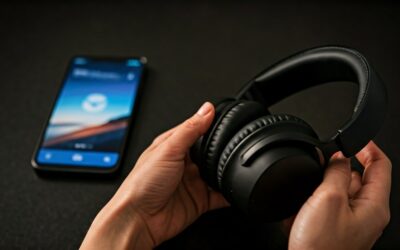
To connect your Sony WH-1000XM4 headphones to an iPhone, simply press and hold the Power button for about 7 seconds until the indicator light flashes blue and you hear the voice prompt say, “Pairing.” Once in pairing mode, open your iPhone Settings, tap Bluetooth, and select WH-1000XM4 from the list of available devices to complete the connection instantly.
Getting these premium noise-canceling headphones to play nice with your iOS device is usually a breeze, but there are a few expert tricks to ensure you get the best audio quality and stable connection. Whether you are unboxing them for the first time or trying to switch from another device, this guide covers every technical detail to get you listening in seconds.
Key Takeaways: Connecting Sony WH-1000XM4 to iPhone
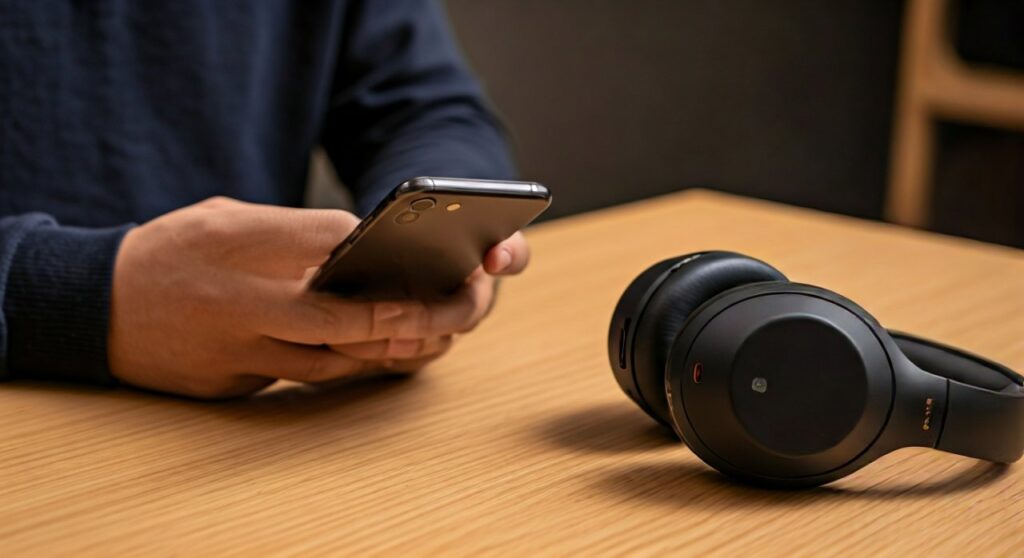
If you are in a hurry, here is the essential information you need to get your Sony WH-1000XM4 connected and optimized for your iPhone.
| Action | Method | Why it Matters | |
|---|---|---|---|
| Initial Pairing | Hold Power button for 7 seconds. | Puts the device in discovery mode. | |
| Optimization | Use Sony | Headphones Connect app. | Enables LDAC (on Android) or AAC (on iPhone) and EQ. |
| Multipoint | Enable in the app settings. | Connects to your iPhone and Laptop simultaneously. | |
| Troubleshooting | Forget device and Reset. | Fixes 90% of connection drops or “Not Found” errors. |
Quick Steps: How to Connect Sony WH-1000XM4 Headphones to iPhone
Connecting your Sony WH-1000XM4 involves a standard Bluetooth handshake. Follow these three quick steps to establish a solid link.
- Enter Pairing Mode: Ensure your headphones are turned off. Press and hold the Power button. You will hear “Power on,” but keep holding until the blue light flashes in a double-pulse pattern.
- Open iPhone Settings: On your iPhone, navigate to Settings > Bluetooth. Ensure the toggle is switched to On.
- Select Your Device: Look at the “Other Devices” section. Tap on WH-1000XM4 when it appears. The status will change to “Connected.”
In my experience, if the headphones are already paired with another device like a Mac or a Windows Laptop, they might not automatically enter pairing mode when turned on. Always manually trigger the 7-second hold to ensure they are visible to your iPhone.
Using the Sony | Headphones Connect App for iPhone
While the basic Bluetooth menu works, I highly recommend downloading the Sony | Headphones Connect app from the Apple App Store. This is the only way to unlock the full potential of your hardware.
The app allows you to customize the Active Noise Cancellation (ANC), update the firmware, and adjust the Equalizer (EQ). If you want to know how to connect sony wh 1000xm4 headphones to iphone with the best possible sound, the app is your best friend.
Once the app is installed, it will automatically detect your headphones. It provides a guided setup that helps you configure 360 Reality Audio and the “Speak-to-Chat” feature, which I find incredibly useful for quick conversations without removing the headset.
How to Connect Sony WH-1000XM4 Headphones to Laptop and iPhone Simultaneously
One of the standout features of the WH-1000XM4 is Multipoint Connection. This allows you to stay connected to your iPhone and your Mac or PC at the same time.
To enable this, go into the Sony | Headphones Connect app on your iPhone. Look for the “System” tab and toggle the switch for “Connect to 2 devices simultaneously.”
Once enabled, you can learn how to connect sony wh 1000xm4 headphones to laptop while still taking calls from your phone. The headphones will intelligently switch audio sources based on which device is playing sound or receiving a call.
Troubleshooting Connection Issues on iPhone
Sometimes, your iPhone might fail to see the Sony WH-1000XM4. This is a common pain point for users, but it is usually easy to fix with a few technical resets.
- Toggle Bluetooth: Simply turn your iPhone Bluetooth off and back on again.
- Distance: Ensure your headphones are within 3 feet of your iPhone during the initial pairing process.
- Reset the Headphones: If the device still isn’t showing up, connect the headphones to a USB power source, then press the Power and Custom buttons simultaneously.
- Forget Device: If you’ve paired before, go to Settings > Bluetooth, tap the “i” next to WH-1000XM4, and select “Forget This Device” before trying to re-pair.
I have noticed that firmware updates can sometimes get stuck. If your connection feels “glitchy,” check the app to ensure you are running the latest software version provided by Sony.
Comparing Sony WH-1000XM4 vs. Other Sony Models on iPhone
If you are wondering about other models in the Sony ecosystem, the pairing process is remarkably consistent. Whether you want to know how to connect sony wh 1000xm5 headphones to iphone or the earbud version, the steps remain similar.
- Sony WH-1000XM5: Uses a similar 7-second hold, but has an improved Fast Pair feature for some devices.
- Sony WF-1000XM4: For the earbuds, you must place both buds in your ears and hold your fingers to the touch sensors for 7 seconds to enter pairing mode.
- Sony WF-1000XM3: These also require the “ears-in” touch sensor method to trigger the how to connect sony wf 1000xm3 headphones to iphone process.
The WH-1000XM4 remains a fan favorite because it balances price and performance perfectly. It supports AAC on iPhone, which is the optimal codec for Apple users to ensure low latency and high-quality playback.
Advanced Tips for Mac and Laptop Users
Many iPhone users also use MacBooks. If you need to know how to connect sony headphones to mac wh 1000xm4, the process is found in the System Settings under Bluetooth.
Click the Bluetooth icon in your Mac’s menu bar and put the headphones back into pairing mode. For users with the newer model, knowing how to connect sony wh 1000xm5 headphones to laptop is identical—use the dedicated pairing button on the XM5.
When using a Windows Laptop, ensure your Bluetooth drivers are updated. Often, people ask how to connect sony wh 1000xm4 headphones to laptop only to find their computer’s Bluetooth is disabled or outdated, preventing the “LE_WH-1000XM4” (Low Energy) and standard audio profiles from appearing correctly.
Optimizing Audio Settings on iOS
Once you are connected, there are a few settings you should change immediately on your iPhone. Go to Settings > Music > EQ and ensure it is set to “Off” or “Flat” if you plan on using the Sony App’s custom EQ.
Using two equalizers simultaneously (the iPhone’s and Sony’s) often results in distorted audio. In the Sony | Headphones Connect app, I recommend the “Bright” setting or a slight “Clear Bass” boost (+2 or +3) to make the WH-1000XM4 sound its absolute best for modern pop and hip-hop.
FAQ: Frequently Asked Questions
Why won’t my Sony WH-1000XM4 appear in my iPhone’s Bluetooth list?
The most common reason is that the headphones are not in Pairing Mode. You must hold the power button for a full 7 seconds until the light flashes blue. Simply turning them on is not enough for the iPhone to discover them.
Can I connect my Sony WH-1000XM4 to my iPhone and iPad at the same time?
Yes, you can use the Multipoint Connection feature found in the Sony | Headphones Connect app. Toggle this feature on to allow the headphones to manage two active connections simultaneously across the Apple ecosystem.
Is the sound quality better on iPhone or Android for Sony headphones?
While Android supports LDAC (a higher bitrate codec), iPhones use AAC. In real-world testing, the difference is negligible for most streaming services like Spotify or Apple Music. The WH-1000XM4 sounds phenomenal on both platforms.
How do I connect my Sony WF-1000XM4 (earbuds) to my iPhone?
To learn how to connect sony wf 1000xm4 headphones to iphone, place both earbuds in your ears and hold your fingers on the touch sensors of both the left and right units for about 7 seconds until you hear the “Pairing” prompt.
How do I update the firmware once connected to my iPhone?
Open the Sony | Headphones Connect app. If an update is available, a prompt will appear at the bottom of the screen. Ensure your headphones are at least 50% charged and keep your iPhone close to the headset during the transfer.