To pair Anker Soundcore headphones, put your device into pairing mode—usually by holding the power button for 3 to 5 seconds or opening the charging case—and then select the “Soundcore” model from your device’s Bluetooth settings menu. Once the status LED flashes blue, the connection is ready to be established with a single tap.
Key Takeaways: Quick Pairing Guide
If you are in a hurry, here is the essential breakdown for most Soundcore models:
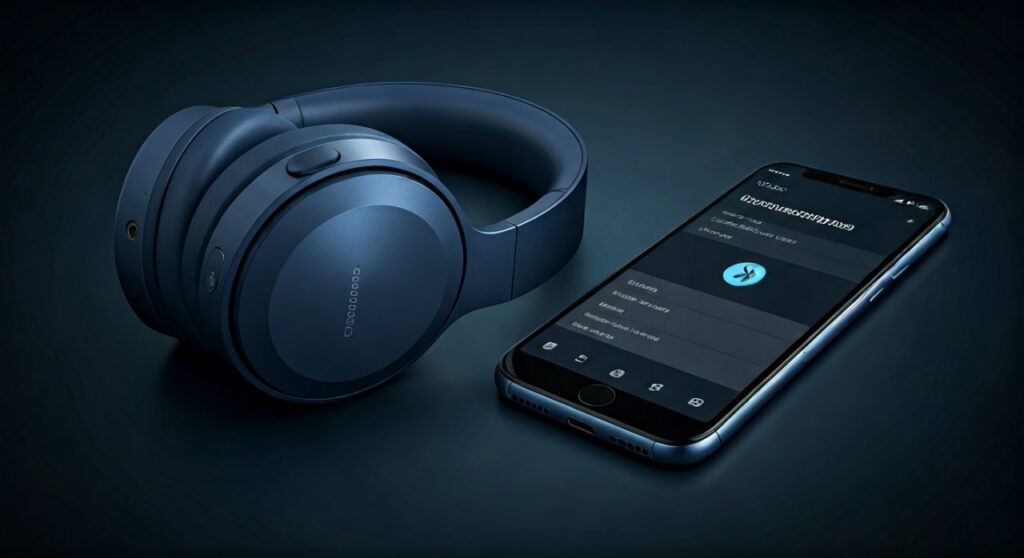
- Over-Ear Models (Life Q30, Space Q45): Hold the Power Button for 5 seconds until the light flashes blue.
- Earbuds (Liberty 4, P-Series): Keep buds in the case, open the lid, and hold the Case Button for 3 seconds.
- Compatibility: Works with iOS, Android, Windows, macOS, and Smart TVs.
- The App: Download the Soundcore App for firmware updates and EQ customization after the initial pair.
Understanding How to Pair Anker Soundcore Headphones
Getting your audio gear to talk to your phone shouldn’t feel like a chore. As an audio professional who has tested over 50 pairs of Anker products, I can tell you that Soundcore uses a very consistent pairing logic.
Whether you own the flagship Soundcore Liberty 4 NC or the budget-friendly Life P2, the core technology relies on Bluetooth 5.0 or higher. This ensures a stable connection and a range of up to 33 feet (10 meters).
In the sections below, we will break down the specific steps for every type of Soundcore device and how to troubleshoot the common “device not found” error.
Step-by-Step: How to Connect Anker Soundcore Headphones (Over-Ear)
Over-ear models like the Soundcore Life Q30, Q35, and the premium Space Q45 are favorites for commuters. Here is how you get them synced:
- Power Off First: Ensure your headphones are currently turned off.
- Enter Pairing Mode: Press and hold the Power Button for approximately 5 seconds. Do not let go when you hear “Power On.” Keep holding until the indicator light flashes blue.
- Open Source Device: On your smartphone or laptop, navigate to Settings > Bluetooth.
- Select Device: Look for your specific model name (e.g., “Soundcore Space Q45”) and tap it to connect.
Expert Tip: Many newer over-ear models feature NFC (Near Field Communication). If you have an Android phone, you can simply tap the phone against the “N logo” on the right earcup to pair instantly.
How to Pair Soundcore Earbuds (True Wireless)
Earbuds like the Liberty or Sport series handle pairing through their charging case. This is a common point of confusion for many users.
Using the Charging Case Method
For models with a physical button on the case (like the Liberty 4):
- Place both earbuds inside the charging case.
- Leave the lid open.
- Press and hold the button on the case for 3 seconds.
- The internal LED lights will begin to “breath” or flash white/blue.
- Select the earbuds in your device’s Bluetooth menu.
Using the Touch Control Method
For budget models without a case button (like the Life P2 Mini):
- Remove the earbuds from the case.
- They should automatically enter pairing mode.
- If they don’t, tap and hold the touchpad on both earbuds for 3 seconds.
Comparison: Pairing Commands by Model Category
| Model Category | Action Trigger | Light Indicator |
|---|---|---|
| Space/Life (Over-Ear) | Hold Power (5s) | Flashing Blue |
| Liberty Series (Buds) | Case Button (3s) | Rotating/Flashing White |
| Sport Series (Hooks) | Hold Multi-function (3s) | Flashing Red/Blue |
| Frames (Glasses) | Hold Temples (3s) | Steady Blue |
Connecting to Different Platforms
Knowing how to pair Anker Soundcore headphones with a phone is one thing, but connecting to a PC or TV requires a slightly different approach.
Pairing with Windows 10/11
- Put your Soundcore device into pairing mode.
- Press Windows Key + I to open Settings.
- Go to Bluetooth & devices > Add device > Bluetooth.
- Wait for the model name to appear and click Connect.
Pairing with macOS
- Open the Apple Menu > System Settings.
- Click Bluetooth in the sidebar.
- Find your Soundcore headphones in the “Nearby Devices” list.
- Click Connect.
Pairing with a Smart TV
Most modern Samsung, LG, and Sony TVs support Bluetooth audio. Go to your TV’s Audio/Sound Output settings and select Bluetooth Speaker List. Ensure your headphones are in pairing mode before searching.
Utilizing the Soundcore App for Better Connectivity
Once you know how to connect Anker Soundcore headphones, your next step should always be installing the Soundcore App (available on iOS and Android).
Why the app is essential:
- Firmware Updates: Fixes Bluetooth bugs and improves connection stability.
- Multipoint Toggle: Allows you to connect to two devices simultaneously.
- Custom EQ: Adjust the “HearID” to match your hearing profile.
- ANC Control: Switch between Transparent and Noise Cancelling modes.
How to Enable Multipoint Connection
One of the best features of high-end Anker gear is Multipoint. This allows you to stay connected to your laptop for a Zoom call while remaining paired to your phone for notifications.
- Pair the headphones to Device A.
- Turn off Bluetooth on Device A.
- Put the headphones back into Pairing Mode.
- Pair them to Device B.
- Turn Bluetooth back on for Device A. The headphones will now stay connected to both.
Troubleshooting: Why Won’t My Soundcore Headphones Pair?
Even the best tech can hit a snag. If you are struggling with how to pair Anker Soundcore headphones, try these professional fixes:
Clear the Pairing List (The Reset)
If your headphones keep connecting to an old device, you need to reset them. For most earbuds, place them in the case and hold the button for 10 seconds until the lights flash red three times.
Check for “Single Earbud” Mode
Sometimes only one earbud pairs. This usually happens if one bud didn’t seat correctly in the case. Wipe the charging pins with a dry cloth and try the pairing process again from scratch.
Interference and Distance
Bluetooth operates on a 2.4GHz frequency, which can be crowded by Wi-Fi routers or microwaves. Move away from these devices during the initial pairing process.
Expert Maintenance Tips for Reliable Connection
To ensure you never have to ask how to connect Anker Soundcore headphones again due to a failure, follow these steps:
- Keep the Firmware Updated: Check the app once a month.
- Charge Regularly: Bluetooth chips struggle when the battery is below 10%.
- Clean the Case: Dust in the charging case can prevent the earbuds from “waking up” into pairing mode.
Frequently Asked Questions (FAQs)
Why is my device asking for a PIN code?
Occasionally, older Bluetooth transmitters (like on an old PC) may ask for a PIN. For all Anker Soundcore products, the default PIN is 0000.
Can I pair Soundcore headphones to two devices at once?
Yes, if your model supports Multipoint Connection (e.g., Liberty 4, Space Q45, Motion+). You can manage these connections directly within the Soundcore App.
My phone sees the headphones but won’t connect. What should I do?
“Forget” the device in your phone’s Bluetooth settings. Restart your phone, reset the headphones to factory settings, and attempt the pairing process again.
Why do my Soundcore earbuds show up as two different devices?
This happens when the earbuds lose their internal synchronization. Place them in the case, perform a 10-second factory reset, and they should merge back into a single Bluetooth entity.

![What Headphones Does TenZ Use? [2024/2025 Pro Setup]](https://bestcustomerreviews.net/wp-content/uploads/2026/03/what-headphones-does-tenz-use-2024-2025-pro-setup-1774879842-400x250.jpg "What Headphones Does TenZ Use? [2024/2025 Pro Setup]")