To pair Bluetooth headphones with a Samsung TV, you need to navigate to the Sound Output settings within the TV’s menu and select Bluetooth Speaker List while your headphones are in pairing mode. Most Samsung Smart TVs manufactured after 2016 include built-in Bluetooth support, allowing for a seamless wireless audio connection in under 60 seconds.
If you are wondering, “can you connect bluetooth headphones to a samsung tv?” the answer is a definitive yes for almost all modern models. Whether you are using Bose, Sony, or AirPods, the process involves synchronizing the TV’s internal Bluetooth transmitter with your wearable device’s receiver. This setup is perfect for late-night movie marathons without disturbing the household or for individuals who require clearer audio closer to their ears.
Key Takeaways: Connecting Bluetooth Headphones to Samsung TV
- Quick Path: Home > Settings > Sound > Sound Output > Bluetooth Speaker List.
- Compatibility: Most models from the K, M, N, R, T, A, B, C, and D series (2016–Present) support Bluetooth.
- Pairing Mode: Your headphones must be in “Discovery Mode” (usually indicated by a flashing blue light) to be seen by the TV.
- Troubleshooting: If the device isn’t found, try a power cycle on both the TV and the headphones.
- Pro Tip: Use the Samsung SmartThings app for an even faster setup on 2022+ models.
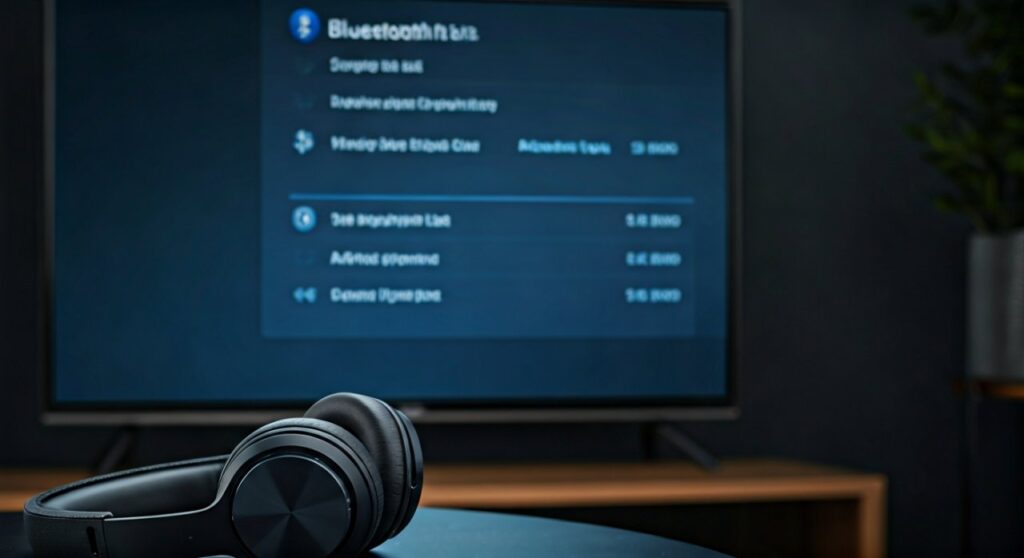
How to Connect Bluetooth Headphones to a Samsung TV (2021–2024 Models)
The interface for the latest Samsung Neo QLED and OLED TVs (running the newest Tizen OS) is streamlined for speed. Following these steps will help you how to connect wireless headphones to samsung tv efficiently.
- Activate Pairing Mode: Put your wireless headphones into pairing mode. For Bose headphones, this usually involves sliding the power button to the Bluetooth icon and holding it.
- Open Quick Settings: Press the Home button on your Samsung Smart Remote and navigate to Settings.
- Navigate to Sound: Select All Settings, then go to the Sound tab.
- Change Output: Click on Sound Output. The default is usually “TV Speaker.”
- Search for Devices: Select Bluetooth Speaker List. The TV will automatically begin scanning for nearby active signals.
- Complete the Link: When your headphone’s name appears on the screen, select it and choose Pair and Connect.
How to Pair Bluetooth Headphones to Samsung TV (2016–2020 Models)
Older Samsung Smart TVs use a slightly different menu structure. If you have an older RU8000 or Q60T, follow this path to pair wireless headphones to samsung tv:
- Enter Settings: Press the Home or Menu button and select Settings.
- Sound Menu: Go to Sound and then select Sound Output.
- Bluetooth Audio: Look for Bluetooth Audio Device List or Bluetooth Speaker List.
- Syncing: Place your headphones near the TV. Once they appear in the list, highlight them and press Select.
- Confirmation: A pop-up will appear asking to confirm the connection. Select OK.
Understanding Compatibility: Can You Connect Headphones to Samsung TV?
Not every Samsung TV has Bluetooth hardware built-in. Before you spend time trying how to connect samsung tv to bluetooth headphones, check your model’s specifications.
| TV Series Year | Series Letter | Bluetooth Support | Menu Path Type |
|---|---|---|---|
| 2023-2024 | C / D Series | Yes (Standard) | Smart Hub / All Settings |
| 2021-2022 | A / B Series | Yes (Standard) | Quick Settings / Sound Output |
| 2019-2020 | R / T Series | Most Models | Settings > Sound > Sound Output |
| 2017-2018 | M / N Series | Mid-to-High End | Settings > Sound > Sound Output |
| 2016 | K Series | Select Models | Settings > Sound > Expert Settings |
| Pre-2015 | H / J Series | Rare | Often requires a Bluetooth Adapter |
How to check if your TV has Bluetooth
If you don’t have the manual, go to Settings > Sound > Sound Output. If Bluetooth Speaker List is an option, your TV has Bluetooth. If it is missing, you may need an external Bluetooth transmitter that plugs into the 3.5mm AUX or Optical Audio port.
Expert Tips for Specific Brands: Bose and Sony
When learning how to connect bose headphones to samsung tv, users often face unique challenges with “Multipoint” connections.
Connecting Bose Headphones
Bose QuietComfort and 700 series headphones often try to connect to your phone simultaneously. For the best experience:
- Temporarily turn off Bluetooth on your smartphone.
- Hold the power switch on the Bose headphones until the voice prompt says “Ready to pair.”
- Select the device on your Samsung TV immediately.
Connecting Sony Headphones
For Sony WH-1000XM4 or XM5, hold the power button for 7 seconds until the indicator light flashes blue twice. This forces the headphones into a new pairing state, allowing the Samsung TV to see the device.
Troubleshooting Common Connection Issues
Even when you know how to pair headphones to samsung tv, technical glitches can occur. Here is how to fix them based on my years of testing audio-visual setups.
The TV cannot find the headphones
- Proximity: Ensure the headphones are within 3 feet of the TV during the initial pairing.
- Clear Pairing List: Many headphones can only remember 8 devices. Reset the pairing list on your headphones.
- Firmware Update: Check Settings > Support > Software Update on your TV. Outdated firmware can cause Bluetooth driver failures.
Audio Latency (Lip-Sync Issues)
Bluetooth naturally has a slight delay. If the audio doesn’t match the actors’ lips:
- Navigate to Settings > Sound > Expert Settings.
- Adjust the Digital Output Audio Delay.
- Alternatively, ensure your headphones support aptX Low Latency if you are using an external transmitter.
Connection Drops
- Interference: Move routers or baby monitors away from the TV. These often operate on the 2.4GHz frequency, the same as Bluetooth.
- Disable “Bluetooth Scanning”: Some Samsung TVs have a feature that constantly looks for new devices. Turning this off once connected can stabilize the stream.
Advanced Setup: Using the SmartThings App
For a truly modern experience, how to connect bluetooth headphones to tv samsung can be handled via your smartphone.
- Download the Samsung SmartThings app.
- Add your TV to the app dashboard.
- Select the Remote Control feature.
- Look for the TV Sound on Mobile or Bluetooth Audio toggle.
- This allows you to manage connections without digging through complex TV menus using a clunky remote.
Frequently Asked Questions (FAQs)
Can you connect Bluetooth headphones to a Samsung TV that doesn’t have Bluetooth?
Yes, you can use a Bluetooth Transmitter (Adapter). These devices plug into the Optical Out or 3.5mm Headphone Jack of the TV and broadcast the audio signal to your wireless headphones.
How many Bluetooth headphones can I connect at once?
Most Samsung TVs only support one Bluetooth audio connection at a time. However, some newer high-end models (2022+) include a Multi-output Audio feature that allows you to connect two pairs of headphones simultaneously via the Dual Audio setting.
Why do my AirPods keep disconnecting from my Samsung TV?
This is usually caused by the AirPods attempting to “Auto-Switch” back to an iPhone or Mac. To fix this, turn off Bluetooth on your nearby Apple devices while watching TV.
Can I control the headphone volume with the TV remote?
Yes. Once paired and connected, the Samsung Smart Remote will control the Bluetooth volume automatically. You will see a Bluetooth icon appear on the volume HUD on your screen.
Does connecting Bluetooth headphones disable the TV speakers?
By default, yes. However, if you go to Settings > Accessibility > Multi-output Audio, you can enable a mode where the TV speakers and the Bluetooth headphones play audio at the same time—useful for those with hearing impairments.

![What Headphones Does TenZ Use? [2024/2025 Pro Setup]](https://bestcustomerreviews.net/wp-content/uploads/2026/03/what-headphones-does-tenz-use-2024-2025-pro-setup-1774879842-400x250.jpg "What Headphones Does TenZ Use? [2024/2025 Pro Setup]")