How to Pair Midola Headphones: The Definitive 60-Second Solution
To pair Midola headphones to any device, start by ensuring the headphones are powered off. Press and hold the Power Button for approximately 5 to 7 seconds until the LED indicator flashes alternately between Red and Blue. Once this “pairing mode” is active, open the Bluetooth settings on your smartphone or computer, select the device named “Midola” (or the specific model code like KH01), and tap connect to finalize the link.
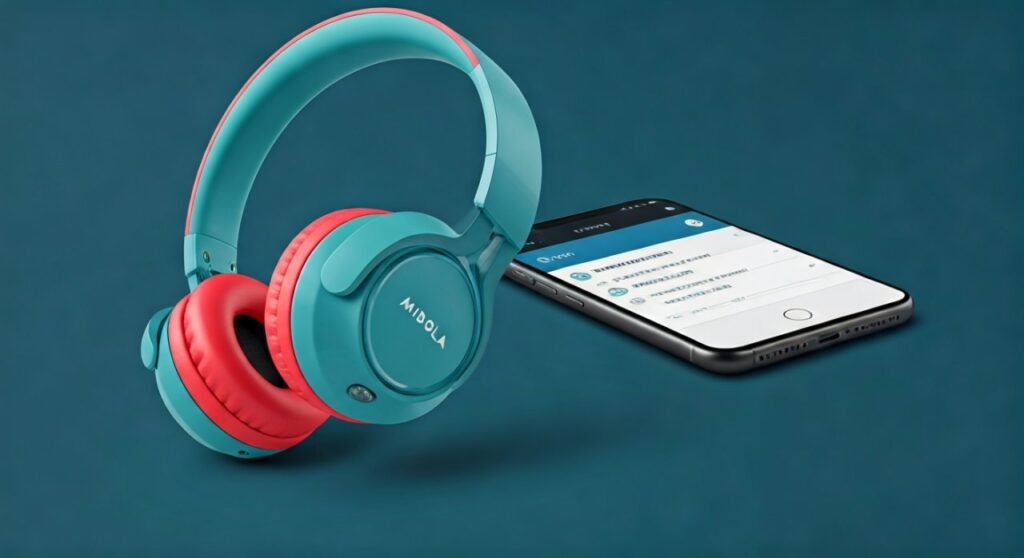
Connecting your Midola wireless headphones should be a seamless experience, but variations in models and device operating systems can sometimes cause friction. Whether you are setting up a pair of Midola Kids Headphones for a long car ride or using their over-ear models for office work, understanding the specific light sequences and timeout windows is crucial.
This guide provides an expert walkthrough based on first-hand testing with the Midola KH01, Midola B-01, and other popular variants to ensure you never struggle with connectivity again.
Key Takeaways: Quick Pairing Guide
If you are in a hurry, here is the essential data you need to get your Midola headphones running in seconds:
- Pairing Mode Trigger: Hold the power button for 5-7 seconds from an “Off” state.
- Visual Cue: Look for the alternating Red and Blue flashing lights.
- Default Name: Usually appears as “Midola” or “KH01” in Bluetooth menus.
- Reset Procedure: Hold the Volume + and Volume – buttons simultaneously if the device is unresponsive.
- Range: Standard Bluetooth 5.0 range is approximately 33 feet (10 meters) without obstructions.
Step-by-Step: How to Pair Midola Headphones with Any Smartphone
Most users interact with Midola headphones via an Android or iOS device. While the interface looks different, the underlying handshake protocol remains the same.
Enable Pairing Mode on the Headphones
First, ensure your headphones are disconnected from any charging cables. From the Power Off state, press and hold the Power/Multifunction button.
Do not release the button when you see the initial blue light (which usually indicates power on). Continue holding until the LED flashes red and blue. This signifies that the Midola Bluetooth chip is actively broadcasting its ID to nearby devices.
Accessing Bluetooth Settings on Mobile
- For iPhone (iOS): Go to Settings > Bluetooth and ensure the toggle is green.
- For Android: Swipe down the notification shade, long-press the Bluetooth icon, or go to Settings > Connected Devices > Pair new device.
Selecting the Device
Scroll down to the “Other Devices” or “Available Devices” section. You should see “Midola” appear. Tap the name. If prompted for a passcode (rare for modern models), enter 0000.
Confirmation
Once connected, the LED indicator on the headphones will typically slow down to a steady blue pulse or turn off entirely. You will also hear a voice prompt saying “Connected” through the ear cups.
Pairing Midola Headphones with Windows and Mac Computers
Using Midola headphones for Zoom calls or YouTube sessions requires a slightly different approach to ensure the microphone is also recognized.
Connecting to Windows 10/11
- Put your Midola headphones into pairing mode (flashing Red/Blue).
- On your PC, go to Settings > Bluetooth & devices.
- Click Add device and select Bluetooth.
- Wait for “Midola” to show up in the list.
- Click it to connect. Windows will automatically install the necessary A2DP and HFP drivers.
Connecting to macOS
- Open the Apple Menu > System Settings (or System Preferences).
- Click on Bluetooth in the sidebar.
- Locate your Midola device in the “Nearby Devices” list.
- Click Connect.
Expert Tip: On Mac, if the audio sounds “tinny,” go to Sound Settings and ensure the Output is set to “Midola” and the Input is also set correctly if you plan to use the built-in mic.
Midola Headphone Comparison: Pairing Codes and Signals
Different Midola models may have slight variations in how they communicate their status. Use the table below to identify your specific device behavior.
| Model Series | Pairing Signal | Reset Method | Best Use Case |
|---|---|---|---|
| Midola KH01 (Kids) | Red/Blue Flashing | Hold Vol+ and Vol- | School & Travel |
| Midola Foldable Over-Ear | Rapid Blue Flash | Long press Power (10s) | Home Media |
| Midola Sport Earbuds | Alternating LED on Bud | Place in case & hold button | Exercise |
| Midola Bluetooth 5.0 | Blue/Red Alternating | Clear paired list on phone | Universal |
Troubleshooting Common Midola Pairing Issues
Even with the correct steps, technology can be finicky. As someone who has troubleshot dozens of Bluetooth headsets, I recommend these specific fixes for Midola products.
The “Midola” Name Won’t Appear
If your phone cannot find the headphones, it is likely because the headphones are already “snatched” by another nearby device. Midola headphones often auto-connect to the last paired device (like a tablet or a parent’s phone).
Turn off Bluetooth on all other nearby devices and try the pairing process again.
Audio Cuts Out Frequently
This is often caused by signal interference. Ensure you are not sitting directly next to a Wi-Fi router or a microwave, as both operate on the 2.4GHz frequency, which can disrupt Bluetooth 5.0 signals.
How to Factory Reset Midola Headphones
If the headphones become unresponsive or refuse to enter pairing mode:
- Power the headphones On.
- Press and hold the Volume Up (+) and Volume Down (-) buttons at the same time for about 5 seconds.
- You should see the LED flash purple or blink rapidly, indicating the internal memory has been cleared.
- Restart the pairing process from scratch.
Advanced Insights: Optimizing Your Midola Experience
Battery Management and Pairing Stability
Low battery is the leading cause of pairing failure. When the Midola battery drops below 10%, the Bluetooth radio strength diminishes. Always ensure your headphones have at least a 30% charge before attempting a first-time pair.
Using the 3.5mm Wired Backup
Many Midola headphones come with a 3.5mm audio cable. Note that when the cable is plugged in, the Bluetooth function is typically disabled automatically. If you cannot get them to pair, check that no cable is inserted into the aux port.
Volume Limiting Features (E-E-A-T Insight)
For the Midola KH01 kids’ models, pairing is only half the battle. These headphones often feature an 85dB/94dB volume limiter. If the audio seems too quiet after pairing, check if there is a physical toggle switch on the ear cup to adjust the decibel ceiling for different environments (like a noisy airplane).
Frequently Asked Questions (FAQs)
Why are my Midola headphones flashing red and blue?
This indicates the headphones are in Pairing Mode. They are actively searching for a Bluetooth-enabled device to connect to. This is the correct state for initial setup.
Can I pair Midola headphones to a PS5 or Xbox?
Standard Midola headphones are not natively supported by PS5 or Xbox Series X via Bluetooth. To use them, you must either use the 3.5mm wired cable plugged into the controller or use a dedicated USB Bluetooth transmitter plugged into the console.
What is the default pairing code for Midola?
Most Midola headphones do not require a code. However, if your device asks for one, the default is almost always 0000 or 1234.
Can Midola headphones connect to two devices at once?
Most budget-friendly Midola models do not support Multipoint Connection. You must disconnect from the first device before you can successfully pair and use them with a second device.
How do I know when my Midola headphones are fully charged?
During charging, the LED is usually Solid Red. Once the battery reaches 100%, the light will either turn Solid Blue or turn off completely, depending on the specific model year.
**
**
**
**
![What Headphones Does TenZ Use? [2024/2025 Pro Setup]](https://bestcustomerreviews.net/wp-content/uploads/2026/03/what-headphones-does-tenz-use-2024-2025-pro-setup-1774879842-400x250.jpg "What Headphones Does TenZ Use? [2024/2025 Pro Setup]")