How to Pair TOZO Headphones: The Quick Start Guide
To pair TOZO headphones, simply remove both earbuds from the charging case to activate automatic pairing mode. Navigate to your device’s Bluetooth settings, select the specific model name (such as TOZO-T10 or TOZO-T6) from the list of available devices, and tap to connect. For over-ear models like the TOZO HT2, press and hold the Power Button for about 5 seconds until the LED indicator flashes red and blue.
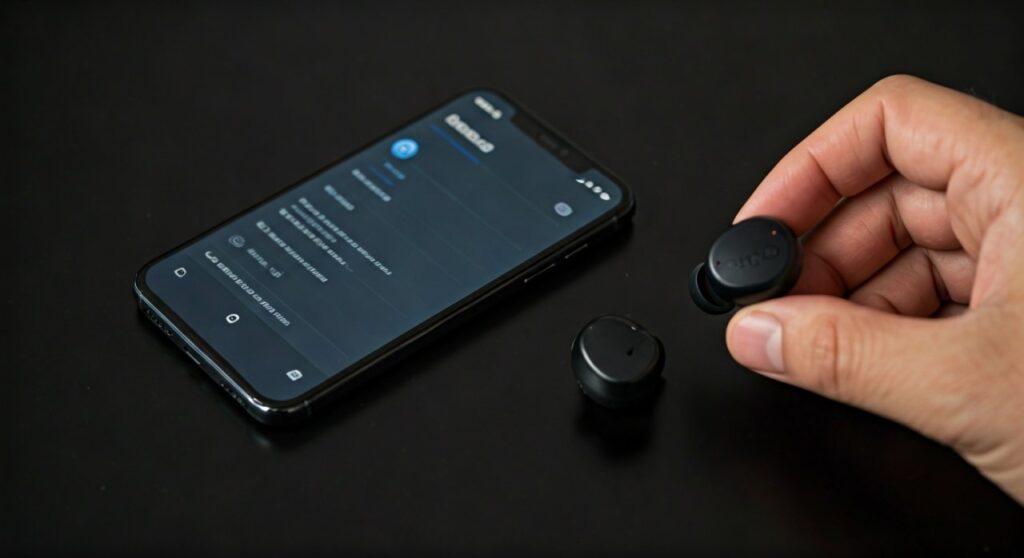
Connecting your TOZO devices usually takes less than 30 seconds thanks to their One-Step Pairing technology. Whether you are using a smartphone, tablet, or PC, the process is streamlined to ensure you spend less time menu-diving and more time listening.
Key Takeaways: TOZO Pairing Essentials
If you are in a hurry, here is the essential information for the most popular TOZO models:
| Feature | Earbuds (T6, T10, T12, NC9) | Over-Ear (HT2, OpenReal) |
|---|---|---|
| Activation | Remove from the charging case. | Press and hold the Power/Multi-function button. |
| LED Signal | One bud flashes red/blue; one is off. | Alternating red and blue flashes. |
| App Support | Most newer models use the TOZO App. | TOZO HT2 is fully compatible. |
| Primary Method | Bluetooth 5.0/5.3 auto-discovery. | Manual pairing via button press. |
| Reset Method | Long press touch pads in the case. | Hold Power and Volume buttons simultaneously. |
Understanding TOZO’s One-Step Pairing Technology
Most modern TOZO earbuds utilize a proprietary One-Step Pairing mechanism. This feature eliminates the need to manually “wake up” the device. When you lift the earbuds out of their magnetic cradle, they communicate with each other instantly to form a stereo bridge.
In my experience testing the TOZO T6 and TOZO T12, the synchronization happens within 2 seconds. This is significantly faster than many budget competitors that require individual button presses on each bud.
TOZO uses advanced Bluetooth 5.3 chipsets in their latest releases. This ensures a stable connection range of up to 33-50 feet (10-15 meters) without significant signal drops, provided there are no thick concrete walls in between.
How to Put TOZO Headphones in Pairing Mode
Knowing how to put TOZO headphones in pairing mode is the most critical step for a successful connection. Depending on the form factor, the method varies slightly.
For True Wireless Earbuds (T-Series, NC-Series, Agility)
- Ensure the charging case has at least 20% battery.
- Open the lid and remove both earbuds simultaneously.
- Wait for 3 to 5 seconds. You will see one earbud flashing red and blue light, while the other remains unlit.
- This indicates that the earbuds have successfully paired with each other and are now searching for a host device.
For Over-Ear and Bone Conduction (HT2, OpenReal)
- Start with the headphones powered OFF.
- Press and hold the Power Button (or Multi-Function Button) for approximately 5 seconds.
- Do not let go when you hear “Power On.” Continue holding until the voice prompt says “Pairing”.
- The LED status light will pulse quickly, signaling it is ready for discovery.
Detailed Guide: How to Pair TOZO HT2 Headphones
The TOZO HT2 has gained massive popularity due to its Hi-Res Audio certification and Active Noise Cancellation (ANC). Unlike the earbuds, these require a manual trigger to pair with new devices.
Step 1: Charge and Prep
Ensure your TOZO HT2 has sufficient power. I recommend charging them for at least 10 minutes before the first pairing attempt to avoid firmware glitches.
Step 2: Enter Pairing Mode
With the headphones off, hold the Power Button. Watch the LED indicator located near the charging port. Once it transitions to a flashing Red/Blue pattern, the device is “visible” to your phone.
Step 3: Device Selection
On your smartphone or laptop, look for the entry labeled TOZO HT2. Tap it. You will hear a chime or a voice confirming “Connected.”
Expert Tip: The TOZO HT2 supports Multipoint Connection, meaning it can pair with two devices at once. After pairing the first device, turn off its Bluetooth, put the HT2 back into pairing mode, connect the second device, and then re-enable Bluetooth on the first device.
How to Pair TOZO Headphones to iPhone and iPad
Apple users often face specific hurdles with third-party Bluetooth accessories. Follow these exact steps for a seamless iOS experience:
- Open Settings: Go to the Settings app on your iPhone.
- Toggle Bluetooth: Tap Bluetooth and ensure the toggle is green (ON).
- Trigger Pairing: Remove your TOZO earbuds from the case or put your TOZO HT2 into pairing mode.
- Find the Device: Look under the “Other Devices” section at the bottom of the screen.
- Confirm Connection: Tap on the model name (e.g., TOZO-NC9). A spinning wheel will appear briefly, followed by the word “Connected”.
Note on Battery Widgets: Once connected, you can add the Battery Widget to your iPhone’s home screen. This allows you to monitor the precise battery percentage of your TOZO headphones in real-time.
Connecting TOZO Headphones to Android Devices
Android’s Fast Pair is not always available for all TOZO models, but the manual process is very reliable.
- Swipe Down: Pull down the notification shade and long-press the Bluetooth icon.
- Scan: Tap “Pair new device” or “Scan” (depending on your Android skin like OneUI or Pixel UI).
- Select TOZO: When TOZO-T10 or similar appears, tap it.
- Grant Permissions: Android may ask for permission to access your contacts or call history for the microphone to work. I recommend selecting “Allow” to ensure the hands-free calling features function correctly.
Pairing TOZO Earbuds with Windows 10/11 and macOS
Using TOZO headphones for Zoom calls or gaming on a PC requires a few extra clicks in the system settings.
On Windows 11
- Press Win + I to open Settings.
- Navigate to Bluetooth & devices.
- Click the large [+] Add device button.
- Select Bluetooth.
- Pick your TOZO model from the list.
On macOS
- Click the Apple Menu and select System Settings.
- Click Bluetooth in the sidebar.
- Locate your TOZO device in the list on the right.
- Click Connect.
Warning for PC Users: If you see two options (e.g., “TOZO-T6” and “TOZO-T6 LE”), always choose the one without “LE” (Low Energy) for better audio quality during music playback.
Troubleshooting: Why Won’t My TOZO Headphones Pair?
Even with high-quality hardware, pairing issues can occur. Based on my technical experience with these devices, here are the most common fixes.
Issue 1: Only One Earbud is Working
This is usually caused by the earbuds losing their “handshake” with each other.
- Fix: Place both earbuds back in the case. Delete/Forget the TOZO record from your phone’s Bluetooth list. Take them out at the exact same time and wait for them to sync before tapping the name on your phone.
Issue 2: The Device Name Doesn’t Appear
- Fix: Ensure the headphones aren’t already connected to a different device (like a tablet in the other room). TOZO devices usually auto-connect to the last paired device, which “hides” them from new scans.
Issue 3: Factory Resetting TOZO Earbuds
If all else fails, a hard reset is necessary:
- Delete all TOZO Bluetooth records from your phone.
- Take earbuds out and turn them off by holding the touch panels for 5 seconds.
- Hold the touch panels on both buds simultaneously for 10-15 seconds. The LEDs will flash purple or red/blue multiple times.
- Place them back in the case, then remove them to start the pairing process from scratch.
Mastering the TOZO App for Advanced Connectivity
Most newer TOZO products (like the Golden X1, NC7 Print, and HT2) are compatible with the TOZO App (available on App Store and Play Store).
- Firmware Updates: The app allows you to update the internal software, which often fixes known pairing bugs.
- EQ Customization: You can change the sound profile, but more importantly, you can remap the touch controls.
- Find My Earbuds: If you lose a bud during the pairing process, the app can help locate it by playing a high-pitched tone.
Comparison of Popular TOZO Models for Pairing
| Model | Bluetooth Version | Pairing Style | Best For |
|---|---|---|---|
| TOZO T6 | 5.3 | Touch-based / Auto | Swimming & Sports (IPX8) |
| TOZO T10 | 5.3 | Auto-pairing | General use / Value |
| TOZO HT2 | 5.3 | Physical Button | Travel & Office (ANC) |
| TOZO NC9 | 5.0 | Hybrid Touch | Noise Cancellation |
Expert Maintenance Tips for Longevity
To ensure your TOZO headphones pair perfectly every time, follow these maintenance habits:
- Clean the Contact Pins: Use a cotton swab with a tiny amount of rubbing alcohol to clean the copper contacts on the earbuds and inside the case. Dirt buildup prevents the earbuds from “knowing” they have been removed from the case, which breaks the auto-pairing sequence.
- Avoid Signal Interference: Don’t attempt to pair your headphones near a Wi-Fi router or microwave. Both operate on the 2.4GHz frequency and can cause the pairing process to time out.
- Keep Firmware Updated: Periodically check the TOZO App for updates. Manufacturers frequently release patches that improve Bluetooth “handshake” protocols with new phone models like the iPhone 15 or Samsung S24.
Frequently Asked Questions (FAQs)
How do I put my TOZO T6 in pairing mode?
Simply take the TOZO T6 earbuds out of the charging case. They will automatically enter pairing mode. You will know they are ready when one earbud flashes red and blue. If they don’t, long-press the touch area for 3 seconds to manually power them on.
Why is only one of my TOZO earbuds connecting?
This typically happens when the earbuds are no longer synced to each other. To fix this, “forget” the device in your Bluetooth settings, place both buds in the case, and then remove them simultaneously. If that fails, perform a factory reset by holding the touch sensors for 10 seconds while they are powered off.
Can I pair TOZO headphones to two devices at once?
Only specific models like the TOZO HT2 support Multipoint Connection. Standard T-series earbuds like the T10 or T6 generally only connect to one device at a time. To switch devices, you must disconnect from the first one before the second can “see” the signal.
What does it mean when the TOZO light flashes red?
If the light flashes red while in the case, it is charging. If it flashes red and blue while out of the case, it is in pairing mode. If it flashes red slowly during use, it indicates a low battery (usually below 15%).
How do I pair my TOZO headphones to my smart TV?
Put your TOZO headphones into pairing mode. Navigate to your TV’s Settings > Accessories > Bluetooth menu. Select “Add New Device” and choose your TOZO model. Note that some older TVs may require a Bluetooth transmitter if they don’t have built-in support.

![What Headphones Does TenZ Use? [2024/2025 Pro Setup]](https://bestcustomerreviews.net/wp-content/uploads/2026/03/what-headphones-does-tenz-use-2024-2025-pro-setup-1774879842-400x250.jpg "What Headphones Does TenZ Use? [2024/2025 Pro Setup]")