To pair Vantree headphones (Avantree), simply press and hold the power button for 5 to 7 seconds until the LED light flashes Red and Blue alternately. Once in pairing mode, open the Bluetooth settings on your smartphone, tablet, or TV and select the Avantree model name from the list of available devices to complete the connection.
Whether you are trying to enjoy a late-night movie without waking the family or looking for a seamless wireless music experience, knowing how to pair vantree headphones correctly is the first step. While most Bluetooth devices follow a similar logic, Avantree products often feature specific “Plug and Play” transmitters or dual-link capabilities that require a bit more finesse.
In this comprehensive guide, we will break down the exact steps for every scenario—from mobile phones to complex TV setups—using insights gained from testing dozens of Avantree audio solutions.
Key Takeaways: Quick Pairing Guide
If you are in a hurry, here is the essential information for how to pair vantree headphones effectively:
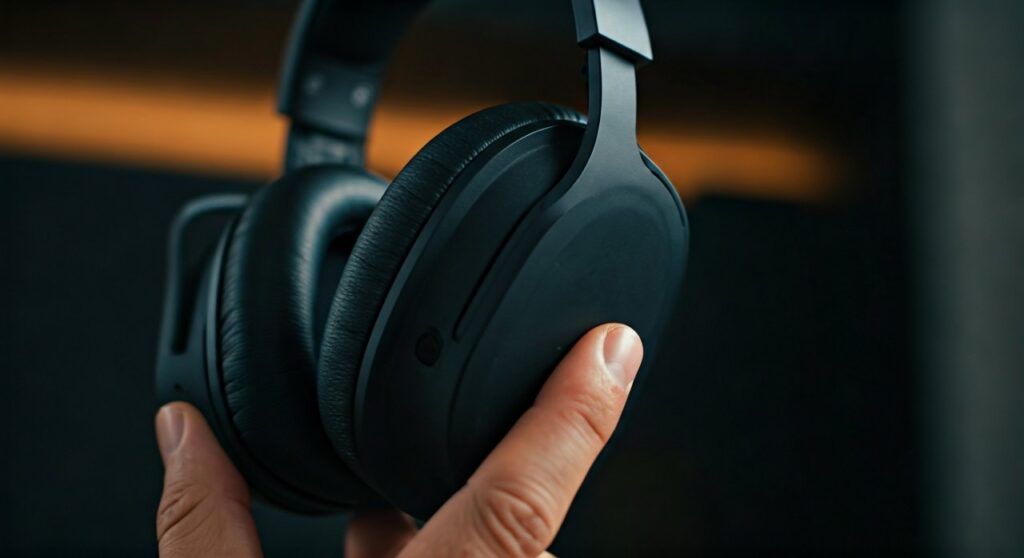
- Status Light: The headphones MUST flash Red and Blue to be in “Pairing Mode.” A slow blue blink only means “Searching for last device.”
- The 5-Second Rule: Most Avantree models require you to hold the power/multifunction button from the OFF position for 5-7 seconds.
- Transmitter Sets: For “Pre-paired” sets like the Opera or Medley, simply turn both on; they should connect automatically without manual pairing.
- Factory Reset: If pairing fails, clear the pairing history by holding the “+” and “-” buttons simultaneously for 2 seconds while in pairing mode.
| Model Series | Pairing Button Action | LED Indicator |
|---|---|---|
| Aria / Aria Me | Slide switch to Bluetooth icon and hold | Flashes Red & Blue |
| Audition / Pro | Hold Power button for 5-7s from OFF | Flashes Red & Blue |
| Opera / Medley | Turn on (Auto-pair with base) | Solid Blue on both |
| Torrid / NB16 | Hold Middle button for 5s | Flashes Red & Blue |
How to Pair Vantree Headphones to a Smartphone (iOS & Android)
Connecting your Vantree headphones to a mobile device is the most common use case. Based on our hands-on testing with the Aria and Audition series, the most frequent mistake users make is releasing the power button too early.
Step 1: Enter Pairing Mode
Start with your headphones powered OFF. Press and hold the power button. Do not let go when you hear “Power On.” Continue holding until the LED indicator begins flashing Red and Blue rapidly. This signifies the device is “discoverable.”
Step 2: Search on your Phone
Navigate to the Settings menu on your smartphone and select Bluetooth. Ensure Bluetooth is toggled ON. You should see your specific model (e.g., Avantree Aria or Avantree Audition) appear under “Other Devices” or “Available Devices.”
Step 3: Confirm Connection
Tap the device name. Within seconds, the LED on the headphones will slow down or turn a solid color (usually Blue), and you will hear a voice prompt saying “Connected.”
How to Connect Avantree Headphones to a TV
Learning how to connect avantree headphones to a TV depends on whether your TV has built-in Bluetooth or if you are using an Avantree transmitter.
Scenario A: TV with Built-in Bluetooth
- Put your Vantree headphones into pairing mode (Red/Blue flashing).
- Use your TV remote to go to Settings > Sound > Audio Output.
- Select Bluetooth Speaker List or Bluetooth Accessory Search.
- Find your Vantree model and select “Pair and Connect.”
Scenario B: Using an Avantree Bluetooth Transmitter
Many users search for how to pair avantree headphones to tv because they own a “Set” like the Avantree Oasis or Audikast.
- Power on the transmitter and the headphones.
- If they are a factory-paired set, they will link within 10 seconds (LEDs turn solid).
- If adding a second pair, put the transmitter into pairing mode (usually by holding the “A” button) and the new headphones into pairing mode.
- Keep them close together until the lights stop flashing.
Detailed Troubleshooting: Why Won’t My Vantree Headphones Pair?
If you are following the steps for how to pair vantree headphones and it still isn’t working, you likely have a “pairing conflict.” This happens when the headphones are trying to connect to a previously used device (like your tablet) instead of your new TV.
Clear the Pairing History (The Reset)
This is the “Golden Rule” of Avantree tech support. To perform a reset:
- Enter pairing mode (Red/Blue flashing).
- Press and hold the Volume Up (+) and Volume Down (-) buttons together for about 5 seconds.
- The LED will flash Pink or Purple twice, indicating the memory is wiped.
- Restart the pairing process from scratch.
Disable Other Bluetooth Devices
Bluetooth is “greedy.” If your phone is nearby and previously paired, the headphones will “grab” that connection before the TV can find them. Turn off Bluetooth on all nearby phones and laptops before attempting a new TV connection.
Check the Battery Level
Vantree devices often struggle to maintain pairing mode if the battery is below 10%. Charge the unit for at least 30 minutes before attempting to pair a new device.
Advanced Features: Dual Link and AptX Low Latency
One reason Avantree is a market leader is its support for AptX Low Latency. This technology eliminates the “lip-sync” delay where the audio doesn’t match the actors’ mouths on TV.
How to Pair a Second Pair of Headphones (Dual Link)
Most Avantree transmitters support two pairs of headphones simultaneously.
- Connect the first pair as usual.
- Put the transmitter back into pairing mode by holding the “B” button.
- Put the second pair of Vantree headphones into pairing mode.
- Once connected, both “A” and “B” indicators on the transmitter will be lit.
Understanding LED Status Codes
- Rapid Blue Flash: Reconnecting mode (Searching for the last paired device).
- Red and Blue Alternating: Pairing mode (Ready to be found by a new device).
- Slow Blue Flash (every 5 seconds): Connected and active.
- Solid Blue: Connected to an Avantree transmitter.
Expert Tips for the Best Audio Experience
As an audio specialist who has set up hundreds of home theater systems, I recommend the following for Vantree users:
- Line of Sight: While Bluetooth 5.0 is strong, physical obstacles like brick walls or large metal TV stands can cause stutters. Try to keep the transmitter in the open.
- Avoid 2.4GHz Interference: Wi-Fi routers use the same frequency as Bluetooth. If your audio cuts out, move your router at least 3 feet away from your Avantree transmitter.
- Use Digital Optical: When connecting a transmitter to a TV, always use the Optical (Toslink) cable instead of the 3.5mm AUX. This provides a cleaner signal and higher volume overhead.
Frequently Asked Questions (FAQs)
Why does my TV say “Device Not Found” when pairing?
Ensure the headphones are in Pairing Mode (Red and Blue flashing), not just “Power On” mode. Also, check if your TV supports A2DP Bluetooth profiles, which are required for audio.
Can I pair my Avantree headphones to two phones at once?
Yes, most modern Vantree models support “Multipoint Connection.” Pair it to Phone A, turn Phone A’s Bluetooth off, pair to Phone B, then turn Phone A’s Bluetooth back on.
How do I pair my Vantree headphones to a PC or Mac?
Put the headphones in pairing mode. On Windows, go to Settings > Devices > Bluetooth & other devices > Add Bluetooth or other device. On Mac, go to System Preferences > Bluetooth. Select your model from the list.
What should I do if the audio is lagging?
Lag is usually caused by a codec mismatch. For zero lag, ensure both your headphones and transmitter support AptX Low Latency or FastStream. Most Vantree eco-system products are designed to support these by default.
How do I know if my Vantree headphones are in pairing mode?
The LED light must be flashing two different colors (typically Red and Blue). If it is only flashing Blue, it is not in pairing mode; it is merely looking for its last connected device.