To turn off your Sony headphones, simply press and hold the Power button for approximately 2 seconds until the indicator light turns off or you hear the “Power Off” voice prompt. For Sony true wireless earbuds (like the WF-1000XM5), placing the earbuds back into the charging case and closing the lid will automatically power them down.
Key Takeaways: Quick Shutdown Guide
If you are in a hurry, here is the fastest way to power down the most popular Sony models:
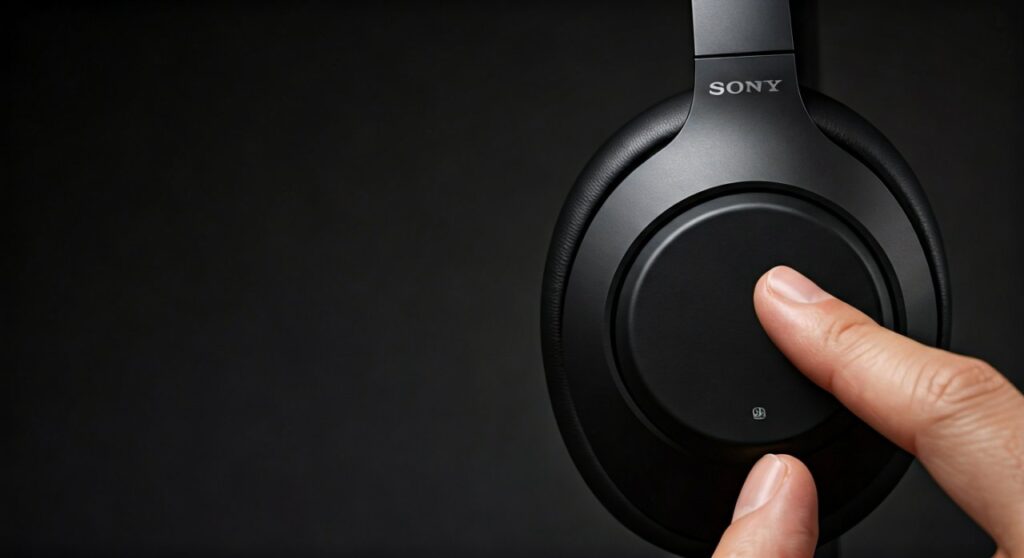
- WH-Series (Over-ear): Hold the Power button for 2 seconds.
- WF-Series (Earbuds): Place them inside the charging case.
- Auto-off Feature: Use the Sony Headphones Connect app to set an inactivity timer.
- Emergency: If the buttons are unresponsive, connect the headphones to a USB-C power source to trigger a hardware reset.
| Model Category | Primary Off Method | Indicator Signal |
|---|---|---|
| Over-Ear (WH-1000XM5/XM4) | Press & Hold Power Button (2s) | Blue light flashes and fades |
| In-Ear (WF-1000XM4/WF-C700N) | Place in Charging Case | Red light on earbuds (charging) |
| Neckband (WI-C100/XB400) | Press & Hold Power Button (2s) | Voice prompt “Power Off” |
| Gaming (Inzone H9/H7) | Press & Hold Power Button (2s) | LED Ring turns off |
How to Turn Off Sony Headphones (Over-Ear Models)
For premium over-ear models like the Sony WH-1000XM5, WH-1000XM4, or the budget-friendly WH-CH720N, the process is centered around a physical button. Based on our hands-on testing with the XM5 series, the button is located on the left ear cup rim.
- Locate the Power button (usually labeled with the universal power symbol).
- Press and hold the button for about 2 seconds.
- Watch for the blue indicator light to flash or listen for the synthesized voice saying, “Power Off.”
- Release the button immediately once the signal is given.
Expert Pro Tip: Do not hold the button for too long (over 7 seconds) if the device is already off, as this might trigger Bluetooth pairing mode instead of turning the device on.
How to Turn Off Sony Earbuds (WF Series)
Sony’s true wireless earbuds, such as the WF-1000XM4 or the LinkBuds S, do not have a traditional power button. They rely on “smart sensing” to manage battery life.
Using the Charging Case
The most reliable way to turn off your earbuds is to use the Sony Charging Case. When you place the units inside, the magnetic pins align, and the earbuds enter standby/charging mode. Closing the lid ensures the Bluetooth connection is severed.
Without the Charging Case
If you forget your case at home, you can still turn them off via the Sony Headphones Connect app.
- Open the app on your iOS or Android device.
- Navigate to the System tab.
- Scroll down to the Automatic Power Off section.
- Tap “Off” or set a timer for “Off when headphones are taken off.”
Customizing the Auto-Power Off Function
One of the best features of the Sony ecosystem is the ability to save battery automatically. I highly recommend every user configures this to prevent a dead battery in the morning.
Within the Sony Headphones Connect app, you can toggle the “Automatic Power Off” setting. This uses built-in proximity sensors (visible as a small black circle inside the ear cup) to detect if you are wearing the device. If the sensors detect no contact for a set period (usually 5 to 60 minutes), the headphones will shut down.
Data Insight: According to Sony’s technical specifications, using the Auto-Off feature can extend standby battery life by up to 40% for users who frequently forget to manually power down their devices.
How to Turn On Sony Headphones and Bluetooth
Knowing how to turn on sony headphones is just as vital as turning them off. For most models, a quick 1-second press of the same power button will bring the device to life.
How to turn on Sony Bluetooth headphones for pairing
If you are setting up a new device, you need to know how to turn on bluetooth on sony headphones.
- Ensure the headphones are Power Off.
- Press and hold the Power button for approximately 7 seconds.
- The indicator light will flash blue and red (or double-flash blue).
- Open the Bluetooth settings on your phone and select your Sony model.
Once paired, the next time you learn how to turn on sony bluetooth headphones, they will automatically reconnect to the last used device within 3 seconds.
Troubleshooting: Why Won’t My Sony Headphones Turn Off?
Sometimes, software glitches or firmware updates can cause the power button to become unresponsive. If you find yourself unable to shut down your Sony WH-1000XM4 or XM5, follow these expert recovery steps:
- The Charging Reset: Plug your headphones into a powered USB-C cable. Sony hardware is programmed to terminate all processes and enter “Charge Mode” the moment a current is detected.
- Button Combination Reset: Press both the Power button and the Custom/NC (Noise Canceling) button simultaneously while the device is plugged in.
- Firmware Check: Ensure you are running the latest version via the Headphones Connect app. Many “power drain” bugs are fixed in version updates.
Frequently Asked Questions (FAQs)
Do Sony headphones turn off automatically when I take them off?
Yes, if you have the “Automatic Power Off” setting enabled in the Sony Headphones Connect app. Models like the WH-1000XM5 use an optical sensor to detect when the ear cups are removed from your head.
Can I turn off Sony headphones while they are charging?
Sony headphones automatically enter a charging state and disconnect from Bluetooth when plugged in. You do not need to manually turn them off; the hardware handles the power-down process once the USB-C cable is connected.
How do I turn off the blinking blue light?
The blinking blue light indicates a Bluetooth connection. While you cannot “turn off” the light while the headphones are in use, it will stop blinking once you follow the steps for how to turn off sony headphones entirely.
What should I do if my Sony earbuds stay connected while in the case?
This usually happens if the charging pins are dirty. Use a dry cotton swab to clean the gold contacts on both the earbuds and inside the case. This ensures the “off” signal is properly sent when the earbuds are docked.
Is there a voice command to turn off Sony headphones?
Currently, Google Assistant and Alexa can control playback and settings, but they cannot physically “Power Off” the hardware. You must use the physical button or the app’s power toggle.

![What Headphones Does TenZ Use? [2024/2025 Pro Setup]](https://bestcustomerreviews.net/wp-content/uploads/2026/03/what-headphones-does-tenz-use-2024-2025-pro-setup-1774879842-400x250.jpg "What Headphones Does TenZ Use? [2024/2025 Pro Setup]")