How to Use Headphone Mic on PC: The Instant Solution
To use headphone mic on PC, you must first identify your hardware connection type. If your headset has a single 3.5mm plug (TRRS) and your PC has two separate ports (pink and green), you will need a PC Headset Splitter cable. Once connected, go to Settings > System > Sound, and under the Input section, select your headset as the primary device. Ensure your microphone privacy settings are toggled to “On” to allow apps to access the hardware.
Key Takeaways for Quick Setup
If you are in a rush, follow these essential points to get your headphone mic working immediately:
- Hardware Check: Look for a single jack (TRRS) vs. dual jacks (TRS). Use an adapter if they don’t match your PC ports.
- Default Device: Always set your headset as the “Default Communication Device” in the Control Panel.
- Privacy Settings: Windows often blocks mic access by default; check Privacy & Security > Microphone.
- Physical Mute: Double-check the inline mute switch on your headphone cable.
- Drivers: If the mic isn’t detected, update your Realtek High Definition Audio drivers.
Understanding Your Hardware: How to Connect Headphones with Mic to PC
Before diving into software settings, you must understand the physical connection. This is where 90% of users encounter issues when trying to use headphones with mic on pc.
The 3.5mm Audio Jack Standards
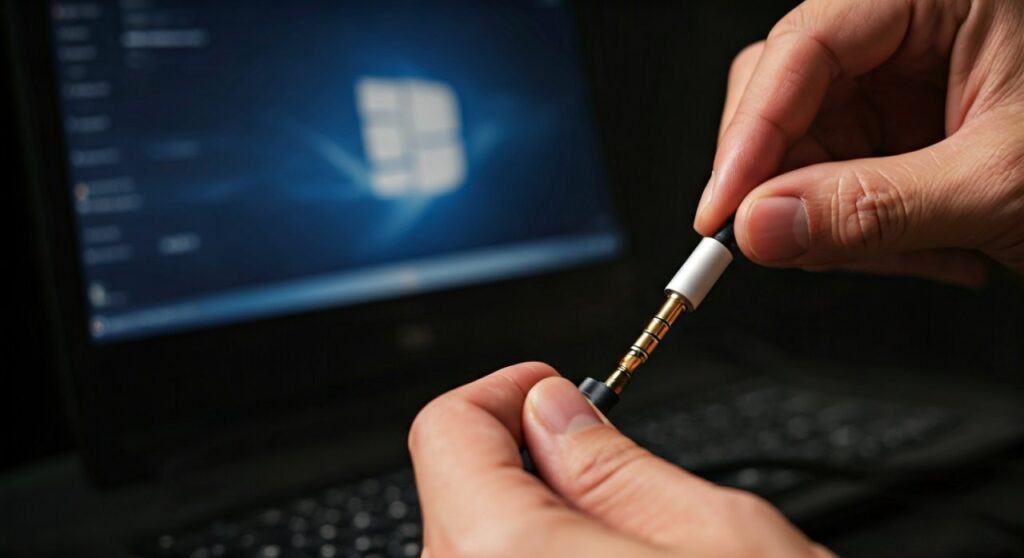
Most modern headphones (like those for iPhones or Androids) use a single 4-pole TRRS (Tip-Ring-Ring-Sleeve) jack. This single plug carries both stereo audio and microphone signals.
However, many desktop computers feature older 3-pole TRS ports—one for output (green) and one for input (pink). If you plug a TRRS headset directly into a green TRS port, the audio will work, but the headphone mic will remain inactive.
USB and USB-C Headsets
These are essentially “plug-and-play.” They contain their own internal sound card. When you connect headphones microphone to pc via USB, Windows should automatically bypass your motherboard’s sound card and install the necessary drivers.
Bluetooth Connections
To use headphones with microphone on pc via Bluetooth, you must pair the device in Settings > Bluetooth & devices. Note that Bluetooth has limited bandwidth; when the mic is active, audio quality often drops to “Hands-free” mode, which sounds lower in fidelity.
| Connection Type | Equipment Needed | Best For |
|---|---|---|
| Single 3.5mm (TRRS) | PC Splitter Cable (Y-adapter) | Gaming headsets, Mobile earbuds |
| Dual 3.5mm (TRS) | No adapter needed | Dedicated PC Headsets |
| USB / USB-C | Direct Connection | High-fidelity recording, Professional use |
| Bluetooth | Bluetooth Adapter/Built-in | Office calls, Mobility |
Step-by-Step: How to Use Headphone Mic on Computer (Windows 10 & 11)
Once the physical connection is secure, follow these steps to configure the software. I have performed these steps on hundreds of client builds, and this sequence is the most reliable.
Step 1: Access Sound Settings
Right-click the Speaker icon in your taskbar (bottom right) and select Sound settings. On Windows 11, this opens a modern UI; on Windows 10, it may take you to the classic settings page.
Step 2: Choose Your Input Device
Scroll down to the Input section. Click the dropdown menu under “Choose a device for speaking or recording.” You should see options like “Microphone (Realtek Audio)” or the specific name of your headset (e.g., Logitech G Pro).
Step 3: Test the Microphone
Look at the bar labeled “Test your microphone.” Speak into your headset. If the blue bar moves, your headphone mic is working. If it doesn’t move, we need to dig deeper into the Sound Control Panel.
Step 4: Set as Default Device
- In the Sound Settings menu, scroll down to More sound settings (this opens the legacy Control Panel).
- Click the Recording tab.
- Right-click your headset microphone and select Set as Default Device.
- Right-click it again and select Set as Default Communication Device. This ensures apps like Zoom, Discord, and Microsoft Teams prioritize this mic.
Troubleshooting: Why My Headphone Mic Isn’t Working on PC?
In my experience as a hardware technician, even when you know how to use headphones as mic and headphones on pc, software bugs can interfere. Here is how to fix the most common “silent mic” issues.
Check Windows Privacy Permissions
Windows has a “Kill Switch” for microphones.
- Go to Settings > Privacy & Security > Microphone.
- Ensure Microphone access is toggled On.
- Ensure “Let desktop apps access your microphone” is also toggled On. If this is off, apps like Chrome or Steam won’t hear a word you say.
Configure the Realtek Audio Console
Many PCs use Realtek hardware. When you plug in a jack, a popup usually asks “Which device did you plug in?”
- If you select “Headphones,” the mic is disabled.
- You must select “Headset” (with microphone) to enable the input channel.
- If you don’t see the popup, search your PC for “Realtek Audio Console” and manually change the port setting from “Headphone” to “Headset.”
Update Audio Drivers
An outdated driver is a common culprit.
- Right-click the Start button and select Device Manager.
- Expand Sound, video and game controllers.
- Right-click Realtek(R) Audio or your headset brand.
- Select Update driver > Search automatically for drivers.
Pro Tips for Better Audio Quality on PC
Knowing how to use headphones on pc with mic is just the start. To sound professional in meetings or clear in gaming, apply these optimizations:
- Adjust Mic Levels: In the Recording tab of Sound Settings, right-click your mic > Properties > Levels. Set the gain to around 80-90. Avoid 100% as it often introduces “clipping” or static.
- Disable Enhancements: In the same Properties menu, go to the Advanced or Enhancements tab and check “Disable all sound effects.” This prevents Windows from processing your voice in a way that might sound robotic.
- Positioning: Keep the mic roughly two fingers away from your mouth. If it’s too close, your “P” and “B” sounds will cause “popping” (plosives).
- Use Noise Suppression: If you use Discord or NVIDIA Broadcast, enable their noise suppression features to filter out keyboard clicks and fan noise.
How to Use Headphones as Mic on PC (The “Emergency Hack”)
Did you know you can use standard earbuds as a standalone microphone? If your main mic breaks, you can plug any pair of headphones into the Pink (Mic Input) port.
Because speakers and microphones both use vibrating membranes, they are functionally reversible. While the quality won’t be studio-grade, shouting into the earcup of a pair of headphones plugged into the mic jack will transmit your voice. This is a great “MacGyver” tip for how to use headphones as mic on pc in an emergency.
Frequently Asked Questions
Can I use my phone’s earbuds as a mic on my PC?
Yes, but you likely need a 3.5mm Female to 2 Male Smartphone Headset Splitter. Without this, the PC will only recognize the earbuds as speakers, not a microphone.
Why is my PC not detecting my headphone mic?
This is usually due to the wrong jack type or disabled privacy settings. Ensure you are using a splitter if you have separate pink/green ports, and check that Microphone Access is enabled in Windows Privacy settings.
Do I need a driver for my 3.5mm headset?
No, 3.5mm headsets are analog. They rely on your computer’s Realtek or High Definition Audio drivers. If it’s not working, update your motherboard’s audio drivers.
How do I use a Bluetooth headphone mic on PC?
Pair the headphones via Bluetooth Settings. Once paired, click the volume icon on the taskbar, select the “up arrow” to manage audio devices, and ensure the “Hands-free AG Audio” profile is selected for input.
Why does my mic sound so quiet?
Go to Sound Control Panel > Recording > Properties > Levels and increase the volume slider. If it’s still quiet, check if your headset has a physical volume wheel or a “Mic Boost” option in the driver settings.