Understanding the Basics: Is a Projector a Computer?
No, a traditional projector is not a computer; it is an optical output device designed to project images onto a surface. While a computer processes data, runs software, and stores files, a standard projector simply receives a video signal from an external source—like a laptop, gaming console, or Blu-ray player—and enlarges it using light and lenses.
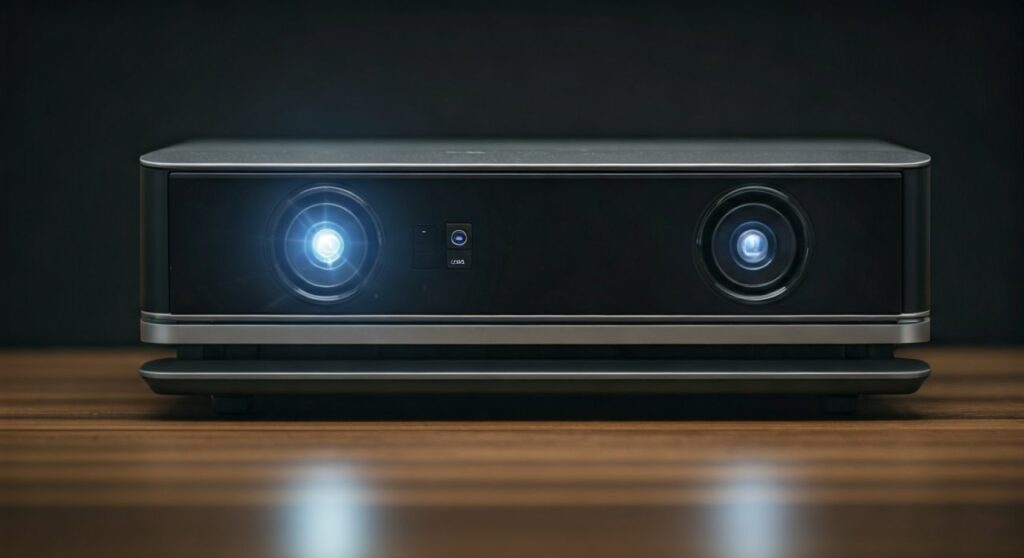
However, the line is blurring with the advent of Smart Projectors. These modern devices feature built-in operating systems (like Android TV), processors, and Wi-Fi connectivity, allowing them to stream content directly without a separate PC. Despite these features, they still lack the full productivity capabilities, complex file management, and input flexibility of a dedicated personal computer.
Key Takeaways: Projectors vs. Computers
If you are in a rush, here are the essential points regarding projector technology and its relationship with computing hardware:
- Primary Function: A projector is a display peripheral (output), whereas a computer is a processing unit (input/engine).
- Smart Projectors: These are “hybrid” devices that include a built-in SoC (System on a Chip) to run apps like Netflix or YouTube, but they are still optimized for media consumption, not creation.
- Source Dependency: Most professional and high-end home theater projectors require an external source via HDMI, VGA, or DisplayPort.
- Hardware Components: Projectors focus on Lumens (brightness), Contrast Ratios, and Throw Distance, while computers focus on CPU speed, RAM, and GPU performance.
- Versatility: You can connect a computer to a projector, but you cannot use a projector as a standalone computer for tasks like video editing or complex spreadsheet management.
The Technical Breakdown: Why a Projector Is Not a Computer
To understand why the answer to “is a projector a computer” is generally “no,” we must look at the internal architecture of both devices. A computer is defined by the von Neumann architecture, consisting of a processing unit, memory, and input/output mechanisms.
The Role of the Projector
A projector functions similarly to a computer monitor or a television. Its job is to take an electrical signal and convert it into a visual representation. It does not “think” about the data; it simply renders the frames sent to it.
I have spent years testing hardware from brands like Epson, BenQ, and Optoma. In my experience, even the most expensive 4K laser projectors are “dumb” devices without a signal source. They are specialized tools for light manipulation, not data processing.
The Role of the Computer
In contrast, a computer (whether a MacBook, Windows PC, or even a Smartphone) is the brain of the operation. It handles the operating system (OS), runs applications, and manages data storage. When you connect a PC to a projector, the PC provides the “what” (the content), and the projector provides the “how big” (the display).
Comparing Projector Types: Hardware and Logic
The question is a projector a computer often arises because of the different types of projectors available today. Let’s compare the three main categories to see how “smart” they actually are.
| Feature | Traditional Projector | Smart Projector | Pico/Portable Projector |
|---|---|---|---|
| Built-in OS | No | Yes (e.g., Android TV) | Often Yes |
| Internet Capability | No | Yes (Wi-Fi/Ethernet) | Yes (Wi-Fi) |
| Storage | None | Limited (8GB – 32GB) | Minimal |
| Primary Use | Home Theater / Office | Streaming / All-in-one | Travel / Quick Setup |
| Computer Replacement? | No | Partially (for Media) | No |
Traditional Projectors
These are the heavy hitters used in dedicated home cinemas or large boardrooms. They possess zero computing power. You must plug in a Chromecast, Apple TV, or Laptop to see anything other than a “No Signal” screen.
Smart Projectors
Devices like the Samsung Freestyle or the XGIMI Horizon come closer to being “computers.” They have a processor, RAM, and a user interface. You can browse the web or play light games, but they are still categorized as “Smart Displays” rather than computers.
Pico Projectors
These are tiny, battery-powered devices. While they often have built-in media players that can read files from a microSD card or USB drive, their processing power is extremely low, usually just enough to decode video files.
How Projector Technology Works: A Step-by-Step Guide
To truly appreciate the difference between these devices, it helps to understand the “How-to” of image projection. Projectors use several distinct technologies to create an image.
Step 1: Light Generation
Every projector starts with a light source. This can be a Metal Halide Lamp, an LED array, or a Laser diode. This light is the “fuel” for the image.
Step 2: Image Modulation
The light passes through or reflects off an imaging chip. This is where the “magic” happens. There are three primary technologies used here:
- DLP (Digital Light Processing): Uses millions of tiny mirrors to reflect light.
- LCD (Liquid Crystal Display): Passes light through three liquid crystal panels (Red, Green, Blue).
- LCoS (Liquid Crystal on Silicon): A hybrid that reflects light off a liquid crystal layer backed by a mirror.
Step 3: Projection
Finally, the modulated light passes through a series of glass lenses. These lenses allow you to adjust the Focus and Zoom, throwing the enlarged image onto your wall or screen.
Step-by-Step: How to Use a Projector as a Computer Display
Since we’ve established that the answer to is a projector a computer is no, the next logical step is learning how to connect your actual computer to one. This is the most common use case for professionals and educators.
Identify Your Ports
Check the back of your computer and the projector. Most modern devices use HDMI. Older office projectors might use VGA (the blue 15-pin connector). If you have a modern MacBook, you will likely need a USB-C to HDMI adapter.
Connect the Cable
Plug one end of the cable into your computer’s video output port and the other into the projector’s “Input” port. Make sure the connections are snug to avoid flickering or “snow” on the screen.
Power On Sequence
Turn on the projector first, then turn on your computer. This allows the computer to “handshake” with the projector and detect its native resolution (e.g., 1080p or 4K).
Configure Display Settings
On a Windows PC, press Win + P to open the projection menu. You have four options:
- PC Screen Only: Projector stays blank.
- Duplicate: The projector shows exactly what is on your monitor.
- Extend: The projector acts as a second, separate monitor (best for presentations).
- Second Screen Only: Your laptop screen turns off, and only the projector displays content.
Adjust Image Alignment
Use the Keystone Correction on the projector to turn a trapezoidal image into a perfect rectangle. Adjust the Focus ring until text looks sharp.
Why People Confuse Projectors with Computers
The confusion surrounding the question is a projector a computer stems from recent technological leaps. There are three main reasons for this misconception:
The Integration of Android TV
When you turn on a modern BenQ or Anker Nebula projector, you are greeted with a dashboard full of apps. To a casual user, this looks and feels like a computer or a tablet interface.
USB Media Players
Many projectors now feature USB-A ports. You can plug in a flash drive containing a PDF or a PowerPoint file, and the projector can “read” it. This gives the illusion of computing, but it is actually a very basic “media player” firmware, not a full OS.
Wireless Mirroring
Technologies like AirPlay, Miracast, and Google Cast allow you to “beam” your phone or laptop screen to a projector. Because the projector is interacting with your device wirelessly, it can feel like the projector is doing the heavy lifting. In reality, your phone is the computer, and the projector is just the “wireless monitor.”
Expert Insights: Choosing the Right “Smart” Features
As an expert who has set up dozens of professional AV environments, I advise against buying a projector only because it has “computer-like” features. Here is why:
- Software Obsolescence: The “smart” part of a projector usually becomes obsolete in 2-3 years. The optical part (the lens and light) can last 10 years. It is almost always better to buy a “dumb” projector with great picture quality and plug in a Roku or Fire Stick.
- Processing Lag: Cheap “Smart Projectors” often have slow processors. This leads to laggy menus and apps that crash. A dedicated PC or Mac will always provide a smoother experience.
- Security Risks: Smart projectors connected to Wi-Fi rarely receive security updates. If you use them to access sensitive data, you are more vulnerable than you would be on a secured computer.
Maintenance Guide for Projector Longevity
To keep your projector—and the computer connected to it—running smoothly, follow these maintenance steps:
- Clean the Filters: Most high-end LCD projectors have air filters. Clean them every 100-200 hours of use to prevent overheating.
- Cool Down Period: Never unplug a projector immediately after turning it off. The internal fan needs to run for a minute to cool the delicate bulb or laser.
- Check Cable Integrity: If your screen is flickering, it is rarely the projector “crashing” like a computer. It is almost always a faulty HDMI cable. I recommend using Certified Premium High-Speed HDMI cables for runs longer than 15 feet.
Frequently Asked Questions (FAQs)
Can I run Word or Excel on a projector without a computer?
Generally, no. Unless your projector has a built-in Web Browser or a specific app from the Google Play Store, you cannot run productivity software directly. You will need to connect a computer or a mobile device.
Does a projector have a hard drive?
Most traditional projectors have no storage. Smart Projectors usually have a small amount of internal flash storage (typically 8GB to 32GB) used primarily for the operating system and cached streaming data.
Can a projector get a virus like a computer?
Smart Projectors running Android can theoretically be infected by malware if you install unverified APK files. However, traditional projectors are immune to viruses because they have no operating system to infect.
Can I plug a mouse and keyboard into a projector?
On many Smart Projectors, yes! You can use the USB ports or Bluetooth to connect peripherals to navigate the built-in apps. However, this still doesn’t turn the projector into a full-fledged computer for complex tasks.
Is a projector better than a computer monitor?
It depends on the environment. Projectors offer a much larger “screen” size for the price, making them better for movies and presentations. However, monitors offer better text clarity, higher refresh rates for gaming, and better performance in bright rooms.

![What Headphones Does TenZ Use? [2024/2025 Pro Setup]](https://bestcustomerreviews.net/wp-content/uploads/2026/03/what-headphones-does-tenz-use-2024-2025-pro-setup-1774879842-400x250.jpg "What Headphones Does TenZ Use? [2024/2025 Pro Setup]")