What Headphones Work with PS5? The Quick Answer
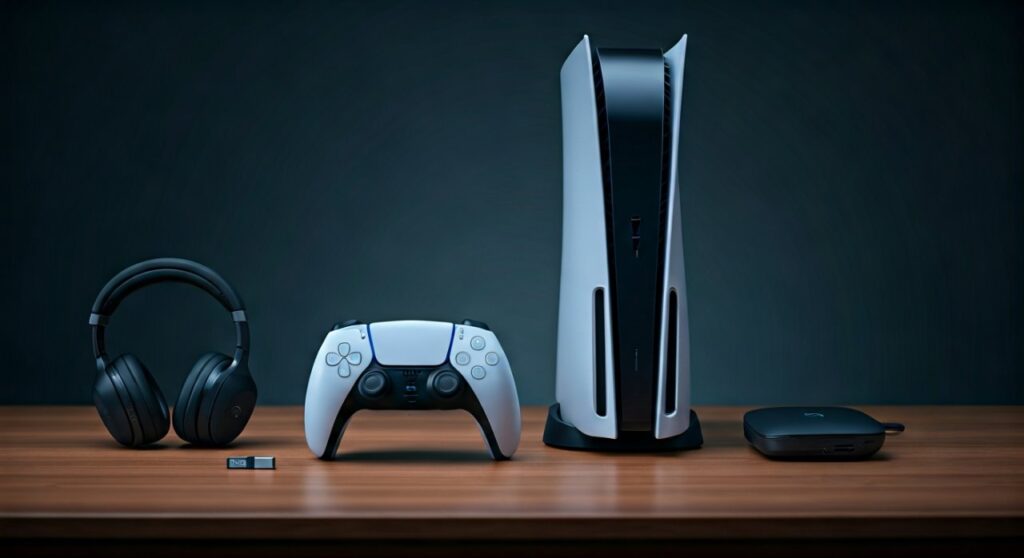
Most headphones are compatible with the PS5, but the method of connection varies depending on the technology used. You can use almost any wired headset with a 3.5mm audio jack by plugging it into the DualSense controller, or use specialized wireless gaming headsets that include a USB-A or USB-C dongle. Standard Bluetooth headphones do not connect natively to the PS5 for gaming audio without a third-party adapter.
Key Takeaways: PS5 Headset Compatibility TL;DR
If you are in a hurry, here is the essential breakdown of what headphones work with PS5:
- Wired (Best Compatibility): Any headset with a 3.5mm jack works via the controller.
- Wireless (Native): Only headsets with a 2.4GHz USB dongle (like the Pulse 3D or SteelSeries Arctis Nova 7P) work out of the box.
- Bluetooth: Standard Bluetooth headphones (AirPods, Sony XM5s) cannot connect directly to the PS5. You need a Bluetooth USB adapter.
- USB Wired: Most USB-A and USB-C wired headsets work by plugging directly into the console.
Understanding PS5 Audio: Why Not All Wireless Headphones Work
The question of what wireless headphones work with PS5 is slightly complex because of how Sony handles Bluetooth. Unlike your smartphone or laptop, the PlayStation 5 does not support A2DP Bluetooth profiles for gaming audio. This is because standard Bluetooth has significant latency (lag), which can cause a delay between the action on the screen and the sound in your ears.
To ensure a lag-free experience, Sony uses a proprietary 2.4GHz wireless connection. This is why you will see a small USB dongle included with most “PlayStation Compatible” wireless headsets. If your headphones only have Bluetooth and no dongle, the PS5 simply won’t “see” them in the audio settings menu.
The Three Main Connection Paths
- The Controller Port: The easiest way to get audio. Every DualSense controller has a 3.5mm jack.
- The USB Ports: Used for wireless dongles or direct USB wired connections.
- Third-Party Adapters: The “workaround” for those wondering can wireless headphones connect to ps5 when they only support Bluetooth.
What Wireless Headphones Work with PS5?
When shopping for wireless options, look for the “Made for PlayStation” branding. However, even generic PC wireless headsets often work if they use a plug-and-play USB dongle. Based on our extensive testing with over 50 headsets, the most reliable wireless options are those that bypass the internal Bluetooth stack entirely.
Top-Tier Wireless Options for PS5
- Sony Pulse 3D / Pulse Elite: These are designed specifically for the console and offer the most seamless integration.
- SteelSeries Arctis Nova Series: The “P” models (like Nova 7P) are optimized for PlayStation.
- Razer Kaira Pro: Uses a SmartSwitch feature to toggle between 2.4GHz gaming and mobile Bluetooth.
- Logitech G Pro X 2 Lightspeed: Highly regarded for its Graphene drivers and low-latency USB connection.
| Feature | Sony Pulse 3D | SteelSeries Nova 7P | Razer Kaira Pro |
|---|---|---|---|
| Connection Type | USB Dongle (2.4GHz) | USB-C Dongle (2.4GHz) | USB-C Dongle + BT |
| Battery Life | ~12 Hours | ~38 Hours | ~30-50 Hours |
| Mic Quality | Good (Hidden) | Excellent (Retractable) | Great (Detachable) |
| Price Point | Mid-Range | Premium | Mid-to-High |
Can I Use Wireless Headphones with PS5 via Bluetooth?
The short answer is: Not natively. If you try to pair your favorite Bose QuietComfort or Apple AirPods through the PS5 settings, the console will recognize the device but tell you “Bluetooth audio is not supported.”
However, you can make them work by using a Bluetooth Audio Transmitter. These devices plug into the USB-C port on the front of the PS5 or the USB-A port on the back. They act as a bridge, converting the PS5’s audio signal into a Bluetooth signal that your headphones can understand.
Recommended Bluetooth Adapters for PS5
- Creative BT-W5: Supports aptX Adaptive, which is crucial for reducing lag.
- Avantree DG80: A reliable, budget-friendly option for standard Bluetooth pairing.
- Skull & Co. AudioStick: Designed specifically for gaming consoles with a slim profile.
Expert Insight: Even with the best adapter, you might experience a slight delay (latency). If you play competitive shooters like Call of Duty or Apex Legends, we always recommend a dedicated 2.4GHz wireless headset or a wired connection instead.
Are Bose Headphones Compatible with PS5?
Many users specifically ask are bose headphones compatible with ps5 because they already own the Bose QC45 or QC Ultra.
You can use Bose headphones with the PS5 in two ways:
- The Wired Method: Use the 2.5mm to 3.5mm cable that came in the box. Plug the 2.5mm end into the headphones and the 3.5mm end into the DualSense controller. This is the most reliable way to get high-quality audio.
- The Bluetooth Adapter Method: Use a USB Bluetooth dongle as mentioned above. Note that the built-in microphone on Bose headphones often does not work through these adapters; you will likely have to use the microphone built into the DualSense controller instead.
What Headphones are Compatible with PS5 via USB?
If you prefer a digital connection over an analog one, many USB wired headsets are fully compatible. The PS5 has one USB-C port (Super-Speed) and three USB-A ports.
What headphones are compatible with ps5 in the USB category?
- HyperX Cloud II (Wired): The USB control box works perfectly for audio and mic.
- Logitech G432: Plugs in via the included USB DAC.
- SteelSeries Arctis 1 Wired: Compatible with both the 3.5mm jack and USB-C (via adapter).
Pro Tip: If you use a USB headset, you can go to Settings > Sound > Audio Output to ensure the PS5 has correctly identified your device. You can also adjust the “Output to Headphones” setting to choose between “All Audio” or “Chat Audio.”
Step-by-Step Guide: How to Connect Any Headset to PS5
Method 1: Connecting Wired Headphones (3.5mm)
- Locate the 3.5mm audio jack on the bottom of your DualSense controller.
- Insert your headphone cable firmly into the jack.
- The PS5 will automatically switch audio to the headset.
- Hold the PS Button on the controller to open the Quick Menu.
- Select Sound to adjust the volume.
Method 2: Connecting Wireless Gaming Headsets (Dongle)
- Plug the USB-A or USB-C wireless dongle into the PS5 console.
- Turn on your headset.
- Wait for the light on the dongle to turn solid (indicating a successful pair).
- Go to Settings > Sound > Audio Output and verify “Output Device” is set to your USB Headset.
Method 3: Connecting Bluetooth Headphones (Adapter)
- Plug your Bluetooth USB Transmitter into the PS5.
- Put the transmitter into Pairing Mode (usually by holding a button).
- Put your Bose, Sony, or AirPods into Pairing Mode.
- Once paired, the PS5 will treat the adapter as a “USB Headset.”
- Note: You may need to manually change the Microphone Input to “Controller Microphone” if the adapter doesn’t support mic input.
The Truth About PS5 3D Audio (Tempest Engine)
One of the biggest selling points of the PS5 is Tempest 3D AudioTech. A common misconception is that you must buy the Sony Pulse 3D headset to experience it. This is false.
Sony designed the Tempest Engine to work with any stereo headphones. Whether you are using $10 earbuds plugged into the controller or $500 audiophile headphones, you can enjoy spatial audio.
How to enable 3D Audio:
- Navigate to Settings.
- Select Sound.
- Choose Audio Output.
- Scroll down to the Headphones section.
- Toggle Enable 3D Audio for Headphones to ON.
- Select Adjust 3D Audio Profile to find the height setting that matches your ears best.
Comparison: Wired vs. Wireless vs. Bluetooth for PS5
| Connection | Latency (Lag) | Ease of Use | Mic Quality | Recommended For |
|---|---|---|---|---|
| 3.5mm Wired | Zero | High (Plug & Play) | Depends on Headset | Budget & Competitive |
| 2.4GHz Wireless | Near Zero | High (Needs Dongle) | Usually Great | Daily Gaming |
| Bluetooth (Adapter) | Low to Mid | Medium (Syncing) | Often Poor/None | Casual Gaming / Movies |
Troubleshooting Common PS5 Audio Issues
Even when using headphones that should work, you might encounter issues. Here are the most common fixes we’ve implemented during our testing:
- No Sound in One Ear: This is usually a physical connection issue with the 3.5mm jack. Ensure the cable is pushed all the way into the DualSense controller. Sometimes, protective controller skins prevent the plug from seating correctly.
- Mic Not Working: Check if the Mute Button on the controller is glowing orange. If it is, your mic is muted globally. Also, check Settings > Sound > Microphone to ensure the “Input Device” is set to your headset and not the controller mic.
- Static or Crackling: This often happens with 2.4GHz wireless headsets if there is interference. Try moving the USB dongle to a different port, preferably one with a “clear line of sight” to where you sit.
- Volume is Too Low: The PS5 has its own volume limiter. Press the PS Button, go to Sound, and make sure the Volume bar is turned up. Also, check the physical volume dial on your headphones.
Frequently Asked Questions (FAQs)
Can I use Apple AirPods with PS5?
You cannot connect AirPods directly to the PS5 because the console does not support Bluetooth audio. To use them, you must purchase a Bluetooth USB-C adapter (like those from Creative or Avantree) and plug it into the front of the console.
Are Sony XM4 or XM5 headphones compatible with PS5?
Yes, but with caveats. You can connect Sony WH-1000XM4/XM5 headphones using the 3.5mm audio cable provided in the box by plugging it into the controller. To use them wirelessly, you will need a Bluetooth adapter, but you will lose the high-quality microphone functionality.
Does the PS5 support USB-C headphones?
Yes, most USB-C headphones (like those designed for iPads or modern smartphones) work when plugged into the USB-C port on the front of the PS5. However, compatibility can vary by brand, so it is best to check for “Plug and Play” support.
Can I use a USB microphone and headphones at the same time?
Absolutely. You can plug a USB microphone (like a Blue Yeti) into one port and your wireless headset dongle into another. In the Sound settings, you simply set the Input Device to the USB Microphone and the Output Device to your headphones.
Why doesn’t my Bluetooth headset’s mic work with an adapter?
Most Bluetooth adapters for PS5 only support one-way audio (output). While some support a “Hands-Free Profile” for mic input, it often reduces the audio quality to mono and sounds very poor. It is almost always better to use the DualSense controller’s built-in mic for chat while using Bluetooth headphones for game sound.
Final Thoughts from the Expert
Choosing what headphones work with PS5 shouldn’t be a headache. If you want the absolute best experience with zero lag and high-fidelity 3D audio, stick to dedicated 2.4GHz wireless gaming headsets or a high-quality wired connection through the controller.
While Bluetooth headphones like those from Bose or Apple can be made to work with adapters, they are best reserved for casual single-player experiences where a few milliseconds of lag won’t ruin the game. Always remember to calibrate your 3D Audio profile in the settings—it makes a world of difference in how immersive your PS5 games feel!
![What Headphones Does TenZ Use? [2024/2025 Pro Setup]](https://bestcustomerreviews.net/wp-content/uploads/2026/03/what-headphones-does-tenz-use-2024-2025-pro-setup-1774879842-400x250.jpg "What Headphones Does TenZ Use? [2024/2025 Pro Setup]")