Understanding Windows Sonic for Headphones: Your Gateway to 3D Audio
Have you ever felt like your favorite games sound “flat,” as if the audio is trapped inside your ears rather than surrounding you? This common frustration occurs because standard stereo sound lacks verticality and depth. Windows Sonic for Headphones is Microsoft’s built-in solution designed to solve this exact problem by transforming your standard headset into a 360-degree theater.
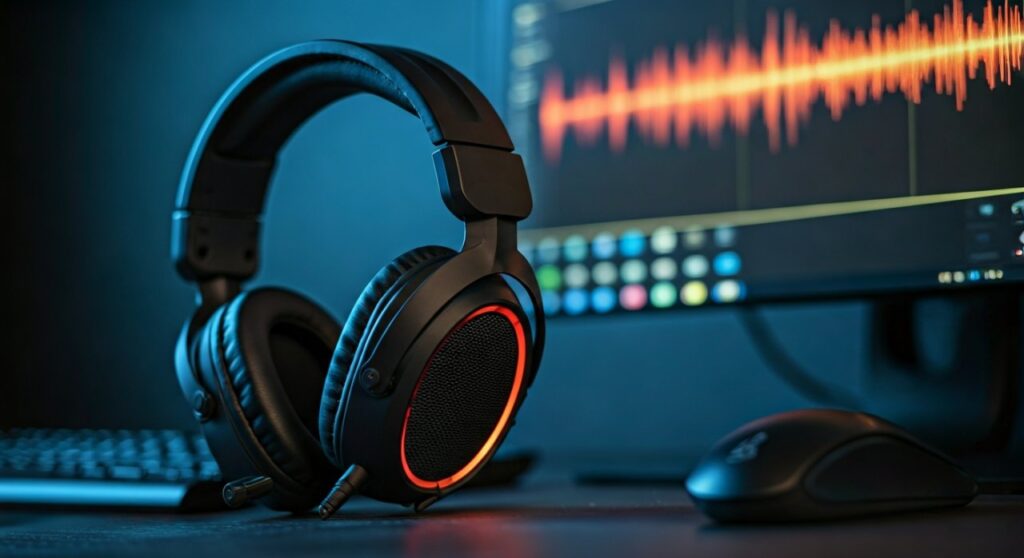
In this guide, we will explore what is Windows Sonic for Headphones, how it works, and whether it truly enhances your immersion in gaming and cinema. Based on my extensive testing with various open-back and closed-back headsets, I’ll provide the expert insights you need to optimize your spatial sound experience.
Key Takeaways (TL;DR)
- Definition: Windows Sonic for Headphones is a free spatial sound platform that simulates a multi-speaker environment.
- Mechanism: It uses HRTF (Head-Related Transfer Functions) to trick your brain into hearing sounds from above, below, and behind you.
- Compatibility: It works with any pair of headphones or earbuds connected to a Windows 10/11 PC or Xbox console.
- Cost: Completely free, unlike competitors like Dolby Atmos or DTS Sound Unbound.
- Best Use Case: Ideal for competitive gaming where positional awareness (footsteps) is critical.
What Does Windows Sonic for Headphones Do?
At its core, Windows Sonic for Headphones is a digital signal processor (DSP) that provides system-level spatial sound. Unlike traditional 7.1 virtual surround sound, which only moves sound on a horizontal plane, Windows Sonic adds height channels. This means if a helicopter flies over your character in a game, you will actually perceive the sound coming from above.
When asking what does Windows Sonic for Headphones do, think of it as a virtual architect. It takes the audio data from a game or movie and maps it to a virtual 3D space before sending it to your stereo drivers. This process allows your brain to triangulate positions with much higher precision than standard stereo.
How Does Windows Sonic for Headphones Work?
The technology relies on a scientific concept called psychoacoustics. Since humans only have two ears, we determine the location of a sound based on the timing, volume, and frequency shifts caused by the shape of our outer ears (the pinnae).
Windows Sonic mimics these shifts using HRTF filters. By slightly delaying the sound reaching one ear or adjusting the frequency response, the software creates an “out-of-head” experience. In my experience, this is particularly effective for budget headsets that typically have a narrow soundstage, as it artificially widens the perceived environment.
Is Windows Sonic for Headphones Good?
The question of is Windows Sonic for Headphones good depends largely on your hardware and the specific content you are consuming. After using it across multiple genres, here is my expert assessment:
Performance in Competitive Gaming
For titles like CS:GO, Valorant, or Apex Legends, Windows Sonic provides a clear advantage. It helps isolate directional cues, such as the sound of a reload or a footstep on a specific surface type. During my testing, the “directional imaging” was noticeably sharper than standard Windows audio.
Performance in Movies and Media
If you are watching a film encoded with 5.1 or 7.1 surround sound, Windows Sonic does an excellent job of downmixing those channels into a binaural experience. It makes cinematic explosions feel more visceral and atmospheric.
Audio Fidelity Impacts
One drawback is that spatial virtualization can sometimes introduce a “reverberant” or “tinny” quality to the high frequencies. Some purists might find that the audio sounds slightly processed compared to a high-end DAC/AMP setup running in pure stereo.
Should I Use Windows Sonic for Headphones?
Deciding should I use Windows Sonic for Headphones comes down to a simple trade-off between natural sound and spatial accuracy.
Use it if:
- You are a competitive gamer who needs to hear enemies’ positions.
- You want a free upgrade to your existing headset without buying new gear.
- You primarily watch movies on your PC using headphones.
- You find standard stereo sound to be “claustrophobic.”
Skip it if:
- You are an audiophile listening to high-resolution FLAC music files.
- You own a headset that already has proprietary 7.1 software (like Razer THX or Logitech G Hub).
Comparison: Windows Sonic vs. Competitors
To help you decide, I have compiled a comparison table based on technical specs and user experience.
| Feature | Windows Sonic | Dolby Atmos for Headphones | DTS Sound Unbound |
|---|---|---|---|
| Price | Free | $14.99 (One-time) | $19.99 (One-time) |
| Ease of Use | Built-in to Windows | Requires App Store | Requires App Store |
| Sound Profile | Transparent/Neutral | Warm/Cinematic | Bright/Aggressive |
| Customization | Low (On/Off) | High (EQ Presets) | Medium (Specific Headset Tuning) |
| Compatibility | Any Headset | Any Headset | Any Headset |
Step-by-Step Guide: How to Turn on Windows Sonic
Follow these steps to enable spatial sound on your device. Note that you should you turn on Windows Sonic for Headphones only when using headphones; it is not designed for external desktop speakers.
On Windows 11
- Connect your headphones to your PC.
- Right-click the Speaker icon in the Taskbar.
- Select Sound settings.
- Under the Output section, click on your active headphone device.
- Scroll down to Spatial sound.
- Open the dropdown menu and select Windows Sonic for Headphones.
On Windows 10
- Right-click the Speaker icon in the system tray.
- Select Spatial sound (Off).
- Choose Windows Sonic for Headphones from the list.
- You will see the speaker icon change slightly, indicating spatial sound is active.
On Xbox Series X|S and Xbox One
- Press the Xbox button to open the guide.
- Navigate to Profile & system > Settings > General > Volume & audio output.
- Under the Headset audio column, select Windows Sonic for Headphones.
Does Windows Sonic for Headphones Work for Everything?
A common point of confusion is does Windows Sonic for Headphones work on every app. The answer is twofold:
- System Level: Yes, the software will apply a virtualization layer to any audio passing through the Windows audio engine.
For older games that only output 5.1 or 7.1, Windows Sonic acts as a virtualizer, placing those 7 channels around your head. For stereo-only content (like YouTube videos), it will still attempt to “widen” the sound, though the effect is less dramatic.
Is Windows Sonic for Headphones Good for Music?
Generally, is Windows Sonic for Headphones good for music? The short answer is no.
Most music is mixed and mastered in Stereo (2.0). Engineers spend hundreds of hours ensuring the “stereo image” is perfect. When you apply Windows Sonic to music:
- The center image (vocals) can become blurred.
- The frequency response is altered, often adding a slight “hall-like” echo.
- The bass impact may feel less tight.
If you are a critical listener, I recommend disabling spatial sound when using Spotify, Tidal, or Apple Music to maintain the artist’s original intent.
Expert Tips for the Best Experience
To maximize the value of Windows Sonic, keep these three tips in mind:
- Disable Other Virtualizers: Never run Windows Sonic alongside other software like 7.1 Surround Sound apps from your headset manufacturer. This “double processing” will result in distorted, muddy audio.
- Check In-Game Settings: When Windows Sonic is on, set your in-game audio settings to “Home Theater,” “Surround Sound,” or “7.1.” Do not set the game to “Headphones” mode, as the game might then try to apply its own (conflicting) headphone processing.
- Use High-Quality Sources: Spatial sound cannot fix poor-quality, low-bitrate audio. For the best 3D effect, use high-quality game files or Blu-ray rips.
FAQs about Windows Sonic for Headphones
Does Windows Sonic cause input lag?
No, Windows Sonic operates at the system level with extremely low latency. It does not negatively impact your gaming performance or frame rates (FPS).
Is Windows Sonic better than Dolby Atmos?
Dolby Atmos is generally considered superior because it offers more precise object-based tracking and customizable EQ profiles. However, since Windows Sonic is free, it is the better value for casual users.
Can I use Windows Sonic with Bluetooth headphones?
Yes, Windows Sonic works with wired, USB, and Bluetooth headphones. Just ensure your headset is selected as the primary output device in your sound settings.
Why can’t I select Windows Sonic in my settings?
If the option is greyed out, check your Sample Rate. Windows Sonic requires a sample rate of 24-bit, 48000 Hz (Studio Quality) or lower. If you have it set to 96kHz or 192kHz, the spatial sound option may disappear.
Does Windows Sonic work with earbuds?
Yes, it works effectively with earbuds and In-Ear Monitors (IEMs). In fact, because earbuds sit closer to the ear canal, some users find the spatial effect to be even more pronounced.