Solving the Mystery: Why Cant I Hear Through My Headphones in ProTools?
If you are wondering why cant i hear through my headphones in protools, the most common reason is that the Playback Engine is set to a different output device or your I/O Setup paths are not mapped correctly to your headphones. To fix this immediately, go to Setup > Playback Engine, select your specific Audio Interface, and then go to Setup > I/O and click ‘Default’ on the Output tab to reset the signal path.
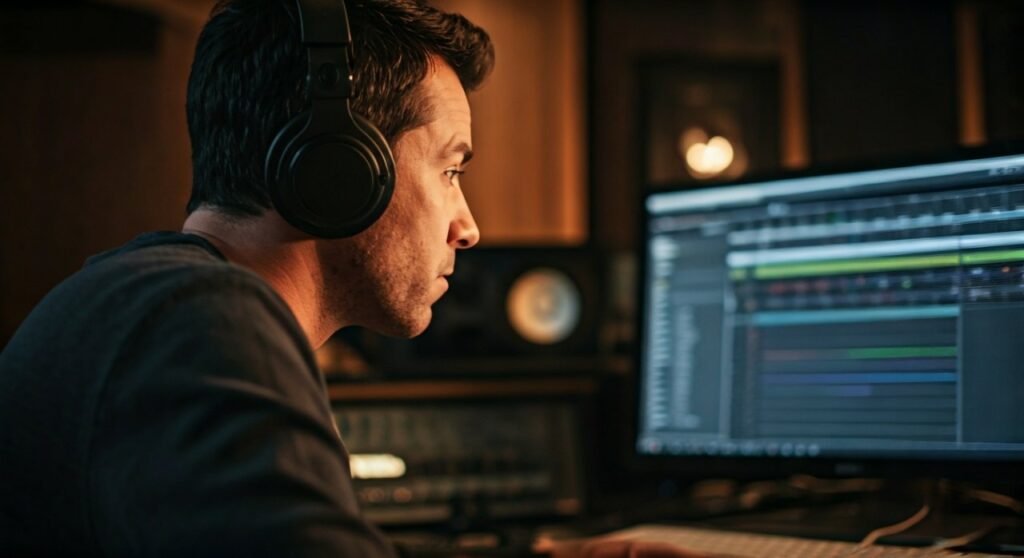
In my decade of experience engineering in Pro Tools, I have found that 90% of “no sound” issues are not hardware failures. Instead, they are simple software routing conflicts where the DAW loses its connection to the physical headphone jack. Whether you are using a Focusrite Scarlett, an Universal Audio Apollo, or just your MacBook Pro speakers, the logic remains the same.
Quick Fix: Key Takeaways for Pro Tools Audio Issues
| Problem Area | Common Solution | Time to Fix |
|---|---|---|
| Playback Engine | Change current engine to your Audio Interface/ASIO driver. | 30 Seconds |
| I/O Setup | Click “Default” in Output/Bus tabs to reset routing. | 1 Minute |
| Track Output | Ensure track output is set to “Output 1-2” or “Main Out.” | 10 Seconds |
| Hardware Knob | Check the “Monitor” or “Mix” knob on your physical interface. | 5 Seconds |
| Mute/Solo | Check if the Master Fader or individual tracks are muted. | 5 Seconds |
Step 1: Check the Playback Engine Settings
The Playback Engine is the brain of your audio routing. If Pro Tools is looking at your webcam’s microphone instead of your Audio Interface, you won’t hear a thing.
To verify this, navigate to the top menu and select Setup > Playback Engine. In the dropdown menu at the top, ensure your specific hardware is selected. If you are on a Mac and don’t have an interface, select Pro Tools Aggregate I/O or MacBook Speakers.
On Windows, you should almost always see an ASIO driver. If you don’t have an interface, many pros recommend installing ASIO4ALL to bridge the gap between Windows audio and Pro Tools. Selecting the wrong engine is the primary reason why cant i hear through my headphones in protools.
Step 2: Resetting the I/O Setup Matrix
Sometimes Pro Tools remembers the settings from a previous session used on different hardware. This creates “ghost” outputs that don’t actually exist on your current setup.
Go to Setup > I/O. This window shows how Pro Tools talks to your hardware. Click on the Output tab first. Select all existing paths and click Delete, then click the Default button.
Repeat this exact process for the Bus tab. This forces the software to “re-scan” your hardware and assign the headphone jack as the primary output. It is a vital step when switching between a home studio and a mobile laptop setup.
Step 3: Troubleshooting Hardware Knobs and Direct Monitoring
Many beginners overlook the physical controls on their Audio Interface. If you are using a Focusrite Scarlett 2i2 or a PreSonus AudioBox, there is often a physical knob labeled Direct Monitor or Mix.
If this knob is turned all the way to “Input,” you will only hear what is plugged into the mics, not the playback from Pro Tools. Ensure this knob is set to “Playback” or the 12 o’clock position.
Also, check your headphone volume knob. It sounds simple, but in high-pressure sessions, a bumped volume knob is a frequent culprit. Ensure your headphones are plugged into the “Phones” jack and not the “Line Out” jack on the back of the unit.
Step 4: Managing Track-Level Routing and Muting
If you can see the meters moving on your Master Fader but hear nothing, the issue is downstream. If the meters aren’t moving at all, the issue is on the track level.
Check the output assignment of each individual track. It should usually say Out 1-2 or Stereo Out. If it is greyed out, it means that output path no longer exists in your I/O Setup.
Also, look for the Solo (S) button. If one track is soloed elsewhere in a large session, every other track will be silenced. Use the keyboard shortcut Alt + Click (Windows) or Option + Click (Mac) on any solo button to clear all solos instantly.
Step 5: The “Low Latency Monitoring” Trap
Pro Tools has a feature called Low Latency Monitoring (LLM) located under the Options menu. While great for recording, it can be confusing for playback.
When LLM is enabled, Pro Tools mutes the output of any record-enabled track to prevent the user from hearing a delayed signal. If you are trying to hear yourself while recording and the track is silent, try toggling Low Latency Monitoring off.
However, if you are using a high-end interface like an Apollo with UAD Console, you should keep LLM on and monitor through the interface software instead of the DAW.
Understanding Sample Rate Mismatches
A common technical glitch occurs when your Windows Sound Settings and Pro Tools session are fighting over the sample rate. For example, if your Windows system is set to 48kHz but your session is 44.1kHz, the driver may crash.
To fix this on Windows:
- Close Pro Tools.
- Right-click the speaker icon in your taskbar and select Sound Settings.
- Go to Device Properties > Additional Device Properties > Advanced.
- Match the sample rate to your Pro Tools session.
- Re-launch Pro Tools.
Pro Tips for Stable Audio in Pro Tools
- Avoid Bluetooth Headphones: Pro Tools struggles with the latency and varying drivers of Bluetooth devices. Always use wired headphones for a stable connection.
- Use a Dedicated ASIO Driver: If you are on PC, avoid the “Generic Low Latency Driver.” Always download the specific driver from your interface manufacturer’s website.
- The “N” Key Shortcut: Hold down the ‘N’ key while Pro Tools is launching. This forces the Playback Engine dialog to open before the session loads, allowing you to pick the right output immediately.
- Check the Master Fader: Always create a Master Fader track (Shift+Ctrl+N or Shift+Cmd+N). It acts as a final check to see if audio is actually leaving the software.
Common Questions About Pro Tools Headphone Audio
Why is my Pro Tools output greyed out?
This happens when the output path assigned to the track is no longer available in the current Playback Engine. Reset your I/O Setup to “Default” to fix this.
Can I use my laptop’s built-in headphone jack?
Yes. On Mac, use Pro Tools Aggregate I/O. On Windows, you will likely need ASIO4ALL or the FL Studio ASIO driver to make the built-in jack work reliably with Pro Tools.
Why can I hear audio in YouTube but not Pro Tools?
Pro Tools requires exclusive access to the audio driver (ASIO). If another app is using the driver at a different sample rate, Pro Tools will remain silent. Close all browsers and background apps before opening your session.
What is the best Playback Engine for beginners?
If you have an external interface, select that (e.g., Focusrite USB ASIO). If you don’t, use Pro Tools Aggregate I/O on Mac or ASIO4ALL on Windows.
How do I fix “Audio Device Not Found” errors?
Ensure your interface is plugged in before launching the software. If it still fails, try a different USB port or replace the USB cable, as Pro Tools is very sensitive to connection drops.

![What Headphones Does TenZ Use? [2024/2025 Pro Setup]](https://bestcustomerreviews.net/wp-content/uploads/2026/03/what-headphones-does-tenz-use-2024-2025-pro-setup-1774879842-400x250.jpg "What Headphones Does TenZ Use? [2024/2025 Pro Setup]")