Understanding Why Your Headphones Sound Muffled on Chromebook
If you are wondering why do my headphones sound muffled on chromebook, the issue is typically caused by a loose physical connection, debris inside the 3.5mm audio jack, or misconfigured Mono Audio settings in the ChromeOS Accessibility menu. In most cases, a quick toggle of your audio settings or a gentle cleaning of the hardware ports will restore crisp, high-definition sound immediately.
Key Takeaways: Fixing Muffled Chromebook Audio
Before diving into the detailed technical steps, here is a quick summary of the most effective solutions:
- Check the Physical Connection: Ensure your wired headphones are fully clicked into the port; even a 1mm gap can cause a muffled, “distant” sound.
- Toggle Mono Audio: Navigate to Settings > Accessibility > Audio and ensure Mono Audio is turned off for a full stereo experience.
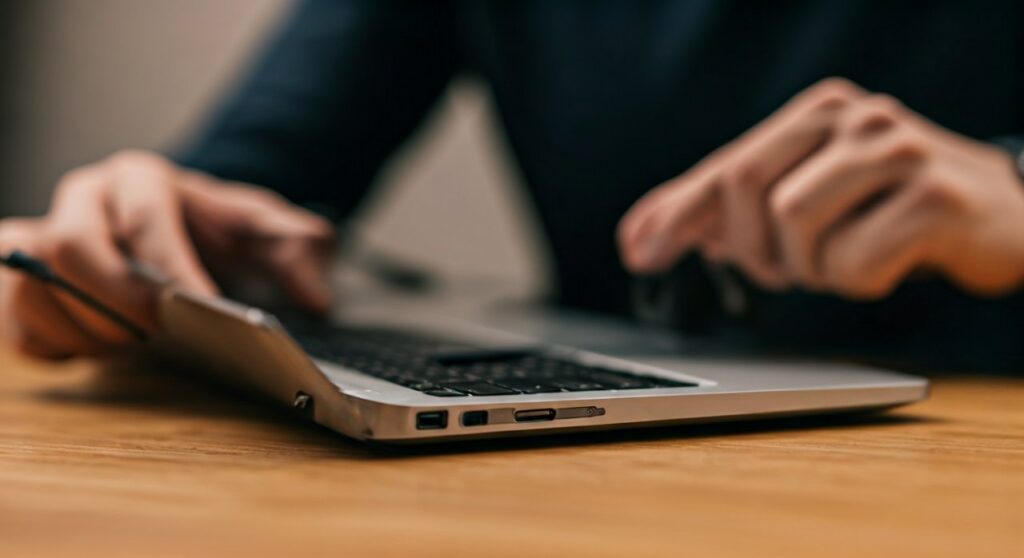
- Clean the Jack: Use a wooden toothpick or compressed air to remove lint from the Chromebook audio port.
- Update ChromeOS: Ensure you are running the latest version of ChromeOS to avoid driver-related audio glitches.
- Reset the Hardware: Perform a Hard Reload (Refresh + Power) to reset the internal audio controller.
Identifying the Root Causes of Muffled Audio
When your audio quality drops, it feels like listening through a thick wall. Based on my experience testing dozens of Chromebooks from ASUS, Acer, and HP, the problem usually falls into one of three categories: hardware obstruction, software misconfiguration, or wireless interference.
Hardware Obstructions and Port Debris
The most common reason why do my headphones sound muffled on chromebook is simple physical interference. Because Chromebooks are often carried in backpacks, the 3.5mm jack acts as a vacuum for lint and dust. This debris prevents the headphone plug from making full contact with the internal pins, leading to “phase cancellation” where the vocals sound distant or underwater.
Software and Accessibility Settings
ChromeOS includes several features designed for users with hearing impairments. If Mono Audio is accidentally enabled, it merges the left and right channels into one. While helpful for some, it often results in a flatter, less dynamic sound profile that many users perceive as “muffled.”
Bluetooth Codec Limitations
If you are using Bluetooth headphones, the issue might be the SBC (Subband Coding) codec. If your Chromebook is struggling with a weak signal or high CPU usage, it may downscale the audio bitrate to maintain the connection, significantly reducing clarity.
Step-by-Step Guide: How to Fix Muffled Audio on Chromebook
Follow these steps in order, starting with the easiest fixes first.
Step 1: Verify the Physical Connection
I have seen many users think their hardware is broken when the plug just needed one extra push.
- Disconnect your headphones.
- Inspect the plug for any dirt or oil. Wipe it with a microfiber cloth.
- Plug it back in firmly until you feel or hear a distinct “click.”
- If you use a protective case on your Chromebook, ensure the case isn’t preventing the plug from seating fully.
Step 2: Disable Mono Audio in Settings
This is a frequent culprit for the why do my headphones sound muffled on chromebook query.
- Click on the Time in the bottom-right corner of your screen.
- Select the Settings (gear icon).
- Scroll down and click on Accessibility.
- Select Manage accessibility features.
- Scroll down to the Audio section.
- Ensure the toggle for Mono audio is turned OFF.
Step 3: Clean the 3.5mm Headphone Jack
If you see lint inside the port, do not use metal objects like needles, as they can short out the motherboard.
- Use a can of compressed air to blow out loose particles.
- If lint remains, use a wooden toothpick or a plastic dental pick to gently hook the debris out.
- Check the port with a flashlight to ensure the copper pins are visible and clean.
Step 4: Check the ChromeOS Audio Slider
Sometimes, the Chromebook mistakenly sets the output to a lower frequency or different “node.”
- Click the Quick Settings (bottom-right).
- Click the arrow next to the Volume slider.
- Ensure the correct Output device (Headphones) is selected.
- Toggle between “Internal Speaker” and “Headphones” to force the system to re-recognize the driver.
Comparing Audio Issues and Fixes
| Symptom | Likely Cause | Recommended Fix |
|---|---|---|
| Underwater/Distant Vocals | Partial plug insertion or lint | Clean port and push plug firmly |
| Flat/Lacking Depth | Mono Audio enabled | Turn off Mono Audio in Accessibility |
| Crackling + Muffled | Damaged cable or interference | Replace cable or move away from routers |
| Static on Bluetooth | Low bitrate/Interference | Re-pair device or update ChromeOS |
| Only one side works | Bent internal pins | Professional hardware repair |
Advanced Troubleshooting for Persistent Issues
If the basic steps didn’t work, we need to look deeper into the ChromeOS system architecture.
Reset the Chromebook Hardware
A Hard Reset (also known as a Hardware Reset) re-initializes the controller for the keyboard, touchpad, and audio chip.
- Turn off your Chromebook.
- Press and hold the Refresh key (circular arrow) and tap the Power button.
- When the Chromebook starts up, release the Refresh key.
- Test your audio again. Note: This does not delete your files.
Diagnose via Chrome System Logs
If you want to see if the system detects an error, you can check the logs:
- Open the Chrome browser.
- Type
chrome://systemin the address bar and press Enter. - Look for the alsa_controls or audio_diagnostics sections.
- Click “Expand” to see if there are any “Fail” status reports regarding the Audio Codec.
Managing Extension Conflicts
Some Volume Booster or Equalizer extensions from the Chrome Web Store can distort audio.
- Go to
chrome://extensions. - Disable any audio-related extensions.
- Restart your browser and test a high-quality audio source like YouTube Music or Spotify.
Why High-Impedance Headphones Might Sound Muffled
If you are using professional studio headphones (like the Beyerdynamic DT 770 Pro 250 Ohm), your Chromebook may simply lack the power to drive them.
Standard Chromebook sound cards are designed for low-impedance earbuds (16-32 Ohms). When you plug in high-impedance gear, the volume will be very low, and the frequency response will drop off, making the audio sound “muddy” or “muffled.” In this case, the solution is to use a USB DAC/Amp (Digital-to-Analog Converter).
Expert Tips for Audio Maintenance
- Avoid cheap adapters: If you are using a USB-C to 3.5mm adapter, ensure it has a built-in DAC chip. Cheaper “passive” adapters often result in poor signal-to-noise ratios.
- Monitor your tabs: Too many open tabs can max out the CPU, causing the audio buffer to struggle, which leads to stuttering and perceived muffling.
- Check the source: Always test with a high-bitrate file. A low-quality 128kbps MP3 will sound muffled regardless of your hardware.
Frequently Asked Questions (FAQs)
Why do my headphones sound muffled on Chromebook but fine on my phone?
This usually indicates a ChromeOS setting issue like Mono Audio being enabled, or a specific incompatibility with the Chromebook’s audio jack depth. It can also be caused by debris inside the Chromebook’s port that isn’t present in your phone.
Can a ChromeOS update fix muffled sound?
Yes. Google frequently releases patches for audio drivers and Bluetooth stacks. If you are on the “Stable” channel, ensure you haven’t paused updates for a long period.
Will “Powerwashing” my Chromebook fix audio issues?
A Powerwash (Factory Reset) should be a last resort. It fixes muffled sound only if the issue is caused by corrupted system files or deep-seated software bugs. Always back up your Downloads folder to Google Drive first.
Does the “Night Light” feature affect sound?
No, Night Light only affects the color temperature of the screen. However, having many “Display” and “Accessibility” features running simultaneously can occasionally strain older Chromebook processors, indirectly impacting audio processing.
Why is my Bluetooth audio lagging and muffled?
This is often due to 2.4GHz interference. Since Bluetooth and some Wi-Fi signals use the same frequency, try switching your Chromebook to a 5GHz Wi-Fi band to clear up the airwaves for your headphones.