Why Is My Projector Blurry? Simple Fixes to Sharpen Your Image
If you are staring at a fuzzy screen and wondering, “why is my projector blurry,” the most common culprit is a simple focus adjustment issue or an incorrect throw distance. Often, users overlook basic lens cleanliness or environmental factors like ambient light, which can wash out details and make images appear soft. Most of these issues can be resolved in under five minutes with a few targeted adjustments to your projector lens and input settings.
TL;DR: Quick Checklist to Fix a Blurry Projector
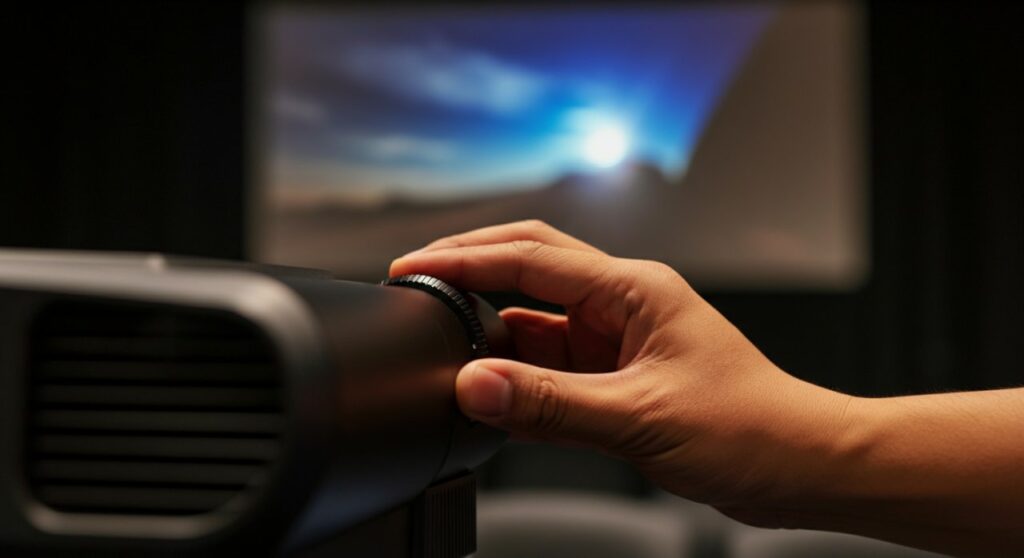
- Manual Focus: Rotate the focus ring on the lens barrel slowly until the image becomes sharp.
- Lens Cleaning: Use a microfiber cloth to gently remove dust or fingerprints from the glass.
- Keystone Correction: Reset keystone settings to zero; using aggressive digital correction often causes blurriness.
- Source Resolution: Ensure your input resolution matches the native resolution of your projector.
- Placement: Move the projector closer or further away to match its optimal throw ratio.
Common Causes for Blurry Projector Images
Understanding why your projector displays a soft image helps you troubleshoot effectively. Below is a breakdown of the most frequent technical issues I encounter when setting up home theater systems.
The Focus Ring Needs Calibration
The most straightforward reason for a soft picture is that the focus ring has been bumped or was never properly set. Even a slight movement during cleaning or installation can shift the optics out of alignment.
- Always focus on text or a high-contrast grid pattern.
- Rotate the ring slowly in both directions to find the “sweet spot.”
- If the image never becomes sharp, the internal lens mechanism might be obstructed or failing.
Issues with Digital Keystone Correction
Keystone correction is a lifesaver when you cannot mount the projector dead-center, but it comes at a cost. It digitally compresses the image, which frequently introduces blur and artifacts.
- Rule of thumb: Keep digital keystone as close to 0 as possible.
- Try to physically reposition the projector so it is square to the screen.
- If you must use it, enable Lens Shift if your model supports it, as this is an optical—not digital—correction.
How to Make a Projector Not Blurry: A Step-by-Step Guide
To improve your visual quality, follow this systematic approach. I have used this exact method to troubleshoot dozens of DLP and LCD projectors.
Step 1: Clean the Optics
Dust is the enemy of projection. A tiny spec of dust on the lens or the internal DMD chip can cause spots or overall softness.
- Turn off and unplug the unit to let it cool down.
- Use a bulb blower to remove loose particles.
- Gently wipe the glass lens with a high-quality microfiber cloth in a circular motion.
Step 2: Match Input Resolution
If your source device (laptop, Blu-ray player, or gaming console) is sending a 4K signal to a 1080p projector, the downscaling process can create a blurry or “noisy” image.
- Check your projector’s native resolution in the user manual.
- Go to your source device settings and manually set the output to match the native resolution.
- This removes the need for the projector to perform complex image processing.
Comparison Table: Common Projector Issues and Solutions
| Issue Symptom | Likely Cause | Recommended Fix |
|---|---|---|
| Image is soft overall | Focus Ring misalignment | Adjust focus dial slowly |
| Blurry edges | Keystone correction | Set to 0 and level the unit |
| Fuzzy text/details | Wrong resolution | Match source to native specs |
| Dark/washed out | Ambient light | Close curtains or use high-gain screen |
| Spots on screen | Dust on lens/internal | Clean lens or professional service |
Advanced Tips to Make Projector Less Blurry
When basic adjustments fail, look at your environment and cable quality. Many users forget that HDMI cable integrity plays a significant role in image sharpness.
Check Your HDMI Cables
If you are running a cable longer than 15 feet, signal degradation can occur. This manifests as noise or a loss of sharpness that looks like blurriness.
- Test with a shorter, certified High-Speed HDMI cable.
- Ensure the cable is not bent sharply or running near electrical interference.
Evaluate Screen Material
Projecting onto a textured wall or an old, wrinkled sheet will break up the light and cause a “diffused” look. Investing in a dedicated projector screen—even an affordable fixed-frame model—will immediately improve perceived sharpness.
Frequently Asked Questions (FAQs)
Why is my projector blurry only at the edges?
This is typically caused by Keystone correction or the projector not being perfectly perpendicular to the screen. Reset your keystone to zero and ensure the lens is centered horizontally and vertically to the screen surface.
Can old projector bulbs cause blurriness?
While an old bulb primarily loses brightness and color accuracy, a dim image often results in the viewer perceiving it as “soft.” If your bulb has over 2,000–3,000 hours of use, it may be time for a replacement.
Does the distance from the screen affect image sharpness?
Yes, every projector has an optical throw range. If you place the unit outside of this distance, the internal lens cannot focus the light properly, resulting in a blurry image that cannot be corrected by the focus ring alone.