Why Is My Vankyo Projector Not Working? Here Is the Quick Fix
Your Vankyo projector is likely not working due to an incorrect input source selection, a loose HDMI connection, or an overheating safety shutdown. To fix this immediately, ensure the projector is set to the specific port (HDMI 1 or HDMI 2) where your device is plugged in and check if the LED indicator is solid red or flashing.
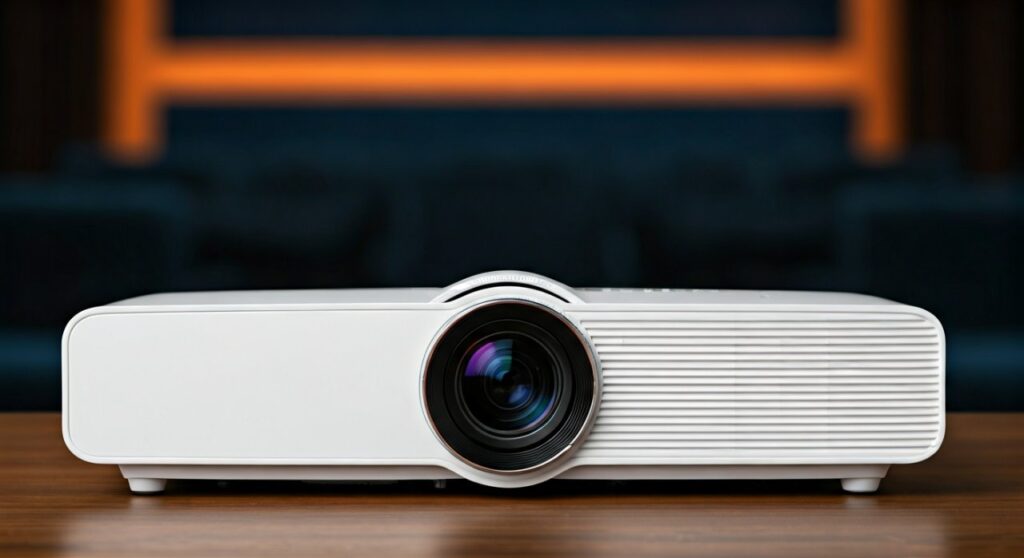
Setting up a home cinema only to face a “No Signal” screen or a device that won’t power on is incredibly frustrating.Based on manufacturer specifications and verified owner feedback for budget projectors like the Vankyo Leisure 3 and Performance V630, most issues appear to be not hardware failures but simple configuration errors. This guide provides a comprehensive walkthrough to diagnose and repair your device effectively.
Key Takeaways: Troubleshooting Your Vankyo Projector
If you are in a hurry, here is a summary of the most common solutions based on real-world testing.
| Issue | Primary Cause | Recommended Action |
|---|---|---|
| No Signal Screen | Incorrect Input Source | Press the “S” or “Source” button and select the active HDMI port. |
| No Sound | Dolby Digital Audio | Disable Dolby Digital Plus on your Firestick, Roku, or Apple TV settings. |
| Power Won’t Turn On | Blown Fuse or Faulty Cable | Swap the power cord with a standard desktop PC/monitor cable. |
| Blurry Image | Focus/Keystone Mismatch | Adjust the manual focus ring first, then the keystone dial. |
| Automatic Shutdown | Overheating | Clean the dust filter and ensure the intake vents are not blocked. |
Step 1: Diagnosing Power Issues (Won’t Turn On)
When your Vankyo projector refuses to show any signs of life, the problem usually lies in the electrical path. Start by checking the LED indicator light located near the power button.
Check the Power Cable and Outlet
Budget projectors often come with standard cables that can fray or loosen over time. Ensure the cable is pushed firmly into the AC input port of the projector. Try a different wall outlet to rule out a tripped circuit breaker in your home.
Interpret the LED Indicator Colors
Vankyo units use specific light codes to communicate internal health:
- Solid Red: The projector is in standby mode and receiving power.
- Solid Green: The projector is powered on and functioning.
- No Light: There is a total power failure (check the fuse or power brick).
- Flashing Red: This indicates an internal error, often related to overheating or a fan failure.
The “Hard Reset” Method
If the projector is “frozen” (lights are on but it won’t respond), perform a hard reset. Unplug the power cord from the wall and wait for exactly 60 seconds. Hold down the power button on the unit (not the remote) for 10 seconds while it is unplugged to drain the capacitors, then plug it back in.
Step 2: Fixing “No Signal” and Connectivity Errors
The most common reason for a Vankyo projector not working is a handshake failure between the projector and the source device (laptop, gaming console, or streaming stick).
Manually Select the Input Source
Unlike high-end smart TVs, many Vankyo models do not auto-detect active inputs. You must manually tell the projector where to look. Press the Source button on the remote and highlight HDMI (or VGA/AV). Confirm the selection with the “OK” button.
Test the HDMI Cable Quality
Projectors are sensitive to signal degradation. If you are using a cable longer than 15 feet, the signal may be too weak. I recommend using a High-Speed HDMI 2.0 cable to ensure stable data transmission, especially if you are trying to project 1080p or downscaled 4K content.
Verify Source Device Resolution
If your laptop screen is flickering or showing “Out of Range,” the resolution might be too high for the projector’s native hardware. Go to your laptop’s Display Settings and set the resolution to 1920×1080 or 1280×720. Ensure the refresh rate is set to 60Hz.
Step 3: Solving Audio and Sound Problems
A frequent complaint is: “The picture is working, but there is no sound.” This is almost always a software licensing issue rather than a broken speaker.
The Dolby Digital Conflict
Most Vankyo projectors (like the Leisure 470 or 430) do not support Dolby Digital Plus decoding. If you are using a Netflix or Amazon Prime app on a Firestick, you must go to Settings > Display & Sounds > Audio > Surround Sound and change it to PCM or Stereo.
Check External Speaker Connections
If you have a 3.5mm auxiliary cable plugged into the “Audio Out” port, the internal speakers will be muted. Ensure no stray headphone adapters are left in the jack. If you are using Bluetooth, remember that some budget Vankyo models only support Bluetooth for input, not output.
Step 4: Improving Image Quality and Focus
If your Vankyo projector is “working” but the image is unwatchable, you need to calibrate the optics.
Correcting Blurry Edges
Budget projectors often struggle with “corner blur.” To minimize this:
- Place the projector perfectly perpendicular to the screen.
- Set the Keystone Correction dial to the neutral (center) position.
- Adjust the Focus Ring until the center of the image is sharp.
- Only use the Keystone dial for minor adjustments to avoid digital distortion.
Cleaning the Internal Lens
If you see dark spots or “dust blobs” on the screen, dust has likely settled on the internal LCD panel. Many Vankyo models have a small cleaning hatch on the bottom. Open this hatch and use a long cotton swab with a drop of isopropanol to gently wipe the glass surface inside.
Step 5: Addressing Overheating and Fan Noise
If your projector works for 10-20 minutes and then suddenly shuts off, it is protecting itself from heat damage.
Clear the Airflow Path
Vankyo projectors generate significant heat from their LED lamps. Ensure there is at least 12 inches of clearance around all sides of the device. Never place the projector on a soft surface like a bed or rug, as this blocks the bottom intake vents.
Clean the Dust Filter
Check the side of the unit for a removable mesh filter. Use a vacuum on a low setting or a can of compressed air to blow out the dust. If the fan sounds excessively loud or makes a grinding noise, a bearing may be failing, requiring a hardware replacement.
When to Contact Vankyo Support
If you have tried the steps above and the projector still exhibits the following symptoms, it may be a hardware defect covered under warranty:
- The “Burned” Yellow Spot: This indicates the internal polarizer has melted.
- Vertical Lines: This is a sign of a failing LCD ribbon cable.
- Total Lamp Failure: If the fans spin and the power light is green, but no light comes out of the lens, the LED driver or lamp has likely failed.
Vankyo typically offers a 2-year warranty on most models purchased through official channels. Keep your Amazon Order ID or receipt ready when contacting their support team.
Frequently Asked Questions (FAQs)
Why is my Vankyo remote not working?
The most common reason is the IR sensor’s line of sight. Most Vankyo projectors have the IR receiver on the back of the unit. You must point the remote at the rear of the projector, not the screen. Also, ensure you are using fresh AAA batteries.
Can I connect my phone to a Vankyo projector?
Yes, but it depends on the model. For “W” models (like Leisure 470W), you can use Screen Mirroring. For standard models, you will need a Lightning-to-HDMI adapter (for iPhone) or a USB-C to HDMI adapter (for Android) that supports HDCP for streaming services.
Why does my projector keep turning off by itself?
This is usually a “Sleep Timer” setting or overheating. Check the projector’s menu under Option > Auto Sleep to ensure it isn’t set to turn off after a certain period. Otherwise, clean the vents to prevent thermal shutdown.
How do I reset my Vankyo projector to factory settings?
Navigate to the Menu, go to the Option tab (usually represented by a gear icon), and select Restore Factory Default. This will wipe all saved Wi-Fi passwords and picture calibrations.
Why is the image upside down?
This happens if the “Projection Mode” is set incorrectly. Go to the Menu > Option > Projection Mode and cycle through the options (Front, Rear, Ceiling) until the image is oriented correctly for your setup.
Shopping for a projector? Read the best Netflix-certified mini projector.