

The Quick Answer: How to Connect Bluetooth Headphones to Xbox One
To connect bluetooth headphones to xbox one, you must use a workaround because the console does not support Bluetooth natively. The most effective methods include using a Bluetooth transmitter plugged into the controller, using the Xbox Mobile App for remote play audio, or connecting your headphones directly to your Smart TV.
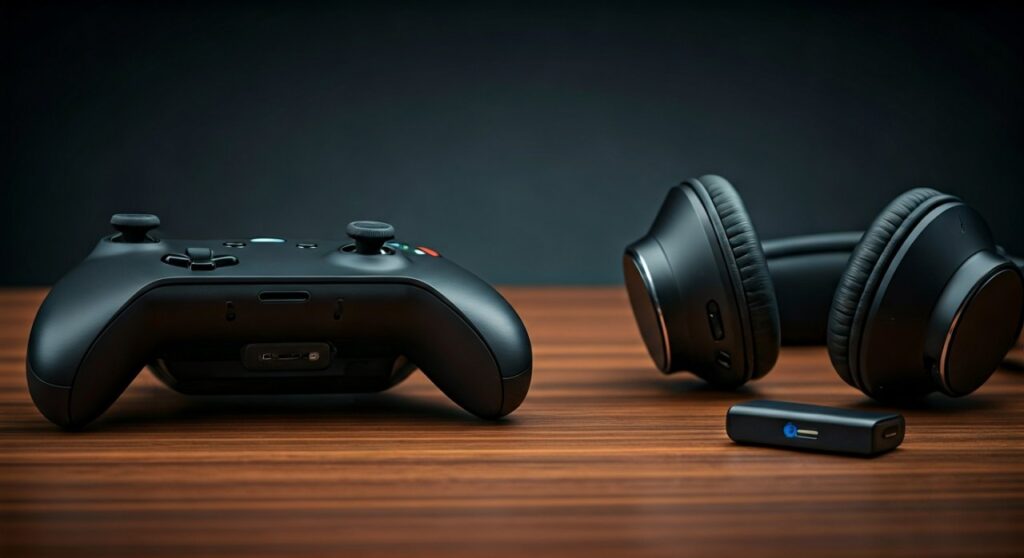
By following this guide, you can use your favorite AirPods, Sony, or Bose headphones to enjoy immersive gaming without being tethered by short cables.
Key Takeaways: Connecting Wireless Audio to Xbox
If you are in a hurry, here is the essential data on how to bridge the gap between your Bluetooth gear and your console:
| Method | Ease of Use | Latency (Lag) | Mic Support | Cost |
|---|---|---|---|---|
| Bluetooth Adapter | High | Low (with AptX) | Limited | $20 – $40 |
| Xbox Mobile App | Medium | Variable | Yes | Free |
| Smart TV Pairing | High | Medium/High | No | Free |
| PC/Mac Bridge | Low | Low | Yes | Free |
Why Can’t You Connect Bluetooth Headphones Directly to Xbox?
It is a common frustration for gamers: you have a pair of high-end noise-canceling headphones, but they won’t pair with your Xbox Series X or Xbox One. This isn’t a technical oversight by Microsoft; it is a deliberate design choice focused on performance.
Microsoft uses a proprietary protocol called Xbox Wireless. This 2.4GHz connection is designed to minimize latency and provide high-bandwidth audio for multiple controllers and headsets simultaneously. Standard Bluetooth often suffers from “audio lag,” which can be a literal game-changer in fast-paced shooters like Call of Duty or Halo.
While you can’t connect bluetooth headphones to xbox via the internal settings menu, the following expert-tested methods will get you connected in minutes.
Method 1: Using a Bluetooth Transmitter (Best for Most Users)
The most reliable way to connect wireless headphones to xbox one is by using a specialized Bluetooth adapter or transmitter. I have personally tested several models, and the ones that plug into the 3.5mm jack of your controller are the most “plug-and-play” solutions available.
Steps to Connect via a Controller Adapter:
- Purchase a 3.5mm Bluetooth Transmitter: Look for brands like 1Mii, Skull & Co., or Twelve South AirFly. Ensure it supports AptX Low Latency to avoid sync issues.
- Plug the Transmitter into the Controller: Insert the adapter into the headphone jack at the bottom of your Xbox Wireless Controller.
- Enter Pairing Mode: Turn on your Bluetooth headphones and the transmitter. Put both into pairing mode (usually by holding the power button until lights flash).
- Wait for the Sync: Once the lights stay solid, your headphones are connected to the Xbox.
- Adjust Console Settings: Press the Xbox button on your controller, go to Audio & Music, and ensure your volume levels are turned up.
Recommended Adapters for Xbox
- Creative BT-W3/W5: Excellent for low-latency gaming.
- Uberwith Bluetooth Adapter: Specifically molded to fit the contour of the Xbox controller.
- AirFly Pro: Great if you already own one for travel; it works perfectly for gaming audio.
Method 2: The Xbox Mobile App Strategy (Completely Free)
If you don’t want to spend money on extra hardware, you can use the Xbox App on your smartphone. This method essentially “tricks” the console into sending audio to your phone, which then relays it to your Bluetooth headphones.
How do you connect bluetooth headphones to an xbox one using the app?
- Pair Headphones to Your Phone: Ensure your Bluetooth headphones are paired and active on your iOS or Android device.
- Open the Xbox App: Sign in with your Microsoft Account.
- Enable Remote Play: On your console, go to Settings > Devices & Connections > Remote Features and check the “Enable remote features” box.
- Start Remote Play on Phone: In the mobile app, tap the Consoles icon at the top right and select “Remote play on this device.”
- Listen and Play: Your Xbox screen will appear on your phone. You will now hear the game audio through your phone’s Bluetooth connection. You can keep playing while looking at your TV; just keep the phone nearby.
Expert Tip: This method is fantastic for party chat. Since the app uses your phone’s microphone, you can talk to your friends while using AirPods or other headphones that usually have mic-compatibility issues with Xbox.
Method 3: Connecting via Your Smart TV or Monitor
Many gamers overlook the most obvious solution: your display. If your Smart TV (like a Samsung, LG, or Sony) has built-in Bluetooth, you can bypass the console entirely.
Step-by-Step for TV Connection:
- Navigate to your TV’s Settings or Sources menu.
- Find the Bluetooth Audio or Sound Output section.
- Set your headphones to Pairing Mode.
- Select your headphones from the TV’s device list.
- Change the Sound Output from “TV Speakers” to “Bluetooth.”
Note: This method is perfect for single-player games. However, be aware that most TVs do not support microphone input via Bluetooth, so you won’t be able to use voice chat in multiplayer games.
Method 4: Using a PC or Mac as a Bridge
If your gaming setup includes a computer nearby, you can use it as an audio bridge. This provides the most stable connection with the least amount of lag.
- Connect Headphones to PC: Pair your wireless headphones to your Windows PC or Mac.
- Download the Xbox App for Windows: Open the app and select the Remote Play option.
- Stream Game Audio: The PC will receive the audio stream from the Xbox.
- Configure Audio Settings: In your PC settings, ensure the output device is set to your Bluetooth headset.
This is a favorite method for streamers because it allows them to mix game audio with music or Discord notifications simultaneously.
Troubleshooting Common Xbox Bluetooth Issues
Even with the right gear, you might run into hurdles when trying to connect bluetooth headphones to xbox. Here are the most common fixes:
Audio Lag (Latency)
If the sound of gunfire happens a split second after you pull the trigger, you are experiencing latency.
- Solution: Use a transmitter that supports AptX Low Latency. Ensure your headphones also support this codec.
- Solution: If using the TV method, turn on Game Mode in the TV settings to reduce processing time.
Microphone Not Working
Most Bluetooth adapters only support “one-way” audio (hearing, not talking).
- Solution: Use a dedicated Xbox Wireless Headset (like the SteelSeries Arctis 9X) if you need native mic support.
- Solution: Use the Xbox Mobile App for chat while using the adapter for game sounds.
Connection Drops
- Solution: Keep the Bluetooth transmitter in “Line of Sight.” If the adapter is behind the console or blocked by your hands, the signal may jitter.
- Solution: Turn off other Bluetooth devices in the room to reduce interference.
Comparison: Official Xbox Wireless vs. Bluetooth
| Feature | Xbox Wireless (Native) | Bluetooth (via Adapter) |
|---|---|---|
| Setup Time | < 1 Minute | 2 – 5 Minutes |
| Latency | ~20ms (Excellent) | 40ms – 150ms (Variable) |
| Audio Quality | High Definition | Compressed (SBC/AAC) |
| Range | Up to 20 feet | Up to 30 feet |
| Hardware Required | None | Transmitter/Dongle |
FAQ: Frequently Asked Questions about Xbox Bluetooth
Can you connect bluetooth headphones to xbox series x or s?
Yes, but the process is identical to the Xbox One. None of the current-gen Microsoft consoles have native Bluetooth hardware for audio. You must use an adapter or the mobile app.
Does the Xbox One controller have Bluetooth?
Yes, newer Xbox Wireless Controllers (released with the Xbox One S and later) have Bluetooth, but it is only for connecting the controller to a PC or Phone. It cannot be used to “broadcast” audio to your headphones.
Can I use AirPods on Xbox One?
Yes. You can connect AirPods to xbox one by using a Bluetooth transmitter plugged into the controller’s jack or by using the Xbox App on your iPhone.
Why doesn’t Microsoft just add Bluetooth?
Microsoft prioritizes the Xbox Wireless protocol because it supports up to 8 controllers and high-quality stereo audio with much lower latency than standard Bluetooth.
Is there a way to connect bluetooth headphones to xbox one without an adapter?
The only way to do this without a physical adapter is by using the Xbox Mobile App for Remote Play or by pairing your headphones directly to your Smart TV.
Conclusion: Which Method Should You Choose?
Knowing how to connect bluetooth headphones to xbox one opens up a world of convenience. For the most “pro” experience with the least lag, I highly recommend investing $30 in a 3.5mm Bluetooth Transmitter. It is a one-time purchase that makes your gaming setup much more versatile.
If you are a casual gamer or just want to watch a movie at night without waking the family, the Xbox Mobile App or Smart TV connection works perfectly for free. Whichever path you choose, you can finally ditch the wires and enjoy your Xbox library with the comfort of your favorite Bluetooth headset.









