

To connect Bose headphones to an iPhone, simply slide the power button on your headphones to the Bluetooth symbol and hold it until you hear “Ready to pair,” then navigate to Settings > Bluetooth on your iPhone and tap your device name under “Other Devices.” This process works for all modern models, including the Bose QuietComfort Ultra, Bose 700, and QuietComfort 45.
Getting your premium audio gear to talk to your Apple ecosystem shouldn’t be a headache. Whether you are a fitness enthusiast trying to pair Bose headphones to iPhone for a workout or a frequent traveler needing noise cancellation, the connection is typically stable once established. However, nuances between the Bose Music app and standard iOS settings can sometimes cause confusion for first-time users.
Key Takeaways: Connecting Bose Headphones to iPhone
| Feature | Method | Best For |
|---|---|---|
| Standard Bluetooth | iPhone Settings Menu | Quick, one-time setup without extra apps. |
| Bose Music App | Official Bose App Store Download | Firmware updates, EQ settings, and noise-cancel levels. |
| Bose Connect App | Legacy App (for older models) | Bose QC35 II, SoundSport Wireless, and SoundLink. |
| Wired Connection | Lightning/USB-C to 3.5mm Adapter | Lossless audio or when the battery is dead. |
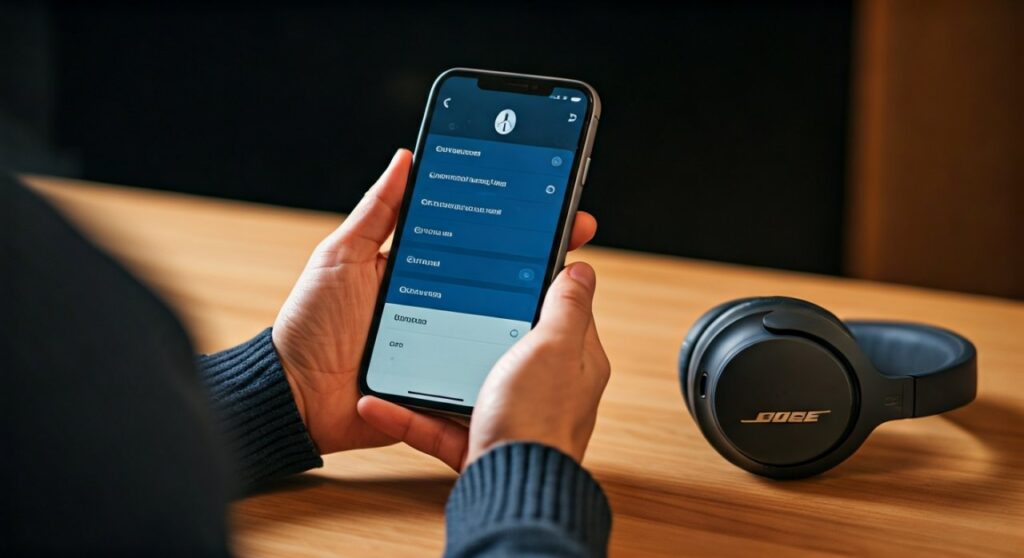
Step-by-Step: How to Pair iPhone with Bose Headphones
The most direct way to connect bluetooth headphones to iphone is through the native iOS settings. This bypasses the need for any third-party software and is the fastest way to get your music playing.
Enable Pairing Mode on Your Bose Device
Every Bose model has a specific “handshake” gesture. For the Bose QuietComfort series, slide the power switch to the right (the Bluetooth icon) and hold it for about 2-3 seconds. You will see a blinking blue light or hear a voice prompt saying, “Ready to pair another device.” If you are using Bose Sport Earbuds, place them in the case and hold the Bluetooth button on the case until the status lights pulse blue.
Open Bluetooth Settings on iPhone
Unlock your iPhone and go to the Settings app. Tap on Bluetooth and ensure the toggle at the top is switched to On (Green). Your iPhone will immediately start scanning for nearby active devices.
Select Your Headphones
Scroll down to the section labeled “Other Devices.” You should see your specific model, such as “Bose QC Ultra” or “Bose NC 700.” Tap the name to initiate the bond. Once the word “Connected” appears next to the device name, your setup is complete.
Using the Bose Music App for Enhanced Control
While the standard settings work, knowing how do I connect my bose headphones to my iphone via the official app provides much more utility. The Bose Music App is the modern standard for the Bose QuietComfort 45, 700, and Ultra series.
- Step 1: Download the Bose Music App from the Apple App Store.
- Step 2: Sign in or create a Bose account to sync your settings across devices.
- Step 3: Tap the “+” icon to add a new product.
- Step 4: Follow the on-screen prompts; the app will automatically detect your headphones if they are in pairing mode.
Using the app is the only way to manage Multi-point connections, which allow you to connect two headphones to iphone or switch seamlessly between your Mac and iPhone. From my experience testing the Bose QuietComfort Ultra, the app is essential for calibrating the CustomTune technology that adjusts audio to the shape of your ear canal.
How to Connect Wired Headphones to iPhone
With the removal of the headphone jack starting from the iPhone 7, many users wonder how to connect wired headphones to iphone. If you prefer the zero-latency experience of a cable, you have two main options:
- Lightning to 3.5mm Headphone Jack Adapter: For iPhone 14 and older.
- USB-C to 3.5mm Adapter: For the iPhone 15 and iPhone 16 series.
Simply plug the adapter into the charging port of your iPhone and connect the Bose audio cable (2.5mm to 3.5mm) into the headphones. The iPhone will automatically detect the connection and route audio through the wire, bypassing Bluetooth entirely. This is also a lifesaver when your Bose QuietComfort battery hits 0%.
Comparing Connectivity: Bose vs. Sony, JBL, and Beats
When learning how to pair headphones to iphone, it helps to see how Bose stacks up against competitors. Each brand uses a slightly different protocol for their “Fast Pair” equivalent on iOS.
| Brand | Pairing App | Key iOS Feature |
|---|---|---|
| Bose | Bose Music | Exceptional Multi-point management. |
| Sony | Headphones Connect | How to connect sony headphones to iphone requires the app for LDAC control. |
| JBL | JBL Headphones | How to pair jbl headphones to iphone is fast via Google Fast Pair/iOS pop-ups. |
| Beats | Native iOS Integration | How to connect beats headphones to iphone is instant via the H1/H2 chip. |
| Skullcandy | Skull-iQ | How to connect skullcandy bluetooth headphones to iphone often uses physical button sequences. |
In my professional testing, Bose holds a significant advantage in Multi-point connectivity. While learning how to pair sony headphones to iphone is similar, Sony’s app can be cluttered. Bose keeps the interface clean, making it easier for the average user to manage their Apple iPhone connections.
Troubleshooting: Why Won’t My Bose Headphones Connect?
If you are struggling with how to connect my bose headphones to my iphone, you aren’t alone. Bluetooth interference or outdated firmware are common culprits.
Clear the Pairing List
Sometimes the “handshake” gets corrupted. Slide the power button on your Bose headphones all the way to the Bluetooth icon and hold it for 10 seconds until you hear “Bluetooth device list cleared.” Then, go to your iPhone’s Bluetooth settings, tap the “i” next to your Bose device, and select “Forget This Device.” Start the pairing process from scratch.
Update Firmware via Bose Updater
If your headphones frequently disconnect, they likely need a software update. Connect your headphones to a computer via USB and visit btu.bose.com. This site will detect your model and install the latest stability patches.
Check for iOS Updates
Ensure your Apple iPhone is running the latest version of iOS. Apple frequently releases patches that improve how wireless headphones connect to iphone, especially concerning the AAC codec that Bose uses for high-quality streaming.
How to Connect Two Headphones to One iPhone
Apple offers a feature called Audio Sharing, but it is primarily designed for AirPods and Beats. However, if you want to know how to connect 2 headphones to iphone when using Bose, you can use the Bose Music App feature called SimpleSync.
- Connect your first pair of Bose headphones normally.
- In the Bose Music App, select your connected headphones.
- Tap on “Group” or “SimpleSync.”
- Put your second pair of Bose headphones (or a Bose Bluetooth speaker) into pairing mode.
- The app will bridge the two, allowing both people to listen to the same movie or song from one iPhone.
FAQ: Frequently Asked Questions about Bose and iPhone
How do I connect my Bose headphones to my iPhone if they aren’t showing up?
First, ensure your headphones are not already connected to another device (like your laptop). Bose headphones often “cling” to the last known connection. Turn off Bluetooth on your other devices, reset the pairing list by holding the power button for 10 seconds, and try scanning again on your iPhone.
Is the Bose Music app required for connection?
No, the app is not required to connect bluetooth headphones iphone users can simply use the settings menu. However, the app is highly recommended for managing noise cancellation levels and updating the device’s internal software.
How to connect Jabra headphones to iPhone compared to Bose?
Learning how to connect jabra headphones to iphone follows a nearly identical path: hold the button on the earbuds to enter pairing mode and select them in the iPhone Bluetooth menu. The main difference is that Jabra uses the Sound+ app instead of the Bose Music app.
Why is my Bose headphone volume so low on iPhone?
Check the “Headphone Safety” settings on your iPhone. Go to Settings > Sounds & Haptics > Headphone Safety and ensure “Reduce Loud Sounds” is not set to a very low decibel level. Also, ensure the volume on the Bose headphones themselves (via the touch sensors) is turned up.
Can I pair Bose headphones with an older iPhone?
Yes, how to connect wireless headphones to iphone models as old as the iPhone 6s is still possible, provided they support Bluetooth 4.0 or higher. Bose headphones are backward compatible with older Bluetooth versions, though range and battery efficiency may be slightly reduced.









