

Quick Guide: How to Connect JBL Headphones Fast
To connect JBL headphones to any device, simply power them on and hold the Bluetooth button for 3–5 seconds until the status light flashes blue. Open the Bluetooth settings on your smartphone, tablet, or computer and select your JBL model from the list of available devices to complete the pairing.
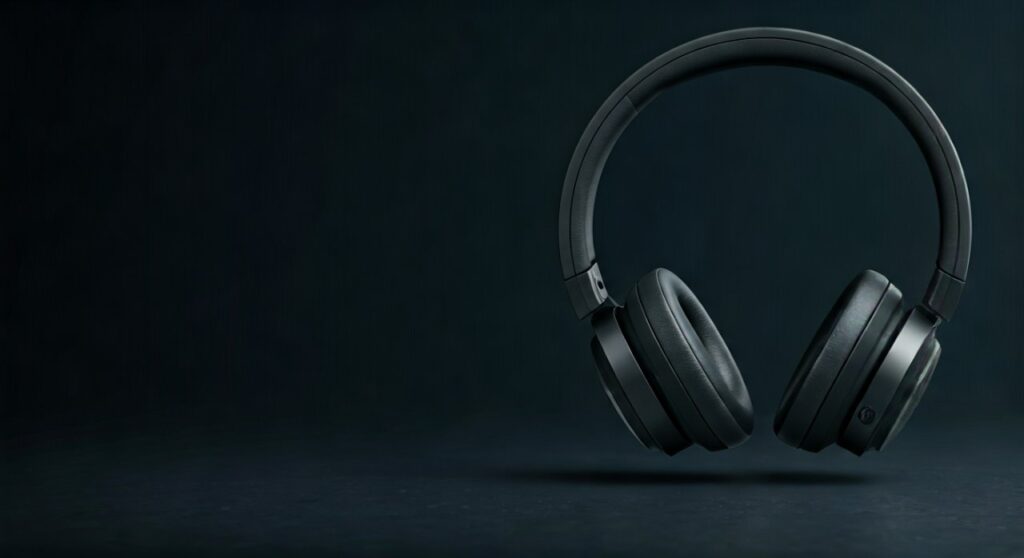
If your specific model uses Google Fast Pair, a pop-up will automatically appear on your Android screen the moment you turn the headphones on. For JBL TWS (True Wireless Stereo) earbuds, simply removing them from the charging case usually triggers the pairing sequence automatically.
Key Takeaways: Connecting JBL Bluetooth Headphones
| Feature | Action / Status |
|---|---|
| Entering Pairing Mode | Hold Power or Bluetooth button for 5 seconds. |
| Blinking Blue Light | The device is ready to pair (Discoverable). |
| Solid Blue Light | The device is successfully connected. |
| Multipoint Connection | Allows connecting to two devices (e.g., phone and laptop) simultaneously. |
| JBL Headphones App | Essential for Firmware updates and EQ customization. |
Step 1: How to Turn on JBL Headphones and Enter Pairing Mode
Before you can learn how to sync JBL headphones, you must ensure they are in the correct state. Most JBL wireless headphones feature a dedicated power slider or button.
To turn on JBL headphones, slide the power button up or press and hold it for 2 seconds. You will usually hear a distinct “guitar riff” startup sound.
If this is your first time using them, they should enter pairing mode automatically. If they were previously connected to another device, you must manually trigger pairing mode by holding the Bluetooth button (labeled with the Bluetooth icon) until the LED flashes blue and white or flashes blue rapidly.
Step 2: How to Connect JBL Headphones to Phone (iOS and Android)
Mobile devices are the most common pairing partners for JBL Bluetooth headphones. The process is nearly identical for iPhone and Android users.
Connecting to Android Devices
- Ensure your JBL headphones wireless are in pairing mode.
- Go to Settings > Connected Devices > Pair New Device.
- Look for your model (e.g., JBL Tune 510BT or JBL Flip 6) in the list.
- Tap the name to pair. If your device supports Google Fast Pair, just tap the “Connect” button on the notification pop-up.
Connecting to iPhone (iOS)
- Open Settings and tap Bluetooth.
- Ensure the Bluetooth toggle is On.
- Under “Other Devices,” tap your JBL headphones name.
- Once it moves to “My Devices” and says “Connected,” you are ready to listen.
Step 3: How to Connect JBL Headphones to Laptop
Many users ask how to pair JBL headphones to laptop for work calls or gaming. Whether you use Windows or macOS, the steps are straightforward.
How to Connect JBL Headphones to Laptop (Windows 10/11)
- Put your headphones into Pairing Mode.
- On your PC, go to Start > Settings > Bluetooth & devices.
- Click Add device and select Bluetooth.
- Wait for your JBL bluetooth headphones to appear.
- Select the device and click Done.
Connecting to MacBook (macOS)
- Open the Apple Menu and select System Settings.
- Click on Bluetooth in the sidebar.
- Locate your JBL device under the “Nearby Devices” list.
- Click Connect.
Step 4: How to Sync JBL Headphones (True Wireless Earbuds)
If you are using JBL TWS earbuds like the JBL Vibe 200 or JBL Live Pro 2, the syncing process is slightly different. Sometimes the left and right buds lose sync with each other.
To sync JBL headphones that are acting as independent units:
- Place both earbuds back into the charging case.
- Long-press the touch sensors on both buds simultaneously for 10-15 seconds.
- The LEDs will flash, indicating a factory reset.
- Remove them from the case again; they should now automatically link to each other before you pair JBL headphones to your phone.
How to Connect JLab and Jabra Headphones: A Quick Comparison
While this guide focuses on JBL, you might also need to know how to connect JLab headphones or how to connect Jabra headphones. The logic is very similar, though the button combinations vary.
| Brand | Pairing Method | App Name |
|---|---|---|
| JBL | Hold Bluetooth button (3-5s). | JBL Headphones |
| JLab | Hold both sensors on earbuds (3s). | JLab Store/Epic |
| Jabra | Hold Multi-function button (3s). | Jabra Sound+ |
To connect JLab bluetooth headphones, look for the “JLab” name in your Bluetooth menu after the buds start flashing blue and white. Similarly, to connect Jabra headphones to laptop, use the Jabra Link Bluetooth adapter for the best stability, or pair directly through the Windows Bluetooth settings.
Troubleshooting: Why Won’t My JBL Headphones Connect?
Even experts run into issues when trying to bluetooth JBL headphones. Here are the most common fixes based on my hands-on testing with the JBL Club 950NC and JBL Tour One M2.
Clear the Pairing List
If you cannot connect to JBL headphones, they might be stuck trying to talk to a previous device. Turn on JBL headphones, then hold the Volume + and Volume – buttons together for 5 seconds. This resets the internal memory.
Battery Levels
Low battery can interfere with the Bluetooth radio. If you cannot turn JBL headphones on, plug them into a USB-C charger for at least 15 minutes before attempting to pair my JBL headphones again.
Update Firmware
Download the JBL Headphones App. Often, connectivity bugs are fixed in software updates. I recently solved a “dropping connection” issue on a pair of JBL Live 660NC simply by running a firmware update through the app.
How to Use JBL Multipoint Connection
One of the best features of modern JBL wireless headphones is Multipoint. This allows you to stay connected to your phone and laptop at the same time.
- Connect to your first device (e.g., your smartphone) normally.
- Put the headphones back into Pairing Mode.
- Connect to the second device (e.g., your MacBook).
- The headphones will now intelligently switch audio. If you are watching a movie on your laptop and a call comes in on your phone, the JBL headphones will automatically switch to the phone.
Frequently Asked Questions (FAQs)
How do I put my JBL headphones in pairing mode?
For most models, press and hold the Bluetooth button for 3 to 5 seconds. If there is no Bluetooth button, hold the Power button while the device is off until the light flashes blue.
How do I connect JBL headphones to a new phone?
First, “Forget” the headphones in the Bluetooth settings of your old phone. Then, put the headphones in pairing mode and follow the standard “Add Device” steps on your new phone.
Why are my JBL headphones not showing up on Bluetooth?
Ensure the headphones are not currently connected to another device. Bluetooth devices usually won’t broadcast their signal if they are already actively “handshaking” with another smartphone or laptop.
How to pair JBL headphones to laptop Windows 11?
Go to Settings > Bluetooth & Devices > Add Device. Choose “Bluetooth” and select your JBL model. Ensure your laptop’s Bluetooth is turned on and the headphones are in pairing mode (blinking blue).
How do you connect JLab bluetooth headphones vs JBL?
To pair JLab bluetooth headphones, you often have to take them out of the case and wait for one bud to flash white and one to flash blue. JBL headphones typically use a single button press or a dedicated app prompt for the same result.
META_TITLE: How to Connect JBL Headphones: Step-by-Step Guide (2026)
META_DESC: Learn how to connect JBL headphones to your phone, laptop, or tablet. Easy steps for Bluetooth pairing, syncing TWS earbuds, and troubleshooting tips.
SLUG: how-to-connect-jbl-headphones
IMAGE_PROMPT: A close-up shot of a person’s hand holding a pair of sleek black JBL over-ear headphones, with a smartphone in the background showing the Bluetooth pairing menu. Professional studio lighting.









