

How to Pair Bluetooth Headphones with PC: The Direct Answer
To pair Bluetooth headphones with a PC, simply put your headphones into Pairing Mode, then navigate to your PC’s Settings > Bluetooth & devices, and click Add device. Your computer will scan for available signals, allowing you to select your headset and establish an instant wireless connection.
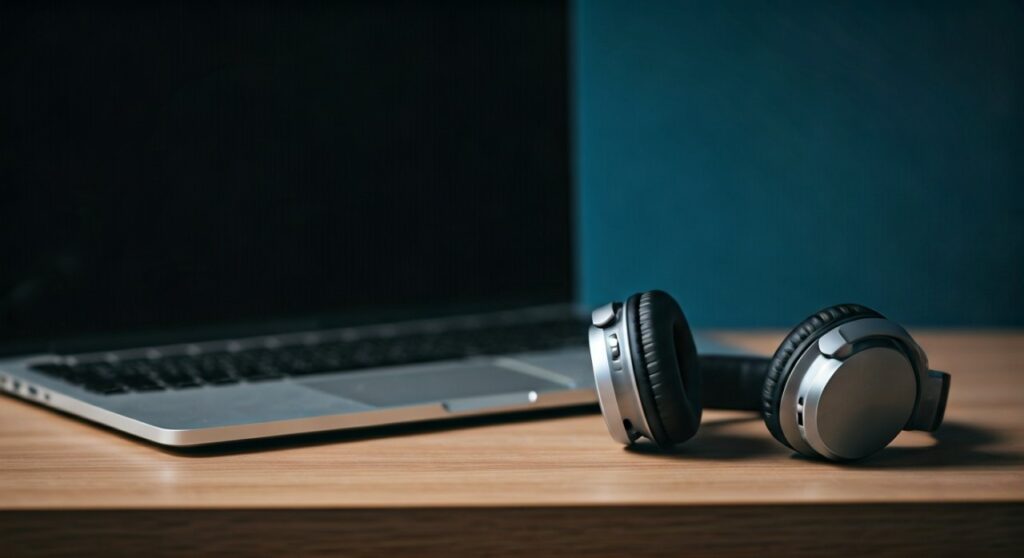
Whether you are using a high-end gaming rig or a portable workstation, knowing how to connect bluetooth headphones with laptop or desktop systems is essential for a wire-free experience. I have spent years testing audio peripherals, and while the process is generally “plug-and-play,” small software quirks often get in the way. This guide covers every step to ensure a crystal-clear connection.
Key Takeaways: Connecting Your Wireless Audio
If you are in a hurry, here is the essential cheat sheet for how to pair bluetooth headphones with pc systems today:
| Action | Windows 11 Steps | Windows 10 Steps |
|---|---|---|
| Enable Bluetooth | Quick Settings (Taskbar) | Action Center (Bottom Right) |
| Enter Pairing Mode | Hold Power/Pair button on headset | Hold Power/Pair button on headset |
| Add New Device | Settings > Bluetooth & devices | Settings > Devices > Bluetooth |
| Finalize Connection | Select device from “Add a device” list | Select “Bluetooth” from pop-up |
| Troubleshooting | Update drivers in Device Manager | Run Bluetooth Troubleshooter |
Preparation: Before You Try to Pair Bluetooth Headphones with PC
Before diving into the software, you must ensure your hardware is ready. Many users struggle with how to connect wireless headphones to a laptop simply because the headphones are still linked to a smartphone.
- Turn off Bluetooth on your phone: This prevents the headphones from “auto-snapping” to your mobile device.
- Charge your headset: Most Sony, Bose, and Apple headphones will not enter pairing mode if the battery is below 10%.
- Verify PC Bluetooth: If you have a desktop PC, ensure you have a Bluetooth antenna or dongle attached. Most modern laptops have this built-in.
Step-by-Step: How to Pair Bluetooth Headphones with PC (Windows 11)
Windows 11 has a streamlined interface that makes it very easy to connect bluetooth headphones with laptop devices. Follow these precise steps:
Enable Pairing Mode on Your Headphones
Every brand is different, but most require you to press and hold the power button for 5 to 7 seconds. You will usually see a blinking light (often blue and red) or hear a voice prompt saying, “Pairing.”
Open Bluetooth Settings on Windows 11
Press the Windows Key + I on your keyboard to open the Settings menu. Click on Bluetooth & devices on the left-hand sidebar. Ensure the Bluetooth toggle is switched to On.
Add the Device
Click the large Add device button. A black window titled “Add a device” will appear. Select Bluetooth (the first option). Your PC will now search for your headset.
Select and Pair
When your headphone’s name (e.g., Sony WH-1000XM5) appears, click it. Windows will display a “Your device is ready to go!” message. You are now ready to listen.
Step-by-Step: How to Connect Bluetooth Headphones to Laptop (Windows 10)
If you haven’t upgraded to the latest OS, the process for how to pair wireless headphones to laptop running Windows 10 is slightly different.
- Open Settings: Click the Start menu and select the gear icon (Settings).
- Go to Devices: Click on Devices (Bluetooth, printers, mouse).
- Turn on Bluetooth: Make sure the switch is On.
- Add Bluetooth or other device: Click the + icon at the top.
- Choose Bluetooth: Select the first category. Your PC will begin scanning.
- Connect: Find your headphones in the list and click Connect.
How to Connect Sony Bluetooth Headphones to Laptop
Sony headphones are among the most popular, but they have a specific pairing logic. If you are wondering how to connect sony bluetooth headphones to laptop, you must be aware of the “7-second rule.”
- The 7-Second Rule: Even if the headphones are on, you must turn them off first. Then, press and hold the power button for exactly 7 seconds until the indicator flashes rapidly.
- Swift Pair: Sony supports Windows Swift Pair. If you put them in pairing mode near your PC, a notification should pop up automatically asking if you want to pair. Click Connect on that pop-up to skip the manual settings menu.
Can You Connect Two Bluetooth Headphones to Laptop?
A common question I receive is: can you connect two bluetooth headphones to laptop simultaneously? The answer depends on your hardware and software.
Native Windows Bluetooth usually only allows one active audio output at a time. However, you can achieve dual-listening using these methods:
- Bluetooth 5.0+: Some high-end laptops with Bluetooth 5.0 or higher and specific drivers can support “Dual Audio,” though this is rare on PCs.
- Third-Party Software: Use an app like Voicemeeter. It allows you to route audio to two different hardware outputs (two different Bluetooth headsets) at once.
- External Transmitters: You can buy a USB Bluetooth Dual Transmitter that plugs into your laptop and handles the splitting of the audio signal to two pairs of headphones.
Troubleshooting: Why Won’t My Bluetooth Headphones Connect?
Even if you know how to pair bluetooth headphones with pc, you might run into errors. Based on my experience, 90% of connection issues are caused by driver conflicts.
The PC Doesn’t See the Headphones
- Range: Ensure you are within 3 feet during the initial pairing.
- Interference: Move away from Wi-Fi routers or microwave ovens, as they both use the 2.4GHz frequency.
- Reset the Headset: Consult your manual to perform a factory reset. For many, this involves holding the power and volume-down buttons together.
Audio is Lagging or Stuttering
This is often a bandwidth issue. If you are using a Bluetooth mouse and a Bluetooth keyboard at the same time, the “pipe” might be full.
- Update Drivers: Right-click the Start button, select Device Manager, expand Bluetooth, right-click your adapter, and select Update driver.
- Disable Hands-Free Telephony: In Control Panel > Devices and Printers, right-click your headphones, select Properties > Services, and uncheck Hands-free Telephony. This often improves music quality significantly.
“Bluetooth is Grayed Out”
If you can’t even turn on Bluetooth, your PC might have a physical switch or a function key (Fn + F-key) that disables the radio. Check your laptop’s top row of keys for a Bluetooth or Airplane icon.
Comparing Connection Types: Wireless vs. Wired
While the focus is on how to connect my bluetooth headphones to my laptop, sometimes a wire is the better choice for pro-level work.
| Feature | Bluetooth (Wireless) | Wired (3.5mm / USB) |
|---|---|---|
| Mobility | High (Up to 30 feet) | Low (Tethered to PC) |
| Latency | 100ms – 300ms (Noticeable in gaming) | 0ms (Instant) |
| Sound Quality | Compressed (SBC/AAC) | Lossless / High Fidelity |
| Battery Requirement | Needs charging | No battery needed (Passive) |
| Setup | Requires Pairing | Plug-and-Play |
If your battery dies, you might need to know how to connect wired headphones to laptop. Most laptops feature a 3.5mm combo jack. Simply plug the cable in, and Windows will automatically switch the audio output from the speakers to the headset.
Expert Tips for a Better Bluetooth Experience
- Use the Right Codec: If your PC supports aptX or LDAC, make sure it is enabled in your audio settings for much better sound quality.
- Naming Your Device: Once paired, you can rename your headphones in the Control Panel to something like “John’s Office Sony” to avoid confusion in crowded offices.
- Battery Monitoring: In Windows 11, you can check your headphone’s battery percentage directly in the Bluetooth & devices menu.
Frequently Asked Questions (FAQs)
How do I connect my headphones to my laptop if they don’t have a pairing button?
Some modern headphones, like the Apple AirPods, use their charging case for pairing. You usually have to put the buds in the case and hold a button on the back of the case until the light flashes white. Then, follow the standard Windows pairing steps.
Why does my PC say “Paired” but there is no sound?
This happens when the device is “Paired” but not “Connected” as an audio output. Go to Settings > Sound and ensure your Bluetooth headphones are selected as the Output device. You may also need to click Connect manually in the Bluetooth menu.
How can I connect my bluetooth headphones to my laptop if the Bluetooth icon is missing?
If the icon is missing, the Bluetooth driver might be disabled or crashed. Go to Device Manager, find your Bluetooth adapter, right-click it, and select Enable device. If it’s already enabled, select Uninstall device and restart your PC; Windows will automatically reinstall the driver upon reboot.
Do I need a special adapter to pair bluetooth headphones with a desktop PC?
If your desktop motherboard does not have built-in Wi-Fi/Bluetooth, you will need a USB Bluetooth Adapter (Dongle). I recommend a Bluetooth 5.3 adapter for the best range and lowest latency. Once plugged in, Windows will install the drivers, and you can pair as usual.
How do I connect headphone to laptop using a wired connection?
Simply find the 3.5mm audio jack (usually marked with a headset icon) on the side of your laptop. Plug the cable in firmly. If your laptop has separate ports for mic and audio but your headset has only one plug, you may need a Y-Splitter cable.









