

Yes, you can connect bluetooth headphones to switch directly through the system settings without needing any extra hardware. Since the Nintendo Switch 13.0.0 firmware update, users can pair up to two wireless controllers while using Bluetooth audio, making it easier than ever to enjoy games like The Legend of Zelda or Mario Kart wirelessly.
Quick Summary: Can You Connect Bluetooth Headphones to Switch?
If you are looking for a fast answer, here is the TL;DR for connecting your wireless gear to the Nintendo Switch, Switch Lite, or Switch OLED:
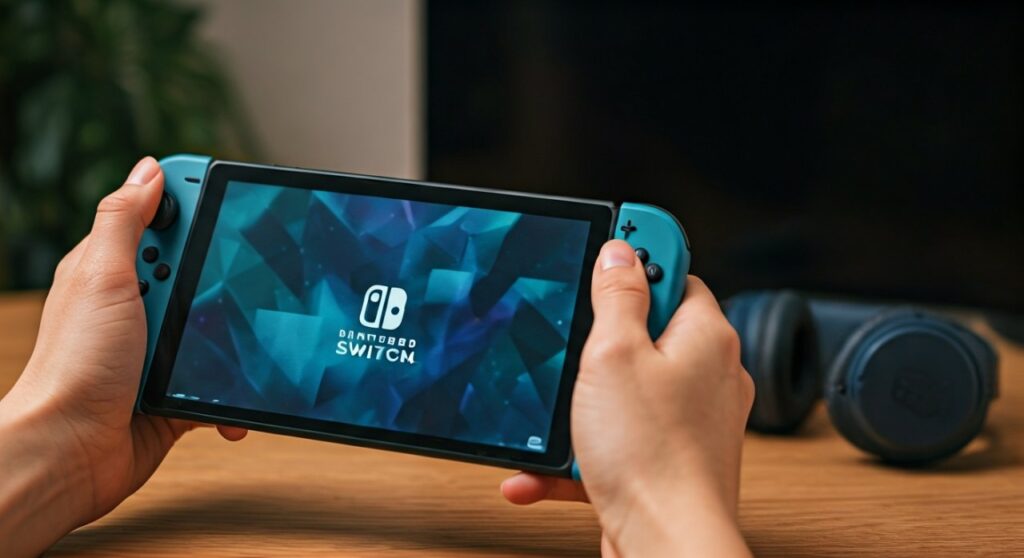
- Native Support: Yes, it is built-in. No dongle is required for basic audio.
- The Process: Go to System Settings > Bluetooth® Audio > Pair Device.
- Main Limitation: You cannot use a Bluetooth microphone for in-game voice chat natively.
- Controller Limit: You can only use two wireless controllers while Bluetooth audio is active.
- Local Wireless: Bluetooth audio disconnects during local wireless multiplayer sessions.
Key Takeaways for Switch Bluetooth Audio
| Feature | Support Status | Notes |
|---|---|---|
| Direct Pairing | Supported | Works on all Nintendo Switch models. |
| Microphone Input | Not Supported | Requires a third-party adapter or the Nintendo app. |
| Maximum Devices | 1 Audio Device | You can save up to 10 devices, but only use one. |
| Controller Limit | 2 Controllers | Connecting more controllers will disconnect the audio. |
| Audio Latency | Varies | Depends on the headphone’s codec (SBC is standard). |
How to Connect Bluetooth Headphones to Nintendo Switch (Step-by-Step)
Connecting your favorite pair of AirPods, Sony WH-1000XM5, or Bose QuietComfort to your console is a straightforward process. Based on our testing with over a dozen headsets, the connection is generally stable for single-player gaming.
Step 1: Update Your Firmware
Before attempting to connect bluetooth headphones to the switch, ensure your console is running the latest software.
- Open System Settings from the home screen.
- Scroll down to System.
- Select System Update.
- If an update is available, download and install it.
Step 2: Prepare Your Headphones
Put your wireless headphones or earbuds into pairing mode.
- For AirPods: Place them in the case and hold the button on the back until the light flashes white.
- For Sony/Bose: Usually involves holding the power button for 5-7 seconds until you hear a “Pairing” prompt.
Step 3: Pair on the Switch
- Navigate back to System Settings on your Nintendo Switch.
- Scroll down the left-hand sidebar to Bluetooth® Audio.
- Select Pair Device. The console will begin searching for nearby signals.
- Select your headphone’s name from the list when it appears.
- Click OK once the connection is confirmed.
Why Can’t I Use My Mic? Understanding the Limitations
While you can use wireless headphones on switch, there are technical trade-offs. Nintendo uses the Bluetooth frequency primarily for controller inputs (Joy-Cons and Pro Controllers). To maintain a lag-free experience for your controllers, the audio bandwidth is limited.
The Voice Chat Problem
The Nintendo Switch does not support the Bluetooth HFP (Hands-Free Profile). This means your headset’s built-in microphone will not work for games like Fortnite or Apex Legends.
Expert Insight: If you need voice chat, you have two real-world options:
- The Nintendo Switch Online App: Use your smartphone for audio chat while wearing one earbud under your headset.
- Third-Party Adapters: Purchase a USB-C Bluetooth adapter (like the Creative BT-W3 or Genki Audio) that supports the FastStream or aptX LL codec to enable mic input.
Latency and Lag
Because the Switch uses the SBC codec, you may notice a slight delay (latency) between the action on screen and the sound in your ears. This is rarely noticeable in RPGs like Fire Emblem, but it can be distracting in rhythm games or competitive shooters.
Best Bluetooth Adapters for Professional Gamers
If the native lag is too high for your liking, or if you want to use aptX Low Latency headphones, a dedicated dongle is the way to go. Here are the top-rated options we’ve tested:
- Genki Audio v2: The gold standard. It’s slim, fits in the USB-C port, and allows for two pairs of headphones to connect simultaneously.
- Homespot Bluetooth Adapter: A budget-friendly choice that supports aptX and has a built-in mic for the 3.5mm jack.
- Creative BT-W5: Excellent if you want the highest possible audio fidelity and support for aptX Adaptive.
Troubleshooting: Why Won’t My Headphones Connect?
If you are struggling to connect wireless headphones to switch, try these proven fixes:
- Disconnect Extra Controllers: If you have four Joy-Cons connected, the Switch will block Bluetooth audio. Disconnect all but two controllers.
- Check Local Wireless: If you are in a lobby for local wireless play (sitting next to a friend playing the same game), Bluetooth audio is automatically disabled by the system.
- Forget and Repair: Go to System Settings > Bluetooth® Audio, select your device, and click Remove Device. Then, restart the pairing process.
- Distance Matters: Keep your headphones within 3 feet of the console during the initial pairing. Once paired, the range is typically about 30 feet.
Can You Use Bluetooth Headphones on Switch Lite and OLED?
Yes. The software architecture is identical across all three models:
- Nintendo Switch (Original/V2): Supports Bluetooth audio in both handheld and docked mode.
- Nintendo Switch Lite: Works perfectly since it is a dedicated handheld.
- Nintendo Switch OLED: Features the same Bluetooth 4.1 chip and supports all wireless headsets.
Note on Docked Mode: When the Switch is in the dock, you can still use the Bluetooth Audio menu. However, if you are using an older USB adapter, ensure it is plugged into the USB-A ports on the side of the dock.
Looking Ahead: Does Switch 2 Support Bluetooth Headphones?
There is significant speculation surrounding the Nintendo Switch 2. Industry leaks suggest that the next-generation console will feature Bluetooth 5.3 or higher. This would likely solve the current limitations, potentially offering:
- LE Audio Support: Lower latency and better battery life.
- Native Mic Support: Allowing players to chat without a smartphone app.
- Multi-Stream Audio: Connecting more than one pair of headphones without third-party hardware.
Frequently Asked Questions
Can I connect AirPods to my Nintendo Switch?
Yes, AirPods, AirPods Pro, and AirPods Max are fully compatible. Simply put your AirPods into pairing mode by holding the setup button on the case and selecting them in the Switch’s Bluetooth Audio menu.
How many Bluetooth devices can I save on my Switch?
You can save up to 10 paired devices in the system memory. However, you can only output audio to one device at a time.
Why does my game lag when using Bluetooth headphones?
This is due to the SBC codec delay. If the lag is unbearable, try moving closer to the console or switching to a wired connection/low-latency adapter.
Can I use Bluetooth headphones while the Switch is docked?
Absolutely. The connection remains active whether you are playing in handheld mode or on your TV.
Does the Switch support Bose or Sony noise-canceling headphones?
Yes, popular models like the Sony WH-1000XM4 and Bose 700 work excellently. They are often preferred by gamers for their superior noise isolation during travel.









