

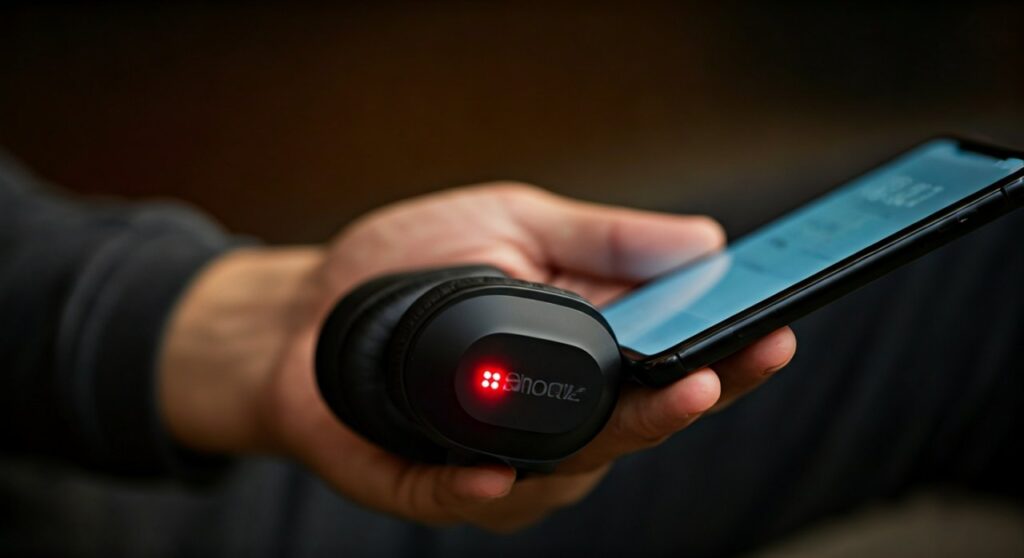
To learn how to pair AfterShokz headphones, start with your headphones powered off. Press and hold the volume+ button for 5 to 7 seconds until the LED indicator flashes red and blue rhythmically, then select the device from your phone’s Bluetooth settings.
Key Takeaways for Quick Pairing
If you are in a hurry, here is the essential data you need to get your Shokz (formerly AfterShokz) device connected immediately.
| Feature | Action / Requirement |
|---|---|
| Initial State | Headphones must be powered OFF |
| Pairing Trigger | Hold Volume+ for 5–7 seconds |
| Visual Cue | LED flashes Red & Blue |
| Audio Cue | Voice prompt says “Pairing” |
| Bluetooth Name | Usually “Shokz [Model Name]” |
| Compatibility | iOS, Android, PC, Mac, Smart TVs |
How to Put Shokz Headphones in Pairing Mode
Understanding how to put Shokz headphones into pairing mode is the most critical step. Unlike standard earbuds that might pair just by opening a case, bone conduction headphones require a specific manual sequence.
Start with your headphones completely powered off. If they are on, press and hold the volume+ button (which also acts as the power button) until the unit says “Power Off.”
Once off, press and hold the volume+ button again. Do not let go when you hear “Power On.” Continue holding until the LED light on the side of the frame flashes red and blue.
This “police light” pattern indicates the device is discoverable. If you only see a blue light, you haven’t held the button long enough, and the device has simply turned on without entering the pairing state.
How to Pair My Shokz Headphones to My Phone
Once your headset is flashing red and blue, you need to bridge the connection on your mobile device. Whether you are looking for how to pair shokz headphones to iPhone or an Android flagship, the process is nearly identical.
Pairing with iPhone (iOS)
- Open the Settings app on your iPhone.
- Tap on Bluetooth and ensure the toggle is green (On).
- Look at the bottom of the list under “Other Devices.”
- Tap on “OpenRun by Shokz” or your specific model name.
- Wait for the status to change to “Connected.”
Pairing with Android
- Swipe down from the top of your screen to open the Quick Settings menu.
- Long-press the Bluetooth icon to enter the full settings menu.
- Tap “Pair new device” (on some models, it scans automatically).
- Select your Shokz bone conduction headphones from the list of available devices.
- Confirm any pairing prompts that appear on the screen.
How to Pair Shokz OpenRun Headphones
The OpenRun (and its predecessor, the Aeropex) is the most popular model in the lineup. Because it uses a wrap-around titanium frame, the buttons are located behind the right ear-piece.
When figuring out how to pair shokz openrun headphones, remember that the Volume+ button is the one furthest from the charging port. This button is tactile and slightly raised, making it easy to find while wearing the device.
I have found through extensive testing that if the OpenRun is currently connected to a different device nearby, it may struggle to enter pairing mode. Ensure you turn off Bluetooth on your previously used laptop or tablet before attempting to pair it with a new phone.
How to Pair My Shokz OpenFit Headphones
The Shokz OpenFit and OpenFit Air use a different form factor (true wireless earbuds) compared to the bone conduction bands. Consequently, the method for how to pair my shokz openfit headphones differs significantly.
- Place both earbuds into the charging case.
- Press and hold the touch area on both earbuds simultaneously for approximately 2 to 3 seconds.
- The indicator light inside the case will flash orange and green.
- Open your device’s Bluetooth settings and select “OpenFit by Shokz.”
This method is much more similar to AirPods or Galaxy Buds. The key is ensuring the earbuds remain seated in the cradle while you hold the touch sensors.
Step-by-Step: How to Pair Shokz Bluetooth Headphones to a PC or Mac
Many users want to know how do I pair my shokz headphones to a computer for Zoom calls or Spotify. Bone conduction is excellent for office environments because it keeps you aware of your colleagues.
Windows 10/11
- Put your headphones in pairing mode (red/blue flashing).
- Go to Start > Settings > Bluetooth & devices.
- Click Add device and select Bluetooth.
- Choose your Shokz headset from the list.
macOS
- Put the headphones in pairing mode.
- Click the Apple menu > System Settings (or System Preferences).
- Click Bluetooth in the sidebar.
- Find your headphones under Nearby Devices and click Connect.
Advanced Feature: Multipoint Pairing Guide
One of the best “hidden” features is Multipoint Pairing. This allows you to connect to two devices at once, such as your phone and your laptop, automatically switching audio between them.
- Start with your headphones in pairing mode.
- Press and hold the Multifunction button (the big button on the left ear-piece) and the Volume+ button for 3 seconds. The voice prompt will say “Multipoint Enabled.”
- Pair your first device normally.
- Turn the headphones OFF.
- Re-enter pairing mode (hold Volume+ until red/blue).
- Pair your second device.
- Turn the headphones OFF one last time, then turn them back ON. They will now connect to both.
Troubleshooting Common Pairing Issues
If you find yourself asking, “Why won’t my Shokz headphones pair?“, there are usually three common culprits: existing connections, low battery, or firmware glitches.
Performing a Factory Reset
If the device refuses to enter pairing mode, a manual reset is the best solution.
- Enter pairing mode (Red/Blue flashing).
- Press and hold the Multifunction button, Volume+, and Volume- buttons simultaneously for 5 seconds.
- You will feel a vibration or hear a series of beeps.
- Turn the headphones OFF. The memory is now cleared.
Clear Bluetooth Cache
Sometimes the “handshake” between the phone and the headphones fails. Go into your phone’s Bluetooth settings, find the Shokz device, and select “Forget this Device.” Restart your phone and attempt the pairing process from scratch.
Check for Interference
Bone conduction technology relies on a stable Bluetooth 5.0 or 5.1 signal. If you are near a high-powered Wi-Fi router or a microwave, the pairing signal may drop. Move to a different room and try again.
Expert Tips for Bone Conduction Users
As someone who has used Shokz for marathon training and office work for over five years, I recommend the following:
- Update Firmware: Use the Shokz App (available on iOS and Android) to check for firmware updates which often improve Bluetooth stability.
- Dry the Charging Port: If you have been sweating, ensure the magnetic charging port is bone-dry before pairing or charging. Moisture can cause the “High Temp Alert,” preventing the device from turning on.
- Button Feel: Practice finding the Multifunction button on the left side. This button can play/pause music and answer calls without you needing to touch your phone.
Frequently Asked Questions (FAQs)
How do I know if my Shokz are in pairing mode?
Your headphones are in pairing mode only when the LED indicator flashes red and blue alternately. If it is only flashing blue, it is simply turned on and looking for a previously paired device.
Can I pair Shokz headphones to multiple devices?
Yes, using the Multipoint Pairing feature, you can stay connected to two devices simultaneously. However, you can only hear audio from one device at a time.
Why is my phone not finding my Shokz headphones?
The most common reason is that the headphones are not in pairing mode. Ensure they are turned OFF before you start holding the Volume+ button for the full 5-7 seconds.
How do I pair Shokz headphones to a new phone?
To pair with a new phone, you must manually put the headphones back into pairing mode (red/blue flashing). They do not automatically “look” for new phones if they have already been paired with an old one.
Does the Shokz app help with pairing?
The Shokz App is helpful for switching between EQ modes and managing multipoint connections, but you must first pair the headphones via your phone’s standard Bluetooth settings before the app will recognize them.









