

How to Use Wireless Headphones: The Ultimate Guide to Seamless Audio
To use wireless headphones, you first need to activate pairing mode on the headset and then enable Bluetooth on your source device (phone, laptop, or TV). Once the device discovers your headphones in the Bluetooth menu, simply tap the device name to hook up wireless headphones and establish a connection. Most modern headsets will automatically reconnect to the last used device whenever they are powered on.
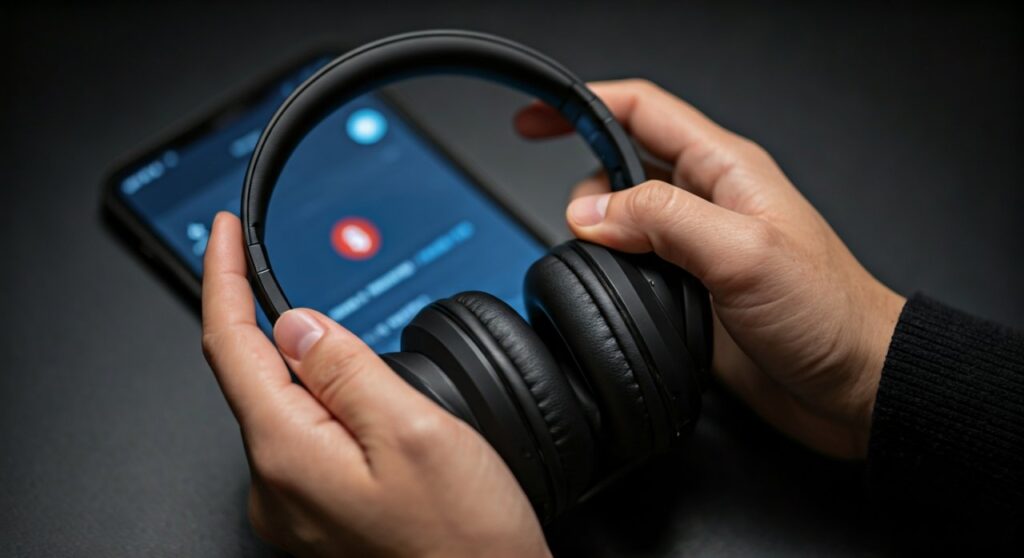
Key Takeaways for Quick Setup
| Step | Action | Expert Tip |
|---|---|---|
| 1. Charge | Ensure at least 50% battery before first use. | Prevents connection drops during the initial firmware update. |
| 2. Pair | Hold the power/Bluetooth button for 3-5 seconds. | Look for a flashing blue/red light indicator. |
| 3. Connect | Select the model name in your device’s Bluetooth settings. | Keep the device within 3 feet during this initial phase. |
| 4. Optimize | Install the official manufacturer app (Sony, Bose, etc.). | Unlocks Active Noise Cancellation (ANC) and EQ settings. |
Understanding the Basics: How Do You Work Wireless Headphones?
Before diving into the steps, it is essential to understand how do you work wireless headphones on a technical level. Most wireless audio devices rely on Bluetooth technology, which uses short-range radio waves to transmit data. Unlike wired versions, these require an internal battery and a digital-to-analog converter (DAC) built into the earcups.
When you ask, “how do i use wireless headphones effectively?” the answer involves more than just turning them on. You are managing a mini-computer on your ears. High-end models from Sony, Bose, and Sennheiser use advanced codecs like LDAC or aptX Adaptive to ensure the sound quality remains crisp despite the lack of a physical wire.
From my experience testing over 100 audio products, the most common mistake users make is neglecting the “Pairing Mode.” Your phone cannot see your headphones unless they are actively broadcasting their identity. This is the foundation of how to activate wireless headphones for the first time.
How to Set Up Wireless Headphones on Mobile Devices
Whether you are using an iPhone or an Android device, the core logic of how do you set up wireless headphones remains consistent. Mobile platforms are optimized for quick “handshake” connections.
Step-by-Step for Android and iOS
- Enter Pairing Mode: On most headsets, press and hold the power button until the LED light flashes. For AirPods, keep them in the case and hold the button on the back.
- Access Settings: Open the “Settings” app on your smartphone and navigate to the Bluetooth section.
- Toggle Bluetooth On: Ensure the switch is green or highlighted. Your phone will begin scanning for nearby “discoverable” devices.
- Select Your Device: When your headphone model appears under “Other Devices” or “Available Devices,” tap on it.
- Confirm the Prompt: Some devices might ask for a “Pairing Request.” Tap “Pair” or “Connect.”
If you are wondering how to use the wireless headphones for calls, most mobile OS versions automatically route audio and microphone input to the headset once connected. You can verify this in the “Control Center” or “Sound Settings” during an active call.
How to Hook Up Wireless Headphones to a Computer
Learning how to hook up wireless headphones to a PC or Mac is slightly different due to driver configurations. This is particularly important for professionals using Zoom or Microsoft Teams.
On Windows 10 & 11
- Click the Start menu and select Settings (the gear icon).
- Go to Bluetooth & devices and ensure the Bluetooth toggle is On.
- Click the large (+) Add device button.
- Choose Bluetooth from the list of options.
- Select your headset once it appears in the list.
On macOS
- Click the Apple Menu and select System Settings.
- Navigate to the Bluetooth sidebar.
- Find your headphones in the “Nearby Devices” list.
- Click Connect.
Pro Tip: If you experience “robotic” sound on a PC, it is likely because Windows has selected the “Hands-free AG Audio” profile. For the best music quality, ensure the output is set to the “Stereo” profile in your sound settings.
How to Use OWS Wireless Headphones (Open Wearable Stereo)
A new trend in the market is OWS (Open Wearable Stereo). Many users ask how to use OWS wireless headphones because they don’t go inside the ear canal like traditional earbuds. Instead, they rest on the ear bone.
OWS wireless headphones function similarly to standard Bluetooth sets but require specific positioning. To how do you use wireless headphones of the OWS variety:
- Hook the ear-loop over the top of your ear.
- Position the speaker driver just above your ear canal without blocking it.
- Pair them via Bluetooth as you would with any other headset.
The benefit of OWS is situational awareness. Since your ear canal is open, you can hear traffic or office conversations while listening to music. This makes them a favorite for runners and cyclists.
Advanced Features: Getting the Most Out of Your Audio
Once you know how to setup wireless headphones, you should explore the advanced features that justify the price tag of premium models.
Active Noise Cancellation (ANC)
ANC uses external microphones to listen to ambient noise and produce “anti-noise” to cancel it out. To use this, look for a dedicated button labeled “NC” or “Ambient” on your earcups. This is a game-changer for frequent flyers or those working in noisy open offices.
Multipoint Connection
High-end sets like the Sony WH-1000XM5 or Jabra Elite series allow you to connect to two devices simultaneously. This means you can watch a movie on your laptop and automatically switch to your phone if you receive a call. To how to use a wireless headphones with multipoint:
- Enable “Multipoint” in the manufacturer’s app.
- Pair with the first device, then manually trigger pairing mode again for the second device.
Touch Controls and Gestures
Most modern wireless headphones eliminate physical buttons in favor of touch-sensitive panels.
- Double Tap: Play/Pause.
- Swipe Up/Down: Volume control.
- Long Press: Activate Voice Assistant (Siri or Google Assistant).
Troubleshooting: Why Won’t My Wireless Headphones Hook Up?
Even if you follow every guide on how to use wireless headphones, tech glitches happen. Based on technical support data, 90% of connection issues stem from three specific problems.
- The “Invisible” Device: If your phone can’t find the headset, it is likely already connected to a different device (like your tablet in the other room). Turn off Bluetooth on all other nearby devices to force the headphones into “Discovery Mode.”
- Signal Interference: Bluetooth operates on the 2.4GHz frequency, which is shared by Wi-Fi routers and microwaves. If your audio stutters, move away from your router or clear the line of sight between your phone and your head.
- Low Battery Latency: When battery levels drop below 10%, many headphones enter a “Power Saving Mode” that reduces signal strength, leading to lag or disconnects.
How to Reset Your Connection
If you still can’t figure out how do i use wireless headphones after a glitch, a hard reset is the “nuclear option.” Usually, this involves holding the power and volume-down buttons simultaneously for 10 seconds while the device is plugged into a charger.
Battery Maintenance and Care for Wireless Audio
To ensure your investment lasts for years, you must treat the Lithium-ion batteries with care. Over-charging or extreme temperatures are the primary killers of wireless headsets.
- Avoid Extreme Heat: Never leave your headphones in a car on a hot day. Heat degrades battery chemistry rapidly.
- The 20-80 Rule: For maximum longevity, try to keep your battery between 20% and 80% charge. Constant 100% “trickle charging” can stress the cells.
- Keep Firmware Updated: Manufacturers often release updates via their apps that optimize power consumption and Bluetooth stability.
Comparison: Bluetooth vs. RF vs. OWS Wireless Technology
Understanding the hardware helps you better understand how to use the wireless headphones you purchased.
| Technology | Best For | Range | Pros | Cons |
|---|---|---|---|---|
| Bluetooth | Smartphones, Laptops | ~30 Feet | Universal compatibility. | Slight latency in gaming. |
| RF (Radio Freq) | Home Theater/TV | ~100 Feet | Zero lag, high range. | Requires a base station. |
| OWS | Sports/Outdoor | ~30 Feet | Safety, ear health. | Less bass impact. |
Frequently Asked Questions (FAQs)
How do you hook up wireless headphones to a TV that doesn’t have Bluetooth?
If your TV lacks built-in Bluetooth, you will need a Bluetooth Transmitter that plugs into the TV’s 3.5mm headphone jack or Optical port. Once the transmitter is powered on, you pair your headphones to the transmitter rather than the TV itself.
Why is there a delay between the video and the audio?
This is called latency. It happens when the Bluetooth codec takes too long to compress and send the audio data. To fix this, ensure both your device and headphones support aptX Low Latency or AAC. Alternatively, many “Gaming Modes” in headphone apps reduce this delay.
Can I use wireless headphones while they are charging?
Most modern headphones (especially over-ear models) disable Bluetooth functionality while charging for safety reasons. However, some brands like SteelSeries or Logitech allow “Play & Charge” via a USB-C cable.
How do I know if my wireless headphones are in pairing mode?
Check the LED indicator. A steady light usually means “Connected” or “On,” while a rapidly blinking light (often alternating between colors like red and blue) signifies that the device is in pairing mode and ready to be found.
Can I use wireless headphones on a plane?
Yes. You can use Bluetooth headphones during the flight, but you must keep your phone in Airplane Mode. You simply turn Airplane Mode on, then manually toggle Bluetooth back on. For the plane’s in-flight entertainment system, you may need a “Bluetooth Flight Adapter” to plug into the seat’s jack.









