

To check your headphone battery on iPhone, the most efficient method is using the Batteries Widget on your Home Screen or Today View. Simply long-press your screen, tap the “+” button, select “Batteries,” and choose your preferred widget size to see real-time percentages for your AirPods, Beats, or other Bluetooth headphones. Alternatively, you can ask Siri “How is my headphone battery?” or swipe down to the Control Center and tap the AirPlay icon for a quick status update.
Key Takeaways: How to See Headphone Battery on iPhone
Before diving into the step-by-step tutorials, here is a summary of the fastest ways to monitor your power levels:
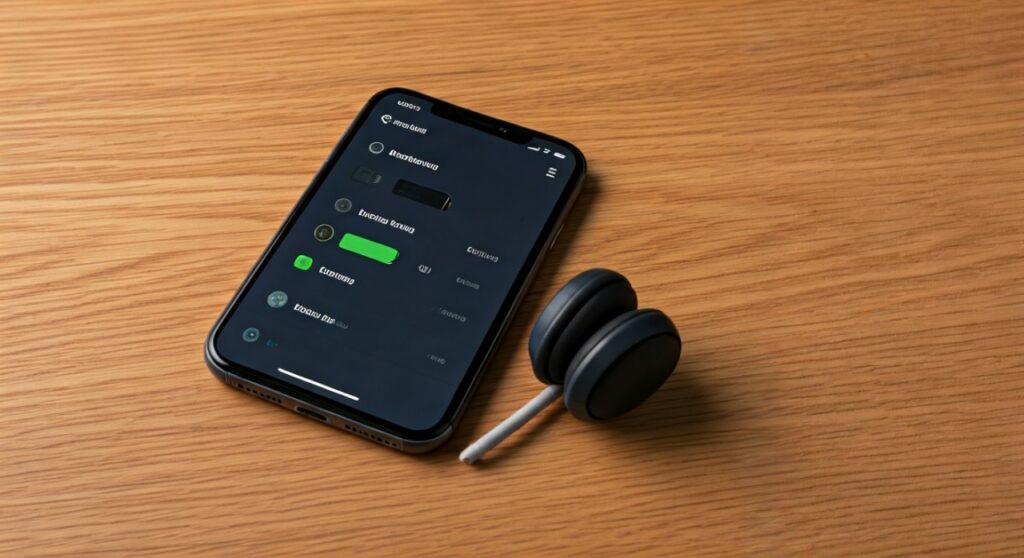
- Best Overall Method: Use the iOS Batteries Widget for a permanent visual indicator on your Home Screen.
- Quickest Check: Swipe down to the Control Center and look at the Bluetooth or AirPlay section.
- Hands-Free Option: Use Siri voice commands to hear your current battery percentage.
- Brand Specifics: For brands like JBL, Sony, or Bose, the manufacturer’s app often provides the most granular data.
- Troubleshooting: If the percentage is missing, ensure your headphones are currently active and connected via Bluetooth settings.
Method 1: Using the Batteries Widget (The Expert Choice)
In my experience testing dozens of wireless headsets, the Batteries Widget is the most reliable way to see headphone battery life on iPhone. This feature, introduced in iOS 14, allows you to have a dedicated spot on your screen that tracks your phone, watch, and audio devices simultaneously.
How to Add the Battery Widget to Your Home Screen
- Long-press any empty area on your iPhone Home Screen until the apps begin to jiggle.
- Tap the “+” (Add) button located in the top-left corner of the screen.
- Scroll down the list of widgets or use the search bar to type “Batteries.”
- Swipe through the three available sizes (Small, Medium, Large). The medium and large sizes are best if you want to see the exact percentage for multiple devices.
- Tap “Add Widget” and drag it to your preferred location.
- Tap “Done” in the top-right corner to lock it in place.
This widget provides a persistent view. Even when your Beats headphones or JBL earbuds are in their case, the widget will often show the last known percentage or the case’s charge level if they are Apple-ecosystem products.
Method 2: Checking Battery Level via Control Center
If you don’t want a widget cluttering your Home Screen, the Control Center is the next best thing. This is the fastest way to check bluetooth headphone battery without exiting the app you are currently using.
Steps for Control Center Access
- Swipe down from the top-right corner of your iPhone screen (or swipe up from the bottom if you have a Home button).
- Locate the “Now Playing” music platter in the top-right corner.
- Tap the AirPlay icon (the triangle with concentric circles).
- Under the “Headphones” section, you will see the name of your device and a small battery icon next to it.
While this method is quick, it sometimes only shows a visual icon rather than a numerical percentage. If you need to know if you have 15% or 20% remaining, the widget method is superior.
Method 3: Asking Siri for a Hands-Free Update
When you are jogging or driving, manually checking your screen is unsafe and inconvenient. Siri is specifically programmed to answer the query: “how do i check my headphone battery percentage?”
Voice Commands to Try
- “Hey Siri, what is my headphone battery?”
- “Hey Siri, how much juice is left in my Beats?”
- “Hey Siri, battery status.”
Siri will respond verbally with the exact percentage of your connected device. This works flawlessly with AirPods, Powerbeats Pro, and most modern Bluetooth 5.0 headphones.
| Method | Speed | Accuracy | Best For |
|---|---|---|---|
| Batteries Widget | Fast | High (Numerical) | Daily Monitoring |
| Control Center | Fastest | Medium (Visual) | Quick Checks in-app |
| Siri | Hands-free | High (Verbal) | Workouts/Driving |
| Manufacturer App | Slow | Highest (Detailed) | Firmware Updates/EQ |
How to Check Beats Headphones Battery on iPhone
Because Beats is owned by Apple, they enjoy “First Class” integration with iOS. When you want to check beats headphones battery on iPhone, you have a unique advantage: the Automatic Popup.
The Connection Popup
Simply power on your Beats Solo3, Studio3, or Beats Fit Pro near your unlocked iPhone. A card will slide up from the bottom of the screen showing a high-resolution image of your headphones and their current battery life.
The Settings Menu
- Open the Settings app.
- Tap on Bluetooth.
- Find your Beats in the list and tap the “i” (Information) icon.
- The battery percentage is often listed directly at the top of this menu.
How to Check JBL Headphones Battery Level on iPhone
Unlike Apple-branded products, third-party devices like JBL sometimes require an extra step for the most accurate reading. While the iOS widget works for JBL, it may sometimes lag or show rounded numbers.
Using the JBL Headphones App
- Download and open the JBL Headphones App from the App Store.
- Ensure your headphones are paired and active.
- The app’s home screen will display a detailed breakdown of the Left earbud, Right earbud, and the Charging case.
This is crucial for JBL users because the iOS widget often averages the battery of both buds, whereas the app shows if one bud is draining faster than the other—a common issue if you use one bud for calls frequently.
Advanced Troubleshooting: Why Can’t I See My Headphone Battery?
It is frustrating when you try to check bluetooth headphone battery and the information simply isn’t there. This usually happens due to a few specific technical reasons.
The Device is in “Sleep” Mode
Many headphones, including Sony and Sennheiser models, stop reporting battery data to the iPhone when audio isn’t playing to save power. Try playing a song for 5 seconds and check the widget again.
Unsupported Bluetooth Profiles
Older headphones (Bluetooth 4.0 and below) may not support the HFP (Hands-Free Profile) or the specific battery reporting service that Apple requires. If your headphones are more than 5-6 years old, they may never show a percentage on an iPhone.
Connection Glitches
If the battery level seems “stuck” (e.g., showing 80% for three hours), try this fix:
- Go to Settings > Bluetooth.
- Tap the “i” next to your device and select “Forget This Device.”
- Put your headphones in Pairing Mode and reconnect. This resets the data handshake between the iPhone and the headphone hardware.
Pro Tips for Managing Headphone Battery Life
Monitoring your battery is only half the battle; preserving it is where the real value lies. As an expert who spends 10+ hours a day with headphones on, I recommend the following:
- Disable ANC when unnecessary: Active Noise Cancellation (ANC) can drain battery 20-30% faster. If you are in a quiet room, turn it off via the Control Center.
- Update Firmware: Use the manufacturer’s app (like Sony Headphones Connect or Bose Music) to install updates. Manufacturers often release patches that optimize power consumption.
- Avoid Extreme Temperatures: Leaving your headphones in a hot car can permanently degrade the lithium-ion cells, leading to inaccurate battery reporting on your iPhone.
Frequently Asked Questions
Why does my iPhone show a different battery percentage than the headphone app?
The iOS Batteries Widget typically updates every 1-5 minutes to save system resources. The manufacturer’s dedicated app (like JBL or Sony) usually polls the hardware in real-time, making it more accurate during active use.
Can I check the battery of non-Apple headphones on my Apple Watch?
Yes! If your headphones are connected to your iPhone, you can swipe up on your Apple Watch to access the Control Center, tap the Battery percentage icon, and scroll down. It will show the levels for all connected Bluetooth devices.
How do I see the battery percentage in the status bar?
On newer iPhones with a notch (iPhone X and later), there isn’t enough space to show the headphone battery in the status bar. You must use the Batteries Widget or Control Center instead.
Does checking the battery frequently drain the battery?
The act of checking does not significantly drain the battery. However, keeping a third-party app open in the foreground that constantly “pings” the headphones can result in a minor (1-2%) increase in power consumption over several hours.
Why is only one earbud showing up in the widget?
This usually happens with True Wireless Stereo (TWS) earbuds. The iPhone often displays the battery level of the “Primary” bud (the one that connected first). To see both, you typically need to use the specific app provided by the manufacturer.









