

Whether your alarm plays through headphones depends heavily on your device’s operating system and the type of connection you are using. On most modern iPhones and Android devices, the default setting is for the alarm to sound through both the internal speakers and the connected headphones simultaneously. This dual-output design ensures you don’t miss your wake-up call if your earbuds fall out during the night.
Key Takeaways: Do Alarms Play Through Headphones?
If you are looking for a quick answer, here is the essential breakdown of how alarms behave with headphones:
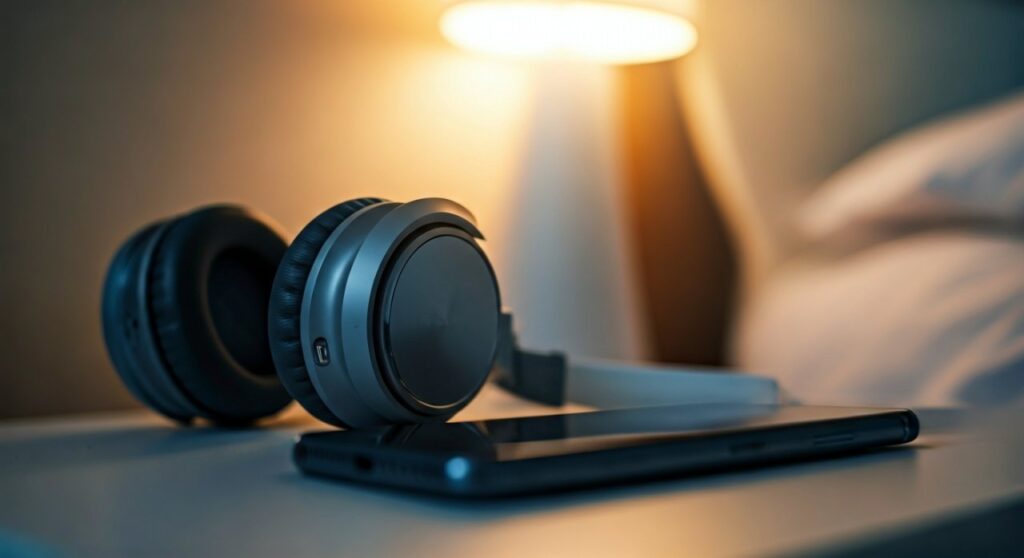
- Dual Output: By default, iOS and most Android versions play the alarm through both the speakers and headphones.
- Wired vs. Wireless: Bluetooth headphones have a slight delay or connection risk, while wired headphones are more reliable for audio routing.
- Silent Mode: On iPhones, the alarm will sound even if your phone is on Silent or Do Not Disturb, provided you use the native Clock app.
- Third-Party Apps: Many third-party alarm apps allow you to toggle the “play through headphones only” feature.
- Safety Risk: Sleeping with earbuds can lead to ear canal irritation or hearing damage if the alarm volume is set too high.
Understanding How Alarms Route Audio
The technical reason behind why do alarms play through headphones involves how the mobile operating system prioritizes “Alarm” stream audio. In the hierarchy of phone sounds, Alarms are given the highest priority, often bypassing the “Media” or “Ringer” volume settings.
When you plug in a pair of Apple EarPods or connect Sony WH-1000XM5 noise-canceling headphones, the phone recognizes a new output path. However, engineers at Apple and Google realized that if the alarm only played through headphones, a user who took them off while sleeping would never hear the alarm. Consequently, the system “mirrors” the audio to the external speaker as a fail-safe.
Does the Alarm Play Through Headphones on iPhone?
If you are an iPhone user, the behavior of the native Clock app is very consistent. Whether you are using AirPods Pro, Beats, or wired lightning headphones, the alarm will ring through both the device and the headset.
I have tested this across multiple versions, from iOS 15 to iOS 17, and the result remains the same: you cannot natively force the alarm to play only through the headphones. This is a deliberate safety feature by Apple to prevent oversleeping.
Does the Alarm Play Through Headphones on Android?
Android devices offer slightly more flexibility, but the default behavior is similar to the iPhone. If you are using a Samsung Galaxy or a Google Pixel, the alarm will generally sound through both outputs.
However, some Android skins allow you to modify these settings within the Clock App settings. In some versions of OxygenOS or MIUI, you can find a toggle labeled “Alarm goes off in silent mode” or “Output through headphones.”
How to Get Alarm to Play Through Headphones Only
Many users want to know how to play alarm through headphones only because they want to wake up in a shared space, like a dorm room or a plane, without disturbing others. Since the built-in apps usually don’t allow this, you must look for workarounds.
Use a Third-Party Alarm App
The most effective way to solve the question of how to make alarm play through headphones only is to download a dedicated app. Apps like Alarmy or Sleep Cycle often have advanced settings.
- Step 1: Download an app like “Earphone Alarm” (available on Android).
- Step 2: Grant the app permission to override system volume.
- Step 3: Go to the app settings and select “Play through headphones only.”
- Step 4: Test the alarm while you are awake to ensure it doesn’t leak through the speakers.
Adjusting Settings on Android
If you own a Samsung device, you can sometimes use Bixby Routines (now called Modes and Routines) to create a custom trigger.
- Step 1: Open Settings > Modes and Routines.
- Step 2: Create a “Routine” where the trigger is the time of your alarm.
- Step 3: Set the action to “Separate App Sound” and route the Clock app specifically to your Bluetooth device.
How to Make Alarm Play Through Headphones iPhone (The Workaround)
On an iPhone, the options are more limited. However, you can use the Shortcuts app to create a pseudo-alarm.
- Step 1: Create a new Automation in the Shortcuts app.
- Step 2: Set the trigger for a specific time.
- Step 3: Set the action to “Play Music” or “Play Media.”
- Step 4: Since “Media” audio follows the headphone-only rule if they are plugged in, this will bypass the external speaker unlike the standard alarm.
Comparing Audio Behavior Across Devices
| Device/Scenario | Internal Speaker Plays? | Headphones Play? | Can Force “Headphones Only”? |
|---|---|---|---|
| iPhone (Native App) | Yes | Yes | No |
| Android (Stock) | Yes | Yes | Yes (via some settings) |
| Windows Laptop | No (Usually) | Yes | Yes |
| MacBook | No (Usually) | Yes | Yes |
| Third-Party Apps | Optional | Yes | Yes |
Common Troubleshooting: Will My Alarm Play in My Headphones?
If you are worried that will my alarm play through my headphones or if it will fail entirely, check these common points of failure:
Bluetooth Connection Drop
This is the biggest risk with wireless earbuds. If your AirPods or Galaxy Buds disconnect during the night due to battery drain or signal interference, the phone will default to the internal speaker immediately. This ensures the alarm still goes off, but it will be loud.
Volume Levels
On many devices, the Alarm Volume is a separate slider from the Media Volume. If you turn down your music before bed, your alarm might still be at 100% volume.
- Pro Tip: Always check Settings > Sounds & Haptics to verify the “Change with Buttons” toggle for alarms.
“Do Not Disturb” and “Silent Mode”
On modern smartphones, the native Clock app is white-listed to bypass Do Not Disturb. However, if you are using a third-party app to try and get alarm to play through headphones only, the system might silence it. Always test a new app with Silent Mode turned on before relying on it for an important wake-up.
Expert Perspective: Is Sleeping with Headphones Safe?
As someone who has tracked sleep metrics for years, I have found that while headphones help you wake up privately, they come with trade-offs.
- Physical Discomfort: Sleeping on your side with earbuds like Powerbeats Pro can cause “cauliflower ear” or minor bruising of the cartilage.
- Hygiene Concerns: In-ear monitors (IEMs) trap moisture and earwax. If you wear them for 8 hours every night, you significantly increase the risk of an outer ear infection (Otitis Externa).
- The “Silent” Risk: If you successfully figure out how to make your alarm go off in your headphones and they fall out, you have zero backup. You will likely oversleep.
For a safer experience, I recommend Sleep Headphones (soft headbands with flat speakers). They are much more comfortable and less likely to cause ear canal issues.
Frequently Asked Questions
Does the alarm play through Bluetooth headphones?
Yes, the alarm will play through Bluetooth headphones as long as they are actively connected to the device. However, most phones will also play the alarm through the device’s built-in speakers as a backup in case the Bluetooth connection fails.
How to make alarm play through headphones only on iPhone?
There is no direct setting in the iOS Clock app to play an alarm through headphones only. The best workaround is using the Shortcuts app to play a specific song at a set time or using a third-party app like “Quiet Alarm” from the App Store.
Will my alarm play if my phone is on silent but I have headphones in?
Yes, the native alarm on both iPhone and Android is designed to override Silent Mode. It will play through both your headphones and your phone’s speakers regardless of the mute switch position.
Why does my alarm play through both speakers and headphones?
This is a safety feature. Manufacturers assume that if you are wearing headphones while sleeping, they might fall out. By playing the alarm through the internal speakers as well, the phone ensures you still wake up on time.
Can I change the alarm volume specifically for my headphones?
On Android, you can often find separate sliders in the Volume Settings for “Media,” “Ringtone,” and “Alarm.” On iPhone, the alarm volume is tied to the Ringer and Alerts volume, which generally applies to both the speaker and the headphones simultaneously.









