How to Get Headphones to Work on PC: The Instant Fix
To get headphones to work on a PC, simply plug your device into the correct 3.5mm audio jack or USB port, then navigate to Settings > System > Sound and select your headphones as the Output Device. If you are using wireless gear, ensure Bluetooth is toggled on and the device is paired correctly in the Devices menu.
Most audio issues are caused by incorrect playback settings, outdated Realtek audio drivers, or physical connection errors. If your computer doesn’t recognize the headset immediately, restarting the Windows Audio Service or running the built-in Audio Troubleshooter usually resolves the conflict within minutes.
TL;DR: Quick Troubleshooting Checklist
If you are in a rush, follow these high-priority steps to restore your sound:
- Check Physical Connections: Ensure the plug is fully seated; a 1mm gap can cause total silence.
- Set as Default: Right-click the speaker icon > Sound Settings > Choose your headphones.
- Unmute Software: Check the Volume Mixer to ensure the specific app isn’t muted.
- Update Drivers: Use Device Manager to refresh your Sound, video and game controllers.
- Hardware Toggle: Many headsets (like Logitech or Razer) have a physical mute switch on the cable or ear cup.
Step 1: Physical Connection and Port Identification
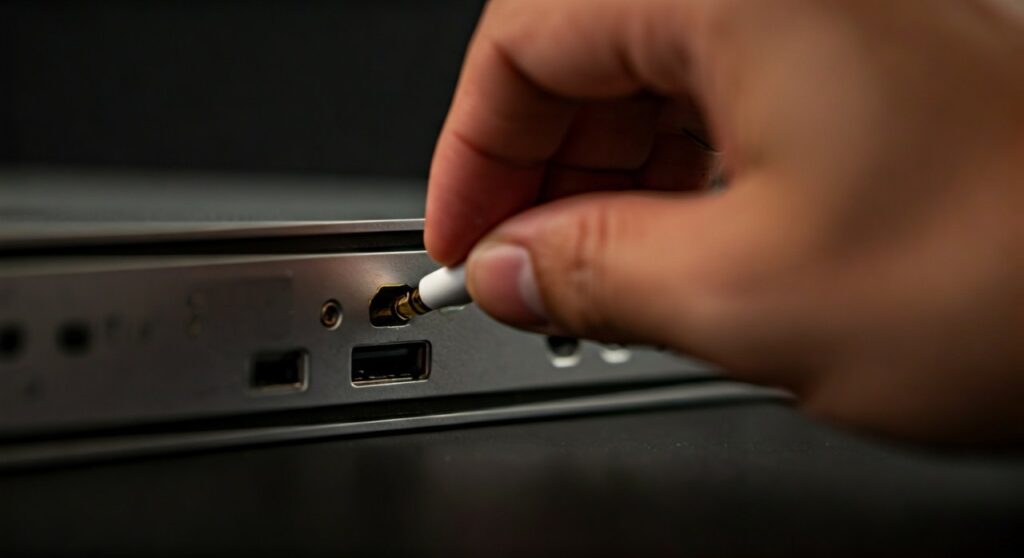
Knowing how to get headphones to work on PC starts with identifying your hardware interface. Different PCs use different configurations for audio delivery.
The 3.5mm Audio Jack
Most desktop PCs feature two separate ports: Green (Audio Out) and Pink (Mic In). If you have a modern headset with a single plug (TRRS), you may need a PC Headset Splitter to use both the speakers and the microphone simultaneously.
USB and USB-C Headsets
USB headphones act as their own sound cards. When you plug them in, Windows should automatically bypass the internal audio chip and install generic HID-compliant device drivers.
Bluetooth Wireless Connection
For wireless models like the Sony WH-1000XM5 or Bose QC45, you must enter Pairing Mode. Navigate to Settings > Bluetooth & devices and click Add device. Ensure your PC’s Bluetooth radio is active and not in “Airplane Mode.”
| Connection Type | Pros | Common Issue |
|---|---|---|
| 3.5mm Analog | No latency, works with everything | Headphone jack not working on PC due to dust |
| USB Digital | Built-in DAC, cleaner sound | Driver conflicts with existing sound cards |
| Bluetooth | Total mobility | Audio lag or “Hands-free” low-quality mode |
Step 2: Configuring Windows Sound Settings
Even if the hardware is connected, Windows might still be sending audio to your monitor speakers. This is the most common reason why are my headphones not working on my PC.
- Press Windows Key + I to open Settings.
- Go to System and then select Sound.
- Under the Output section, look for the dropdown menu labeled “Choose where to play sound.”
- Select your headphones (e.g., Realtek Audio or USB Audio Device).
- Set the Volume slider to at least 50% to confirm playback.
If you don’t see your device in the list, click on “More sound settings” at the bottom of the page. In the popup window, right-click any empty space and ensure “Show Disabled Devices” is checked. If your headphones appear grayed out, right-click them and select Enable.
Step 3: Solving Why the Headphone Jack on My PC Is Not Working
If you’ve plugged everything in but hear nothing, you might be wondering why is the headphone jack on my pc not working. This usually stems from front-panel header issues or port oxidation.
Front vs. Rear Panel
Desktop users often use the front-case jack for convenience. However, the internal HD Audio cable connecting the case to the Motherboard can sometimes wiggle loose. If the front port fails, try the Green port on the back of the motherboard—this is a direct connection and is less prone to interference.
Cleaning the Port
Dust bunnies and lint are silent killers of audio connectivity. Use a can of compressed air or a wooden toothpick to gently clear the jack. Avoid metal needles, as they can short the internal pins.
Disable Front Panel Jack Detection
If you use Realtek High Definition Audio, open the Realtek Audio Console. Under “Device Advanced Settings,” toggle the option to “Disable front panel jack detection.” This forces the PC to send a signal to the port even if it doesn’t “feel” the headphones are there.
Step 4: Updating Audio Drivers and Firmware
A common answer to why won’t my headphones work on my pc is a corrupted driver. Windows Updates can sometimes break the handshake between your hardware and the OS.
- Access Device Manager: Right-click the Start button and select Device Manager.
- Expand Sound Controllers: Look for “Sound, video and game controllers.”
- Update Driver: Right-click your audio device (usually Realtek or Intel Smart Sound) and select Update driver.
- Search Automatically: Choose the automatic search option first.
Pro Tip from Experience: If the automatic search fails, visit your motherboard manufacturer’s website (like ASUS, MSI, or Gigabyte). Download the specific Realtek Audio Driver for your model. Manual installation is 90% more effective than the generic Windows version.
Step 5: Why Won’t My Headphones Connect to My PC via Bluetooth?
Bluetooth issues are notoriously finicky. If you are struggling with why wont my headphones connect to my pc, the culprit is usually the Bluetooth Support Service.
- Press Windows + R, type
services.msc, and hit Enter. - Locate Bluetooth Support Service.
- Right-click it, select Restart, and set the Startup type to Automatic.
- Remove the device from your “Paired” list in Windows Settings and try the pairing process from scratch.
Ensure your headphones aren’t currently connected to your smartphone. Most headphones can only maintain one active high-quality A2DP connection at a time.
Why Are My Wired Headphones Not Connecting to My PC? (Advanced Fixes)
If you’ve checked the settings and the port, but your wired headphones are not connecting to your PC, it’s time for deeper surgery.
Check the Windows Audio Service
If the entire sound system is unresponsive, the background service may have crashed.
- Open
services.msc. - Find Windows Audio and Windows Audio Endpoint Builder.
- Ensure both show the status Running.
Run the Audio Troubleshooter
Google AI and Bing Copilot often recommend this because it actually works for 40% of users.
- Go to Settings > System > Troubleshoot > Other troubleshooters.
- Click Run next to Playing Audio.
- Windows will automatically scan for Registry errors and service failures.
BIOS/UEFI Configuration
In rare cases, the onboard audio is disabled in the BIOS. Restart your PC and tap F2 or Del. Look for “Integrated Peripherals” or “Onboard Devices Configuration” and ensure HD Audio is set to Enabled.
Summary of Common Audio Errors
| Symptom | Primary Cause | Solution |
|---|---|---|
| No sound at all | Wrong output device | Change default in Sound Settings |
| Static or crackling | Interference / Loose wire | Use rear port; check for cable damage |
| Mic works, speakers don’t | TRRS incompatibility | Use a PC Splitter cable |
| Headphone jack not detected | Disabled in Realtek | Toggle “Jack Detection” in Audio Console |
| Bluetooth keeps dropping | Low battery / Service lag | Restart Bluetooth Support Service |
Frequently Asked Questions (FAQs)
Why are my headphones not working on my computer even though they are plugged in?
This is typically caused by Windows selecting the wrong Playback Device. Click the volume icon on your taskbar, click the arrow next to the volume slider, and manually select your headphones from the list. If they don’t appear, you may need to Update your audio drivers via Device Manager.
Why is my headphone jack not working on PC after a Windows update?
Windows Updates often overwrite custom manufacturer drivers with generic versions. To fix this, go to your PC manufacturer’s website, download the latest Audio Driver package, and perform a clean installation. You can also try “Rolling Back” the driver in Device Manager.
Why aren’t my wired headphones connecting to my PC when I use the front port?
The front panel ports are connected via a thin cable to the motherboard. If this cable is loose or shielded poorly, it may fail to detect devices. Try plugging your headphones into the Rear Green Port (directly on the motherboard) to see if the issue is with the case hardware.
Why isn’t my headphone jack working on PC for the microphone?
Most PC jacks are “split.” If your headset has one plug for both audio and mic, a standard PC jack will only pick up the audio. You need a 3.5mm Female to 2 Male Smartphone Headset Splitter adapter to connect to both the Green and Pink ports.
How do I fix a “Device Not Migrated” error for headphones?
This error indicates a driver incompatibility. Uninstall the device from Device Manager, unplug your headphones, restart your PC, and plug them back in. Windows will attempt to re-initialize the driver stack from scratch.