

To connect Marshall headphones to your device via Bluetooth, press and hold the brass control knob (or the dedicated power button on some models) for 2 to 4 seconds until the LED indicator light flashes blue. Once in pairing mode, open the Bluetooth settings on your smartphone, tablet, or laptop and select your Marshall model from the list of available devices.
Key Takeaways for Connecting Marshall Headphones
If you are in a hurry, here is the essential information to get your Marshall Major, Monitor, or Motif headphones paired and playing music immediately.
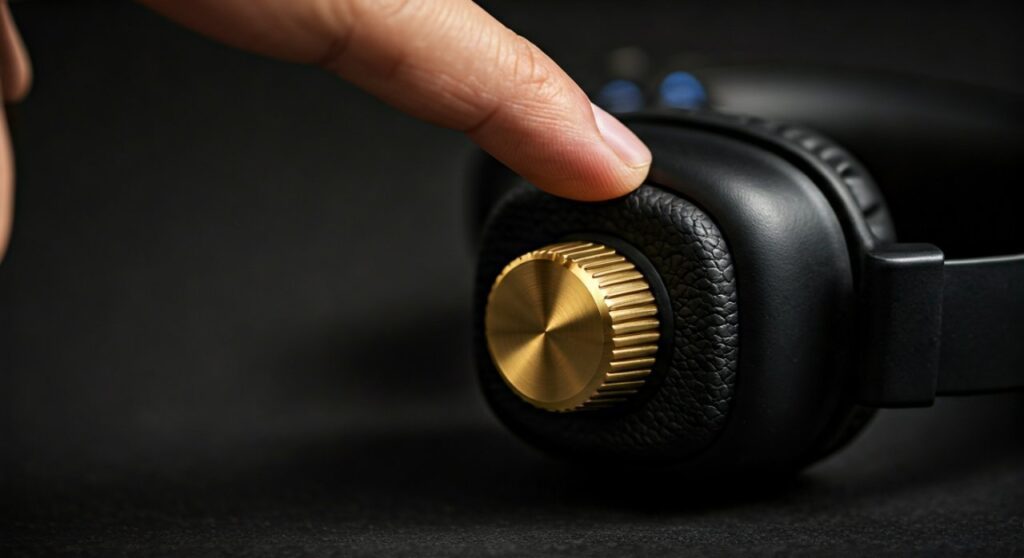
- Pairing Mode: Always wait for the flashing blue light. A steady white or red light indicates power or charging status, not pairing status.
- The Gold Control Knob: This is the primary interface for most Marshall over-ear models. It handles power, pairing, volume, and track skipping.
- App Integration: Use the Marshall Bluetooth App for firmware updates and customized EQ settings after the initial connection.
- Resetting: If the device isn’t showing up, a 10-second hold on the control button usually triggers a factory reset.
| LED Color | Meaning | Action Required |
|---|---|---|
| Flashing Blue | Pairing Mode | Search for device on your phone/PC |
| Steady White | Powered On / Connected | None – Ready to use |
| Steady Red | Low Battery | Plug into a USB-C power source |
| Flashing Yellow | Firmware Update | Do not turn off the device |
How to Turn Marshall Headphones On and Enter Pairing Mode
Before you can learn how to connect Marshall headphones to Bluetooth, you must first ensure the device is powered and discoverable. Marshall uses a unique “multi-directional control knob” on many models like the Major IV and Monitor II A.N.C.
How to turn Marshall headphones on
- Locate the brass control knob on the right or left ear cup.
- Push and hold the knob down for approximately 2 seconds.
- Listen for the Marshall startup sound (a distinct guitar riff).
- The LED will glow white once the power is on.
How to put Marshall headphones in pairing mode
To make your headphones visible to other devices, you must trigger the Bluetooth discovery mode.
- From an OFF state: Push and hold the control knob for 4-5 seconds. Do not let go when the power turns on; keep holding until the LED flashes blue.
- From an ON state: Double-press the control knob (on some models) or hold it until the light changes from white to blue.
- Expert Tip: If you are using the Marshall Minor III or Motif earbuds, you must place the buds in the case and hold the button on the bottom of the case to enter pairing mode.
How to Connect Marshall Headphones to Bluetooth (Mobile)
Connecting to a mobile device is the most common way to use these headphones. Whether you use Android or iOS, the process is nearly identical once the headphones are in pairing mode.
Connecting to iOS (iPhone/iPad)
- Go to Settings > Bluetooth.
- Ensure Bluetooth is toggled ON.
- Look under the “Other Devices” section for your model (e.g., Marshall Major IV).
- Tap the name to pair. The LED on the headphones will stop flashing blue and turn off or stay steady white.
Connecting to Android
- Swipe down from the top of the screen and long-press the Bluetooth icon.
- Tap “Pair new device”.
- Select your Marshall headphones from the list of available hardware.
- Google Fast Pair: Many newer Marshall models support Google Fast Pair. If supported, a pop-up will automatically appear on your Android screen asking if you want to connect—no settings menu required!
How to Connect Marshall Headphones to Laptop or PC
Connecting to a computer is slightly different depending on your operating system. From my experience, Windows 11 has improved the Bluetooth stack significantly, making it much easier to detect Marshall Monitor and Major series devices.
On Windows 10 & 11
- Put your Marshall headphones into pairing mode (flashing blue).
- On your PC, go to Settings > Bluetooth & devices.
- Click Add device > Bluetooth.
- Wait for your headphones to appear. Click on them to finalize the connection.
- Pro Tip: If the computer asks for a passcode, enter 0000.
On macOS
- Open the Apple Menu > System Settings (or System Preferences).
- Click on Bluetooth in the sidebar.
- Find your Marshall device in the list of nearby devices.
- Click Connect.
Utilizing the Marshall Bluetooth App for Better Connectivity
While you can use the headphones without any software, I highly recommend downloading the Marshall Bluetooth App from the Google Play Store or Apple App Store.
- Firmware Updates: Marshall frequently releases updates that improve Bluetooth stability and battery management.
- EQ Customization: You can adjust the “Marshall Signature Sound” to favor more bass or clearer treble.
- Noise Cancellation Control: For Monitor II A.N.C. users, the app allows you to toggle between Active Noise Cancelling and Transparency mode.
- Auto-Off Timer: Set a timer so your headphones turn off automatically if you forget to do so, preserving battery life.
Troubleshooting Common Connection Issues
Sometimes, knowing how to connect Marshall headphones isn’t enough because technology can be finicky. If your headphones won’t show up in the Bluetooth list, try these expert fixes.
Clear the Pairing History
If you have previously connected your headphones to five different devices, the Bluetooth stack might be “full” or confused.
- How to reset: Push and hold the control knob for 10 seconds while the headphones are on. The LED will flash purple or red to indicate the pairing history has been wiped.
Check for Interference
Bluetooth operates on the 2.4 GHz frequency. If you are standing next to a microwave or a high-powered Wi-Fi router, the signal may drop. Step into a clear area and try re-pairing.
“Forget This Device”
On your phone, go to your Bluetooth settings, find the Marshall name, and select “Forget this device”. Turn your Bluetooth off and back on, then try the pairing process from scratch. This fixes 90% of “Connection Unsuccessful” errors.
Model-Specific Connection Nuances
Not all Marshall products are built the same. Here is a breakdown of how the connection process varies across their popular lineup.
Marshall Major IV
The Major IV is famous for its 80+ hours of battery life. To pair these, you strictly use the gold knob. Note that the Major IV also supports wireless charging. If they won’t turn on, try placing the right ear cap on a Qi-certified charging pad first.
Marshall Minor III & Motif II A.N.C. (Earbuds)
- Keep the earbuds inside the charging case.
- Keep the lid open.
- Press and hold the pairing button on the bottom or front of the case until the LED pulses blue.
- Select the earbuds on your device.
Marshall Monitor II A.N.C.
These feature a dedicated “M” Button and a Bluetooth/Power knob. Ensure you are using the knob for pairing. The M-button is used for switching between EQ presets or triggering Google Assistant.
Maximizing Sound Quality After Connecting
Once you have successfully learned how to pair Marshall headphones, you want them to sound their best. Marshall devices often support aptX or AAC codecs.
- Android Users: Check your “Developer Options” to ensure aptX is enabled. This provides higher-fidelity audio and lower latency compared to the standard SBC codec.
- iOS Users: Apple uses AAC. Marshall headphones automatically switch to this for the best performance on iPhones.
- Positioning: Ensure the “L” and “R” marks match your ears. The internal drivers are angled to provide a specific soundstage that only works when worn correctly.
FAQs About Marshall Headphone Connectivity
Why are my Marshall headphones not appearing in Bluetooth?
This usually happens because the headphones are not in pairing mode (flashing blue) or they are already connected to a different nearby device. Turn off Bluetooth on your other devices and try again.
Can Marshall headphones connect to two devices at once?
Some newer models like the Monitor II A.N.C. support Multipoint Connection. This allows you to stay connected to your laptop for meetings while also being paired to your phone for calls. However, the Major IV does not natively support seamless multipoint switching.
How do I know if my Marshall headphones are in pairing mode?
The LED indicator will blink blue. If the light is steady white, it is already connected to something. If it is blinking red, the battery is too low to initiate a connection.
Is there a default PIN for Marshall Bluetooth?
Most modern devices do not require a PIN. If your older laptop or phone prompts you for one, use 0000.
How do I connect my Marshall headphones to a TV?
If your TV has built-in Bluetooth, the process is the same as connecting to a phone. If not, you will need a Bluetooth Transmitter that plugs into the TV’s 3.5mm or Optical audio output.
**
**
**
**









