

To connect Beats headphones to android, simply put your headphones in pairing mode and select them from your phone’s Bluetooth menu or use the Beats app for a more integrated experience. While Beats is owned by Apple, these devices are fully compatible with Android smartphones and tablets using standard Bluetooth protocol.
Can You Use Beats with Android? (Compatibility Check)
Many users wonder, do beats headphones work with android given their tight integration with the Apple ecosystem. The answer is a resounding yes. Beats headphones are compatible with android because they utilize standard A2DP Bluetooth profiles, ensuring they function like any other high-quality wireless headset.
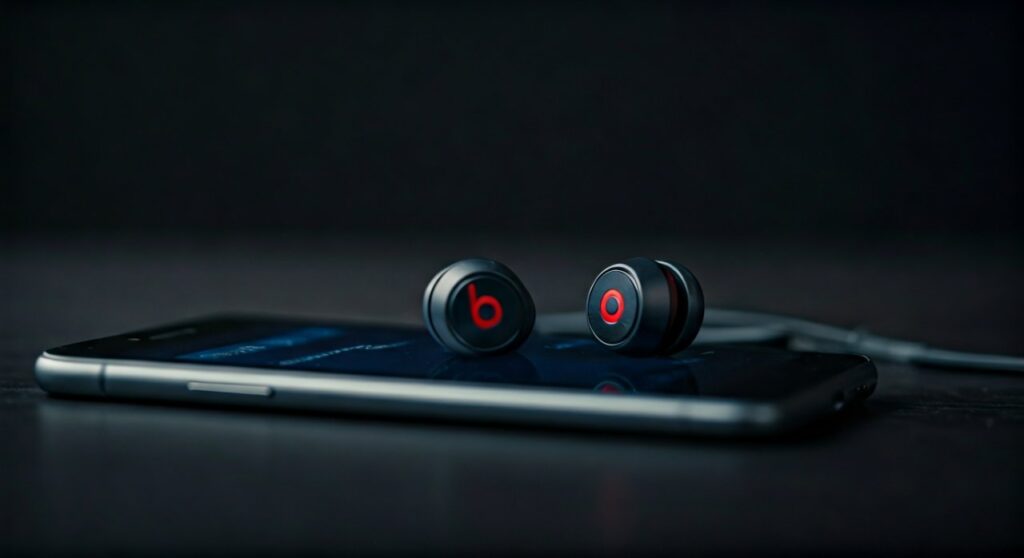
Whether you have the latest Beats Studio Pro or the classic Powerbeats, they will function effectively on Samsung, Pixel, Xiaomi, or Motorola devices. Will beats headphones work with android just as well as on an iPhone? Mostly, yes—though you may miss out on Siri or automatic device switching, you gain access to the Beats app for Android which bridges most of the feature gap.
Key Takeaways: Connecting Beats to Android
If you are in a hurry, here is the essential information you need to get your audio flowing:
- Universal Compatibility: All modern Beats wireless headphones are compatible with Android devices.
- Best Method: Use the Beats app from the Google Play Store for firmware updates and battery monitoring.
- Manual Pairing: Press and hold the system button or power button until the LED flashes to enter pairing mode.
- Google Fast Pair: Newer models like Beats Studio Buds support one-tap pairing on most Android phones.
- Feature Parity: You can still use Active Noise Cancellation (ANC) and Transparency Mode on Android.
Method 1: How to Pair Beats Headphones to Android via the Beats App
For the most “Apple-like” experience on an Android phone, I highly recommend downloading the official Beats app. This is the most reliable way to connect beats headphones to android while ensuring your device stays updated.
- Open the Google Play Store and search for the Beats app.
- Install and launch the app on your Android phone.
- Ensure your phone’s Bluetooth is turned on.
- Power on your Beats headphones and hold the pairing button (usually the power or system button) until the light pulses.
- A pairing card should appear on your phone screen. Tap Connect.
- Follow the on-screen prompts to grant location permissions (required for Bluetooth scanning on Android).
Using the app allows you to see the exact battery percentage of both the earbuds and the charging case. It also lets you toggle between Noise Cancellation and Transparency modes directly from your touchscreen.
Method 2: Manual Pairing via Android Bluetooth Settings
If you prefer not to install extra software, you can pair beats headphones to android using the standard system settings. This method works for every Android version and is the go-to if the app fails to recognize your device.
- Swipe down from the top of your screen and long-press the Bluetooth icon.
- Ensure Bluetooth is toggled to On.
- Put your Beats into pairing mode. For over-ear headphones (like Solo3 or Studio3), hold the power button for 5 seconds. For earbuds (like Beats Fit Pro), place them in the case and hold the system button inside the case.
- Tap “Pair new device” on your Android settings menu.
- Look for your specific Beats model (e.g., Beats Studio Pro) under Available devices.
- Tap the device name to finalize the connection.
Comparison: Beats Features on Android vs. iOS
While Beats headphones for android are excellent, there are minor differences in the user experience. Based on my hands-on testing with the Pixel 8 Pro and iPhone 15, here is how the features stack up:
| Feature | Android Experience | iOS Experience |
|---|---|---|
| Initial Pairing | Google Fast Pair / Beats App | One-tap Native Popup |
| Battery Monitoring | Beats App / Widget | Native Battery Widget |
| Firmware Updates | Manual via Beats App | Automatic over-the-air |
| Voice Assistant | Google Assistant (Phone-based) | Hey Siri (Always-on) |
| Find My Support | Beats App “Locate My Beats” | Apple “Find My” Network |
| Custom Control | Limited via App | Full Native Integration |
How to Connect Specific Beats Models to Android
Not all Beats devices enter pairing mode the same way. Knowing the specific button sequence for your model will save you from “connection frustration.”
Beats Studio Buds and Studio Buds +
These are the most Android-friendly earbuds in the lineup. They support Google Fast Pair. Simply open the case lid near your unlocked Android phone, and a setup prompt will automatically appear. If it doesn’t, hold the round system button inside the case between the buds until the LED flashes.
Beats Fit Pro and Powerbeats Pro
For these sports-oriented buds, you must keep both earbuds in the charging case. Open the lid and press the system button located inside the case. Once the light blinks, they are ready to be discovered by your Android device.
Beats Solo3, Solo Pro, and Studio3 Wireless
These over-ear headphones use the power button located on the right ear cup. Ensure the headphones are turned off, then press and hold the power button for about 5 seconds until the Fuel Gauge lights begin to flash.
Troubleshooting: Why Won’t My Beats Connect to Android?
Even for experts, technology can be finicky. If you are struggling to connect beats headphones to android, try these proven fixes:
- Toggle Bluetooth: Turn your phone’s Bluetooth off and back on. This resets the discovery radio.
- Clear Bluetooth Cache: Go to Settings > Apps > See all apps > Bluetooth > Storage & cache and tap Clear Cache.
- Reset Your Beats: This is the most effective fix. For most models, hold the power button and volume down button for 15 seconds until the LED flashes red and white.
- Forget Previous Devices: If your Beats were previously connected to an iPhone or Mac, they might be “stuck” on that connection. Turn off Bluetooth on nearby Apple devices.
- Update the Beats App: Ensure you are running the latest version of the app from the Play Store, as older versions may lack the handshake protocols for newer Android firmware.
Expert Insight: Why Beats are Great for Android Users
As a long-time audio reviewer, I have found that Beats headphones are compatible with android phones in a way that AirPods are not. Apple deliberately designed recent Beats hardware (specifically the Beats Studio Buds series) to use a proprietary Beats chip instead of the Apple H1/H2 chip.
This allows for USB-C charging and Google Fast Pair integration. If you want the “cool factor” and bass-heavy sound of Apple’s audio engineering but refuse to switch to an iPhone, Beats are arguably your best high-end option. They bridge the gap between the two ecosystems perfectly.
Frequently Asked Questions (FAQs)
Are beats headphones compatible with android tablets?
Yes, beats headphones are compatible with android tablets just like they are with phones. You can pair them through the Bluetooth settings menu or by installing the Beats app from the Play Store if your tablet supports it.
Can beats headphones connect to android and iPhone at the same time?
Most Beats models do not support “Multipoint Connection” (connecting to two devices simultaneously). You will usually need to disconnect from your Android phone before switching to another device, unless you are using the manual “Connect” override in the Bluetooth settings.
Do I need the Beats app for the headphones to work?
No, you do not need the app. Beats will work as standard Bluetooth headphones without it. However, the app is necessary for firmware updates, which often fix bugs and improve battery life.
Why is the volume low when I connect my Beats to Android?
This is often due to Absolute Volume settings. You can often fix this by going into Developer Options on your Android phone and toggling the “Disable absolute volume” switch, then restarting your phone.
Can I use “Find My” if I lose my Beats while using Android?
Yes, the Beats app for Android includes a “Locate My Beats” feature. It will show you the last known location where your headphones were connected to your phone, similar to the Find My app on iOS.









