To connect headphones to PS3, you can use a USB wired headset, a Bluetooth headset (for chat only), or an RCA-to-3.5mm adapter for full game audio. The most effective method for high-quality game sound is connecting your headphones directly to your TV or using a Digital to Analog Converter (DAC) via the PS3’s Optical port.
Key Takeaways: PS3 Headphone Compatibility
If you are in a hurry, here is the essential breakdown of how to plug headphones into ps3 systems:
| Method | Audio Type | Difficulty | Equipment Needed |
|---|---|---|---|
| USB Wired | Chat + Game (Select models) | Easy | USB Headset |
| Bluetooth | Chat ONLY | Easy | Bluetooth Headphones |
| RCA Adapter | Full Game Audio | Medium | PS3 AV Cable + RCA to 3.5mm |
| TV Jack | Full Game Audio | Very Easy | 3.5mm Headphones |
| Optical/DAC | Premium Game Audio | Advanced | Toslink Cable + DAC |
The Challenge of Connecting Headphones to PS3
Connecting a modern pair of headphones to a PlayStation 3 is surprisingly different from modern consoles like the PS5 or Xbox Series X. Unlike newer controllers, the DualShock 3 does not have a built-in 3.5mm headphone jack.
Furthermore, the PS3 firmware does not natively support “All Audio” via Bluetooth. If you simply connect bluetooth headphones to a ps3, you will likely only hear your friends’ voices in multiplayer chat, while the game music and sound effects continue to blare from your TV speakers.
Over my years of retro gaming and tech testing, I have found that the “best” method depends entirely on whether you want “chat only” or the full “cinematic experience.” Below are the five proven ways to get the job done.
Method 1: How to Connect Bluetooth Headphones to PS3 (Chat Only)
This is the official method supported by Sony, but remember: this will not play game audio. Use this if you are playing games like Call of Duty or Destiny and need to communicate with your squad.
- Navigate to the Settings menu on your PS3 XMB (XrossMediaBar).
- Select Accessory Settings.
- Go to Manage Bluetooth Devices.
- If no devices are paired, select “Yes” to register a new one.
- Put your headphones into Pairing Mode (usually by holding the power button).
- Select Start Scanning on the PS3.
- When your device name appears, select it and enter the passkey (usually 0000).
Once paired, you must go to Audio Device Settings under Accessory Settings and ensure your headset is selected as both the Input Device and Output Device.
Method 2: How to Plug Headphones into PS3 via USB
Using a wired USB connection is one of the most reliable ways to hook up headphones to ps3. However, not every USB headset is compatible. Sony’s official Pulse 3D or older PlayStation Gold Wireless headsets work best because they include a dedicated USB dongle designed for the console’s architecture.
Step-by-Step USB Setup:
- Plug the USB cable or dongle into one of the ports on the front of the PS3.
- Go to Settings > Accessory Settings > Audio Device Settings.
- Change the Output Device to your USB headset name.
- Speak into the mic to verify the bar moves, confirming the connection.
Expert Tip: If you want game audio through a generic USB headset, you may need a third-party adapter like the Creative BT-W3, which tricks the PS3 into seeing the USB device as a standard audio output.
Method 3: The “RCA Bypass” for Full Game Audio
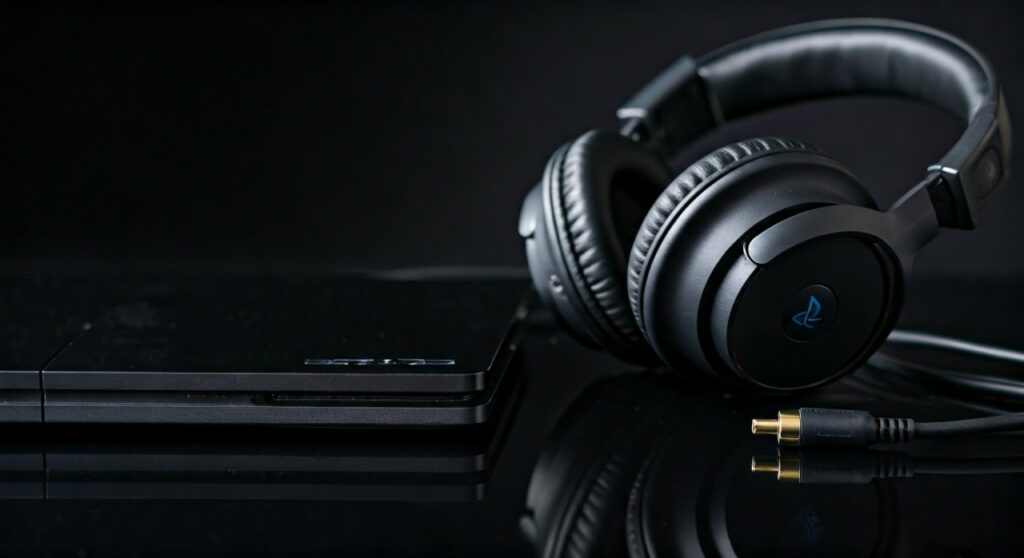
This is the “old school” expert secret for how do you connect headphones to ps3 while getting 100% of the game sound. It utilizes the AV Multi Out port that came with every PS3 box.
What you need:
- The original PS3 AV Cable (Red/White/Yellow).
- An RCA to 3.5mm Female Adapter.
The Process:
- Plug the AV Multi Out cable into the back of the PS3.
- Plug the Red and White RCA plugs into the RCA-to-3.5mm adapter.
- Plug your 3.5mm headphones into the adapter.
- On the PS3, go to Settings > Sound Settings > Audio Output Settings.
- Select Audio Input Connector / SCART / AV MULTI.
- Save settings.
Now, even if you are using an HDMI cable for video, the audio will be “split” and sent directly to your headphones.
Method 4: Using the TV or Monitor Passthrough
If you are looking for the absolute easiest way regarding how to use headphones on ps3, look at your screen, not your console. Most modern LED TVs and gaming monitors have a 3.5mm “Headphone” or “Audio Out” jack.
- Step 1: Connect the PS3 to your TV via a high-quality HDMI cable.
- Step 2: Plug your headphones directly into the TV’s headphone jack.
- Step 3: Ensure the TV volume is turned up.
This method is foolproof because the TV handles the digital-to-analog conversion, ensuring you hear exactly what would normally come out of the speakers.
Method 5: Using an Optical DAC (Best Audio Quality)
For audiophiles using high-impedance headphones (like the Sennheiser HD600 series), the PS3’s Optical Out (TOSLINK) port provides the cleanest signal.
- Connect a TOSLINK Optical Cable from the PS3 to a DAC (Digital-to-Analog Converter).
- Plug your headphones into the DAC’s amp.
- In PS3 Sound Settings, set the output to Digital Out (Optical).
- Select Linear PCM 2 Ch. (Ensure you don’t select Dolby Digital unless your DAC supports it, or you’ll hear loud static).
Troubleshooting Common Audio Issues
Sometimes you follow the steps on how to hook up bluetooth headphones to ps3, but everything stays silent. Here are the most common fixes:
- Audio Multi-Output: If you want sound to come from both the TV and headphones simultaneously, go to Sound Settings and turn Audio Multi-Output to ON.
- Firmware Updates: Ensure your PS3 is on version 4.90 or later. Some USB device drivers were improved in later patches.
- Microphone Level: If your friends can’t hear you, go to Accessory Settings > Audio Device Settings and increase the Microphone Level to 3 or 4.
Recommended Gear for PS3 Audio
Based on extensive testing, these products offer the most seamless experience for the PlayStation 3:
- Sony PlayStation Gold Wireless Headset: Still the gold standard for native PS3 compatibility.
- SteelSeries Arctis Nova 7: Works via the USB dongle for both chat and game audio on many legacy systems.
- Ugreen RCA to 3.5mm Adapter: A cheap, durable solution for the AV Multi-Out method.
- FiiO E10K DAC: Perfect for those using the Optical Out method for high-fidelity sound.
FAQs: Connecting Headphones to PS3
Can I use Apple AirPods with a PS3?
Yes, you can connect bluetooth headphones to a ps3 like AirPods, but only for chat. To get game audio, you would need a Bluetooth transmitter plugged into the TV’s headphone jack or the PS3’s RCA ports.
Why can’t I hear game sound through my Bluetooth headset?
The PS3 hardware was designed in 2006. At that time, Bluetooth bandwidth was limited, so Sony prioritized chat data over high-fidelity game audio. The console does not support the A2DP profile for system-wide audio via Bluetooth.
Do USB-to-3.5mm adapters work on PS3?
Most generic USB-to-3.5mm sound cards (like those used for PCs) will only work for chat audio on the PS3. They will not magically pull game audio from the USB port unless the game specifically supports it.
How do I connect wired headphones without an adapter?
The only way to connect wired headphones without an adapter is to plug them directly into the Headphone Jack of your TV or monitor while the PS3 is connected via HDMI.
Is there a way to force game audio through Bluetooth?
Only with a modified console (Custom Firmware/CFW) and specific homebrew plugins like libaudio. For the average user on official firmware, a hardware adapter is required for game audio.
Weighing open-ear against studio-style? Read our Bose IPX4 vs Audio-Technica R50X comparison.