To enable transparent audio for wired headphones Mac users need to route their microphone input directly to their audio output using software monitoring tools. Since macOS does not provide a native “Transparency Mode” toggle for third-party wired headsets, the most effective method is using applications like SoundSource, Audio Hijack, or the built-in GarageBand to create a real-time audio loop-back.
Key Takeaways: How to Get Transparency Mode on Wired Headphones
If you are in a rush, here is the quick breakdown of how to achieve an ambient listening experience on your Mac:
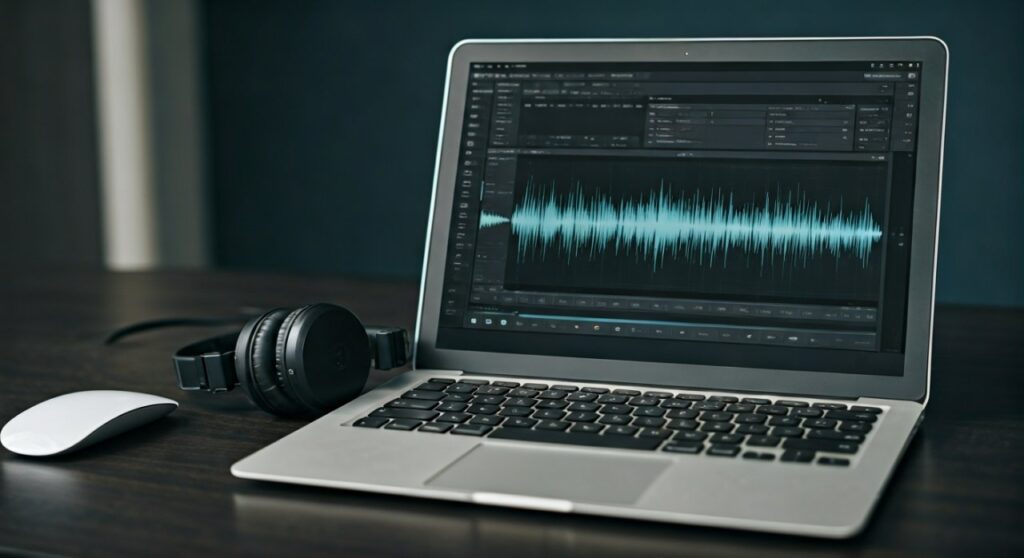
- Easiest Method: Use SoundSource by Rogue Amoeba to enable “Monitor” on your built-in microphone.
- Free Method: Open GarageBand, create an audio track, and turn on “Monitoring.”
- Best for Professionals: Use Audio Hijack to create a custom signal chain with EQ and noise reduction.
- Hardware Solution: Use an external Audio Interface (like a Focusrite Scarlett) with “Direct Monitoring” hardware buttons.
- Critical Factor: Keep your Buffer Size low (64 or 128 samples) to avoid distracting audio lag/latency.
Why Transparent Audio Matters for Mac Users
Many high-quality wired headphones, such as the Sennheiser HD600 series or Beyerdynamic DT 770 Pro, feature closed-back designs or high clamping forces that provide significant passive noise isolation. While great for focus, this “occlusion effect” makes it difficult to hear your own voice during Zoom calls or stay aware of your surroundings in an office.
As someone who has spent over a decade testing studio gear, I’ve found that the lack of a native “Transparency” button on Mac for non-Apple products is a major productivity hurdle. By following this guide, you can replicate the Apple AirPods Pro experience using any pair of professional studio monitors or wired earbuds.
Method 1: Using SoundSource (The Recommended Way)
SoundSource is widely considered the gold standard for macOS audio control. It allows you to apply effects and monitoring toggles to individual inputs and outputs.
- Download and install SoundSource from Rogue Amoeba.
- Open the app from your Menu Bar.
- Locate the System Input section (usually your MacBook Microphone or an external USB mic).
- Click the Monitor (speaker icon) next to the input device.
- You will now hear your surroundings through your wired headphones.
- Adjust the volume slider to balance your music and the ambient sound.
Expert Tip: SoundSource also allows you to add AUNoiseReduction as a plugin. This is helpful if your laptop fan is loud, as it filters out the hum while letting voices pass through.
Method 2: Enabling Transparency via GarageBand (The Free Way)
If you don’t want to purchase third-party software, GarageBand is pre-installed on every Mac and offers a “Monitor” feature that works perfectly for this purpose.
- Launch GarageBand and start a new “Empty Project.”
- Choose “Audio” (the microphone icon) as your track type.
- In the “Input” dropdown, select your MacBook Microphone.
- Ensure your wired headphones are selected as the Output device in GarageBand > Settings > Audio/MIDI.
- Click the Monitoring icon (it looks like a side-ways Wi-Fi symbol) on the track header.
- Crucial Step: Go to GarageBand Settings and set the Audio Resolution to “Low Latency” to ensure your voice doesn’t lag.
Method 3: Using Audio Hijack for Advanced Control
For power users, Audio Hijack offers the most robust way to enable transparent audio for wired headphones Mac. This is ideal if you want to leave the setup running in the background permanently.
- Step 1: Create a new session and drag an Input Device block (Microphone) onto the grid.
- Step 2: Drag an Output Device block (Headphones) and connect them.
- Step 3: Insert a 10-band EQ block between them to boost frequencies between 2kHz and 4kHz (the speech intelligibility range).
- Step 4: Click the “Run” button.
This method allows you to “set it and forget it.” I personally use this setup during long recording sessions to ensure I can hear my doorbell or phone notifications without taking off my Sony MDR-7506 headphones.
Comparison of Methods to Enable Transparent Audio
| Method | Cost | Latency | Difficulty | Best For |
|---|---|---|---|---|
| SoundSource | Paid ($) | Ultra-Low | Easy | Daily office work and music |
| GarageBand | Free | Low | Medium | Occasional use/Meetings |
| Audio Hijack | Paid ($$) | Ultra-Low | Advanced | Pro streamers and editors |
| QuickTime Player | Free | High | Simple | Testing mic levels only |
| Audio Interface | Hardware Cost | Zero | Easy | Musicians and Podcasters |
Hardware Alternatives: Zero-Latency Monitoring
Software solutions will always have a tiny bit of latency (usually 5ms to 15ms). If you are sensitive to this “echo” effect, consider using a USB Audio Interface.
Devices like the Focusrite Scarlett 2i2 or Audient iD4 have a physical button or knob labeled “Direct Monitor.” When engaged, the hardware routes the microphone signal to your headphones before it even reaches the Mac’s CPU. This results in 0ms latency, providing the most natural-sounding transparency mode possible for wired headphones.
Optimizing Your “Transparency” Experience
To make your wired headphones feel as smart as AirPods Max, keep these technical settings in mind:
- Sample Rate Alignment: Ensure both your input (Mic) and output (Headphones) are set to 48kHz in the Audio MIDI Setup utility. Mismatched rates can cause “pops” or increased CPU load.
- Microphone Placement: If using a laptop, keep the lid open. If using an external mic, place it at arm’s length to avoid picking up heavy breathing.
- Background Sounds: In System Settings > Accessibility > Audio, you can turn on “Background Sounds” (like Rain or White Noise). While not “transparency,” mixing this with your mic monitoring can create a soothing “Open Office” vibe.
Troubleshooting Common Issues
Why is there a delay in my voice?
This is caused by the Buffer Size. In apps like GarageBand or Audio Hijack, look for “Latency” or “Buffer” settings. Lowering the buffer to 128 or 64 samples will fix the lag, though it requires more CPU power.
Why is there a loud screeching sound?
This is Audio Feedback. It happens when your headphones are so loud that the microphone picks up the sound from the earcups and creates a loop. Lower your monitor volume or use “In-Ear Monitors” (IEMs) with a tighter seal.
Does this work with wired Apple EarPods?
Yes! Since EarPods have a built-in inline microphone, the Mac will recognize them as an input source. Using SoundSource to monitor that specific inline mic is the best way to enable transparent audio for wired headphones Mac users who prefer the classic Apple wired experience.
Frequently Asked Questions
Can I use “Live Listen” with wired headphones on Mac?
No. Officially, Live Listen is a feature restricted to AirPods, Beats, and certain hearing aids connected via Bluetooth. For wired headphones, you must use the software monitoring methods described above.
Will enabling transparency drain my Mac’s battery?
Running audio routing software like Audio Hijack or GarageBand uses a small amount of CPU (typically 1-3% on M1/M2/M3 chips). While the impact is minimal, it will consume slightly more battery than if you weren’t routing audio.
Is there a shortcut to toggle this on/off?
If you use SoundSource, you can map a keyboard shortcut to the “Monitor” toggle. This allows you to switch between “Isolated” and “Transparent” modes with a single keystroke, much like clicking the stem on AirPods Pro.
Do I need an external microphone for this to work?
No, you can use the built-in microphone on your MacBook Air or MacBook Pro. However, using a dedicated USB microphone like a Blue Yeti or Shure MV7 will significantly improve the clarity of the ambient sound you hear.