

It is incredibly frustrating when you put on your favorite pair of cans only to realize the sound is lopsided. Usually, the reason why is one headphone louder than the other boils down to three main culprits: unbalanced software settings, a physical earwax blockage in the speaker mesh, or a damaged internal wire. Most cases are fixed by simply adjusting the L/R audio balance in your device settings or cleaning the ear tips with isopropyl alcohol.
Key Takeaways: Troubleshooting Unbalanced Audio
If you are in a hurry, here is the fast track to fixing your audio imbalance:
- Check Software Balance: Ensure the slider is centered in your Sound Settings (Windows/Mac) or Accessibility (iOS/Android).
- Clean the Mesh: Use a soft toothbrush and 70% isopropyl alcohol to remove debris blocking the driver.
- Inspect the Cable: Gently wiggle the wire near the jack; if the sound flickers, the internal copper is likely frayed.
- Reset Bluetooth: For wireless earbuds, a “Hard Reset” usually re-syncs the Master/Slave volume levels.
- Verify Mono Audio: Ensure Mono Audio is toggled off unless you have specific hearing needs.
Why Is One Headphone Louder Than the Other? Understanding the Causes
Before diving into the fixes, we must identify the “Why.” In my years of testing audio gear from Sony, Sennheiser, and Apple, I’ve found that the problem is rarely a “broken” driver and usually a “blocked” or “misconfigured” one.
Software Configuration Errors
The most common reason why is one of my headphones louder than the other is a simple software glitch. Operating systems like Windows 11 or iOS sometimes shift the balance slider due to accidental swipes or third-party app interference.
Accumulation of Earwax and Debris
If you use in-ear monitors (IEMs), skin oils and earwax naturally migrate into the fine mesh filter. Even a microscopic layer of wax can reduce the acoustic output by 3-5 decibels, making it feel like the other side is dying.
Hardware and Wire Fatigue
Copper wires inside your headphone cable are thinner than a human hair. Frequent bending near the 3.5mm jack or the earcup housing causes these strands to break, increasing electrical resistance and lowering volume.
Bluetooth Synchronization Issues
True Wireless Stereo (TWS) earbuds like AirPods or Galaxy Buds communicate via a “primary” and “secondary” connection. If the firmware desyncs, the primary earbud may consume more power or receive a stronger signal than the other.
Step 1: Checking Software Balance (Windows, Mac, Mobile)
Often, the fix is sitting right in your settings menu. Here is how to recalibrate your audio levels across different platforms.
On Windows 10/11
- Right-click the Speaker Icon in the taskbar and select Sound Settings.
- Click on your active output device (Headphones).
- Look for the Left channel and Right channel sliders under “Output settings.”
- Ensure both are set to the same numerical value (e.g., 50 and 50).
On iPhone (iOS)
Many users wonder why is my left headphone louder than the right only to find they bumped an accessibility setting.
- Go to Settings > Accessibility.
- Scroll down to Audio/Visual.
- Locate the Balance slider. Ensure the dot is exactly in the middle.
- Check if Mono Audio is enabled; if so, disable it for a true stereo experience.
On Android
- Open Settings and search for Accessibility.
- Tap on Hearing Enhancements.
- Adjust the Connected Audio balance slider to the center.
Step 2: Deep Cleaning for Restored Clarity
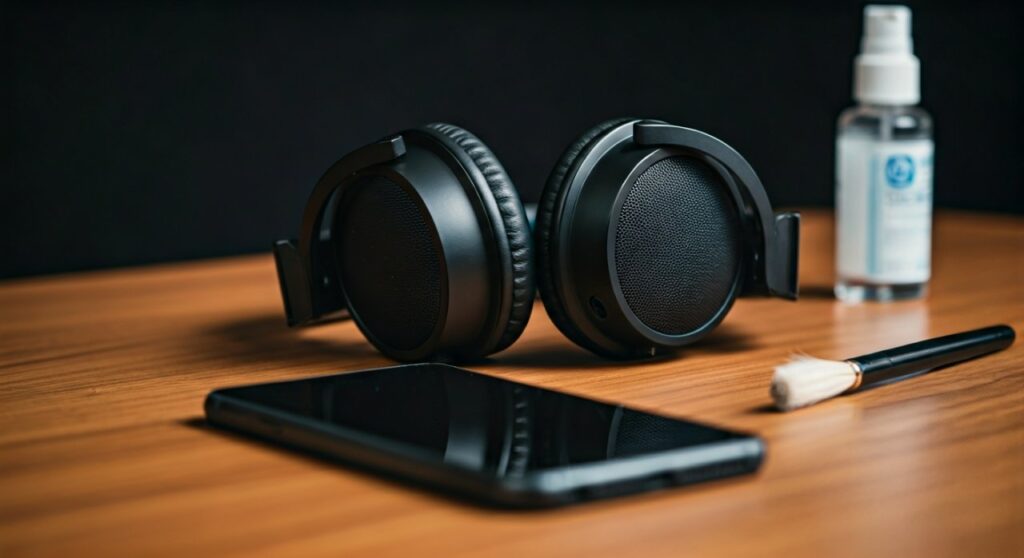
If settings are fine, the culprit is likely physical. I have seen AirPods that sounded “broken” return to 100% volume after a 2-minute cleaning.
Materials Needed:
- 70% Isopropyl Alcohol
- Soft-bristled toothbrush or a specialized cleaning pen
- Sticky tack (Blue-tack)
The Cleaning Process:
- Remove Silicone Tips: If you have IEMs, pull off the rubber tips and soak them in warm soapy water.
- The Brushing Technique: Hold the earbud with the mesh facing downwards. This prevents loosened wax from falling deeper into the driver.
- The Alcohol Swab: Lightly dampen a Q-tip with alcohol (never soak it). Dab the mesh to dissolve oils.
- Sticky Tack Hack: Press a small piece of sticky tack against the mesh and pull it away quickly. This “lifts” the wax out of the holes rather than pushing it in.
Step 3: Inspecting for Hardware Damage
If cleaning doesn’t work, we need to look at the physical integrity of the device. This is often why is one headphone quieter than the other when dealing with wired equipment.
The “Wiggle Test”
Plug your headphones into a steady audio source. Slowly bend the cable starting from the jack and moving up toward the earpiece. If the volume “pops” back to normal at a certain angle, you have a internal wire fracture.
Checking for Moisture
If you recently worked out, sweat might have entered the acoustic chamber. This creates a temporary “muffled” effect.
- Solution: Place the headphones in a dry area (or use silica gel packets) for 24 hours. Do not use a hairdryer, as the heat can melt the delicate diaphragm.
Comparison of Common Audio Imbalance Symptoms
| Symptom | Likely Cause | Recommended Fix |
|---|---|---|
| Consistent low volume in one ear | Software Balance / Earwax | Adjust OS sliders / Deep Clean |
| Sound cuts in and out when moving | Frayed Wire | Professional soldering or replacement |
| Static or crackling in one ear | Dirty Jack or Port | Clean the 3.5mm jack with alcohol |
| One side is completely silent | Blown Driver or Severed Wire | Warranty claim / Replacement |
| Muffled, “underwater” sound | Moisture / Sweat | Dry out for 24-48 hours |
Step 4: Troubleshooting Wireless & Bluetooth Earbuds
Wireless technology introduces a layer of complexity. If your Sony WH-1000XM5 or Bose QuietComfort are acting up, the issue is often digital.
Perform a Factory Reset
Every brand has a specific button combination (usually holding the power and noise-canceling buttons for 10 seconds). This clears the cache and resets the internal volume mapping.
Update Firmware
Manufacturers frequently release patches for “volume drift.” Use the companion app (e.g., Sony Headphones Connect, Sennheiser Smart Control) to ensure you are on the latest version.
Check the “Absolute Volume” Setting (Android)
Sometimes the phone and the headphones have separate volume scales.
- Enable Developer Options on your Android.
- Toggle Disable Absolute Volume. This allows you to control the headphone’s internal amp separately from the phone’s software volume.
Advanced Fix: The “Suction” Method (Use with Caution)
In my experience as an audio enthusiast, sometimes the driver diaphragm itself gets “stuck” due to air pressure changes. This is common with dynamic drivers.
- Ensure the earbud is clean.
- Place your mouth over the earpiece (create a seal).
- Give a very gentle puff of air or a light suck.
- You may hear a “crinkle” sound—this is the diaphragm resetting its position.
Expert Tips for Audio Longevity
To prevent the question of why is one headphone louder than the other from arising again, follow these industry-standard maintenance tips:
- Store in a Case: Never wrap your cable tightly around your phone; this creates “kinks” that lead to internal shorts.
- Wipe After Use: If you use headphones for the gym, wipe the sweat off immediately. Salt crystals from sweat are highly corrosive to copper and electronic components.
- Limit High Volumes: Frequently driving your headphones at 100% volume can cause “driver fatigue,” where the voice coil weakens on one side faster than the other.
- Check the Jack Port: Use a toothpick to gently remove lint from your phone’s charging/headphone port. Sometimes the plug isn’t seating fully, causing a partial signal.
When Should You Give Up and Buy New Ones?
While many issues are fixable, certain conditions indicate a “total loss”:
- Burnt Voice Coil: If you smell a faint “electric burning” scent, the driver is fried.
- Cracked Housing: If the plastic shell around the driver is cracked, the acoustic back-pressure is lost, making that side sound thin and quiet.
- Corroded Internals: If the headphones were submerged in saltwater, the circuit boards will likely oxidize beyond repair within days.
Frequently Asked Questions (FAQs)
Why is my left headphone louder than the right on my PC?
This is almost always due to the Windows Sound Balance setting. Go to Settings > Sound > Properties for your output device and ensure the Left and Right channels are synchronized. Some apps, like Discord or Steam, can also occasionally hijack these settings.
Can a low battery cause one earbud to be quieter?
Yes, especially in older Bluetooth models. If one battery cell is degrading faster than the other, the onboard amplifier may reduce the voltage to the speaker to save power, resulting in lower volume on the “weaker” side.
Is it possible my hearing is the problem?
It is a valid concern. If you switch the headphones (put the left cup on your right ear) and the same ear still hears the sound as quieter, you may have an earwax impaction or temporary hearing loss. Consult an audiologist if this persists across all audio devices.
How do I fix unbalanced sound on AirPods?
Clean the “side” vents and the main speaker mesh with a dry toothbrush. Then, go to Settings > Accessibility > Audio/Visual on your iPhone and ensure the balance slider is centered. If that fails, “Forget this Device” in Bluetooth settings and repair them.
Why is one side of my wired headphones quieter even after cleaning?
The internal copper wiring near the Y-splitter or the jack is likely partially severed. This increases resistance (Ohms), meaning that specific earbud requires more power to reach the same volume as the healthy side.









