

Why Most Bluetooth Headphones Don’t Work Natively with PS4
Technically, only officially licensed PlayStation headsets or those using a proprietary USB dongle work natively with the PS4. While the PS4 and PS4 Pro feature built-in Bluetooth, Sony restricts this connection to peripherals like the DualShock 4 controller to prevent audio latency and interference.
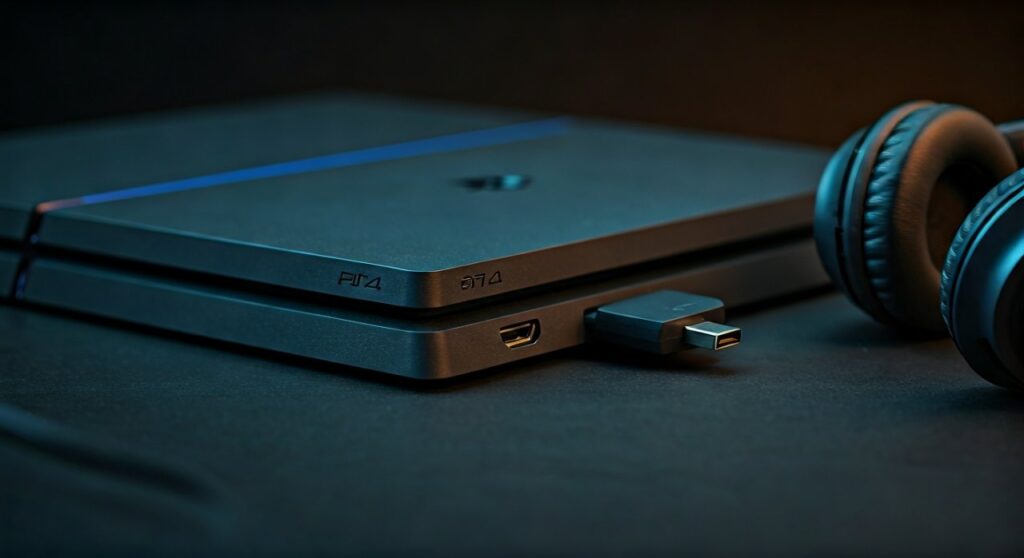
If you try to pair your AirPods, Sony WH-1000XM5, or Bose QuietComfort directly through the “Devices” menu, you will likely encounter the “Bluetooth audio devices are not supported by the PS4” error. This is because the PS4 lacks the A2DP Bluetooth profile required for high-quality audio streaming without significant lag.
To get around this, gamers have three main options:
- Use PlayStation-certified wireless headsets.
- Use a Third-party USB Bluetooth adapter (the most popular workaround).
- Use a 3.5mm wired connection from the headset to the DualShock 4 controller.
Key Takeaways: PS4 Bluetooth Compatibility
| Connection Method | Compatibility | Audio Quality | Microphone Support |
|---|---|---|---|
| Official PS Headsets | 100% Native | High (Lossless) | Fully Supported |
| USB Bluetooth Adapter | Most Headphones | High (Depends on Codec) | Often requires separate mic |
| Controller Audio Jack | All Wired/Hybrid | Good | Fully Supported |
| PS Remote Play App | All Mobile-paired | Variable | Supported |
What Bluetooth Headphones Work with PS4 Natively?
If you want a “plug-and-play” experience without extra adapters, you must choose headsets specifically designed for the PlayStation ecosystem. These headsets do not use standard Bluetooth; instead, they use a 2.4GHz wireless frequency via a dedicated USB transmitter.
Officially Licensed Sony Models
- Sony PlayStation Pulse 3D Wireless Headset: Originally designed for PS5, but fully backward compatible with PS4.
- Sony PlayStation Platinum Wireless Headset: Offers 7.1 Virtual Surround Sound specifically tuned for PS4 games.
- Sony PlayStation Gold Wireless Headset: The classic choice for PS4 users, featuring a sleek design and custom audio modes.
Third-Party Certified Headsets
Many high-end gaming brands have developed “PlayStation Versions” of their flagship products. These are guaranteed to work because they include the necessary USB dongle to bypass the PS4’s Bluetooth restrictions.
- SteelSeries Arctis 7P+: Widely considered one of the best for comfort and battery life.
- Turtle Beach Stealth 600/700 Gen 2: Features “Superhuman Hearing” presets that work perfectly on PS4.
- Razer Kaira Pro for PlayStation: Excellent haptic feedback and clear microphone quality.
- HyperX Cloud Flight: Known for its massive 30-hour battery life and reliable connection.
How to Use Any Bluetooth Headphones with PS4
If you already own a pair of high-quality Bluetooth headphones and don’t want to buy a new gaming-specific set, you can use a USB Bluetooth Adapter. This is the most effective way to answer the question of how to use bluetooth headphones with ps4.
Step 1: Choosing the Right Adapter
Not all adapters are created equal. You should look for one that supports aptX Low Latency to ensure your audio stays in sync with the action on the screen.
- Creative BT-W3 / BT-W4: These are premium options that support multiple codecs and include a small analog microphone.
- Avantree Leaf: A reliable choice known for its long range and “no-lag” performance.
- Generic PS4 Dongles: Cheaper options found on Amazon that usually come with a 3.5mm microphone plug for your controller.
Step 2: The Setup Process
- Insert the Bluetooth USB Dongle into an available USB port on the front of your PS4.
- Put your Bluetooth headphones into “Pairing Mode.”
- Press and hold the pairing button on the USB Dongle until the LED flashes rapidly.
- Wait for the lights to turn solid, indicating a successful connection.
- Go to Settings > Devices > Audio Devices on your PS4.
- Set Output Device to “USB Headphones” or the name of your adapter.
- Change Output to Headphones to “All Audio.”
The “Controller Hack” for Bluetooth Headphones
If you don’t want to buy an adapter, check if your Bluetooth headphones came with a 3.5mm audio cable. Many premium models like the Sony WH-1000XM4 or Beats Solo3 include this.
Even though it involves a wire, this is the most stable way to use headphones with ps4.
- Plug one end of the cable into your headphones and the other into the DualShock 4 controller jack.
- The PS4 will automatically detect the headset.
- Hold the PS Button on your controller to open the Quick Menu.
- Select Sound/Devices and ensure Output to Headphones is set to “All Audio.”
This method bypasses Bluetooth entirely, providing zero-latency audio and usually enabling the microphone built into the cable or headset.
Using PS Remote Play as a Workaround
A clever, “expert-level” trick is using the PS Remote Play app on your smartphone or tablet. Since your phone does support all Bluetooth headphones, you can bridge the audio.
- Connect your Bluetooth headphones to your smartphone.
- Download and open the PS Remote Play app on the same device.
- Connect the app to your PS4.
- While you play on your TV, the audio will stream through your phone and into your Bluetooth headphones.
Note: This method requires a very strong Wi-Fi connection (at least 15Mbps) to avoid audio stuttering or input lag.
Troubleshooting Common Issues
Audio Lag (Latency)
Standard Bluetooth has a delay of about 100-200ms. In fast-paced games like Call of Duty or Elden Ring, this can be lethal. To fix this:
- Use an adapter that supports aptX Low Latency.
- Ensure your headphones also support the same codec.
- Switch to the wired controller method if lag persists.
Microphone Not Working
Most USB Bluetooth adapters can receive audio, but they struggle to transmit voice data back to the PS4.
- Many adapters come with a miniature 3.5mm microphone that plugs into the controller.
- If your adapter doesn’t have this, you might be able to hear game audio but won’t be able to use party chat.
Low Volume
If the audio sounds faint:
- Navigate to Settings > Devices > Audio Devices.
- Select Volume Control (Headphones) and turn it to the maximum.
- Check the physical volume buttons on your Bluetooth headset.
Expert Tips for the Best Experience
Based on years of testing different setups, here is how to get the most out of your PS4 audio:
- Avoid interference: Keep your PS4 away from other 2.4GHz devices like routers or microwaves, as they can cause your Bluetooth audio to crackle.
- Update Firmware: If you are using a Sony Pulse 3D or SteelSeries headset, regularly connect it to a PC to check for firmware updates.
- Battery Management: Using a USB dongle doesn’t drain your controller battery, but using the 3.5mm jack method will shorten your DualShock 4 play sessions by about 15-20%.
Frequently Asked Questions
Can you use AirPods with PS4?
Yes, but not directly. You must use a USB Bluetooth adapter plugged into the PS4 or use the Remote Play app on your iPhone or Android device.
Does the PS4 support Bluetooth 5.0?
The original PS4 uses Bluetooth 2.1, while the PS4 Pro uses Bluetooth 4.0. Neither supports the modern Bluetooth 5.0+ features natively, which is why external adapters are necessary for modern headphones.
Why won’t my Sony headphones connect to my Sony PS4?
It is a common misconception that same-brand products will work together. Sony disables standard Bluetooth audio on the PS4 to ensure the best possible gaming performance and to encourage the sale of their licensed gaming headsets.
Are all USB Bluetooth dongles compatible?
No. You should specifically look for adapters that are advertised as “Plug and Play for PS4/PS5.” Standard PC Bluetooth adapters often require Windows drivers that the PS4 cannot install.
Is there a way to use Bluetooth headphones for chat only?
No, the PS4 treats audio output as a single stream. You can choose “All Audio” or “Chat Audio” in the settings, but both require a recognized and compatible output device.









