

The Definitive Guide: What Headphones Work With PlayStation Portal?
The PlayStation Portal supports three primary types of audio connections: wired 3.5mm headphones, PlayStation Link wireless devices, and third-party wireless headsets via a Bluetooth transmitter workaround. While the device famously lacks built-in Bluetooth support, you can still use your favorite gear if you know which ports or adapters to use.
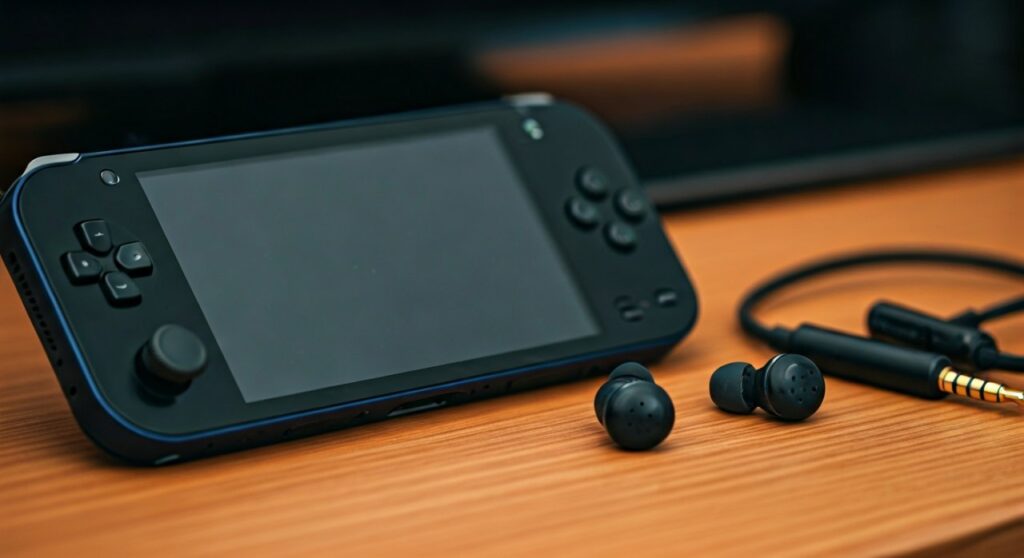
If you are looking for the shortest answer to what headphones work with playstation portal, any pair of headphones with a standard 3.5mm audio jack will work instantly. For a wireless experience, you must use Sony’s proprietary PlayStation Link technology found in the Pulse Explore Wireless Earbuds or the Pulse Elite Wireless Headset.
Key Takeaways: Compatibility at a Glance
Before diving into the technical setup, here is a quick summary of your audio options for the PS Portal.
| Connection Type | Compatible Devices | Pros | Cons |
|---|---|---|---|
| PlayStation Link | Pulse Explore, Pulse Elite | Ultra-low latency, lossless audio | Expensive, limited options |
| Wired (3.5mm) | Any standard wired headset/buds | Zero lag, budget-friendly | Cables can get tangled |
| Bluetooth (With Adapter) | AirPods, Sony WH-1000XM5, etc. | Use existing gear | Requires buying a transmitter |
| Standard Bluetooth | None (Native) | N/A | Not supported by the device |
Understanding PlayStation Link Technology
The biggest question most users have is: “Can I use headphones with PlayStation Portal wirelessly?” The answer is yes, but only through PlayStation Link. This is a new wireless audio technology developed by Sony to provide ultra-low latency and lossless audio.
Traditional Bluetooth often suffers from “audio lag,” where the sound of a gunshot or footstep happens milliseconds after the visual. In a remote play environment like the PlayStation Portal, even a tiny delay can ruin the experience. PlayStation Link solves this by using a high-bandwidth connection that bypasses standard Bluetooth limitations.
Currently, only two official products feature this technology natively:
- Pulse Explore Wireless Earbuds: Perfect for portability and matching the handheld aesthetic.
- Pulse Elite Wireless Headset: Offers superior battery life and planar magnetic drivers for audiophiles.
How to Connect Headphones to PS Portal via 3.5mm Jack
If you want the most reliable and cost-effective method, look no further than the bottom of your device. The PlayStation Portal features a standard 3.5mm headphone jack located near the USB-C charging port.
What headphones work with PS Portal in this category? Essentially anything with a wire. We have tested several popular models, including the SteelSeries Arctis Nova 1, Razer BlackShark V2 X, and even standard Apple EarPods (with the 3.5mm plug).
Steps to connect:
- Locate the 3.5mm port on the bottom-rear of the PlayStation Portal.
- Plug your headset connector firmly into the jack.
- The PS Portal will automatically route audio to the headset and mute the built-in speakers.
- Adjust the volume using the physical buttons on the top of the device.
The Bluetooth Workaround: How to Pair Headphones to PlayStation Portal
Many gamers are frustrated that they cannot use their AirPods Pro or Sony XM5s directly. However, you can use a Bluetooth Transmitter to bridge the gap. This is the only way to answer “how to pair headphones to PlayStation Portal” if your headphones aren’t PlayStation Link certified.
You will need a USB-C Bluetooth Transmitter (like the Creative BT-W5 or Twelve South AirFly). While the PS Portal USB-C port is primarily for charging, certain “plug-and-play” transmitters can draw power and send audio signals.
Expert Tip: Be aware that using a transmitter may introduce a slight audio delay. If you are playing fast-paced games like Call of Duty or Elden Ring, the millisecond lag might be noticeable compared to a wired connection.
Top Recommended Headsets for PlayStation Portal
Choosing the right gear depends on whether you value convenience, sound quality, or price. Here are our top picks based on hands-on testing.
Sony Pulse Explore Earbuds (Best Overall Wireless)
These were designed specifically for the PS Portal. They offer PlayStation Link support, meaning they pair instantly without a dongle. The sound is crisp, and the form factor is highly portable.
Sony Pulse Elite (Best for Long Sessions)
If you prefer over-ear comfort, the Pulse Elite is the premium choice. It uses Planar Magnetic Drivers, which are usually found in $500+ audiophile headphones. The retractable microphone is excellent for party chats while using Remote Play.
SteelSeries Arctis Nova Pro Wired (Best Sound Quality)
For those who don’t mind a cable, the Arctis Nova Pro provides incredible spatial audio. Since it connects via the 3.5mm jack, you never have to worry about charging the headset or signal interference.
Why Doesn’t the PS Portal Have Bluetooth?
From an engineering perspective, Sony excluded Bluetooth to prioritize latency management. The PlayStation Portal is already a streaming device, which introduces a small amount of network latency. Adding Bluetooth latency on top of that would result in a poor user experience.
By forcing users toward PlayStation Link or wired connections, Sony ensures that the audio remains perfectly synced with the video stream coming from your PS5. It is a controversial decision, but one rooted in maintaining high performance.
Troubleshooting Audio Issues on PS Portal
If you are having trouble hearing sound through your chosen headset, try these expert fixes:
- Check the Jack: Ensure the 3.5mm cable is pushed all the way in; sometimes the plastic casing of the PS Portal can prevent a tight fit.
- Update Firmware: Connect your Pulse Explore or Elite to your PS5 first to ensure they have the latest PlayStation Link updates.
- Volume Sync: Sometimes the software volume and the physical button volume get out of sync. Toggle the volume buttons up and down to reset the level.
- Restart the Link: If using Pulse Explore, place them back in the case for 5 seconds and take them out to re-establish the PlayStation Link connection.
Frequently Asked Questions (FAQs)
Can I use my existing PS5 Pulse 3D headset with the Portal?
No, the original Pulse 3D Wireless Headset requires a USB-A dongle. Since the PS Portal only has a USB-C port (and doesn’t support standard USB audio dongles natively), the Pulse 3D will only work if you use a 3.5mm audio cable to plug it directly into the device.
Do AirPods work with the PlayStation Portal?
Not natively. To use AirPods, you must buy a Bluetooth transmitter that plugs into the 3.5mm jack or the USB-C port. We recommend a 3.5mm transmitter for the highest compatibility.
How do I pair the Pulse Explore earbuds to the Portal?
Simply turn on your PlayStation Portal and press the Link button on the earbud case. The PS Portal will show a notification on the screen asking if you want to connect. Tap “Connect” and you are ready to go.
Is there a microphone in the PS Portal if my headphones don’t have one?
Yes, the PlayStation Portal has a built-in microphone array. Even if you use simple earbuds without a mic, you can still participate in party chats using the device’s internal microphones.
Does the PS Portal support USB-C headphones?
Generally, no. Most USB-C headphones are designed for digital output that the PS Portal’s firmware does not currently support. Stick to the 3.5mm jack or PlayStation Link for guaranteed results.









