

To use a headphone as a microphone, simply plug your headphones into the microphone input jack (pink port) of your computer instead of the headphone jack. Because headphones and microphones both use a vibrating diaphragm to convert energy, your earcups can act as a transducer to capture your voice when you speak directly into them.
Key Takeaways: How to Use Headphones as a Mic
If you are in a rush, here is the essential information you need to get started:
- The Science: Headphones use dynamic drivers, which are physically identical to dynamic microphones; they can work in reverse.
- The Connection: Plug the 3.5mm jack into the Mic-In port (usually pink) on your PC.
- Audio Quality: Expect a “lo-fi” sound quality with low volume; you will likely need to boost the Microphone Gain in your settings.
- Compatibility: This works best with wired over-ear headphones; wireless or noise-canceling headphones are generally not compatible for this specific hack.
- Alternative: If your headphones have a built-in mic but only one plug, you may need a PC Headset Splitter to separate the audio and mic signals.
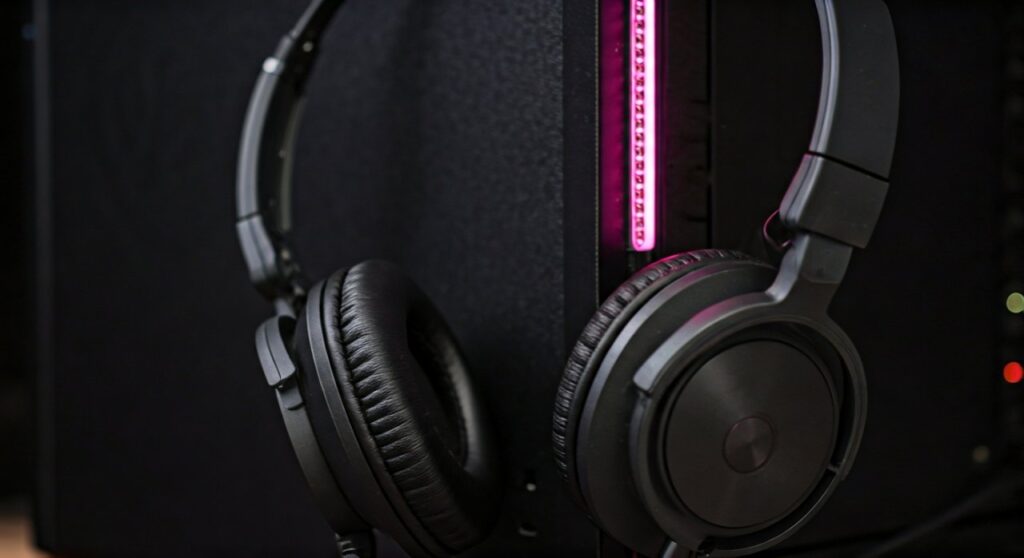
Understanding the Science: How Can a Speaker Become a Mic?
It sounds like a tech myth, but the physics are solid. Most headphones utilize a dynamic driver system consisting of a magnet, a coil of wire, and a diaphragm.
When you listen to music, the device sends an electrical signal through the coil, creating a magnetic field that moves the diaphragm to create sound waves. When you use a headphone as a microphone, you simply reverse this process.
Your voice creates sound waves that vibrate the diaphragm. This movement causes the coil to move within the magnetic field, generating a small electrical current that your computer interprets as an audio signal. In my experience as an audio technician, this “reverse-wired” setup is a lifesaver when a dedicated microphone fails during a critical session.
Step-by-Step Guide: How to Use a Headphone as a Microphone on Windows 10/11
Setting this up on a Windows PC is straightforward, but it requires some manual configuration in the sound control panel to ensure the signal is loud enough to hear.
Step 1: Connect to the Correct Port
Locate the audio ports on your desktop or laptop. You must avoid the standard headphone port (green).
- Look for the Pink Port or the one labeled with a Microphone Icon.
- Plug your headphone’s 3.5mm jack firmly into this port.
Step 2: Access Sound Settings
Once plugged in, Windows might not automatically recognize the headphones as a microphone.
- Open the Control Panel and navigate to Hardware and Sound.
- Click on Sound and then select the Recording tab.
- Look for a device labeled “Microphone” or “Rear Jack.” If you see green bars moving when you tap the earcup, you’ve found it.
Step 3: Configure and Boost the Signal
Because headphones aren’t designed to be mics, the output signal is incredibly weak.
- Right-click your active device and select Properties.
- Go to the Levels tab.
- Set the Microphone slider to 100.
- Increase the Microphone Boost (usually to +20.0 dB or +30.0 dB) until your voice is audible.
Step 4: Test Your Audio
Open the Voice Recorder app or Audacity. Speak directly into the center of the left earcup (most headphones default to the left channel for mono mic input).
How to Use Headphone Microphone on a Mac
Apple devices handle audio slightly differently, often using a single “Combo Jack.” If you are trying to use the earcups as a mic, you may need a USB-to-3.5mm adapter that specifically has a dedicated mic input.
- Connect your headphones to the mic input of your adapter or the Mac’s line-in port (if available).
- Go to System Settings > Sound.
- Select the Input tab.
- Select the device (e.g., “External Microphone” or “Line In”).
- Speak into the earcup and watch the Input Level meter. Adjust the Input Volume slider to the maximum.
Comparing Headphone Types as Microphones
Not all headphones are created equal when it comes to this “MacGyver” hack. Based on my testing, here is how different styles perform:
| Headphone Type | Effectiveness as Mic | Audio Quality | Recommended Use |
|---|---|---|---|
| Open-Back Over-Ear | High | Clear but thin | Emergency calls, basic gaming |
| Closed-Back Over-Ear | Medium | Muffled/Bassy | Best for blocking background noise |
| In-Ear Monitors (IEMs) | Low | Very quiet | Only if no other option exists |
| Wireless/Bluetooth | Zero | N/A | Does not work via Bluetooth |
Essential Hardware: When You Need an Adapter
Many modern laptops use a single TRRS (Tip-Ring-Ring-Sleeve) jack. This is designed for headsets that already have a built-in mic. If you are trying to use a standard pair of headphones as a mic, or if you want to use the mic on headphones that came with your phone, you might need specific hardware.
The PC Headset Splitter
If your headphones have a built-in mic but your PC has two separate ports (Pink and Green), you need a Y-Splitter Cable.
- This cable takes the single plug from your headphones and splits it into a Headphone plug and a Microphone plug.
- This is the most common solution for users asking how to use mic on headphones for gaming on a desktop PC.
USB Sound Cards
If your computer’s onboard audio is producing too much “hiss” when you boost the mic levels, a cheap USB Audio Adapter can provide a cleaner signal. These often have higher-quality preamps that help when using headphones as a microphone.
Expert Tips for Better Audio Quality
If you are forced to use your headphones as a mic for a recording or a meeting, use these professional tips to improve the sound:
- Use a Pop Filter: Speak through a thin piece of cloth or a sock placed over the earcup. This prevents “Plosives” (popping sounds from P’s and B’s) from distorting the small driver.
- Placement is Key: Hold the earcup about 1-2 inches from your mouth. Do not touch the earcup while speaking, as the handling noise will be very loud.
- Post-Processing: If recording, use software like Adobe Podcast AI or Audacity’s Noise Reduction to remove the heavy background hiss associated with high-gain boosting.
- Check the Impedance: High-impedance headphones (like the Sennheiser HD600) make terrible microphones because they require too much energy to move the diaphragm. Low-impedance “consumer” headphones work much better.
Troubleshooting Common Issues
Why is the sound so quiet?
Headphones have much larger drivers than standard microphones. It takes a lot of sound pressure to move them. You must use Microphone Boost in Windows or a software preamp like Equalizer APO.
Why is there a loud buzzing sound?
This is usually Electromagnetic Interference (EMI). Because the “mic” signal is so weak, your computer is amplifying the electronic noise from your motherboard. Moving the cable away from power bricks can help.
Why doesn’t it work with my Bluetooth headphones?
Bluetooth protocols are hardcoded. A Bluetooth headphone is recognized by the OS as an “Output Device” or a “Hands-Free AG Audio” device. You cannot “trick” the firmware into reversing the signal path over a wireless connection.
Frequently Asked Questions
Can I damage my headphones by using them as a mic?
No. The electrical current generated by your voice is far too weak to damage the voice coils or the diaphragm of the headphones. It is perfectly safe for the hardware.
Does this work on PS5 or Xbox controllers?
Generally, no. Console controllers expect a specific impedance from a microphone. Plugging a standard headphone into the controller’s jack will only register it as an output device.
How do I use the built-in microphone on my headphones?
If your headphones have a mic on the cable or the earcup, you simply need a 3.5mm TRRS to Dual TRS splitter to plug it into a desktop PC. On most laptops, it should work automatically once you select “Headset” when prompted by the audio driver.
Which earcup should I speak into?
On almost all wired headphones, the Left earcup is wired to the “Tip” of the 3.5mm connector, which corresponds to the primary mono input for most microphone jacks.









