

To find where to plug in headphones on pc, you should look for a 3.5mm audio jack—typically colored lime green or marked with a headphone icon—located on the front I/O panel or the rear motherboard I/O shield. If you are using a modern gaming headset, you may also plug it into any available USB-A or USB-C port for a digital connection.
Key Takeaways for Connecting PC Headphones
If you are in a hurry, here is the essential information for getting your audio working immediately:
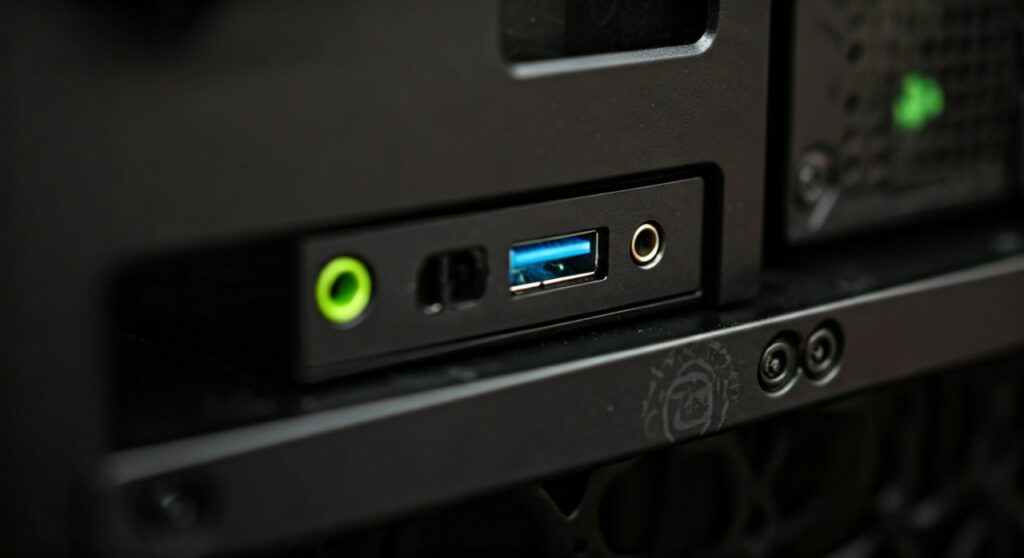
- Standard Connection: Use the 3.5mm green jack for analog headphones.
- Digital Connection: Use USB ports for headsets with built-in sound cards.
- Best Quality: The rear ports (on the motherboard) generally offer cleaner audio with less interference than front-panel ports.
- Laptop Users: Most modern laptops use a single TRRS “Combo” jack for both audio and microphone.
- Software Step: Always check your Windows Sound Settings (System > Sound) to ensure the correct output device is selected.
Identifying Your Headset Connector Type
Before searching for a hole on your computer, you must identify what kind of “plug” your headphones use. In my years of troubleshooting desktop setups, I have found that most users struggle because they are trying to force a connection that requires an adapter.
The 3.5mm Analog Jack
This is the traditional circular plug. It comes in two main varieties:
- TRS (Tip-Ring-Sleeve): Has two black or green rings on the plug. This is for audio only.
- TRRS (Tip-Ring-Ring-Sleeve): Has three rings. This carries both stereo audio and microphone signals.
USB-A and USB-C
Common in gaming headsets like the Razer BlackShark or Logitech G-Series. These contain their own Digital-to-Analog Converter (DAC), meaning they bypass your computer’s internal sound card entirely.
Wireless Dongles
High-performance wireless headphones use a 2.4GHz USB receiver. These must be plugged into a high-speed USB port (preferably USB 3.0) to minimize latency.
Finding the Ports on a Desktop PC
Desktop computers are unique because they usually offer two distinct locations to plug in your gear. Knowing which one to choose can significantly impact your signal-to-noise ratio.
The Front I/O Panel (Convenience)
On most PC cases (like those from NZXT or Corsair), the audio ports are located on the top or front face near the power button.
- Iconography: Look for a small headset icon or a pink/green color scheme.
- Pros: Easy to reach; perfect for short cables.
- Cons: Higher risk of EMI (Electromagnetic Interference) because the internal wires run past the power supply and GPU.
The Rear Motherboard Panel (Performance)
The back of your PC features the Motherboard I/O Shield. This is where the highest-quality audio processing happens.
- Direct Connection: These ports are soldered directly onto the motherboard.
- Color Coding: This is the gold standard for identifying where to plug headphones into pc.
| Port Color | Function | Entity Type |
|---|---|---|
| Lime Green | Main Headphone / Front Speakers | Output |
| Pink | Microphone In | Input |
| Light Blue | Line In (Music Players) | Input |
| Orange | Center / Subwoofer | Output |
| Black | Rear Surround Speakers | Output |
Step-by-Step Guide: How to Plug in and Configure Headphones
Connecting the hardware is only half the battle. Follow these steps to ensure Windows 10 or Windows 11 recognizes your device.
Step 1: Physical Connection
- Insert the plug firmly into the Green Jack (Analog) or USB Port (Digital).
- Ensure the connection is “seated” fully. A loose 3.5mm jack will cause static or “mono” sound (audio in only one ear).
Step 2: Set the Default Output Device
Once plugged in, your PC might not switch automatically.
- Right-click the Speaker Icon in the bottom right corner of your taskbar.
- Select Sound Settings.
- Under the Output section, click the dropdown menu and select your headphones (e.g., “Realtek Audio” or the specific name of your USB Headset).
Step 3: Test the Levels
- In the same Sound Settings menu, look for the Master Volume slider.
- Move it left and right; you should hear a “ding” in your headphones.
- If you hear nothing, check if your headphones have an inline mute switch or volume wheel on the earcups.
Using Adapters: When the Plug Doesn’t Match
A common “pain point” for PC gamers is using a mobile-style headset (with one plug) on an older desktop (which has two holes: one for audio, one for mic).
If your headphones have one plug but your PC has two holes, you need a PC Headset Splitter.
- The Cable: This Y-shaped adapter takes one female TRRS port and splits it into two male TRS plugs (one green, one pink).
- Why it matters: Without this, your computer will play sound, but your microphone will not work.
Front vs. Rear Ports: Which Should You Use?
As an audio enthusiast, I always recommend the Rear Ports. Here is why:
- Shielding: Motherboards like the ASUS ROG or MSI Godlike series have dedicated “audio paths” on the PCB that are shielded from electrical noise.
- Internal Cables: The front-panel audio depends on a thin, often unshielded “HD Audio” cable that runs across the inside of your case. If this cable touches your Graphics Card (GPU), you may hear a buzzing sound when playing games.
- Power: Rear ports often provide slightly more voltage, which is better for “driving” high-impedance headphones (like the Sennheiser HD600 series).
Troubleshooting: Why Are My Headphones Not Working?
If you have plugged them in and still hear silence, work through this checklist:
- Check Disable Status: Open Control Panel > Sound. Right-click in the list of devices and ensure “Show Disabled Devices” is checked. Your headphones might be disabled.
- Driver Updates: Check the Device Manager. If you see a yellow exclamation mark next to “Audio Controller,” you need to download the Realtek High Definition Audio Drivers from your motherboard manufacturer’s website.
- Privacy Settings: If the mic isn’t working, go to Settings > Privacy > Microphone and ensure “Allow apps to access your microphone” is turned ON.
- BIOS Settings: In rare cases, the “Onboard Audio” might be disabled in the BIOS/UEFI. Ensure it is set to “Enabled” or “Auto.”
FAQs (Frequently Asked Questions)
Why is the headphone jack on my PC green?
The green color is part of the PC 99 design guide created by Intel and Microsoft. It helps users quickly identify the “Line Out” or “Front Speaker” port without needing to read tiny labels.
Can I plug headphones into the USB port?
Yes, but only if your headphones have a USB connector. You cannot plug a 3.5mm jack into a USB port without a USB-to-3.5mm Adapter (also known as an external sound card).
What is the difference between the blue and green jacks?
The Green jack is an output for headphones or speakers. The Blue jack is a “Line In” port used for recording audio from external sources like CD players, mixers, or musical instruments.
Why do I hear a buzzing sound in my headphones?
This is usually Ground Loop Interference or EMI. Try moving your headphone cable away from power cables, or switch from the front-panel jack to the rear motherboard jack.
My PC has no green jack, only a bunch of black ones. What do I do?
Some high-end motherboards use all-black or gold-plated jacks for aesthetics. In this case, look for the text labels on the I/O shield. The correct port is usually labeled “L-Out” or “Headphone.”
**
**
**
**









