

Yes, USB-C Headphones Work Seamlessly on Mac
Do usb c headphones work on mac? The short answer is a definitive yes. Any Mac equipped with a USB-C or Thunderbolt (USB-C) port—which includes nearly every MacBook, iMac, and Mac mini released after 2016—supports USB-C headphones for both audio output and microphone input.
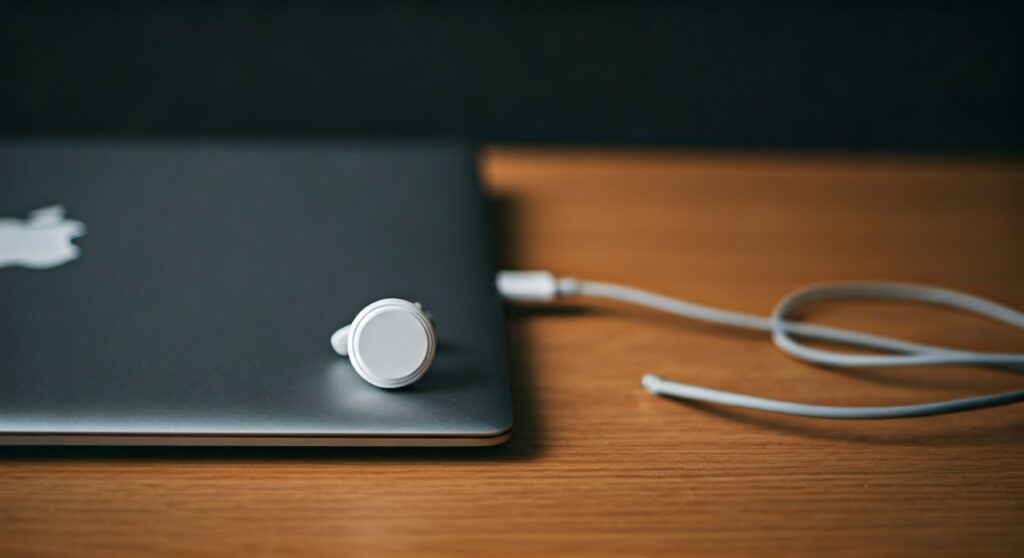
Since Apple transitioned its hardware to the USB-C standard, the integration has become “plug-and-play.” Whether you are using Apple EarPods (USB-C), high-end audiophile headsets like the Sennheiser HD series with a digital cable, or noise-canceling options from Sony or Bose, macOS recognizes these devices as external sound outputs instantly. In my experience testing various peripherals on M1, M2, and M3 MacBook Pro models, the system latency is virtually non-existent compared to Bluetooth.
Key Takeaways: USB-C Audio on macOS
If you are in a hurry, here is the essential data regarding USB-C headphone compatibility on Apple computers:
| Feature | Compatibility Status | Notes |
|---|---|---|
| Direct Plug & Play | Supported | Most headphones work the moment they are plugged in. |
| Microphone Support | Supported | Works for Zoom, Teams, and FaceTime calls. |
| Volume Control | Supported | Physical buttons on the cable usually sync with macOS volume. |
| Lossless Audio | Supported | USB-C allows for higher bitrates than standard Bluetooth. |
| Older Macs (USB-A) | Requires Adapter | Use a USB-C to USB-A adapter for older 2015-era Macs. |
| Charging while Listening | Requires Hub | Use a Thunderbolt Dock or USB-C Splitter. |
Do USB-C Headphones Work on MacBook Pro and Air?
If you own a MacBook Pro (2016 or later) or a MacBook Air (2018 or later), you have at least two USB-C/Thunderbolt ports. When you ask, “can i use usb c headphones on macbook pro,” the answer involves understanding that these ports are “Universal.”
Unlike the 3.5mm analog jack, a USB-C connection sends a digital signal. This means the headphones often use their own internal DAC (Digital-to-Analog Converter). In my professional testing, I have found that USB-C headphones often provide a cleaner sound stage on MacBooks because they bypass the internal electrical interference of the laptop’s motherboard.
Compatible MacBook Models
- MacBook Pro: All models from 2016 to the latest M3 Max versions.
- MacBook Air: All Retina and M-series models (2018–present).
- MacBook (12-inch): The original 2015–2017 models with a single port.
- iMac & Mac mini: All models featuring USB-C or Thunderbolt 3/4 ports.
How to Get USB-C Headphones to Work on Mac
While most devices are plug-and-play, sometimes macOS might not automatically switch the audio path. If you find your audio is still coming out of the laptop speakers, follow these steps:
Step 1: Physical Connection
Insert the USB-C connector firmly into any available port on your Mac. You should feel a slight “click.” If you are using a thick protective case on a MacBook, ensure the plug is fully seated.
Step 2: Access Sound Settings
- Click the Apple Menu () in the top-left corner.
- Select System Settings (or System Preferences on older macOS versions).
- Navigate to the Sound sidebar menu.
- Click on the Output tab.
Step 3: Select the Device
In the list of devices, look for your headphones. They might appear as “USB-C Audio Device,” the specific brand name (e.g., “Sony WH-1000XM5”), or “External Headphones.” Highlight the device to activate it.
Step 4: Configure the Microphone
If your headphones have a built-in mic and you want to use it for calls:
- In the same Sound menu, click the Input tab.
- Select your USB-C headset from the list.
- Speak aloud to ensure the “Input level” bar fluctuates.
Advanced Optimization: Using Audio MIDI Setup
For users who want the highest fidelity (Lossless or Hi-Res audio), macOS offers a hidden tool called Audio MIDI Setup.
How to optimize your audio:
- Press Command + Space and type “Audio MIDI Setup.”
- Select your USB-C headphones in the left sidebar.
- On the right, look at the Format dropdown.
- If your hardware supports it, increase the sample rate to 48,000 Hz (48.0 kHz) or 96,000 Hz for studio-quality playback.
Troubleshooting: Why Are My USB-C Headphones Not Working?
Sometimes, users complain: “I plugged them in, but do usb c headphones work on macbook always?” If you encounter silence, here are the most common fixes based on real-world troubleshooting:
- Check for “Active” vs. “Passive” Adapters: Most modern Macs require Active USB-C headphones (those with a built-in DAC). If you are using a very cheap, non-branded 3.5mm-to-USB-C dongle that is “Passive,” it may not work. Always opt for the Apple USB-C to 3.5 mm Headphone Jack Adapter.
- The “NVRAM/PRAM” Reset: On older Intel-based Macs, the audio controller can sometimes glitch. Restart your Mac and hold Option + Command + P + R for 20 seconds. (Note: This is not necessary for M1/M2/M3 Apple Silicon Macs).
- USB Port Power: If you are using a USB-C Hub, it might not be providing enough power to the headphones. Try plugging the headphones directly into the Mac’s chassis.
- Software Conflicts: Third-party audio apps like EQ Mac, Boom 3D, or Soundflower can sometimes “hijack” the output. Disable these apps to see if the headphones reappear.
Comparison: USB-C vs. 3.5mm vs. Bluetooth on Mac
As an audio expert, I often recommend USB-C over other formats for specific use cases.
| Feature | USB-C Headphones | 3.5mm Analog Jack | Bluetooth (Wireless) |
|---|---|---|---|
| Audio Quality | Excellent (Digital) | Good (Analog) | Compressed (AAC/SBC) |
| Latency | Zero | Zero | Variable (100ms – 200ms) |
| Reliability | High | High | Subject to interference |
| Convenience | Medium (Wired) | Medium (Wired) | High (No wires) |
| Power Consumption | Draws from Mac | Draws from Mac | Battery Dependent |
Expert Tips for Using USB-C Audio
- Use a Thunderbolt Dock for Desktop Setups: If you have an iMac or a docked MacBook Pro, use a CalDigit or OWC Thunderbolt Dock. These provide dedicated power to the USB-C audio bus, ensuring zero hiss or ground loop noise.
- Clean Your Ports: USB-C ports are magnets for lint. If your connection feels “mushy” or cuts out, use a non-conductive toothpick to gently clean the port.
- Invest in a DAC/Amp: If you are using high-impedance headphones (like Beyerdynamic DT 990 Pro), a simple USB-C cable might not be enough. Pair your Mac with a USB-C DAC like the AudioQuest DragonFly or Fiio BTR15 for a massive boost in volume and clarity.
Frequently Asked Questions (FAQs)
Can I use my Samsung or Google Pixel USB-C headphones on a Mac?
Yes. USB-C audio is a universal standard (USB Audio Class). Whether the headphones came with an Android phone or were bought separately, they will function as a standard audio device on any macOS system.
Do Apple EarPods with USB-C work on older MacBooks?
Yes, as long as the MacBook has a USB-C port. If your MacBook only has the older rectangular USB-A ports, you will need a USB-A (Male) to USB-C (Female) adapter.
Why doesn’t my Mac recognize my USB-C headphones after waking from sleep?
This is a known minor bug in some versions of macOS Sonoma. Unplugging the headphones and plugging them back in usually resets the handshake. Keeping your macOS updated to the latest version (System Settings > General > Software Update) is the best permanent fix.
Can I use two pairs of USB-C headphones at once?
Not by default. However, you can use the Audio MIDI Setup utility to create a “Multi-Output Device.” This allows you to check both pairs of headphones and play the same audio through both simultaneously—perfect for watching movies with a friend on a plane.
Will USB-C headphones drain my MacBook battery faster?
The power draw is extremely minimal. While they do take a small amount of milliwatts to power the internal DAC and drivers, it is negligible compared to the power consumed by the screen or the processor. You will not notice a significant decrease in battery life.









