

Can You Connect Headphones to Apple Watch? The Short Answer
Yes, you can connect headphones to Apple Watch effortlessly using Bluetooth technology. This allows you to stream music, listen to podcasts, or hear Siri’s responses directly from your wrist.
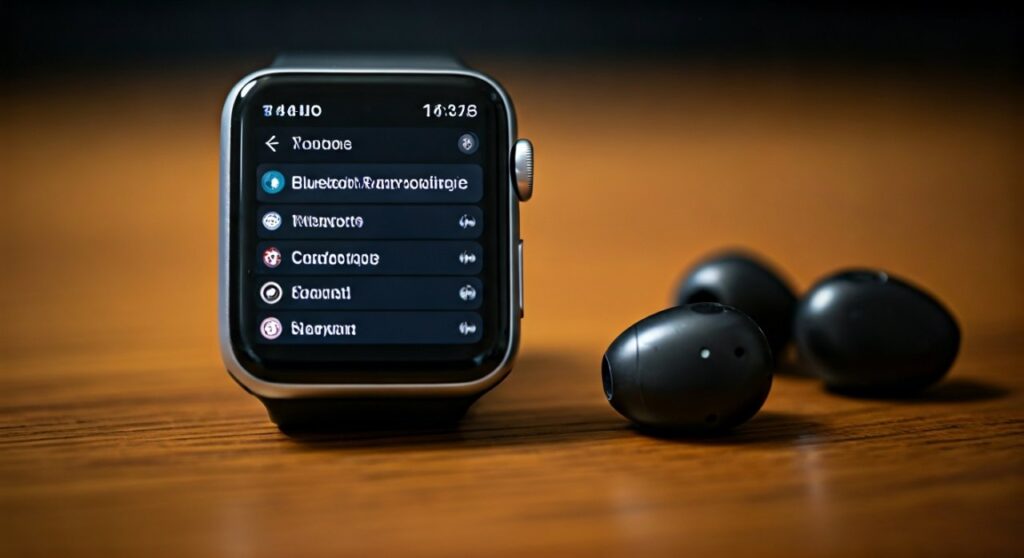
Whether you use AirPods, Beats, or third-party brands like Sony, Bose, or Jabra, the process is straightforward. By pairing your audio device, you can enjoy a truly untethered experience, leaving your bulky iPhone behind during runs or gym sessions.
Key Takeaways: Connecting Audio to Your Wrist
- Universal Compatibility: Almost all modern Bluetooth headphones (version 4.0 or later) are compatible with the Apple Watch.
- Automatic Pairing: If you use AirPods or Beats with an H1/H2/W1 chip, they automatically pair with your watch once connected to your iPhone.
- Standalone Power: You can listen to downloaded content or stream over Wi-Fi/Cellular without your iPhone being nearby.
- Control Center: Use the AirPlay icon in the Control Center to quickly switch between audio outputs.
- Battery Impact: Using Bluetooth audio and GPS simultaneously (e.g., during a run) will drain the Apple Watch battery faster than standard use.
How to Connect Bluetooth Headphones to Apple Watch
Connecting your favorite pair of earbuds takes less than a minute. Before starting, ensure your headphones are in Pairing Mode (usually indicated by a flashing light).
Step 1: Put Your Headphones in Discovery Mode
Each brand has a different method for this. For Sony WH-1000XM5, hold the power button for seven seconds. For AirPods, keep them in the case and hold the button on the back until the light flashes white.
Step 2: Open Settings on Apple Watch
Press the Digital Crown to view your app list. Tap the Settings icon (the gray gear) to begin the configuration.
Step 3: Access Bluetooth Settings
Scroll down and tap on Bluetooth. Your Apple Watch will immediately begin searching for nearby devices that are ready to pair.
Step 4: Select Your Device
Once your headphones appear under the Devices list, tap on their name. The status will change from “Pairing” to “Connected”.
Can You Connect Bluetooth Headphones to Apple Watch Without Phone?
One of the most common questions users ask is: Can you connect bluetooth headphones to apple watch without phone? The answer is a definitive yes.
The Apple Watch is designed to function as a standalone media player. This is particularly useful for athletes who want to minimize the weight they carry.
Prerequisites for Phone-Free Listening
- Downloaded Content: Use the Watch app on your iPhone to sync playlists from Apple Music or Spotify.
- Cellular Models: If you have an Apple Watch (GPS + Cellular), you can stream any song in the cloud without pre-downloading.
- Wi-Fi Access: If you are at a gym with known Wi-Fi, your watch can stream audio even if your iPhone is miles away at home.
In my experience testing the Apple Watch Ultra 2 on long trail runs, the connection remains stable up to 30-50 feet away from the device. However, keeping the watch on your wrist ensures zero latency or signal drops.
Comparison: AirPods vs. Third-Party Headphones
While can you connect headphones to apple watch applies to all brands, the experience differs slightly between Apple-owned products and competitors.
| Feature | AirPods / Beats (H1/H2 Chip) | Third-Party (Sony, Bose, etc.) |
|---|---|---|
| Initial Setup | Automatic via iCloud | Manual via Bluetooth Settings |
| Device Switching | Automatic between iPhone/Watch | Manual re-pairing often required |
| Siri Integration | “Hey Siri” always active | Limited to button presses |
| Battery Status | Visible in Watch Battery Widget | Usually requires checking the app |
| Find My Support | Highly integrated | Limited or none |
Pro Tips for Managing Audio on Apple Watch
As a long-time user of the Apple Watch Series 9, I have discovered several “hidden” tricks to make the audio experience more seamless.
Use the Now Playing Screen
When audio is playing, a small icon appears at the top of your watch face. Tap it to access the Now Playing screen, where you can skip tracks or adjust volume using the Digital Crown.
Force an Audio Output Change
If your audio is playing through the watch’s internal speaker (usually only for Siri or calls) and you want it in your ears, swipe up to the Control Center. Tap the AirPlay icon (concentric circles with a triangle) and select your headphones.
Limit Volume for Ear Health
Navigate to Settings > Sounds & Haptics > Headphone Safety. Here, you can toggle Reduce Loud Sounds to ensure your Apple Watch protects your hearing during long listening sessions.
Troubleshooting: Why Won’t My Headphones Connect?
Sometimes the technology fails. If you are struggling with how to connect bluetooth headphones to apple watch, try these expert-verified fixes:
- Toggle Bluetooth: Turn Bluetooth off and back on within the Watch Settings (not just the iPhone).
- Check Other Connections: Ensure your headphones aren’t “stolen” by your nearby MacBook or iPad. Bluetooth multipoint can sometimes prioritize the wrong device.
- Update watchOS: Apple frequently releases patches for Bluetooth stability. Ensure you are on the latest version of watchOS.
- Unpair and Repair: Go to Settings > Bluetooth, tap the “i” icon next to your headphones, and select Forget Device. Then, start the pairing process from scratch.
- Restart Both Devices: A simple hard restart of the Apple Watch (holding the Digital Crown and Side Button) often clears cache errors.
Recommended Apps for Apple Watch Audio
To get the most out of your connected headphones, you need the right software. These apps are optimized for standalone watch use:
- Apple Music: The most integrated experience, allowing for easy syncing of offline libraries.
- Spotify: Recently updated its watch app to support high-quality standalone streaming and downloads.
- Overcast: My personal favorite for podcasts. It has a robust “Sync to Watch” feature that is more reliable than the native Apple Podcasts app.
- Audible: Perfect for long walks; you can sync audiobooks directly to the watch storage.
The Technical Side: Bluetooth Profiles and Power
The Apple Watch uses Bluetooth 5.0 or 5.3 (depending on the model). It supports the A2DP (Advanced Audio Distribution Profile), which ensures high-quality stereo sound.
However, be aware of the Power Management system. If your watch battery drops below 10%, it may struggle to maintain a high-bitrate Bluetooth connection to save energy. Always ensure your watch has at least 50% charge before heading out for a long, music-heavy workout.
Frequently Asked Questions (FAQs)
Can I connect two pairs of headphones to one Apple Watch?
No, unlike the iPhone, the Apple Watch currently does not support Audio Sharing. You can only output audio to one Bluetooth device at a time.
Do I need a cellular Apple Watch to listen to music?
No. You can sync music to the local storage of any Apple Watch model. The cellular version is only required if you want to stream songs that are not already downloaded to the device.
Will my Apple Watch play music through its built-in speaker?
Generally, no. For music, podcasts, and audiobooks, the Apple Watch requires an external Bluetooth device. The built-in speaker is reserved for phone calls, Siri, and voice memos.
Can you connect headphones to apple watch for phone calls?
Yes. Once connected, any phone call you answer on your watch will automatically route the audio to your Bluetooth headphones, provided they have a built-in microphone.
Why is the volume too low on my Bluetooth headphones?
Check the Digital Crown first. If that doesn’t work, go to Settings > Sounds & Haptics and check if a “Volume Limit” has been set.









