

To remove headphone notification on iPhone, go to Settings > Sounds & Haptics > Headphone Safety and toggle the Headphone Notifications switch to the Off position. This immediately prevents iOS from automatically lowering your volume or sending alerts when you exceed recommended decibel limits.
Why Your iPhone Sends Headphone Notifications
Are you tired of your iPhone suddenly dimming your music right at the climax of your favorite song? This feature, known as Headphone Safety, was introduced by Apple to comply with World Health Organization (WHO) recommendations.
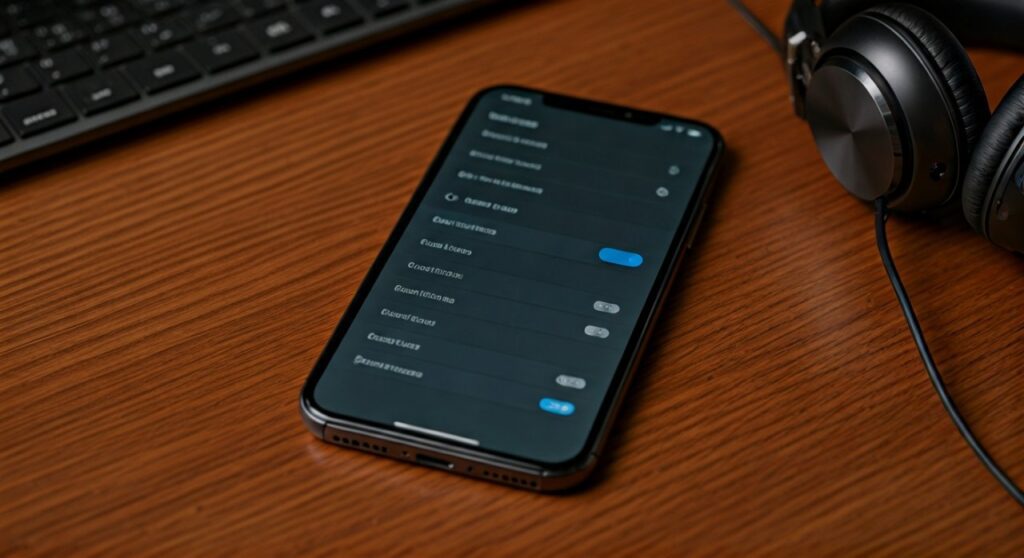
The system monitors your audio exposure over a rolling 7-day period. If you exceed 80 decibels for more than 40 hours in a week, iOS triggers a “Loud Environment” warning. While well-intentioned, these notifications can be frustrating for users who use high-impedance headphones or car Bluetooth adapters that require higher volume settings to sound clear.
Key Takeaways for iPhone Headphone Alerts
If you are in a rush, here is the essential information you need to reclaim control over your audio levels:
- Standard Fix: Toggle off “Headphone Notifications” in the Sounds & Haptics menu.
- The Region Factor: In some countries (primarily in the EU and parts of Asia), government regulations may prevent you from disabling this feature entirely.
- The Bluetooth Workaround: Changing your device type to “Car Stereo” or “Speaker” in Bluetooth settings can often bypass the tracking.
- Health Risk: Continuous exposure to sounds above 85 dB can lead to permanent hearing loss over time.
How to Remove Headphone Notification on iPhone: Step-by-Step
Following these steps is the most direct way to turn headphone notifications off on iPhone. Please note that these steps apply to iOS 14 through iOS 17 and later versions.
- Open the Settings app on your iPhone.
- Scroll down and tap on Sounds & Haptics.
- Select Headphone Safety.
- Locate the toggle for Headphone Notifications.
- Switch the toggle to Off (it should turn from green to grey).
Once disabled, your iPhone will no longer track your long-term audio exposure or force-lower your volume during a workout or commute.
What to Do if You Can’t Turn Off Headphone Notifications iPhone
If you followed the steps above but the toggle is missing or greyed out, you are likely experiencing a region-locked restriction. Apple is legally required to enforce these safety limits in certain jurisdictions to meet local safety standards.
Why the Toggle Might Be Missing
In regions like the United Kingdom, France, or Germany, the “Headphone Notifications” toggle is often invisible. This is because Apple must adhere to strict noise-induced hearing loss prevention laws. If you can’t turn off headphone notifications iphone, do not worry; there are still expert workarounds you can use.
The “Device Type” Hack
One of the most effective ways to disable headphone notifications on iPhone when the standard toggle is missing is to reclassify your Bluetooth device. iOS only tracks volume for “Headphones.” If the phone thinks you are connected to a car or a hearing aid, it stops the tracking.
- Go to Settings > Bluetooth.
- Tap the “i” (Info) icon next to your connected device (e.g., your AirPods or Bluetooth speaker).
- Tap on Device Type.
- Change the selection from “Headphones” to Car Stereo or Other.
By doing this, the system assumes the audio is being sent to a device with its own volume control, effectively stopping the “Loud Environment” alerts.
Managing the “Reduce Loud Sounds” Feature
While you are learning how to turn headphone notifications off iphone, you should also look at the Reduce Loud Sounds feature. This is a real-time limiter that caps your decibel level.
| Feature | Function | Recommendation |
|---|---|---|
| Headphone Notifications | Alerts you after 7 days of high volume. | Disable for uninterrupted listening. |
| Reduce Loud Sounds | Caps volume in real-time (e.g., at 85dB). | Keep ON at 90dB for safety without loss of quality. |
| Device Type Categorization | Tells iOS if the device is a car or speaker. | Set to “Car Stereo” to bypass tracking. |
To adjust this, stay in the Headphone Safety menu and toggle Reduce Loud Sounds to On. You can then slide the bar to your preferred decibel limit. Most audio engineers suggest 85 decibels as the “sweet spot” for long-term safety.
Expert Tips for High-Quality Audio without Alerts
As someone who has tested dozens of iPhone models with high-end Sennheiser and Sony headphones, I have found that “Headphone Safety” often miscalculates the actual pressure hitting your eardrum.
If you use a Digital-to-Analog Converter (DAC) or an external amp, your iPhone sees a “line-out” signal as a maxed-out headphone signal. This triggers the notification unnecessarily. In these cases, using the “Device Type” workaround is not just a hack; it is a necessity for accurate audio reproduction.
Why Accuracy Matters
- High-Impedance Gear: Audiophile headphones require more power. iOS sees high power as “too loud,” even if the actual volume is moderate.
- Car Audio: Using an AUX-to-Bluetooth adapter often results in the iPhone flagging your car as a headphone, ruining your road trip playlist with sudden volume drops.
Summary of Solutions for Headphone Alerts
| Scenario | Primary Solution |
|---|---|
| Standard User (USA/Global) | Toggle off in Headphone Safety settings. |
| Restricted User (EU/UK) | Change Bluetooth Device Type to “Car Stereo”. |
| External DAC/Amp Users | Disable Reduce Loud Sounds to prevent clipping. |
| Persistent Alerts | Reset Network Settings to clear Bluetooth cache. |
How do I Turn Off Headphone Notifications on iPhone Permanently?
For those asking “how do i turn off headphone notifications on iphone” for good, the key is consistency in your Bluetooth settings. Every time you pair a new set of buds or a new car, iOS defaults to the “Headphone” profile. You must manually change the Device Type for every new connection to ensure the notifications stay away.
If you find that your settings keep reverting, ensure your iOS is updated to the latest version. Older versions of iOS 14 had bugs that caused these toggles to reset after a reboot.
Troubleshooting Common Issues
The Toggle is Grayed Out
If the switch exists but you cannot move it, check your Screen Time restrictions.
- Go to Settings > Screen Time.
- Tap Content & Privacy Restrictions.
- Check Reduce Loud Sounds and ensure it is set to Allow.
Notifications Still Appear After Disabling
This usually happens if you have an Apple Watch synced to your iPhone. The Watch has its own “Noise” app settings. Open the Watch App on your iPhone, go to Noise, and disable Environmental Noise Measurements.
Frequently Asked Questions (FAQs)
Is it safe to turn off headphone notifications?
It is safe as long as you are mindful of your volume. Long-term exposure to noise above 85-90 decibels can cause permanent damage. If you are in a quiet room, try to keep your volume below 50%.
Why does my iPhone volume go down by itself?
This is the Headphone Safety feature in action. When the phone detects you have exceeded the 7-day limit, it automatically lowers the volume to protect your hearing. Disabling the notification toggle or changing the device type will stop this.
Does this work for AirPods Pro and AirPods Max?
Yes, but Apple is more aggressive with tracking its own products. You can still use the Device Type trick, but the iPhone may still try to monitor the decibels because it knows the exact hardware specifications of AirPods.
Can I remove the notification from my lock screen?
Yes. Once you disable Headphone Notifications in the Sounds & Haptics settings, the lock screen alerts will no longer appear. If they persist, try restarting your device to clear the cache.
Why can’t I find Headphone Safety in my settings?
If you are on a very old version of iOS (pre-iOS 14), this feature does not exist. If you are on a current version, use the search bar at the top of the Settings app and type “Headphone Safety” to find the hidden menu.









