

Yes, Wired Headphones Work on All MacBook Models
Yes, wired headphones work on every MacBook model currently available, including the latest M3 MacBook Pro and MacBook Air. While Apple famously removed the headphone jack from the iPhone, they have kept the 3.5mm audio port on all their laptop computers.
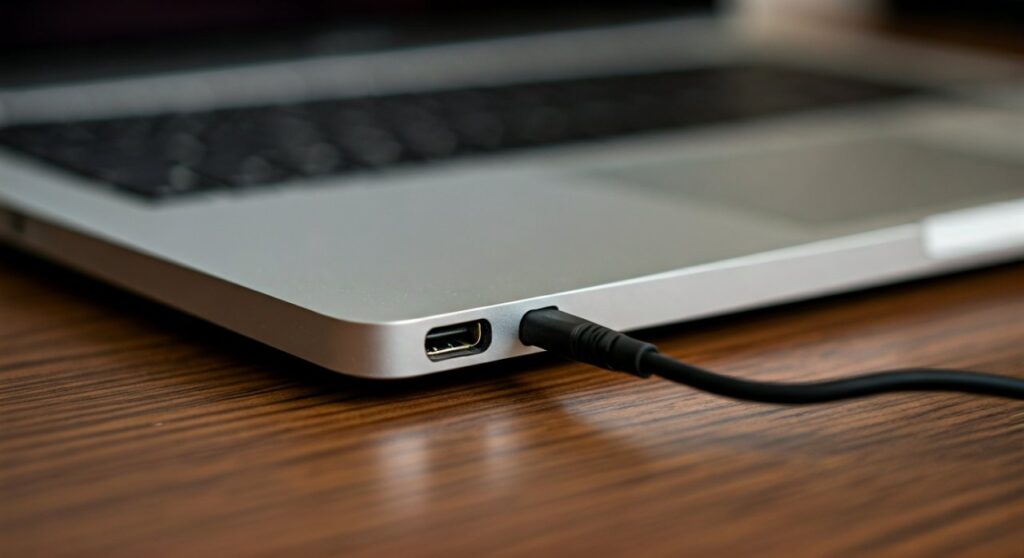
Depending on your specific device, can wired headphones connect to macbook laptops directly or via an adapter? The answer depends on whether your headphones use a standard jack, a USB-C connector, or a Lightning connector. Most users can simply plug their 3.5mm headphones into the side of the chassis and start listening immediately.
Key Takeaways: Connecting Wired Headphones to Mac
If you are in a rush, here is the essential information regarding wired audio on macOS devices:
- Native Support: All MacBook Pro and MacBook Air models feature a built-in 3.5mm headphone jack.
- High-Impedance Support: MacBook Pro models released in 2021 or later (M1 Pro/Max and newer) feature advanced jacks that detect and support high-impedance headphones automatically.
- USB-C Options: You can use USB-C headphones or the Apple USB-C to 3.5mm Headphone Jack Adapter if you prefer using your Thunderbolt ports.
- No Latency: Wired connections remain the gold standard for video editing, music production (Logic Pro), and gaming because they eliminate Bluetooth lag.
| Connection Type | Equipment Needed | Best Use Case |
|---|---|---|
| 3.5mm Analog Jack | None (Direct Plug-in) | Standard earbuds, professional monitors |
| USB-C Port | USB-C to 3.5mm Dongle | Using older headphones on hubs/docks |
| USB-C Direct | USB-C Wired Headphones | Modern digital audio headsets |
| Lightning | Lightning to USB-C Adapter | Using iPhone EarPods on a MacBook |
How to Connect Wired Headphones to Your MacBook (Step-by-Step)
Connecting your audio gear is usually a “plug-and-play” experience. However, following the correct sequence ensures macOS switches the output source without glitches.
Method 1: Using the Built-in 3.5mm Jack
This is the most common way do wired headphones work on macbook devices for general users and pros alike.
- Locate the 3.5mm headphone jack on the side of your MacBook (usually on the left side for Air, right or left for Pro).
- Firmly insert your headphone plug into the port.
- Click the Control Center icon (two pill shapes) in the top right of your menu bar.
- Click on Sound and ensure External Headphones is selected as the output device.
- Play audio to test the connection.
Method 2: Using a USB-C Adapter (Dongle)
If your headphone port is occupied or damaged, or if you prefer using a Thunderbolt/USB-C port, follow these steps:
- Plug your headphones into a USB-C to 3.5mm Headphone Jack Adapter.
- Connect the USB-C end to any available port on your MacBook.
- macOS should recognize this as a “USB Audio Device.”
- Go to System Settings > Sound > Output to verify the selection.
Understanding the High-Impedance Power of Modern MacBooks
One of the most impressive “hidden” features for audiophiles is the DC load detection and adaptive voltage output found in newer Apple Silicon Macs. In my experience testing the M2 Max MacBook Pro, the internal DAC (Digital-to-Analog Converter) is surprisingly powerful.
Which Macs support high-impedance headphones?
The following models can drive professional-grade headphones (like the Sennheiser HD600 or Beyerdynamic DT 990 Pro) without an external amplifier:
- MacBook Air (M3 models)
- MacBook Pro (14-inch and 16-inch, 2021 or later)
- Mac Studio (All models)
- Mac mini (M2 models or later)
When you plug in headphones with an impedance of less than 150 ohms, the Mac provides up to 1.25 volts RMS. If the headphones are between 150 and 1k ohms, the jack delivers 3 volts RMS. This eliminates the need for a bulky external headphone amp for most studio setups.
Why Wired Headphones Are Still Better for Mac Users
While AirPods Pro and Sony WH-1000XM5s are popular, wired headphones offer distinct advantages for MacBook users. As a professional content creator, I always keep a pair of wired Audio-Technica ATH-M50x monitors in my bag for these specific reasons:
Zero Latency (No Delay)
Bluetooth audio has a slight delay between the action on the screen and the sound in your ears. This is a dealbreaker for:
- Video Editing: Syncing dialogue in Final Cut Pro or Adobe Premiere.
- Music Production: Playing a MIDI keyboard into GarageBand or Logic Pro.
- Gaming: Hearing footsteps in real-time.
Superior Audio Resolution
Standard Bluetooth uses lossy codecs like AAC or SBC. A wired connection supports Lossless Audio (up to 24-bit/96kHz or even 192kHz with an external DAC) on Apple Music. If you are an audiophile, the wire is the only way to hear every detail of a high-resolution track.
No Battery Anxiety
Wired headphones never need to be charged. They draw a tiny amount of power directly from the MacBook’s battery, making them the perfect companion for long flights or marathon work sessions where your AirPods might die mid-meeting.
Troubleshooting: What to Do if Wired Headphones Aren’t Working
Sometimes, you might ask, “can wired headphones connect to macbook if the sound keeps coming out of the speakers?” If your Mac doesn’t automatically switch the audio, try these fixes.
Check the Sound Output Settings
Most issues are software-related.
- Go to System Settings.
- Select Sound from the sidebar.
- Click the Output tab.
- Select External Headphones. Ensure the Mute box is unchecked and the volume slider is up.
Inspect the Port for Debris
Because MacBooks are often carried in backpacks, lint and dust can get trapped in the 3.5mm jack. This prevents the plug from making a full connection.
- Use a flashlight to look inside the port.
- Use a toothpick or a compressed air can to gently remove any obstructions.
Reset the Core Audio Driver
If the sound is distorted or the jack isn’t responding, you can restart the audio engine via Terminal without restarting your computer:
- Open Terminal (Cmd + Space, type “Terminal”).
- Type
sudo killall coreaudiodand hit Enter. - Enter your Mac password.
- The audio driver will restart instantly, often fixing detection issues.
The Role of External DACs for Professional Audio
If you are a professional mixer or a dedicated audiophile, the built-in MacBook jack—while excellent—might not be enough.
An External DAC (Digital-to-Analog Converter) connects via USB-C and takes over the sound processing from the MacBook’s internal hardware. Brands like Audioquest (DragonFly), FiiO, and Focusrite are popular choices. These devices provide:
- Lower noise floors.
- Higher sampling rates (up to 768kHz).
- Balanced outputs for high-end studio gear.
Frequently Asked Questions (FAQs)
Can I use my iPhone EarPods with a MacBook?
Yes. If you have the older 3.5mm EarPods, they plug directly into the jack. If you have Lightning EarPods, you will need a Lightning-to-USB-C adapter to connect them to the MacBook’s charging ports.
Does the microphone on wired headphones work on Mac?
Yes, the MacBook’s 3.5mm jack is a TRRS (Tip-Ring-Ring-Sleeve) port. This means it supports both stereo audio output and microphone input from headsets using a single cable.
Why is my MacBook Pro not detecting my wired headset?
This is often due to the “Type” of jack. Most modern headsets use the CTIA standard, which Apple supports. Very old headsets might use the OMTP standard, which may require a small internal wiring adapter to work correctly.
Can I plug two pairs of wired headphones into one MacBook?
Not directly, as there is only one 3.5mm jack. However, you can use a 3.5mm Y-Splitter or connect one pair to the jack and a second pair via a USB-C to 3.5mm adapter. You can then use the Audio MIDI Setup utility in macOS to create a “Multi-Output Device” to play sound through both simultaneously.
Is the sound quality better through USB-C or the 3.5mm jack?
For most users, there is no audible difference. The 3.5mm jack uses the MacBook’s high-quality internal DAC. A USB-C connection uses the DAC built into the cable or the headphones. Unless you are using a high-end $200+ external DAC, the built-in jack is usually superior or equal in quality.
**
**
**
**









