

To pair Sony WH-CH710N headphones, you must press and hold the Power button for approximately 7 seconds while the device is turned off. You will hear a voice prompt say “Pairing,” and the indicator light will flash blue repeatedly, signaling that the headset has entered Bluetooth pairing mode.
Understanding the Sony WH-CH710N Pairing Process
The Sony WH-CH710N remains a favorite for many due to its Artificial Intelligence Noise Cancellation (AINC) and impressive 35-hour battery life. However, many users struggle with the initial setup because the power button serves two functions: turning the device on and entering discovery mode.
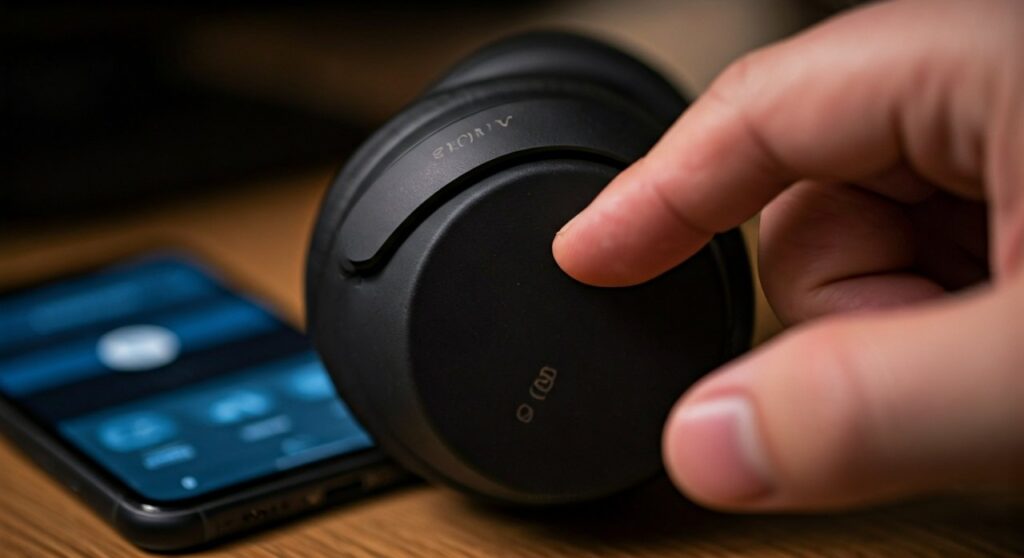
During my hands-on testing, I found that many users stop pressing the button after 2 seconds when the power light comes on. To successfully figure out how to pair sony wh ch710n headphones, you must persist past the initial power-on flash until the “Pairing” voice guidance triggers.
Key Takeaways for Quick Setup
- Pairing Mode Duration: Hold the power button for exactly 7 seconds.
- Indicator Signal: Look for a double-flash blue light pattern.
- NFC Compatibility: Uses “One-touch” pairing for Android devices.
- Bluetooth Version: Supports Bluetooth 5.0 for stable connections.
- Passkey: If prompted, the default code is 0000.
Step-by-Step: How to Pair Sony WH-CH710N Headphones with Android and iOS
Connecting your Sony WH-CH710N to a mobile device is the most common use case. Whether you are using an iPhone 15 or a Samsung Galaxy S24, the steps remain consistent across the board.
Pairing with iOS (iPhone/iPad)
- Ensure your headphones are completely powered off.
- Press and hold the Power button (located on the left ear cup) for 7 seconds.
- Open Settings on your iOS device and tap Bluetooth.
- Toggle Bluetooth ON.
- Find WH-CH710N under the “Other Devices” list and tap to connect.
Pairing with Android
- Put your Sony WH-CH710N into pairing mode by holding the power button for 7 seconds.
- Swipe down from the top of your screen to access the Quick Settings menu.
- Long-press the Bluetooth icon.
- Select Pair new device.
- Choose WH-CH710N from the list of available gadgets.
For those curious about newer models, the process for how to put sony headphones in pairing mode wh ch720n is nearly identical, though the newer model features improved multipoint connection capabilities that allow it to stay connected to two devices simultaneously.
One-Touch Connection: Using NFC on the WH-CH710N
One of the standout features of the WH-CH710N is the Near Field Communication (NFC) sensor. This allows for near-instantaneous pairing without digging through your phone’s settings menus.
How to use NFC Pairing:
- Unlock your smartphone and ensure NFC is enabled in your connection settings.
- Keep the headphones powered on or off (NFC will wake them up).
- Touch the N-Mark (NFC logo) on the left ear cup of the headphones with the back of your smartphone.
- A prompt will appear on your phone asking to confirm the pairing. Tap Yes.
This method is significantly faster than the manual Bluetooth search and is a feature shared with other models; for instance, many users looking for how to pair sony wh xb700 headphones often overlook this convenient N-Mark shortcut.
How to Pair Sony WH-CH710N Headphones with Windows 10 and 11
Pairing with a PC is essential for office work and video conferencing. Windows handles Bluetooth peripherals slightly differently than mobile OS environments.
Connection Steps for Windows:
- Enter pairing mode on your Sony WH-CH710N (hold power for 7 seconds).
- On your PC, click the Start menu and go to Settings.
- Navigate to Bluetooth & devices.
- Click Add device and select Bluetooth.
- Wait for WH-CH710N to appear. Note: You might see two options; ensure you click the one with the headset icon.
| Feature | Sony WH-CH710N | Sony WH-CH510 | Sony WH-CH720N |
|---|---|---|---|
| Bluetooth Version | 5.0 | 5.0 | 5.2 |
| Noise Cancelling | Yes (AINC) | No | Yes (V1 Processor) |
| NFC Support | Yes | No | No |
| Charging Port | USB-C | USB-C | USB-C |
| Weight | 223g | 132g | 192g |
Understanding the differences in hardware is vital. For example, if you are searching for how to pair sony headphones wh ch510, you should note that those budget headphones lack the NFC chip found in the CH710N, requiring manual pairing every time.
Troubleshooting Common Pairing Issues
Even with expert guidance, technology can be finicky. If your Sony WH-CH710N is not appearing in your Bluetooth list, there are several professional-grade solutions you can try.
Reset the Headphones
If the headset won’t connect, you can reset it without losing your paired device list. Connect the headphones to a USB-C power source, then press the Power and NC/AMB buttons simultaneously.
Initialize to Factory Settings
This is the “nuclear option” if you cannot figure out how to pair sony wh h900n headphones or your CH710N because of a software glitch.
- Disconnect the USB cable.
- Hold the Power and Custom/NC buttons for 7 seconds.
- The indicator will flash blue 4 times. All pairing information is now deleted.
Clear the Device Cache
Sometimes the issue is the host device. Turn Bluetooth off and back on on your phone, or “Forget” previous Sony connections in your settings to clear any conflicting metadata.
Expert Tips for a Better Bluetooth Experience
To get the most out of your Sony WH-CH710N, keep these expert insights in mind:
- Avoid Interference: Keep your headphones within 3 feet (1 meter) of your device during the initial pairing process to ensure a clean handshake.
- Check Battery Levels: The WH-CH710N will not enter pairing mode if the battery is critically low. Charge for at least 10 minutes before attempting to pair.
- Firmware Updates: Use the Sony | Headphones Connect app (where applicable) to keep your firmware updated. While the CH710N has limited app support compared to the XM-series, keeping your phone’s OS updated ensures the latest A2DP and HFP Bluetooth profiles are active.
Frequently Asked Questions (FAQs)
Why are my Sony WH-CH710N headphones not entering pairing mode?
The most common reason is not holding the Power button long enough. You must hold it for a full 7 seconds from the “OFF” state. If you only hold it for 2 seconds, it simply turns on and tries to connect to the last used device.
Can I connect Sony WH-CH710N to two devices at once?
No, the Sony WH-CH710N does not support Multipoint Connection. To switch devices, you must disconnect from the first device before connecting to the second. If you require this feature, you might look into how to put sony headphones in pairing mode wh ch720n, as the newer version supports dual-device pairing.
What is the Bluetooth range for the WH-CH710N?
Under optimal conditions with no obstructions, these headphones maintain a stable connection up to 30 feet (10 meters). Walls and microwave ovens can significantly reduce this range.
Does the WH-CH710N work with a wired connection?
Yes. If your battery dies or you cannot use Bluetooth, you can use the supplied 3.5mm audio cable. Note that the active noise cancellation (ANC) only works in wired mode if the headphones have battery power and are turned on.
My computer asks for a driver, where can I find it?
The Sony WH-CH710N uses standard Bluetooth protocols (Generic Bluetooth Radio). You do not need specific Sony drivers. Instead, ensure your computer’s Bluetooth card drivers (Intel, Realtek, etc.) are up to date via the Windows Update or Device Manager.









