

Getting Started: How to Use Bose QC Ultra Headphones
To master how to use Bose QC Ultra headphones, start by pressing the Power/Bluetooth button on the right earcup to turn them on and then download the Bose Music App to complete the pairing process. These flagship headphones utilize CustomTune technology to calibrate audio to your specific ear canal and feature Immersive Audio modes that require proper setup via the capacitive touch strip and multi-function buttons.
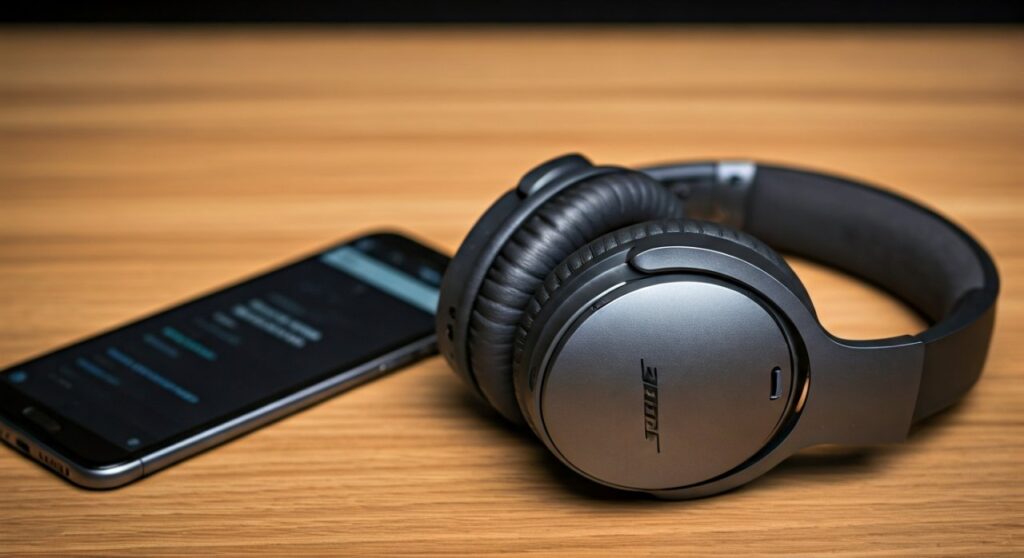
In this comprehensive guide, we will walk you through every step—from the initial unboxing to advanced EQ tuning—to ensure you get the most out of your premium audio investment.
Key Takeaways for New Users
If you are in a hurry, here are the essential steps to get your Bose QuietComfort Ultra headphones up and running:
- Initial Power: Press the button on the right earcup once. A voice prompt will announce the battery level.
- Pairing: Hold the power button until the light blinks blue. Use the Bose Music App for the most stable connection.
- Volume Control: Swipe up or down on the raised capacitive strip on the back of the right earcup.
- Mode Switching: Press and hold the Multi-function button to cycle between Quiet, Aware, and Immersion modes.
- Storage: Always fold the left earcup in first before placing them in the hardshell carrying case.
Initial Setup and Pairing Your Bose QC Ultra
When you first learn how to use my Bose QuietComfort Ultra headphones, the most critical step is the initial handshake between the device and your smartphone. Bose has optimized this process through the Bose Music App, which is available on both iOS and Android.
Powering On and Bluetooth Pairing
The Bose QC Ultra features a dedicated power button located on the bottom of the right earcup. To initiate pairing:
- Press and hold the Power/Bluetooth button for about 3 seconds.
- Wait for the status light to blink Blue.
- Open the Bluetooth settings on your device and select Bose QC Ultra.
Using the Bose Music App
While you can pair via standard Bluetooth menus, using the official app is highly recommended. The app unlocks firmware updates, CustomTune settings, and the Shortcuts feature.
Upon opening the app, it should automatically detect your headphones. Follow the on-screen prompts to register the device to your account, which simplifies switching between multiple devices later.
Mastering the Physical Controls and Touch Interface
Bose has moved away from purely physical buttons, opting for a hybrid approach on the QC Ultra series. Understanding where to place your fingers is key to a seamless experience.
The Capacitive Volume Strip
One of the most common questions regarding how to use Bose QC Ultra headphones involves the volume. Unlike the older QC45 or QC SE models, the Ultra uses a capacitive touch strip.
- Volume Up: Swipe upward along the raised line on the right earcup.
- Volume Down: Swipe downward along the same line.
- Pro Tip: Use a slow, steady motion. If you swipe too fast, the sensors may not register the full range of the volume change.
The Multi-function Button
Located just above the power button, the Multi-function button handles your playback and calls:
- Single Press: Play or Pause music; Answer or End a call.
- Double Press: Skip forward to the next track.
- Triple Press: Skip backward to the previous track.
- Long Press: Toggle through your customized listening modes (Quiet, Aware, and Immersion).
Summary of Controls Table
| Action | Control Location | Result |
|---|---|---|
| Power On/Off | Right Earcup (Button) | Short press for On, long press for Off |
| Volume Control | Right Earcup (Touch Strip) | Swipe Up/Down |
| Play/Pause | Right Earcup (Multi-function) | Single Press |
| Next Track | Right Earcup (Multi-function) | Double Press |
| Switch Modes | Right Earcup (Multi-function) | Press and Hold |
| Voice Assistant | Right Earcup (Shortcut) | Set via App (usually Long Press on Strip) |
Understanding Bose Immersive Audio and ANC Modes
The standout feature of the Bose QuietComfort Ultra is Immersive Audio, which makes music feel like it is coming from a pair of speakers in front of you rather than inside your head.
Quiet Mode
This is the world-class Active Noise Cancellation (ANC) Bose is famous for. It is best for flights, commuting, or deep focus work. It effectively eliminates low-frequency hums and significantly reduces mid-range chatter.
Aware Mode (with ActiveSense)
Aware mode allows you to hear your surroundings as if you weren’t wearing headphones. The ActiveSense technology is a smart feature that automatically applies noise cancellation only when a sudden loud noise (like a siren or construction) occurs, protecting your hearing while keeping you connected to the world.
Immersion Mode
This mode combines Max ANC with Bose Immersive Audio. In the Bose Music App, you can choose between:
- Still: Best for when you are sitting down. The soundstage remains fixed in front of you.
- Motion: Best for when you are walking. The soundstage moves with your head to prevent a disorienting sensation.
How to Put Bose QuietComfort Ultra Headphones in Case
Learning how to put Bose QuietComfort Ultra headphones in case is vital for preventing hinge damage. These headphones feature a “fold-and-pivot” design that is slightly different from the entry-level QC SC models.
- Rotate the Earcups: Turn both earcups so that the cushions are facing toward you (flat).
- Fold the Left Side: Pivot the left earcup up toward the headband. Note that only one side folds inward in a specific sequence.
- Align with the Mold: Place the folded headphones into the case. The headband should follow the curved top of the case, and the earcups should lay flat in the molded depressions.
- Cable Storage: Store your USB-C charging cable and 2.5mm to 3.5mm audio cable in the interior pocket to prevent them from scratching the earcups.
Comparing the Experience: Ultra vs. Bose QuietComfort SC
Many users ask how to use Bose QuietComfort SC headphones in comparison to the Ultra. While the basic pairing remains the same, there are distinct differences in the interface:
- Controls: The QC SC uses physical buttons for volume, whereas the Ultra uses the touch strip.
- Spatial Audio: The QC SC does not feature Immersive Audio or CustomTune.
- Case Design: The QC SC usually comes with a “Soft Case” (hence the SC designation), whereas the Ultra includes a premium hardshell case.
- Charging: Both use USB-C, but the Ultra supports slightly faster quick-charging (15 minutes of charging for 2.5 hours of playback).
Advanced Features: CustomTune and Multipoint
To truly maximize your experience, you should dive into the software-driven features that set these headphones apart from the competition.
CustomTune Technology
Every time you put the QC Ultra on and power them up, you will hear a “whoosh” sound. This is the CustomTune system. It sends out a chime to map the unique shape of your ear canal. The microphones then measure the reflection of that sound to instantly calibrate the noise cancellation and frequency response specifically for you.
Multipoint Connection
The Bose QC Ultra can connect to two devices simultaneously (e.g., your laptop and your smartphone).
- Setup: Connect to the first device, then use the Bose Music App to “Connect New” for the second device.
- Behavior: If you are watching a movie on your tablet and your phone rings, the audio will automatically switch to the phone.
Maintenance and Battery Management
To ensure your Bose QC Ultra lasts for years, follow these expert maintenance tips:
- Cleaning: Use a soft, dry cloth to wipe the earcups. Avoid getting moisture in the microphone ports or the mesh of the drivers.
- Battery Health: Try to keep the battery between 20% and 80% for long-term health. The QC Ultra provides 24 hours of battery life (18 hours with Immersive Audio enabled).
- Earpad Replacement: Like all premium headphones, the protein leather earpads will eventually wear down. These are user-replaceable and snap off with a firm pull, allowing you to click in new ones to restore the “out-of-the-box” seal.
Frequently Asked Questions (FAQs)
How do I reset my Bose QC Ultra headphones?
To reset, connect the headphones to a power source via USB-C. Press and hold the Power/Bluetooth button for 30 seconds until the status light blinks. This clears the pairing list and restores factory defaults without deleting firmware updates.
Why is the touch strip on my Bose Ultra not responding?
The capacitive strip requires skin contact. If you are wearing thick gloves, it will not work. Additionally, ensure there is no moisture or oil buildup on the strip. You can also recalibrate the sensors by restarting the headphones via the Bose Music App.
Can I use Bose QC Ultra for gaming?
Yes, but with a caveat. While they support Snapdragon Sound for low-latency audio on compatible Android devices, for competitive gaming on PC or console, it is best to use the included 2.5mm to 3.5mm audio cable to eliminate Bluetooth lag entirely.
How do I check the battery level without the app?
Every time you power the headphones on, a voice prompt will announce the battery percentage. Alternatively, you can look at the LED indicator on the right earcup: Green indicates a high charge, Amber indicates medium, and Red indicates a low battery.
Does the Bose QC Ultra support “Find My” features?
Bose does not have a native GPS tracker, but the Bose Music App has a “Find My Headphones” feature that shows the last location they were connected to your phone. It can also trigger a high-pitched sound to help you locate them if they are nearby.









