

To answer the question directly: Headphones are output devices, as they receive electrical signals from a computer and convert them into sound waves for your ears. Conversely, microphones are input devices, designed to capture sound waves and convert them into digital data to be processed by a computer or recording device.
Understanding the Difference: Is Output Mic or Headphones?
When setting up a home office or gaming station, understanding the flow of audio data is critical. Many users struggle with the terminology of audio signals, often leading to hardware being plugged into the wrong ports. In my experience as an audio engineer, I have seen countless users face “silent” headsets simply because they confused the input (mic) and output (headphones) channels.
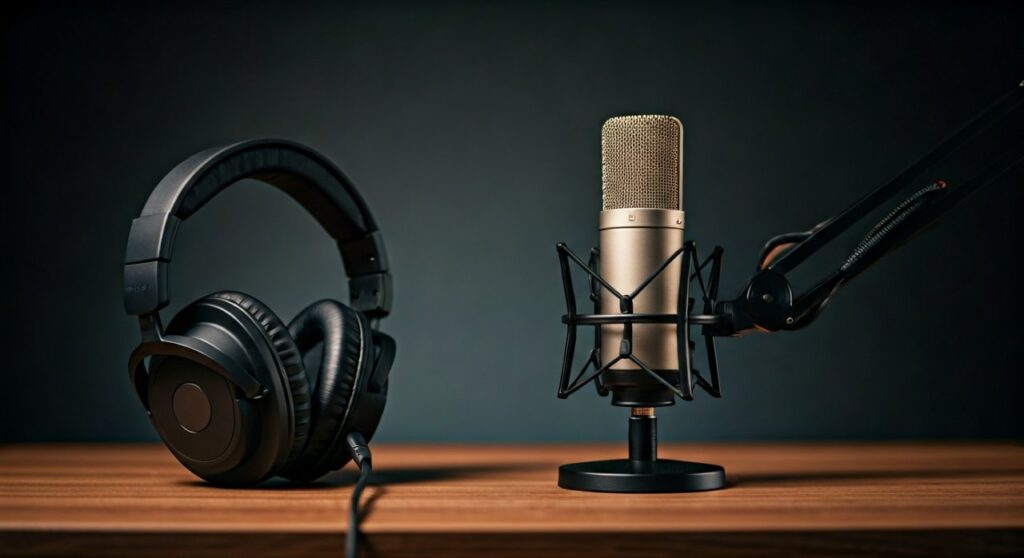
An output device like a pair of headphones or speakers takes information from the computer and sends it to the user. An input device like a microphone takes information from the user and sends it to the computer. While some modern hardware, like a headset with a built-in mic, performs both functions, the individual components still follow these strict directional rules.
Key Takeaways: Input vs. Output Quick Guide
| Feature | Headphones | Microphone |
|---|---|---|
| Category | Output Device | Input Device |
| Primary Function | Plays audio for the listener | Records or transmits voice/sound |
| Data Flow | Computer → Device → Ear | Voice → Device → Computer |
| Typical Connector | 3.5mm Green Jack / USB / Bluetooth | 3.5mm Pink Jack / USB / XLR |
| Key Component | Drivers (Speakers) | Diaphragm / Capsule |
| Common Use Case | Listening to music, gaming audio | Zoom calls, podcasting, gaming chat |
How to Identify Audio Output and Input Ports
Most modern computers and laptops use color-coding or icons to help you distinguish between ports. If you are using a desktop PC, look at the back of the motherboard or the front panel of the case.
- The Green Port: This is the standard Line Out or Headphone Out port. It is strictly for output devices like headphones or external speakers.
- The Pink Port: This is the Mic In port. It is strictly for input devices like a standalone microphone.
- The Blue Port: This is Line In, used for recording from external audio sources like instruments or mixers.
- The Combo Jack: Common on laptops and smartphones, this single port (often marked with a headset icon) handles both input and output using a specialized TRRS (Tip-Ring-Ring-Sleeve) connector.
Technical Breakdown: Why Headphones Are Output
Headphones contain small speakers called drivers. When your computer plays a sound file, it sends a stream of digital data to a Digital-to-Analog Converter (DAC). This converter turns the digital “0s and 1s” into an electrical current.
This electrical signal travels through the wire to the voice coil inside your headphones. The coil interacts with a permanent magnet, causing a diaphragm to vibrate. These vibrations push against the air, creating the sound waves that you hear. Because the signal is “exiting” the computer to reach you, the device is classified as output.
Technical Breakdown: Why Microphones Are Input
A microphone works as a transducer in the opposite way. When you speak, the sound waves from your voice hit a thin diaphragm inside the microphone capsule. This movement is converted into an electrical signal (via electromagnetism or capacitance).
The computer receives this signal and uses an Analog-to-Digital Converter (ADC) to translate those electrical fluctuations into data that can be saved as an MP3 or sent over a Discord call. Since the data is “entering” the computer system, the microphone is categorized as an input device.
Step-by-Step: How to Configure Audio Output and Input on Windows
If your audio isn’t working, it is likely that your computer has selected the wrong playback (output) or recording (input) device. Follow these steps to fix it:
- Right-click the speaker icon in your Taskbar (bottom right corner).
- Select “Sound settings”.
- Under the “Output” section, click the dropdown menu to select your Headphones or Speakers.
- Scroll down to the “Input” section. Use the dropdown menu to select your Microphone.
- Speak into your mic; you should see the “Test your microphone” bar move if it is working correctly.
- Adjust the Volume slider for output and the Input volume for the mic to ensure levels are balanced.
Step-by-Step: How to Configure Audio on macOS
Apple handles audio devices slightly differently, but the logic of Input vs. Output remains the same.
- Click the Apple Menu and select “System Settings” (or System Preferences).
- Navigate to the “Sound” sidebar.
- Click the “Output” tab. Select your desired headphones from the list.
- Click the “Input” tab. Select your microphone.
- Ensure the “Input volume” slider is high enough to pick up your voice.
- Check the “Mute” box is unchecked for both settings.
The Hybrid Case: Headsets and Earbuds
A common source of confusion is the gaming headset or mobile earbuds. These are technically composite devices.
- Internal Routing: Inside the cable (or the wireless signal), there are separate “lanes” for data. One lane carries the output signal to the speakers, and another lane carries the input signal from the microphone.
- Connectors: If your headset has two 3.5mm plugs (one green, one pink), you must plug them into the corresponding input and output ports. If it has one plug, ensure your device supports TRRS combo jacks.
- USB/Wireless: These devices use their own internal sound cards. When you plug in a USB headset, your computer sees it as both a new output destination and a new input source.
Professional Insight: Troubleshooting Common Audio Issues
In my years of testing audio gear like Sennheiser, Blue Yeti, and Sony WH-1000XM5, I’ve found that most “is it output or mic” issues stem from three areas:
The Wrong Jack Type
If you plug a TRRS (4-pole) headset into an old desktop TRS (3-pole) output jack, the microphone will not work. You will need a Y-Splitter cable to separate the single plug into two dedicated input/output plugs.
Driver Conflicts
Sometimes Windows updates will replace your high-quality Realtek or ASIO drivers with “Generic USB Audio.” This can cause the system to fail to recognize which device is the microphone (input) and which is the headphones (output). Always download the latest drivers from the manufacturer’s website.
Privacy Settings
On modern OS versions (Windows 11 and macOS Sonoma), there are privacy toggles that can block all input devices. Even if your mic is plugged into the correct “input” port, it won’t work if “Microphone Access” is turned off in the security settings.
Comparing Audio Connector Types
Understanding the physical connector helps you determine if you are dealing with input, output, or both.
| Connector Name | Signal Type | Best For |
|---|---|---|
| TRS (2 Rings) | Output Only (Stereo) | Standard Headphones, Studio Monitors |
| TRRS (3 Rings) | Input & Output | Mobile Earbuds, Modern Gaming Headsets |
| XLR | Input Only | Professional Studio Microphones |
| USB-A / USB-C | Bidirectional | Digital Headsets, USB Mics, Interfaces |
| Optical (Toslink) | Output Only | Home Theater Systems, High-End Amps |
Frequently Asked Questions (FAQs)
Can I use my headphones as a microphone?
Technically, yes. Because headphones and microphones both use a diaphragm and coil, you can plug headphones into a microphone input jack and speak into the earcups. The sound quality will be very poor, but it demonstrates the physics of transducers. However, you cannot use a microphone as a high-quality speaker because it isn’t designed to handle high-wattage power.
Why does my computer say my microphone is an output device?
This usually happens with Bluetooth devices or USB Audio Interfaces. The computer might see the “Interface” as the output, but the actual microphone is an input attached to it. Ensure you have selected the correct device in your “Sound Settings” for both Input and Output categories.
Is a headset considered input or output?
A headset is both. It is a combination device containing an output component (headphones) and an input component (microphone). In your computer settings, you will see it listed in both the “Playback” (Output) and “Recording” (Input) lists.
What happens if I plug my mic into the headphone jack?
Usually, nothing will happen. The headphone jack is designed to send power out, while a microphone is designed to send a signal in. You won’t damage the hardware in most cases, but the microphone will not record any sound because the port is not “listening” for a signal.
Do I need an output device for my microphone to work?
No. A microphone (input) can function and record audio even if no headphones or speakers (output) are connected. However, you won’t be able to hear what you’ve recorded without an output device.









