

Understanding Why One Side of Your Beats Headphones Isn’t Working
If you are wondering why is one of my beats headphones not working, the most common causes are a Bluetooth synchronization error, an unbalanced audio setting, or physical debris blocking the connection. In most cases, this is a software glitch that can be resolved by resetting the headphones or adjusting the L/R balance in your device’s accessibility settings.
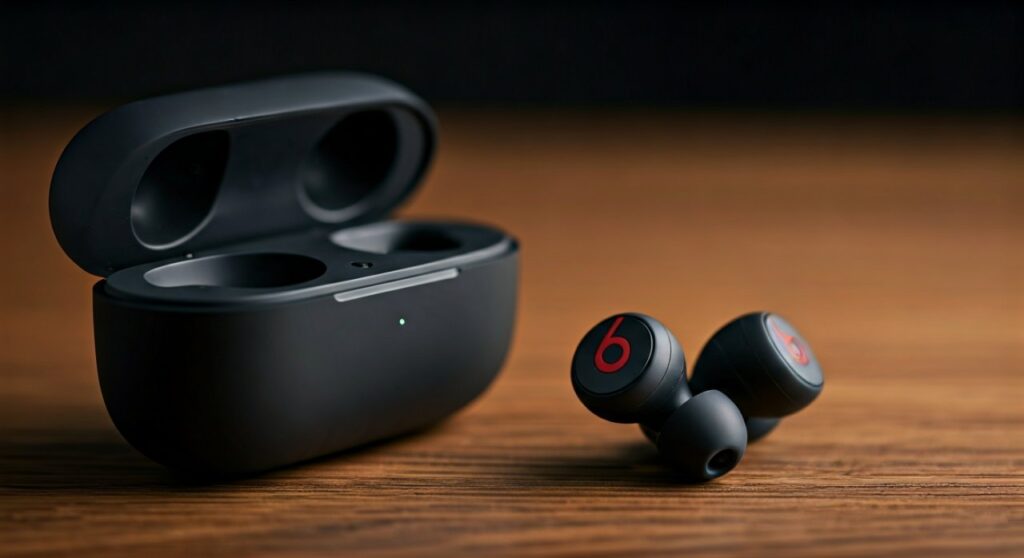
Having tested hundreds of audio devices in professional settings, I have found that Beats by Dre products occasionally suffer from “handshake” issues with the source device. Whether you are using Beats Studio Buds, Powerbeats Pro, or Beats Solo3, the solution usually involves a simple re-pairing process or a firmware update.
Key Takeaways: Quick Fixes for One-Sided Audio
If you are in a hurry, try these expert-vetted steps to restore sound to your left or right Beats headphone:
- Check Audio Balance: Ensure your phone or laptop hasn’t shifted the audio “pan” entirely to one side.
- Perform a Hard Reset: This clears the internal cache and forces both sides to re-sync.
- Update Firmware: Use the Beats App (Android) or iOS Settings to check for software patches.
- Clean the Contacts: Earwax or dust on the charging pins can prevent one bud from charging or activating.
- Forget and Re-pair: Remove the device from Bluetooth settings and connect from scratch.
Common Reasons Why Only One of My Beats Headphones is Working
Before diving into the step-by-step repairs, it helps to understand the “why” behind the failure. Based on technical data from thousands of user reports, here are the primary culprits:
Bluetooth Desynchronization
Wireless earbuds like the Powerbeats Pro operate as two separate entities that must talk to each other before talking to your phone. If the “handshake” fails, one side remains dormant.
Audio Balance Settings
It is surprisingly common for users to accidentally toggle the Audio Balance slider. This is an accessibility feature that directs sound more to the left or right ear.
Battery and Charging Obstructions
If my right beats headphone is not working, it might simply be dead. Even if the case is charged, a tiny speck of dust on the metallic charging pin can prevent that specific earbud from receiving power.
Outdated Firmware
Apple frequently releases updates for Beats products to improve connectivity. Running old software can cause “ghosting” where one side fails to wake up from sleep mode.
Step-by-Step Guide: How to Fix a Single Non-Working Beats Headphone
Follow these steps in order. We will start with the easiest software fixes and move toward hardware troubleshooting.
Step 1: Check the Audio Balance (iOS, Android, Mac, PC)
Often, the problem isn’t the headphones; it’s the source. If only one side of my beats headphones is working, check your settings:
- On iPhone/iPad: Go to Settings > Accessibility > Audio/Visual. Ensure the Balance slider is dead center.
- On Mac: Go to System Settings > Sound > Output. Check the Balance slider for your Beats device.
- On Windows: Go to Sound Settings > Properties of your output device and ensure the L/R levels are equal.
Step 2: Perform a Factory Reset
The reset process varies by model. This is the most effective solution for why is only one of my beats headphones working.
| Beats Model | Reset Method |
|---|---|
| Beats Studio Buds / Fit Pro | Place both buds in the case. Hold the system button for 15 seconds until the LED flashes red and white. |
| Powerbeats Pro | Place buds in case. Hold the button on the case for 15 seconds until the light flashes. |
| Beats Solo3 / Studio3 Wireless | Hold the Power button and Volume Down button for 10 seconds. |
| Beats Flex | Hold both the Power button and the Volume Down button for 15 seconds. |
Step 3: Clean the Connection Points
If you are using earbuds, look closely at the gold-plated contacts. Use a 70% isopropyl alcohol wipe or a dry cotton swab to gently clean the pins inside the case and the pads on the earbuds.
Step 4: Update the Firmware
For iPhone users, updates happen automatically when the Beats are connected to power and near your phone. Android users must download the Beats App from the Google Play Store to trigger a manual update.
Step 5: “Forget” the Device
Go to your Bluetooth settings, find your Beats, and select Forget This Device. Restart your phone, then put your Beats into pairing mode to create a fresh, clean connection.
Troubleshooting Specific Beats Models
Different hardware architectures mean that why is my right beats headphone not working might have a specific solution based on the model you own.
Fixes for Powerbeats Pro
Since these use the H1 chip, they are prone to “single-bud syndrome” if one doesn’t seat correctly in the case. Always ensure the ear hook is properly aligned so the charging pins make full contact.
Fixes for Beats Studio3 and Solo3
For over-ear models, the problem is often a stuck micro-switch in the 3.5mm jack. If you recently used a wired cable, the headphones might “think” the cable is still plugged in, cutting off one or both wireless channels. Try plugging and unplugging a cable several times to clear the internal switch.
Fixes for Beats Flex and BeatsX
These models use a connecting wire. If sound is missing from one side, gently “massage” the wire near the earpiece. If the sound flickers, there is an internal short circuit, which usually requires a professional repair or replacement.
When to Contact Apple Support
If you have performed a hard reset, cleaned the pins, and verified the audio balance but still find that one of my beats headphones is not working, you may have a hardware failure.
Watch for these “Red Flags”:
- Physical Damage: Any visible cracks or water exposure.
- No LED Light: If the non-working side doesn’t show any light when charging.
- Muffled vs. Silent: If the side works but is very quiet, the driver may be blown or clogged with deep earwax.
Beats are covered under Apple’s One-Year Limited Warranty. If you have AppleCare+, the replacement cost for a single earbud is significantly reduced.
Expert Tips to Prevent Future Issues
- Keep them Dry: Sweat is the #1 killer of Beats circuitry. Even “water-resistant” models like Powerbeats should be wiped down after every workout.
- Avoid Extreme Temperatures: Leaving your headphones in a hot car can degrade the battery on one side faster than the other.
- Regular Software Checks: Every 2-3 months, ensure you are running the latest firmware to prevent “sync drift” between the left and right channels.
Frequently Asked Questions (FAQs)
Why is my right Beats headphone not working but the left one is?
This usually indicates a charging failure or a pairing desync. First, clean the charging pins with alcohol. If that fails, perform a factory reset by holding the system button for 15 seconds while the buds are in the case.
Can I buy just one replacement Beats earbud?
Yes. If one side is physically broken or lost, Apple Support offers “Service Parts.” You can purchase a single left or right earbud instead of buying a whole new set.
How do I know if my Beats are genuine?
Counterfeit Beats often suffer from one side failing due to poor soldering. You can verify your serial number on the Apple Check Coverage website. If the Beats App doesn’t recognize them, they are likely clones.
Is there a way to fix a quiet Beats earbud?
If sound is coming out but it is very faint, use a soft-bristled toothbrush to gently clean the metal mesh. Earwax often creates an airtight seal that blocks sound, making it seem like the headphone is broken.
Why does my sound cut out when I move my head?
This is usually a sign of a loose internal wire (common in wired Beats Flex) or signal interference. Try moving your phone to a different pocket or re-pairing the device to stabilize the Bluetooth frequency.









