

How to Connect Turtle Beach Headphones to PS4: A Quick Start Guide
To connect Turtle Beach headphones to a PS4, you either plug the 3.5mm cable directly into the DualShock 4 controller for wired models or insert the USB wireless transmitter into the console’s port for wireless models. Once connected, navigate to Settings > Devices > Audio Devices and ensure your headset is selected as both the Input and Output device.
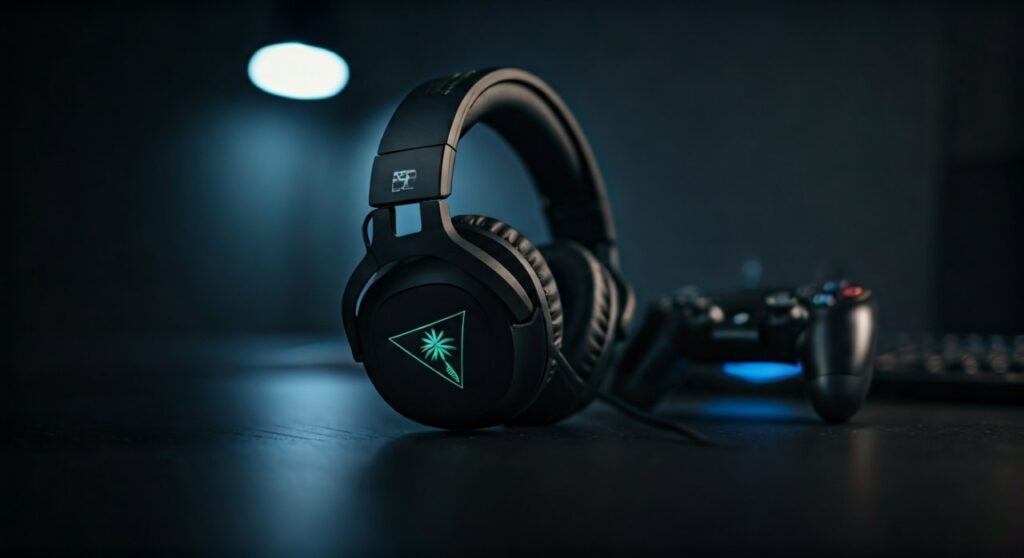
Setting up your audio shouldn’t feel like a boss fight. Whether you are rocking the budget-friendly Recon 70 or the premium Stealth 700 Gen 2, getting that crisp, directional audio is essential for competitive gaming. This guide covers every connection method, from the classic “plug-and-play” to the more complex optical cable setups for older models.
Key Takeaways: Connecting Your Turtle Beach Headset
If you are in a hurry to get back to the lobby, here is the “too long; didn’t read” summary for the most common Turtle Beach setups:
- Wired Models (Recon, Atlas): Plug the 3.5mm jack into the bottom of the PS4 controller. Go to Settings > Devices > Audio Devices and set Output to Headphones to “All Audio.”
- Wireless Models (Stealth Series): Plug the USB dongle into the PS4. Pair the headset by holding the power button. Update settings in the PS4 menu.
- Older Wireless Models (Stealth 400/500P): These require both a USB transmitter and a Digital Optical Cable connected to the back of the PS4 (Note: PS4 Slim users will need an additional HDMI adapter).
- Pro Tip: Always download the Turtle Beach Audio Hub on your PC or Mac to update firmware before your first use.
Step-by-Step: Connecting Wired Turtle Beach Headphones to PS4
Wired Turtle Beach headsets are the most straightforward to set up. They rely on the controller’s power, meaning you don’t have to worry about charging batteries in the middle of a session.
Physical Connection
Locate the 3.5mm audio jack on your Turtle Beach headset. Plug it firmly into the port located at the bottom of your PS4 DualShock 4 controller, right between the thumbsticks.
Configure PS4 Audio Settings
Once plugged in, the PS4 usually recognizes the device, but you must confirm the audio routing. Follow these steps:
- Navigate to the PS4 home screen and go to Settings.
- Select Devices and then Audio Devices.
- Set Input Device to Headset Connected to Controller.
- Set Output Device to Headset Connected to Controller.
Enable Full Game Audio
By default, the PS4 might only send chat audio to your headset. To hear the game world, select Output to Headphones and choose All Audio. You can also adjust the Volume Control (Headphones) slider here to your preferred level.
Step-by-Step: Connecting Wireless Turtle Beach Headphones to PS4
Wireless models like the Stealth 600 or Stealth 700 offer freedom of movement but require a few extra steps for the initial handshake between the console and the headset.
Prepare the USB Transmitter
Insert the Turtle Beach USB transmitter into an available USB port on the front of your PS4. The LED on the transmitter will begin to blink slowly, searching for the headset.
Pairing the Headset
Hold the Power Button on your Turtle Beach headset until the LED begins to flash rapidly. On most models, the LED on both the headset and the USB dongle will turn solid when the pairing is successful.
Digital Settings Adjustment
Go to Settings > Devices > Audio Devices. Ensure the Input and Output are set to your specific Turtle Beach model. If you are using a model with a Flip-to-Mute mic, test the microphone level in this menu to ensure your teammates can hear you clearly.
Connecting Older Turtle Beach Models (Optical Cable Method)
If you own an older premium headset like the Stealth 500P or Elite 800, you might notice an extra cable: the Digital Optical Cable. This setup provides superior Dolby Digital Surround Sound.
Connection for PS4 Original and PS4 Pro
- Plug the USB Transmitter into the front USB port.
- Plug the Digital Optical Cable into the Digital Out (Optical) port on the back of the PS4 and the other end into the transmitter.
- Go to Settings > Sound and Screen > Audio Output Settings.
- Set Primary Output Port to Digital Out (Optical).
- Set Audio Format (Priority) to Bitstream (Dolby).
The PS4 Slim Limitation
The PS4 Slim does not have an optical port. If you have an older Turtle Beach headset that requires one, you will need an HDMI Audio Extractor. This device sits between your PS4 and TV, “extracting” the optical signal for your headset transmitter.
Comparison: Connection Methods at a Glance
| Feature | Wired (3.5mm) | Wireless (USB) | Wireless (Optical) |
|---|---|---|---|
| Ease of Setup | Extremely Easy | Moderate | Advanced |
| Audio Quality | High (Stereo) | High (Digital) | Superior (Surround) |
| Battery Needed | No | Yes | Yes |
| Best Model Example | Recon 50P | Stealth 600 Gen 2 | Elite 800 |
| Compatibility | All PS4 Models | All PS4 Models | PS4 Pro/Original Only |
How to Connect Turtle Beach Headphones to Xbox
Many gamers wonder how to connect Turtle Beach headphones to Xbox using the same gear. While many wired Turtle Beach headsets use the universal 3.5mm jack and work on both, wireless models are usually platform-specific.
- Wired: Simply plug the 3.5mm jack into the Xbox Wireless Controller.
- Wireless: You generally cannot use a “Designed for PlayStation” wireless headset on an Xbox because Xbox uses a proprietary wireless protocol.
- Xbox Wireless Models: If you have an Xbox-specific model, you pair it by pressing the Sync Button on the console and the Enroll Button on the headset, similar to pairing a new controller.
Expert Troubleshooting for Turtle Beach on PS4
During my years of testing gaming peripherals, I’ve found that 90% of Turtle Beach issues on PS4 stem from firmware or simple menu toggles.
No Sound from the Mic
Check if the Master Volume on the ear cup is turned up. Many users accidentally leave the Mic Monitor or Chat Mix dial at zero. If it’s a flip-to-mute mic, ensure it is fully extended down.
Audio is Cutting Out
Wireless interference is real. Ensure your PS4 is not sitting directly behind a large metal object or next to a high-powered Wi-Fi router. If the issue persists, use the Turtle Beach Audio Hub to “Restore” the headset to factory settings.
Firmware Updates are Mandatory
If your PS4 recently had a system update and your headset stopped working, it’s likely a compatibility glitch. Plug your headset and transmitter into a PC and run the Turtle Beach Audio Hub. These updates often fix “handshake” issues between the headset and the Sony hardware.
Maximizing Your Audio Experience
To get the most out of your Turtle Beach gear, consider these expert tips:
- Adjust Mic Level: Go to Settings > Devices > Audio Devices > Adjust Microphone Level. Don’t let your mic hit the “Red” zone, or you will sound distorted to your friends.
- Clean the Jack: For wired users, a tiny bit of dust in the controller’s 3.5mm port can cause “crackling” sounds. Use compressed air to keep it clean.
- Sidetone (Mic Monitoring): Most Turtle Beach headsets allow you to hear your own voice. This prevents you from shouting at night. Adjust this in the Audio Hub app.
Frequently Asked Questions
Can I use Bluetooth Turtle Beach headphones with PS4?
The PS4 does not support most third-party Bluetooth headphones directly. You must use the USB transmitter provided with your Turtle Beach headset. Even if your headset has Bluetooth (like the Stealth 700), that Bluetooth is meant for connecting to your phone, not the console.
Why is my PS4 not recognizing the USB transmitter?
Try switching to a different USB port. If the LED on the transmitter doesn’t light up at all, it may be faulty. Ensure the transmitter is pushed all the way in; some thick PS4 faceplates can prevent a flush connection.
Do I need an adapter for the PS4 controller?
If you have an original 2013-era DualShock 4, you don’t need an adapter. However, if you are using an extremely old Turtle Beach model designed for the PS3, you might need a “Talkback Cable” or a specific adapter for chat functionality.
Why can’t I hear game audio, only chat?
This is the most common setting error. Go to Settings > Devices > Audio Devices > Output to Headphones and change the setting from Chat Audio to All Audio.









